
Best Computer Monitors for Accountants: Reviews and Buying Guide for 2026
Disclosure: We may earn a commission when you buy through links on this page, at no extra cost to you. As an Amazon Associate I earn from qualifying purchases. Learn more

Sharp text, comfortable ergonomics and enough room for several windows: how to choose the best computer monitors for accountants.
Long days with ledgers, tax forms, and bank statements punish a dim or cramped screen. Choosing the best computer monitors for accountants means finding sharp text, steady comfort, and enough room for several windows at once. The product table above gathers the key sizes, resolutions, and ports in one place so you can narrow your shortlist quickly.
This guide explains what actually matters for accounting work, from panel type and screen size to stand adjustment and cable choices. You will also find guidance for small desks, shared offices, and hybrid schedules, plus care tips and answers to common questions.



Who Should Buy Which Monitor for Accounting Work
Accountants do not all work the same way. Your client load, desk space, and daily mix of spreadsheets, PDFs, and accounting software should decide the screen you pick.
Accountants Who Live in Spreadsheets All Day
If most of your day goes to large workbooks, you need width more than anything else. A 27 inch screen or a wide format lets you keep more columns visible without constant scrolling, and formulas stay readable at a normal zoom level. Look for strong text clarity and a matte finish that cuts reflections from office lights.
Bookkeepers Who Compare Documents Side by Side
Bookkeepers often match an invoice or statement on one side with an entry screen on the other. A single wide monitor or a pair of matched monitors both work, but the single wide screen avoids a bezel gap in the middle of a table. Either way, consistent color and brightness across the viewing area keep figures from looking washed out at the edges.
Accountants Who Split Time Between Home and Client Offices
If you move between locations, a lighter second screen can travel with your laptop and recreate your desk setup anywhere. For that kind of routine, see our guide to the best portable computer monitors for options built to pack and unfold quickly. At your main desk, keep a larger primary monitor so detailed review work still gets full space.
Key Features to Compare When Choosing a Monitor for Accounting Work
The product table above is a useful starting point, and the factors below explain how to read it for accounting tasks. Shoppers comparing the best computer monitors for accountants often start there, then check each factor against their own workload. If you want a narrower view first, see our guide to the best monitors for accountants.
Features That Matter Most for Accountants
Text sharpness comes first, because you read digits and fine print all day. A higher pixel density makes numbers look crisp instead of fuzzy, which reduces the need to lean in or enlarge every document. Contrast matters too, since ledger lines and shaded cells must stay distinct during long review sessions.
Comfort features deserve equal weight, so treat fancy extras as secondary until sharp text, a matte surface, and steady brightness are covered.
Panel Technology and Viewing Angles
IPS panels are the common choice for office work because colors and brightness stay consistent when you view the screen from a slight angle. That helps when a coworker stands beside you to review a figure. VA panels offer deeper contrast, so dark text and grid lines can look bold, though color can shift a bit more at wide angles. OLED panels give striking contrast, but static spreadsheets shown for hours raise image retention risk over time.
Resolution and Screen Size
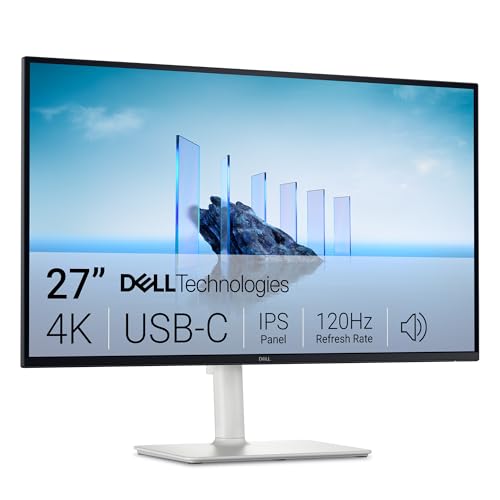
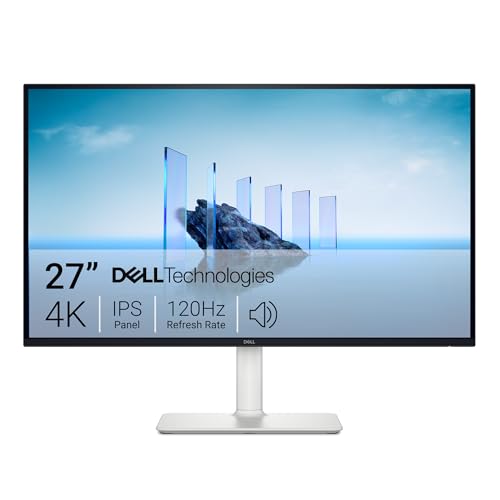
Resolution and size work as a pair. A 24 inch screen at 1080p looks fine for single documents, but text gets noticeably sharper when you move to 1440p at 27 inches. That combination is the sweet spot for many accountants because it adds workspace without making menus tiny. A 4K screen makes fine print exceptionally crisp, though you will likely raise scaling so text stays comfortable.
Stand, Mounting, and Ergonomics
A stand with height, tilt, and swivel adjustment lets you place the top of the screen near eye level and angle it to avoid glare. Pivot adjustment, which rotates the screen to a tall orientation, can help when you read long statements or contracts. If the included stand is limited, check for a standard VESA mount pattern so you can add an arm later.
Connectivity and Ports
HDMI and DisplayPort handle video from most desktops and laptops, while USB C can carry video, data, and laptop charging over a single cable on supported models. That single cable setup keeps a small desk tidy and makes docking simple. Check that the port versions match your computer so you get the full resolution your screen offers.
Built in USB ports add value for a keyboard, mouse, or webcam. An HDMI 2.1 port is a bonus for consoles rather than a requirement for accounting.
Refresh Rate, Response Time, HDR, and Adaptive Sync
Refresh rate describes how often the image updates each second, and 60Hz is enough for spreadsheets and documents. Higher rates make scrolling and cursor movement look smoother, which some users find easier on the eyes during long sessions. Response time affects how cleanly moving content renders, but static numbers do not stress it.
HDR can improve contrast in photos and video, yet it changes little for ledger work. Adaptive sync mainly prevents tearing in games, so it should not outrank sharp text and comfort.
Types of Computer Monitors to Consider
Most options fall into a few broad groups. Knowing the group that fits your desk and budget keeps you from paying for strengths you will never use.
Large Screen Options
Large screen options, meaning 32 inch models and wide format screens, shine when you compare two full documents or keep email, chat, and a workbook open together. They reduce window switching and can replace a dual monitor setup. Measure your desk depth first, because a big screen placed too close forces constant head turning.
Appearance can matter in a client facing office, and a slim large screen looks tidy on a clean desk. If style ranks high for you, see our guide to the best looking computer monitors for designs that suit a polished workspace.
Budget Displays
Budget displays usually mean 24 inch 1080p or well priced 27 inch 1440p models with basic stands. They handle everyday bookkeeping and data entry well, and many small firms buy several at once for that reason. Expect fewer USB ports, simpler stands, and no charging over USB C at the lowest prices.
Gaming Displays
Gaming displays bring high refresh rates, fast response, and adaptive sync, all tuned for motion rather than text. Some accountants who play games after hours enjoy that overlap, and the smooth scrolling is a genuine comfort bonus. If that dual use appeals to you, see our guide to the best computer monitors for gaming for models built around speed.
Compare carefully before paying a gaming premium, since glossy finishes and curved shapes can hurt document work. You can also see our guide to the best gaming monitors to judge whether those strengths fit your desk at all.
How to Match a Monitor to Your Desk and Laptop
Start by measuring the desk surface and the distance from your chair to where the screen will sit, usually about an arm length away. Note the width between desk legs or shelves as well, because wide stands need clearance. Write the numbers down before you shop so a tempting larger model does not crowd out your keyboard and files.
Next, check what your laptop or desktop can output, because an older machine may cap resolution no matter how capable the monitor is. Confirm the cables in the box match your ports, or budget for the right cable from the start.
Common Mistakes to Avoid
These errors are easy to make and easy to prevent once you know them.
- Buying a screen that is too large for a shallow desk, so you sit too close and strain your neck scanning across it.
- Choosing a glossy screen for a bright office, so window light washes out figures and forces you to raise brightness all day.
- Ignoring stand adjustment, so the screen sits too low and you hunch over your work for hours.
- Paying extra for gaming speed you will never use, while skipping the resolution your spreadsheets actually need.
- Forgetting to check laptop ports, so your new monitor needs an adapter or dock you did not plan to buy.
- Setting brightness to maximum by default, so white spreadsheet backgrounds glare and tire your eyes by midday.
How to Make Your Computer Monitor Last Longer
Good habits protect the panel and keep text looking sharp for years. Set the picture mode to a natural option rather than a vivid store mode, and lower brightness to a level that matches your room instead of leaving it at maximum. For OLED screens, run the built in pixel refresh cycle when the monitor prompts you, and avoid leaving one static image on screen for many hours.
Clean the screen only with a dry or slightly damp microfiber cloth, and never spray cleaner directly onto the panel. Keep vents clear of dust and paper stacks so heat can escape, and use cables that click or lock in firmly to avoid loose connections. Turn the screen off or use a sleep timer overnight to save panel hours.
Frequently Asked Questions About Monitors for Accountants
What features matter most in a computer monitor for accountants?
Sharp text, a matte finish, and an adjustable stand matter most in a computer monitor for accountants. Add one practical extra many buyers overlook, which is a USB hub that keeps your keyboard receiver and webcam plugged into the screen instead of your laptop. That way a single cable connects your whole desk when you sit down each morning.
What size computer monitor for accountants fits a small desk?
A 24 inch or 27 inch computer monitor for accountants fits most small desks well. On a shallow desk, a compact stand or a monitor arm matters as much as screen size, because reclaiming a few inches of depth improves your viewing distance. Measure the stand footprint, not just the panel, before you order.
Does refresh rate matter on a computer monitor for accountants who do not play games?
Refresh rate matters only modestly on a computer monitor for accountants who do not play games. A move from 60Hz to 75Hz or 100Hz can make long spreadsheet scrolling feel calmer, which some readers notice during end of month reviews. Spend on resolution first, then treat a modest refresh bump as a comfort extra if the price gap is small.
Is a 4K computer monitor for accountants worth the extra cost?
A 4K computer monitor for accountants is worth the cost if you read fine print and dense statements for most of the day. The extra sharpness is most obvious in small fonts and scanned documents, where letter edges stay clean at close zoom. If your work is mostly large spreadsheets at normal zoom, 1440p delivers most of the benefit for less money.
Should accountants choose an IPS or OLED computer monitor?
Most accountants should choose an IPS computer monitor for steady office use. IPS screens handle static documents all day without image retention worries, and many cost less at office sizes. Consider OLED only if your desk doubles for photo or video work in the evening and you are comfortable running its care cycles on schedule.
Final Thoughts
Start with the basics that shape every workday, which are sharp text, a screen size that fits your desk, and a stand that supports good posture. Use the product table above to compare resolution, panel type, and ports side by side, then pick the balance that matches your workload and budget. For most readers, the best computer monitors for accountants will be a clear 27 inch 1440p IPS model with USB C and full stand adjustment.
Set up your new screen carefully, dial in brightness and scaling on day one, and give your eyes a week to settle before judging the change. A well chosen monitor quietly removes friction from every task, from quick data entry to the longest year end close.


