
Best Computer Monitors for Graphics 2026: Everything to Know Before Your First Purchase
Disclosure: We may earn a commission when you buy through links on this page, at no extra cost to you. As an Amazon Associate I earn from qualifying purchases. Learn more

Color gamut, accuracy, panels and ports explained simply for the best computer monitors for graphics, design and photo work.
Buying your first monitor for design, photo editing, or illustration can feel confusing, because the specification lists are full of terms that rarely matter for office work. This guide starts with the basics, explains each term in plain English, and shows you which numbers actually matter when color is the whole point of the screen. By the end, you will know how to pick the best computer monitors for graphics for your desk and your budget.
You do not need to learn everything at once. Work through the sections in order, note the two or three specs that match your projects, and then compare your shortlist against the product table above.



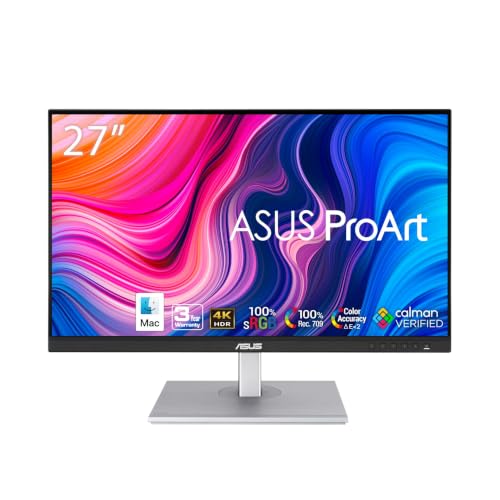

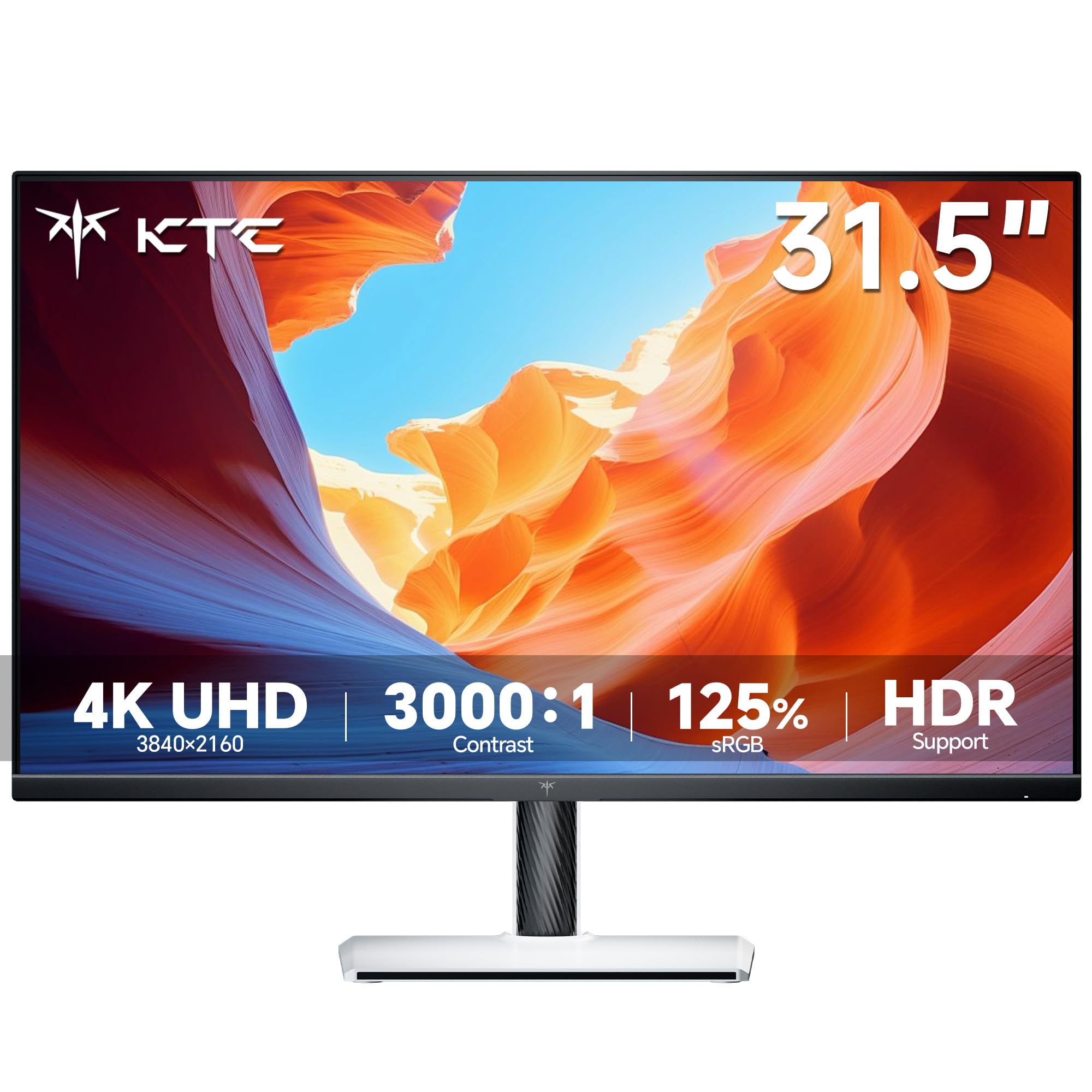
Computer Monitors 101: The Basics
A computer monitor is the screen that shows what your computer sends it, and it does no computing of its own. Your laptop or desktop creates the image, and the monitor simply displays it through a cable such as HDMI, DisplayPort, or USB C. That sounds simple, but two monitors can show the same photo very differently, because the panel inside each one handles color, brightness, and contrast in its own way.
For graphics work, that difference is the whole buying decision. A screen that shifts colors when you lean sideways, or one that cannot show deep reds, will make your edits look wrong on every other screen. The sections below translate the jargon into choices a first time buyer can actually make.
Key Specs Explained in Plain English
Features That Matter for Graphics
Graphics work lives or dies on color. Look first at color gamut, which describes how many colors the panel can show, quoted as a percentage of sRGB or DCI P3. Aim for at least 99 percent sRGB, and prefer 95 percent DCI P3 or better if you edit video or print work. Next check color accuracy, often printed as Delta E, where a value under 2 means errors are hard to see, and weigh resolution as well, because fine detail needs pixels.
Panel Technology (IPS, VA, OLED, Mini LED)
IPS panels are the safe default for graphics, with steady colors at wide viewing angles and good all round accuracy. VA panels give deeper blacks but colors shift more off center, which can mislead editing decisions. OLED panels produce perfect blacks and rich contrast, though static toolbars left on screen for hours raise the risk of burn in over time. Mini LED backlights add strong brightness and contrast to IPS style panels at a higher price.
HDR and Brightness
Brightness is measured in nits, and most desks work well at about 300 to 400 nits. HDR, short for high dynamic range, lets a screen show bright highlights and dark shadows in the same frame. Labels such as HDR10 describe the signal the monitor can accept, while a DisplayHDR rating hints at real brightness behind it. If you edit photos mainly for screens and print, steady SDR accuracy matters more than a flashy HDR badge.
Connectivity and Ports
Your monitor must match the ports on your computer. DisplayPort and HDMI both carry sharp 4K pictures, while USB C can send the picture, data, and laptop charging power through one cable, which keeps a desk tidy. Check that you get at least two video inputs if you switch between machines, and look for a built in USB hub if you plug in drives or a drawing tablet often. Cables are sometimes short in the box, so measure your desk run first.
Adaptive Sync and Gaming Features
Adaptive sync, sold as G Sync or FreeSync, smooths motion by matching the screen refresh to the source. It matters little for still images, but it helps if you edit video timelines or play games after work. HDMI 2.1 adds support for high refresh rates at 4K on newer consoles and graphics cards. Readers who split time between design and play may want to compare our guide to the best computer monitors for gaming before deciding how much refresh rate they really need.
Stand, Mounting, and Ergonomics
You will stare at this screen for hours, so the stand matters more than most beginners expect. Height adjustment lets you set the top of the screen near eye level, tilt helps cut window glare, and a pivot to portrait suits long documents or tall artwork. VESA mounting holes, usually 100 by 100 mm, let you attach the monitor to an arm and free up desk space. A wobbly fixed stand is the most common regret among new buyers.
Rookie Mistakes to Avoid
- Buying on size alone. A big screen with low resolution spreads pixels out, so text and fine lines look soft instead of detailed.
- Ignoring the color gamut. A monitor that covers only part of sRGB will make saturated reds and greens impossible to judge while you edit.
- Trusting the vivid picture mode. Showroom style settings boost saturation and contrast, so colors you approve on screen will not match prints or other displays.
- Forgetting the cable. An older HDMI cable may limit a 4K screen to a low refresh rate, which makes the new monitor look faulty when it is not.
- Skipping the stand check. A fixed stand at the wrong height leads to neck strain that no software setting can fix later.
Getting Started: Setup and First Use
Start by setting the monitor at arm's length, with the top edge near eye level and no window shining straight onto the glass. Connect the newest cable you own, then open the on screen menu and pick the sRGB or standard picture mode rather than vivid, which oversaturates everything. If your work leans toward layout and branding, the advice in our guide to the best computer monitors for graphic design covers workspace pairing in more depth.
Next, set brightness so white on screen roughly matches a sheet of paper under your room light, since an overly bright screen makes you edit photos too dark. OLED owners should run the built in pixel refresh cycle as the manual directs and let the screen rest with moving content. Recheck your settings after the first week, because your eyes adjust and early impressions can mislead.
Frequently Asked Questions
What features matter most in computer monitors for graphics?
Color gamut, color accuracy, and resolution matter most. A panel covering at least 99 percent of sRGB, with a Delta E under 2, will show your work close to how other screens and printers render it. Resolution of 1440p or 4K keeps fine detail visible while you zoom. Brightness and ports come next, because a screen you cannot connect or comfortably view will frustrate you daily.
IPS vs OLED: which is better for graphics work?
IPS is better for most graphics buyers, because it holds color steady all day with no risk of burn in from static toolbars. OLED wins on contrast and black depth, which suits video grading in dark rooms. If your software interface sits open for ten hours a day, IPS is the safer long term choice. OLED makes more sense as a second screen used mainly for previewing finished work.
Does refresh rate matter for non gamers?
Refresh rate matters less for still graphics than most listings suggest. A standard 60Hz screen updates fast enough for photo editing, drawing, and layout work, and your budget usually does more good spent on color accuracy. Video editors scrubbing timelines may enjoy 75Hz or higher for smoother playback. If you never play games, treat high refresh numbers as a bonus rather than a reason to pay extra.
Is 4K worth it for graphics work?
Yes, 4K is worth it if your desk fits a 27 inch or larger screen and your computer can drive it comfortably. The extra pixels let you see fine detail without constant zooming, and interface text stays crisp. On a 24 inch desk screen, 1440p often looks nearly as sharp and costs less. Whichever you choose, check that your design apps scale well at that resolution before you buy.
What size should I get for my room or desk?
For most desks, 27 inches is the size to get. It is large enough for side by side documents and toolbars, yet small enough to view without turning your head. A 24 inch screen suits shallow desks where you sit close, while 32 inches helps if you sit farther back or edit video. Measure your desk depth first, because a big screen placed too close causes eye strain.
How long do graphics monitors usually last?
Most graphics monitors last about five to eight years of daily use. The backlight slowly dims over time, so an older screen may no longer reach the brightness or accuracy your work needs even though it still turns on. Recalibrating once or twice a year slows the drift, and keeping brightness moderate rather than maximum helps the panel age gracefully. Plan a replacement when colors start shifting between calibrations.
The Bottom Line
For a first graphics monitor, put your money into color first: wide gamut coverage, a low Delta E, and enough resolution for your desk size. Comfort features such as height adjustment protect you during long sessions, and the right ports keep your setup simple. Compare your finalists in the product table above, and you will land on one of the best computer monitors for graphics for the work you actually do. If your shortlist leans toward client design work, our guide to the best computer monitors for graphic designers is a useful next read, and readers comparing near identical terms can also see the best monitors for graphics.

