
Best Computer Monitors for Editing by Budget: A Practical Buying Guide for 2026
Disclosure: We may earn a commission when you buy through links on this page, at no extra cost to you. As an Amazon Associate I earn from qualifying purchases. Learn more

Compare the best computer monitors for editing across budget tiers, and see which panel, resolution, and color features are worth paying for.
Editing monitors span a huge price range, from basic screens to professional displays. The best computer monitors for editing are not simply the most expensive ones. They are the ones whose color accuracy, resolution, and panel quality match your actual work, whether that is cutting video, retouching photos, or polishing documents.
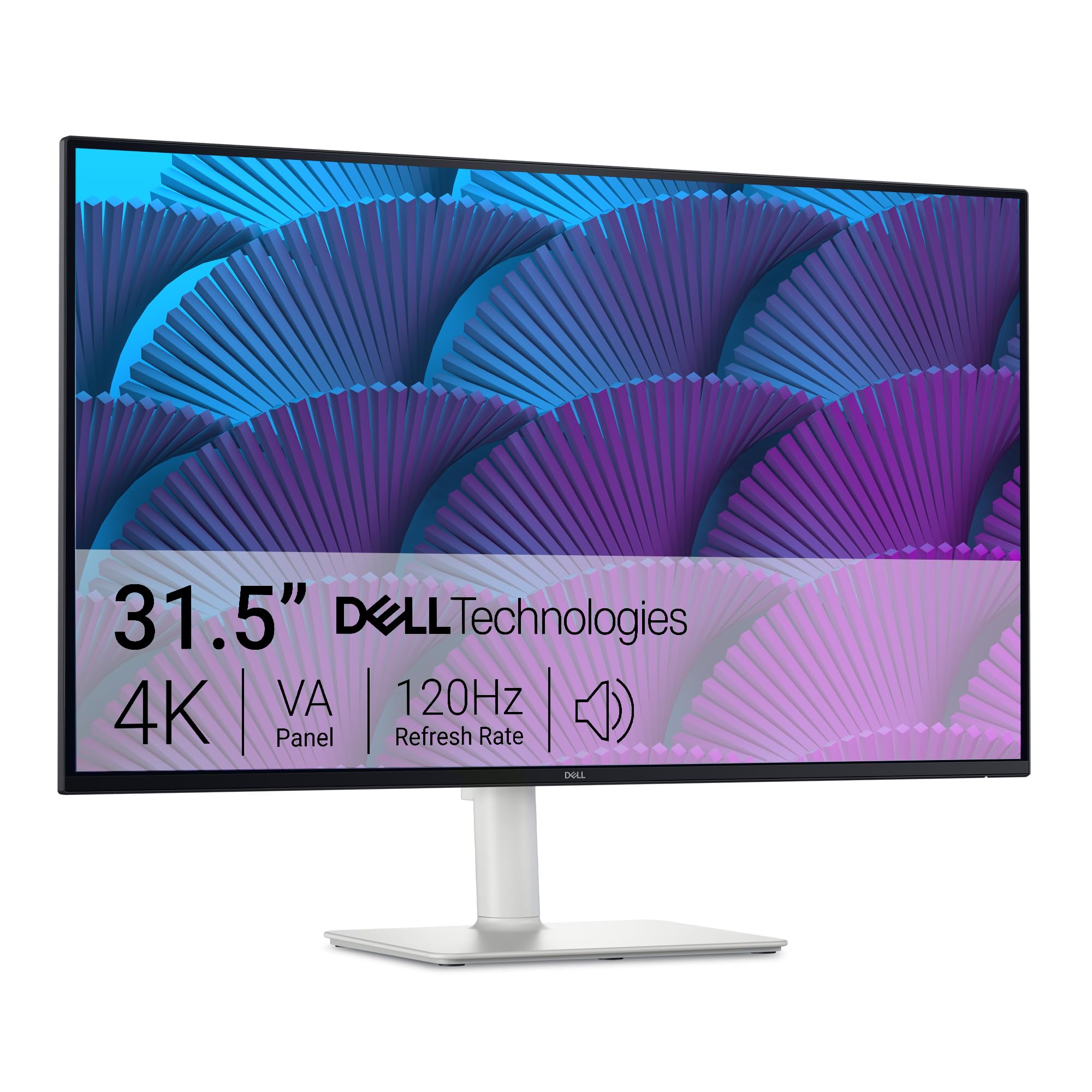
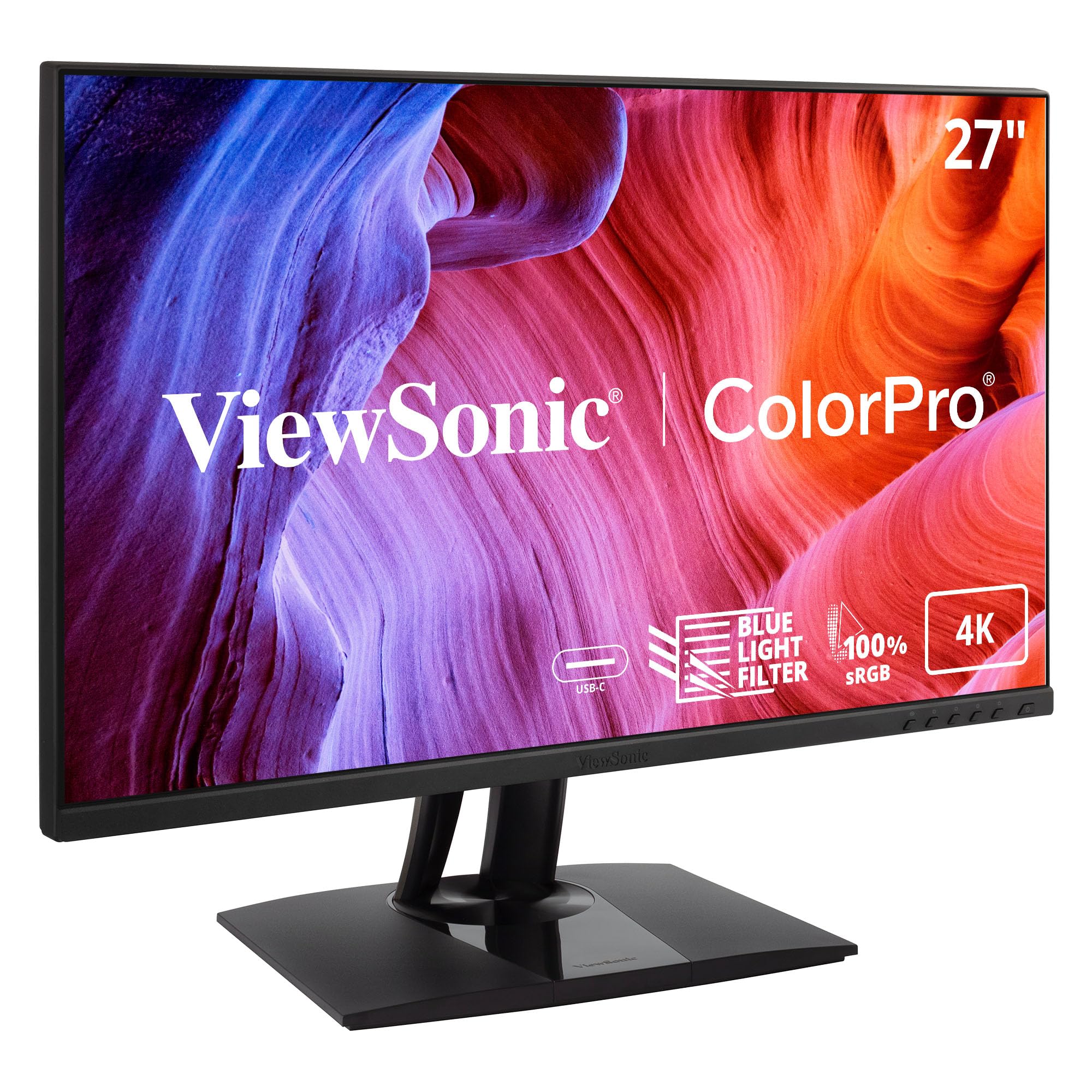
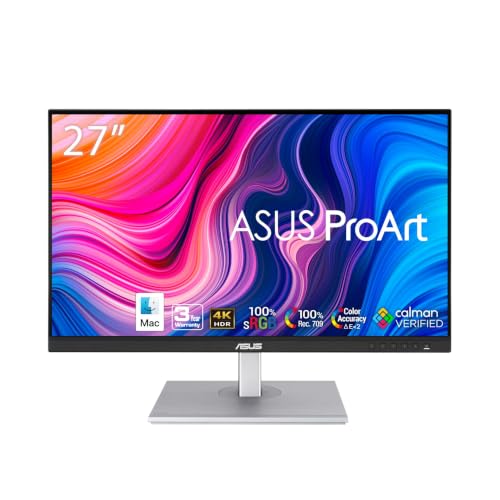
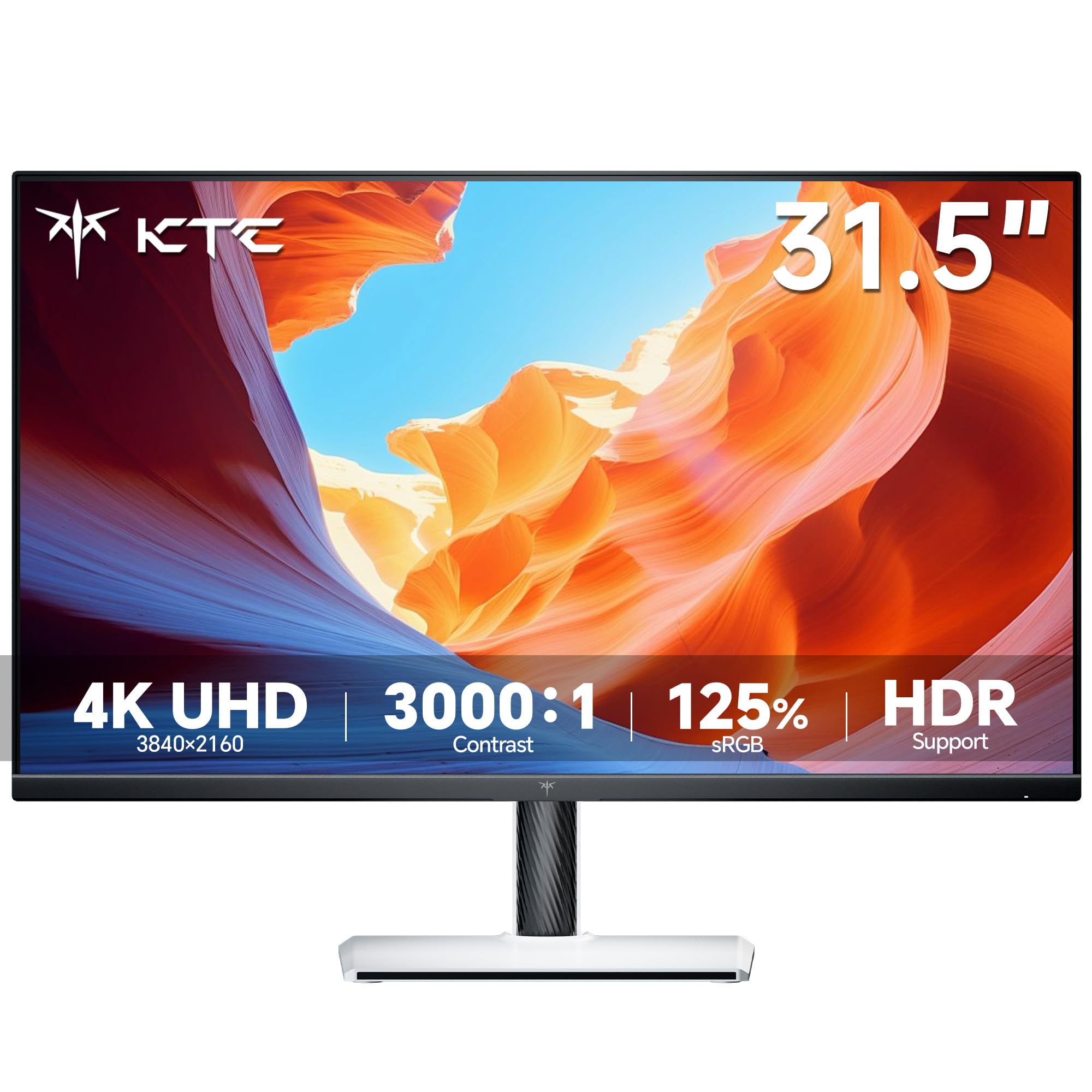
This guide walks through what each budget tier realistically delivers, which features deserve your money, and which ones you can safely skip. Start with the product table above to see how current models line up on size, resolution, and panel type.






How to Set Your Budget Before You Shop
Before comparing models, decide what your editing work demands and what it does not. Money spent on the wrong strength, such as a very fast panel for slow paced photo work, could have bought better color accuracy instead.
When Your Budget Is Tight
On a tight budget, put color accuracy and panel type ahead of screen size. A 24 or 27 inch IPS monitor with full sRGB coverage serves most editing work well, even at 1080p or 1440p. Skip extras like built in speakers and decorative lighting, and accept a tilt only stand. A separate monitor arm under $60 can fix comfort later.
When You Can Spend in the Middle Range
A midrange budget is where editing monitors become genuinely capable tools rather than compromises. This level typically buys 4K resolution on a 27 inch screen, wider gamuts covering most of the DCI P3 space used in video work, and USB C connectivity that carries video and charges a laptop over one cable.
When Your Work Justifies Premium Spending
Premium budgets make sense when clients view your work on high quality screens or when color errors cost you paid revisions. At this level you pay for factory calibration with a printed report, hardware calibration support, uniform brightness, and OLED or Mini LED contrast. Casual editors rarely need this tier.
What Your Money Gets You at Each Price Tier
Prices on Amazon move often, but editing monitors settle into fairly predictable tiers. Knowing what each tier normally includes helps you spot a genuine bargain. Compare any model you like against the product table above before deciding.
Budget Tier: What to Expect
Budget editing monitors usually cost about $120 to $250. Expect a 24 or 27 inch IPS or VA panel at 1080p or 1440p, sRGB coverage near 100 percent, and brightness around 250 to 300 nits. HDR labels at this level mean the screen can accept an HDR signal, not that it can display HDR with real impact. Stands usually adjust for tilt only.
Midrange Tier: Where Most Editors Land
Midrange models run about $250 to $550 and are the natural home for serious hobbyists and working freelancers. This tier delivers 4K IPS panels, 95 percent or better DCI P3 coverage, brightness around 350 to 400 nits, and height adjustable stands. USB C ports with power delivery also appear here.
Premium Tier: What the Extra Money Actually Buys
Premium editing monitors start around $550 and can pass $1,500 for large professional models. The money buys OLED or Mini LED panels with true blacks and strong HDR, 4K resolution at 32 inches, and 98 to 100 percent DCI P3 coverage. You also get hardware calibration, uniformity compensation, and warranties that often run three years or more.
Features Worth Paying For (and Ones to Skip)
Specification sheets are long, and only some numbers change how your edits look. This section separates features that matter for editing from ones borrowed from gaming marketing. If your work is photography focused, see our guide to the best computer monitors for photo editing for more detail.
Panel Technology: IPS, VA, OLED, and Mini LED
IPS panels remain the safe default for editing because colors stay consistent when you shift in your chair, and accuracy is strong for the price. VA panels offer deeper contrast, but colors shift more at an angle. OLED gives perfect blacks and instant response, though peak brightness is lower and static toolbars carry a small burn in risk. Mini LED pairs an LCD panel with many small backlight zones, giving strong HDR brightness without that risk.
Resolution and Screen Size
Resolution decides how much detail you see without zooming and how much tool panel space fits on screen. At 24 inches, 1440p looks sharp at a normal desk distance of about two feet. At 27 inches, 4K gives a full resolution preview of 4K footage with room for controls, while 1440p still suits photo and document work. At 32 inches, 4K is close to essential, because 1440p pixels become visible during retouching.
Color Accuracy, Gamut, and Calibration
Three numbers describe color performance. Gamut coverage tells you which colors the screen can show at all, expressed as a percentage of sRGB for web work or DCI P3 for video. Delta E measures how far displayed colors sit from their true values, and lower is better, with values under 2 considered excellent. Calibration support decides whether you can correct drift over time, through software adjustments or hardware calibration inside the monitor itself.
Refresh Rate, Response Time, and Adaptive Sync
For editing, refresh rate plays a smaller role than most listings suggest. A standard 60 Hz screen updates the image 60 times per second, plenty for timelines, photo tools, and documents. Higher rates such as 120 or 144 Hz make scrolling and scrubbing through footage feel smoother, but they do not change color or detail. Response time, measured in milliseconds, affects motion blur in fast previews, and modern panels are already fast enough. Adaptive sync features such as FreeSync and G Sync prevent tearing in games and do almost nothing in editing software, so treat them as a free bonus. If gaming is a real priority on the same desk, see our guide to the best computer monitors for gaming before choosing. HDMI 2.1 matters mainly for consoles, not for editing.
Connectivity and Ergonomics
Ports and stand design shape daily comfort more than most buyers expect. USB C with power delivery of 65 watts or more lets one cable run your display and charge your laptop, and a built in USB hub keeps drives within reach. A stand with height, tilt, swivel, and pivot adjustment keeps the screen at eye level, and a VESA mount of 100 by 100 mm lets you add an arm later. Readers who care how the setup looks on camera can also browse the best looking computer monitors.
Matching a Monitor to Your Kind of Editing
Editing covers very different daily work, and the right monitor depends on which kind dominates your week. The best computer monitors for editing in one field are not automatically right for another, so use the notes below to weight the features above.
Best Computer Monitors for Editing Video
Video editors should prioritize DCI P3 coverage of at least 95 percent, a 4K panel so footage previews at full resolution, and 27 inches or more so timelines stay readable. HDR preview capability matters if you deliver HDR content, pushing you toward Mini LED or OLED. For timelines, scopes, and HDR workflows in depth, see our guide to the best computer monitors for video editing.
Photo Editing Priorities
Photo editors live in the sRGB and Adobe RGB color spaces, so wide gamut coverage and low Delta E values matter more than motion specs. A matte finish helps in bright rooms by cutting reflections that hide shadow detail. Hardware calibration earns its cost here, because prints expose small color errors a screen alone might hide. Uniform brightness also matters, since vignetting judgments depend on even illumination.
Documents, Design, and Ultrawide Productivity
If your editing means documents, layouts, spreadsheets, or light graphics, sharp text and screen space matter most. An ultrawide display at 3440 by 1440 shows two full documents side by side and suits long sessions with many windows open. Higher pixel density also sharpens text, so a 4K 27 inch screen renders fonts crisper than a 1080p model. Our roundup of the best monitors for editing covers more options.
Long Term Costs to Factor In
The purchase price is only part of what an editing monitor costs you. A hardware colorimeter for regular calibration runs about $100 to $250. A monitor arm costs about $30 to $100 if the included stand disappoints. Budget for the colorimeter first, because an accurate budget monitor beats an inaccurate expensive one.
Common Mistakes to Avoid
- Buying a gaming monitor with a TN panel for editing, because its colors shift with viewing angle and edits look different on other screens.
- Trusting an HDR logo on a budget model, because without local dimming and high peak brightness the effect is barely visible.
- Choosing screen size before resolution, because a 32 inch 1080p screen shows visible pixels that make retouching and text work frustrating.
- Ignoring your graphics card outputs, because an older laptop may not drive a 4K screen at full refresh rate over HDMI.
- Skipping a calibration check after setup, because panels drift over months and small errors quietly enter client work.
- Placing the monitor beside a bright window without a matte finish, because glare washes out shadow detail you need to judge.
How to Make Your Editing Monitor Last Longer
Care for an editing monitor centers on keeping its color and brightness stable. Clean the screen with a dry or slightly damp microfiber cloth, and never spray cleaner directly onto the panel, since liquid can seep past the edges. Keep brightness near your calibration target, often around 100 to 160 nits, rather than maximum, because constant full brightness ages the backlight faster. On OLED models, run the built in pixel refresher when prompted. Recalibrate every month or two, since gradual drift is normal.
Frequently Asked Questions
What features matter most in a computer monitor for editing?
Color accuracy, gamut coverage, and panel type matter most in a computer monitor for editing. Look for an IPS, OLED, or Mini LED panel with at least 99 percent sRGB coverage and low factory Delta E values. Resolution, size, and an adjustable stand come next. One point many buyers miss is screen finish, because a matte coating protects shadow detail in bright rooms.
Is a 4K monitor worth the money for editing work?
Yes, a 4K monitor is worth it for most editing work at 27 inches and above. You can preview 4K video at full resolution, judge focus in photos without constant zooming, and fit more tools around your image. The tradeoff is small interface text, so plan on display scaling of 125 or 150 percent, which modern software handles well.
Should you choose IPS or OLED for an editing monitor?
Choose IPS for bright rooms, static interfaces, and lower budgets, and choose OLED when deep blacks and HDR contrast drive your decisions. OLED panels respond instantly and show perfect black, which helps when grading dark scenes. One newer consideration is warranty coverage, since some brands now cover burn in for three years on OLED models, removing much of the old risk.
How long does an editing monitor usually last?
An editing monitor usually stays useful for about five to eight years of regular work. The panel rarely fails outright; instead, backlight brightness fades slowly and color accuracy drifts until calibration can no longer correct it. Keeping a log of calibration results helps, because rising correction values are the earliest warning that the panel is aging out of critical work.
What monitor size suits a typical home editing desk?
A 27 inch monitor suits most home editing desks, balancing screen space with a viewing distance of about two to three feet. Desks around 40 inches wide do better with 24 or 25 inch models, leaving room for speakers and a tablet. If you sit closer than about 20 inches, a large screen forces constant head turning, so measure desk depth first.
Final Thoughts
Start with the work you do most, then spend in this order: panel type and color accuracy first, resolution and size second, convenience features last. Budget buyers get honest tools by choosing IPS and strong sRGB coverage over flashy extras, midrange buyers gain the 4K and wide gamut pairing most editors need, and premium buyers pay for calibration control and contrast. Whichever tier fits, the best computer monitors for editing are easy to shortlist once you compare finalists against the product table above.


