
Best Computer Monitors for Digital Artists by Budget: Smart Picks for 2026
Disclosure: We may earn a commission when you buy through links on this page, at no extra cost to you. As an Amazon Associate I earn from qualifying purchases. Learn more

Compare the best computer monitors for digital artists by color accuracy, panel type, resolution, and price tier with clear buying guidance for your desk.
Prices for art monitors stretch from around $150 to around $1,500, and the gap is not just about screen size. What separates the tiers is color coverage, calibration control, panel uniformity, and how faithfully the screen shows work you send to clients, printers, or social platforms. Choosing the best computer monitors for digital artists starts with knowing which gains your own work actually needs.
This guide walks through each budget tier, the features worth paying for, and the extras you can safely skip. Use the product table above to line up sizes, resolutions, and color specs side by side, then read on to match a tier to the way you draw, paint, retouch, or design.

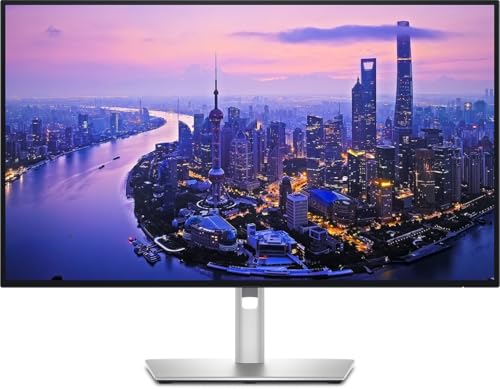

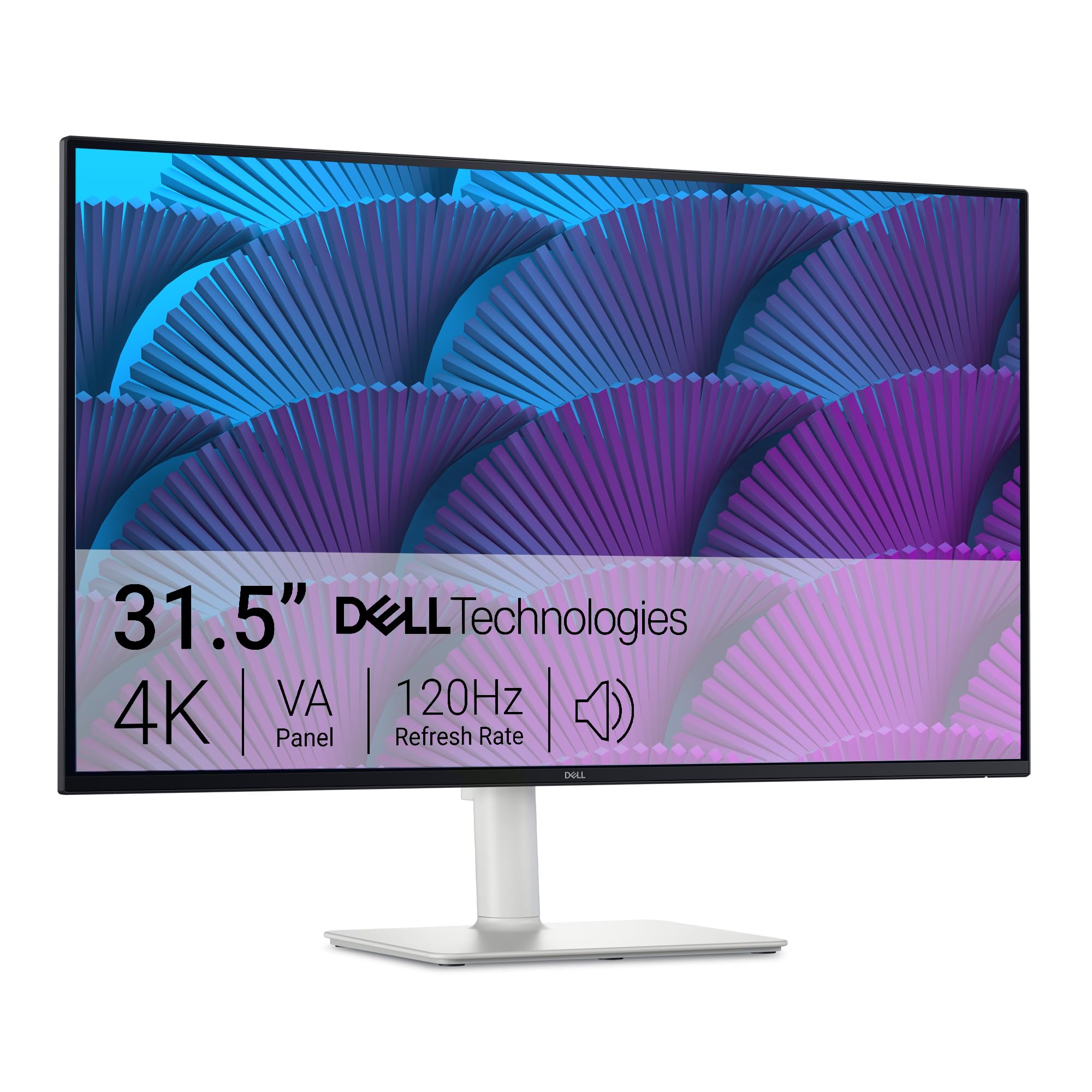


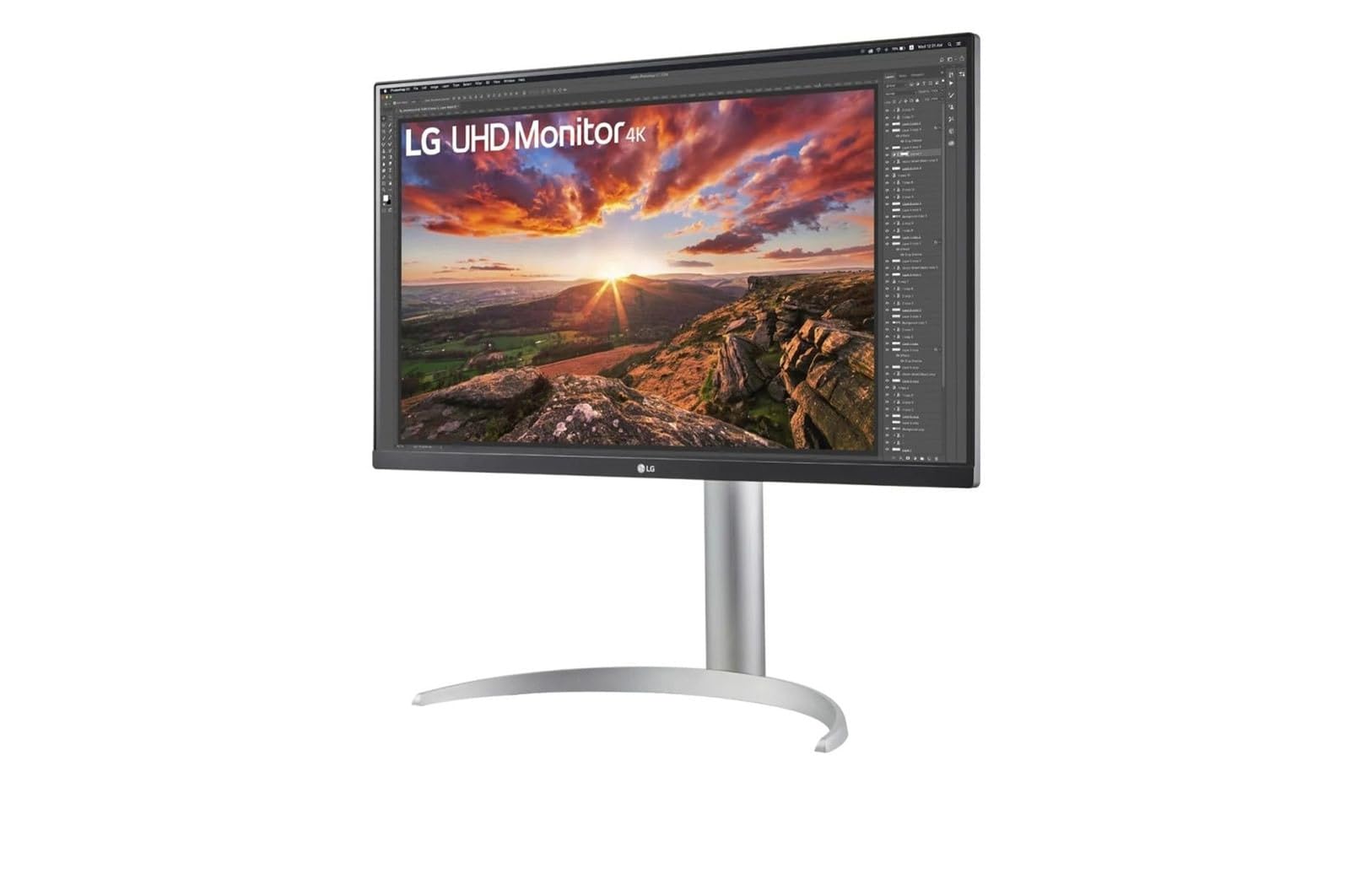
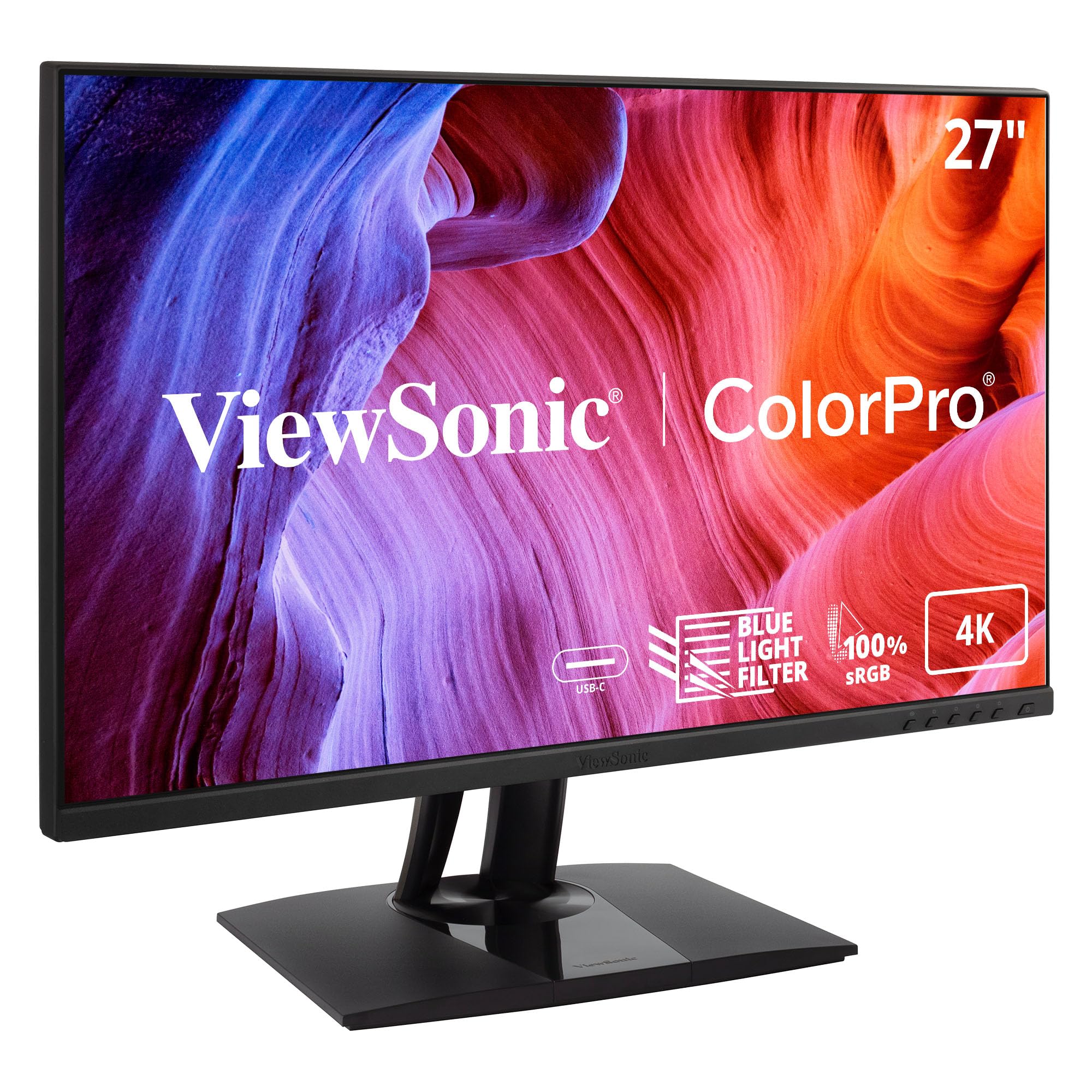
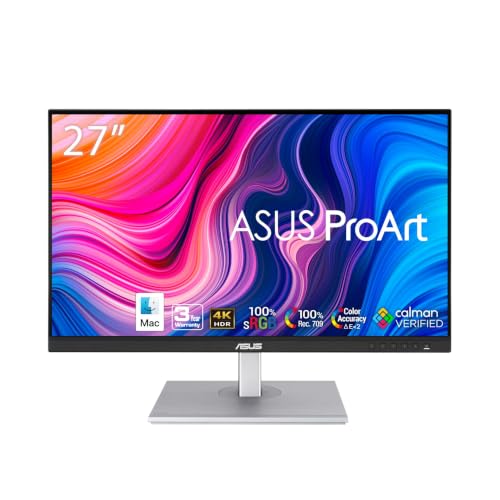

How to Choose by Budget Without Guessing
Start by deciding what your current work demands from a screen. A hobby illustrator posting online, a retoucher preparing files for print, and a concept artist in a studio pipeline all need accurate color, but not at the same level or price. If you want a shorter shortlist first, see our guide to the best monitors for digital artists before you fix your budget.
When a Budget Monitor Is Enough
A budget monitor suits you if most finished work lives on screens and you mainly need full sRGB coverage and decent factory calibration. Look for an IPS panel at 24 or 27 inches, a matte finish that cuts reflections, and a stand that raises to eye level. You give up wide Adobe RGB coverage and hardware calibration, so check colors on a second screen before sending important files out.
When the Middle Tier Makes Sense
The middle tier fits artists who sell prints, serve clients, or post color sensitive work every week. Here you gain near full DCI P3 coverage, stronger Adobe RGB numbers, better brightness uniformity, and wider stand adjustment. This is also where 4K at 27 inches becomes common, giving sharper brush detail and more room for tool panels without crowding the canvas.
When Premium Spending Pays Off
Premium models earn their price when color mistakes cost you money, time, or client trust. You get hardware calibration with an internal lookup table, excellent uniformity compensation, 10 bit color, and sometimes OLED or Mini LED panels with very deep contrast. Photographers who soft proof prints and artists who grade video alongside still work benefit most.
What Your Money Gets You at Each Price Tier
Knowing what each tier normally includes helps you spot bargains and overpriced screens in the product table above. The ranges below reflect typical Amazon US pricing, and models move between tiers during sales. Judge any screen against the norms for its price, not against the most expensive panel in the lineup.
Budget Tier: What to Expect
Budget art monitors usually cost about $150 to $300 and cover sRGB fully with factory calibration reports in the box. Expect 1080p or 1440p resolution, a 60 Hz refresh rate, basic tilt only stands, and brightness around 250 to 300 nits. Color accuracy is often good in the center and weaker near the edges. For learning, sketching, and online posting, that trade off leaves money for a stylus, software, or storage.
Midrange Tier: The Sweet Spot for Most Buyers
Midrange models run about $300 to $600 and are where the best computer monitors for digital artists balance price against genuinely useful color tools. You typically get 4K or sharp 1440p panels, 98 percent or higher DCI P3 coverage, Delta E values under 2, height adjustable stands, and USB C ports that carry video, data, and laptop charging over one cable. HDR labels appear here too, though true HDR impact stays limited at this brightness.
Premium Tier: When Spending More Pays Off
Premium art monitors cost around $700 and up, sometimes passing around $1,500 for large OLED and reference grade models. In return you get hardware calibration, uniformity technology, wide Adobe RGB and DCI P3 coverage, and panels that hold accuracy longer between calibrations. Larger 32 inch screens and true HDR brightness near 1,000 nits also live here. The gains are real but narrow, and they matter most to print, photo, and studio color work.
Features Worth Paying For (and Ones to Skip)
Spec sheets mix the numbers that decide your daily experience with numbers added mainly for marketing. The sections below sort the two apart, so you pay for color quality, comfort, and calibration control while skipping extras that do little for drawing or retouching. Keep the product table above open as you read.
Panel Technology: IPS, VA, OLED, and Mini LED
IPS remains the safe default for art because colors stay stable when you shift in your chair. VA panels offer deeper blacks but can shift contrast off center, which makes judging shadows less reliable. OLED gives superb contrast and response time, though static toolbars raise a small burn in concern during very long sessions. Mini LED backlights improve HDR contrast on LCD panels and suit artists who also edit video.
Color Features That Matter for Digital Artists
Color coverage is the number to read first: full sRGB is the floor, while print work calls for high Adobe RGB coverage and video work calls for wide DCI P3. Next check bit depth, since true 10 bit panels show smoother gradients and fewer banding steps in skies and skin tones. Hardware calibration matters because it stores corrections inside the monitor, so colors stay right across computers. Uniformity that evens brightness across the panel is worth real money for large illustrations.
HDR and Brightness
HDR matters far less for still art than for video, because most illustration and photo tools still work in standard dynamic range. A monitor with 350 to 400 nits is bright enough for a typical room, and very high brightness mainly helps HDR video grading. Treat HDR10 support as a bonus, not a reason to buy. Steady brightness you can set near 120 nits for print matching is more useful than a peak number you will rarely use.
Extras to Skip and Where to Save
Built in speakers on art monitors are almost always thin and weak, so put that money toward the panel instead and use headphones for sound. Curved screens can distort straight lines near the edges, which works against precise drawing and layout work. Touch input adds cost without replacing a proper pen display or graphics tablet. Even a stylish frame should come second to color performance, a point worth weighing as you read about the best looking computer monitors for desk setups.
Setup, Connections, and Desk Fit
A great panel in the wrong size or with the wrong ports will frustrate you daily, so settle fit and connections before you order. Measure desk depth first: a 27 inch screen sits comfortably on most desks, while a 32 inch screen needs more distance to keep toolbars readable. Ultrawide displays help reference heavy work, but a standard screen suits most art apps.
Check ports against your computer before anything else. HDMI 2.1 matters most for high refresh rate gaming displays and newer consoles, while most art work runs happily over DisplayPort or USB C. A USB hub keeps your tablet, drives, and keyboard off your laptop ports, and a VESA mount pattern lets you add an arm later for better posture. If you also game after hours, look for adaptive sync and a 120 Hz or higher refresh rate, then see our guide to the best computer monitors for gaming.
Artists who split time between digital and traditional media should also weigh print checks and reference viewing. A monitor that rotates to portrait helps with book covers, comics, and phone format art, and an accurate Adobe RGB mode previews how colors will survive paper. For a broader view of screens for studio workflows, see our guide to the best computer monitors for artists.
Common Mistakes to Avoid
- Buying on resolution alone, so a sharp 4K screen with narrow color coverage still shows your palette wrong.
- Ignoring color gamut labels, so prints come back dull because the monitor never showed the Adobe RGB colors in the file.
- Skipping a calibration plan, so colors drift over months and older files stop matching newer work.
- Choosing a glossy screen for a bright room, so reflections hide shadow detail and tire your eyes.
- Forgetting port and stand checks, so the monitor arrives without USB C for your laptop or sits too low for your neck.
- Paying for gaming speed you never use, so budget goes to refresh rate instead of the color accuracy your art needs.
How to Make Your Art Monitor Last Longer
Clean the panel with a dry or slightly damp microfiber cloth and no household sprays, since glare control coatings can cloud under harsh cleaners. Recalibrate regularly, monthly for client work, because backlight color shifts slowly as the panel ages. Keep brightness at the lowest level that suits your room rather than at maximum, which eases strain on the backlight over years of daily sessions.
Turn the display off during long breaks so static interface elements do not sit in one place for hours, a habit that matters most on OLED panels. Keep vents clear, dust the back with a soft brush, and use a surge protector so power spikes do not reach the panel electronics. Store the factory color report and your calibration profiles where you can find them after a computer change.
Long Term Costs to Factor In
The sticker price is only part of ownership. A colorimeter costs around $150 to $250 if your monitor lacks a built in sensor, and it is close to mandatory for paid client work. A monitor arm and the right video rated cables can add about $50 to $150. Warranty length varies by tier, and panels used ten hours a day age faster than weekend screens, so weigh coverage alongside price.
Frequently Asked Questions
What features matter most in computer monitors for digital artists?
Color coverage, accuracy, and uniformity matter most in computer monitors for digital artists. Start with full sRGB, then look for wide DCI P3 or Adobe RGB numbers that match your output, a low Delta E from factory calibration, and even brightness across the panel. One point buyers often miss is the ambient light sensor on some models, which adjusts brightness as room light changes and keeps late sessions consistent with daytime checks.
Is IPS or OLED better for computer monitors for digital artists?
IPS is better for most digital artists because it holds color steady at wide angles and carries no burn in worry during long, static editing sessions. OLED wins on contrast and black depth, which flatters dark scenes and video work. If you choose OLED, vary your layout and run the panel refresh tools the maker provides. For print focused still work, a strong IPS panel remains the calmer long term choice.
How long do computer monitors for digital artists last?
Computer monitors for digital artists typically last about five to eight years before backlight aging starts to limit color accuracy. The screen may still work for general use after that, but peak brightness falls and calibration holds for shorter spans. You can stretch useful art life by running moderate brightness and recalibrating often. When a profile can no longer bring Delta E back to a low value, budget for a replacement.
Is 4K resolution worth it for computer monitors for digital artists?
Yes, 4K resolution is worth it for digital artists who work at 27 inches or larger and want crisp brush strokes, fine line work, and room for panels beside the canvas. At 24 inches, 1440p already looks sharp and costs less, leaving budget for better color coverage. One extra benefit is cleaner scaling in apps that handle high density displays well, so interface text stays readable without magnification tricks.
What monitor size should digital artists choose for a desk setup?
Most digital artists should choose a 27 inch monitor, since it balances canvas space, sharpness, and desk depth for the widest range of rooms. Go to 32 inches if you sit farther back or grade video, and drop to 24 inches for shallow desks or dual screen setups. Whichever size you pick, leave space beside the screen for your tablet, since crowding your drawing hand costs more comfort than a larger panel gains.
Does refresh rate matter for computer monitors for digital artists who do not game?
Refresh rate matters only a little for digital artists who do not game, since drawing and retouching change the image slowly compared with fast moving games. A 60 Hz panel is fine for most art, though 120 Hz can make pen strokes and canvas pans feel slightly smoother. Response time follows the same logic and rarely decides an art purchase. Spend first on color coverage and calibration, and treat extra speed as a comfort bonus.
Final Thoughts
Match the tier to your output, not to the biggest spec sheet. Print and client work justify wide gamut coverage and hardware calibration, while online illustration thrives on a solid sRGB IPS panel with an honest factory report. Compare your shortlist in the product table above, check ports and stand height against your desk, and you will land on the best computer monitors for digital artists for the work you actually do. Prices and availability can change, so check the product page before ordering.
