Best Computer Graphics Cards Made Simple in 2026: A Clear Buying Guide
Disclosure: We may earn a commission when you buy through links on this page, at no extra cost to you. As an Amazon Associate I earn from qualifying purchases. Learn more

Shopping for the best computer graphics cards for the first time? Learn the terms in plain English, compare the classes, and avoid the classic rookie mistakes.
Buying your first graphics card feels harder than it should, because the box leads with numbers and code names before anyone explains what any of them do. This guide slows the process down and puts the steps in a safe order: start with the screen the card has to drive, then make sense of the classes and memory, and finish with the fit and power checks that keep a card from going back to the store. The best computer graphics cards for any one buyer are simply the ones that match that buyer's monitor, case, and budget at the same time.
A card only makes sense inside the computer and the screen it serves. Skim the comparison table below to see how the classes line up, then read the sections in order and the terms will stay put.



Computer Graphics Cards 101: The Basics
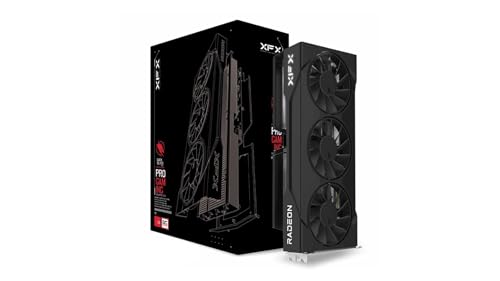
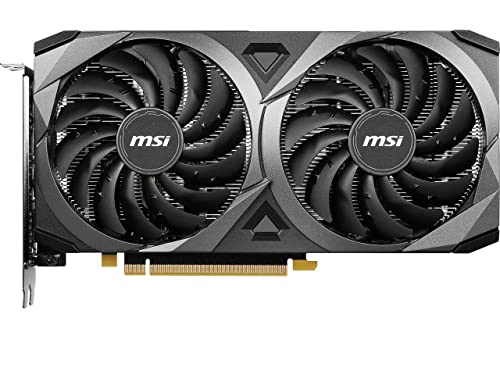
A graphics card is a separate board that plugs into a desktop computer and builds every image you see on the screen. Its main chip, called the GPU, does the drawing work for games, videos, and design software, and it works far faster at that job than the basic graphics built into most processors. When people talk about a weak or strong gaming computer, they usually mean this card more than any other part.
The card carries its own memory, often labeled VRAM, which stores the textures and frames the chip is working on right now. Fans on the card push heat away from the chip, and the ports on the back plate are where your monitor cable plugs in. If your monitor is plugged into the motherboard instead of the card, the card sits idle, which is the most common new buyer mistake of all.
One boundary is worth drawing early, because it decides who should keep reading. A desktop card only fits a desktop case, and a laptop cannot accept one later, so portable buyers choose their graphics when they buy the machine itself; the guide to best laptops with graphics card covers that separate decision.
Key Specs Explained in Plain English
Most spec sheets list the same handful of ideas in the same confusing order. Taken one at a time, each one answers a plain question about your screen, your case, or your wallet.
Start With the Screen the Card Must Drive
Every card purchase starts with two numbers from your monitor: its resolution and its refresh rate. Resolution is how many pixels the card has to draw, and the common steps are 1080p, 1440p, and 4K, with each step asking much more of the card than the one before it. Refresh rate is how many fresh images the screen can show each second, so a fast screen needs a card that can feed it just as fast. Pick the card class for the screen you own today, or the one you plan to buy this year, and ignore classes built for screens you do not have.
What the Class Numbers Mean
Makers sort their cards into classes, from entry level cards for light play and everyday display work up to high end cards built for 4K screens. Within one maker's current line, a bigger class step generally means more drawing power and a higher price, but numbers never compare cleanly across the two big maker camps. A rough price ladder helps more than any number: entry classes often sell for about $150 to $300, mid range classes for about $300 to $600, and high end classes for about $700 to $1,200. Shoppers comparing the AMD camp on its own terms can walk through it in the guide to best radeon graphics cards, which uses the same class logic.
| Card class | Screen it suits | Typical memory | Rough price |
|---|---|---|---|
| Entry level | 1080p | 8 GB | About $150 to $300 |
| Mid range | 1440p | 12 GB | About $300 to $600 |
| High end | 4K | 16 GB or more | About $700 to $1,200 |
Video Memory as a Class Matter
Video memory is the card's own workspace, and it is measured in gigabytes, with common steps at 8, 12, and 16 GB. Bigger screens and richer game textures fill that workspace faster, so memory matters more at 1440p and 4K than it does at 1080p. The trap is judging a card by memory alone, because a slow chip with lots of memory still draws slowly, like a wide desk in a tiny office. Treat memory as a floor to clear for your screen size, then judge the card by its class.
CPU and GPU Pairing
The card and the processor share the work of every frame, and a big gap between them wastes money. A very strong card paired with an old, slow processor spends its time waiting, a problem builders call a bottleneck, and the extra card power never reaches the screen. The reverse pairing is gentler but still poor value, because the card becomes the ceiling while a strong processor idles. Balanced mid range pairings usually give the smoothest result per dollar, and they leave room to upgrade one part later.
Power Supply and Fit: The Checks Before Any Class
Two physical checks come before any class decision, and skipping them causes most returns. First, power: each card lists a recommended power supply size in watts, and your supply needs that much capacity plus the right plugs, since stronger cards draw power through one or two extra connectors. Second, fit: cards vary a lot in length and thickness, so measure the open space in your case and compare it with the card's listed length before ordering. A card that cannot fit or cannot be powered is not a bargain at any price.
Cooling and Thermals
A card under load turns most of its power into heat, and its fans exist to move that heat into the case and out again. Cards with two or three fans generally run cooler and quieter than small single fan designs, but they also need a case with decent airflow to do their job. Temperature figures in listings come from maker test setups, so treat them as rough guides rather than promises about your room and your case. Liquid cooled cards exist as a small high end class, though most buyers never need one.
Noise Levels
Fan noise rises with load, so a card that is silent on the desktop can still be heard during a long game. Listings rarely state noise in a way that compares across brands, which makes fan size and fan count the more useful clues. Some buyers also hear a faint buzzing called coil whine, an electrical hum that changes pitch with the frame rate; it is annoying but harmless, and it varies from card to card within the same class. If you play in a quiet room or record audio nearby, favor larger, slower turning fans.
Warranty, Support, and Build Quality
Most cards carry a warranty of about two to three years, and the return window from the seller is your protection against a card that arrives faulty. Support matters in a quieter way, because makers publish driver updates that keep cards working well with new games and software. Build quality shows in the back plate, the fan bearings, and how firmly the card sits in its slot, and heavier cards may need a simple support bracket in large cases.
Upgradability and Standard Parts
A desktop card uses a standard slot, so a card bought today can move to a newer motherboard later as long as the power supply still suits it. That freedom is exactly what many prebuilt brand name computers limit, since some use custom power supplies or tight cases that accept only certain cards. Before buying a card for a ready made machine, check its supply rating and internal space with extra care. For a custom build with standard parts, upgrading the card alone is the normal path for years.
Choosing Computer Graphics Cards for Your Situation
Price bands in the class section give the ladder; this section matches the rungs to the way people actually use their computers. Tight budgets are a normal starting point, and the guide to best affordable graphics cards focuses on the lower rungs in more depth.
Best Gaming Computer Graphics Cards
Gaming cards are judged on one thing above all: holding a smooth frame rate at the resolution of your screen. For gaming, memory and class rise together, since high texture settings at 1440p and 4K fill memory while the chip races to keep up. Buyers in this group should also weigh fan noise, because a card runs near full load for whole sessions. Our companion guide to best graphics cards for gaming compares the gaming classes against each resolution step by step.
Best to Worst Computer Graphics Cards
Ranking cards from best to worst sounds simple, but the honest version is a ladder of classes with prices attached, and the worst buys are usually old low classes still being sold at new card prices. Charts that rank every card in one list age quickly, and their order shifts with the games and settings used to test them. Treat lists of best graphics cards ranked as a rough map of the ladder, then make your final choice by class, memory, and fit for your own machine.
Rookie Mistakes to Avoid
Most first card purchases go wrong in the same few ways, and every one of them is easy to check before money changes hands.
- Ordering before measuring the case, so a card that is too long or too thick has to go back.
- Matching a strong card to a weak power supply, which can shut the computer down under load.
- Judging a card by memory size alone and buying a slow chip with a big number on the box.
- Paying for a 4K class card to feed a 1080p screen, where the extra power cannot be seen.
- Plugging the monitor into the motherboard after installing the card, which leaves the new card idle.
- Chasing benchmark charts from different test setups as if the numbers were measured the same way.
Getting Started: Setup and First Use
Installing a card is simpler than its price suggests. With the computer off and unplugged, the old card or slot cover comes out, the new card presses into the long slot until its latch clicks, and its power connectors click in beside it. Screw the back plate to the case, then connect the monitor cable to the card itself.
Next, load the current driver software from the card maker's site, since the driver in the box can be months old. Set your screen to its full refresh rate in the system display settings, because many screens arrive set to a slower rate and stay there until someone changes it. After that, normal care is light work: clear dust from case filters and fans every few months, and keep the case vents unblocked so the fans can breathe.
Computer Graphics Cards: Your Questions Answered
How much memory does a gaming graphics card need?
Most gaming cards today carry 8 to 16 GB of their own memory, and 8 GB is a workable floor for 1080p play. Keep two kinds of memory separate in your mind: the card's video memory holds textures and frames, while the computer's main RAM feeds the processor, and adding one never fixes a shortage of the other. If your games stutter while settings show memory near full, the card class, not the system RAM, is the usual place to look.
What graphics card class do I need for 1440p?
A solid mid range class is the usual answer for 1440p, paired with 12 GB of memory or more for current games. The refresh rate of your screen matters as much as the resolution, since a 1440p screen at a high refresh rate asks the card for far more frames than a standard one. If you plan to move to 4K later, buy for 1440p now and let the future screen drive the next upgrade instead of overpaying today.
Air or liquid cooling: which is better for a graphics card?
Air cooling is the better choice for nearly every buyer, because it is built in, needs no upkeep, and keeps modern cards within safe temperatures in a case with decent airflow. Liquid cooled cards form a small top class that can run quieter under long loads, but they add a radiator that must fit the case and more parts that can age. Choose liquid only when silence under load is a top priority and the budget already covers a strong class.
How long will a graphics card stay useful for new games?
A mid range card usually plays new games well for about three to five years, with settings gradually moving from high toward medium as games grow heavier. Cards do not suddenly stop working; they slowly ask for lower settings, so the buying question is how long you want high settings to last. Buying one class above your current screen is the common way to stretch that span without jumping to the top price band.
Can I put a new graphics card in an older computer?
Yes, in most desktop computers, as long as three checks pass: the motherboard has the standard long slot, the power supply meets the card's recommendation and has the right connectors, and the case has physical room for the card's length. One limit deserves honesty: an older processor can hold a strong new card back, so the screen may not show the full gain. A modest class matched to the machine often gives better value than the fastest card the slot accepts.
The Bottom Line
The whole decision really rests on three checks. Name the screen first, since its resolution and refresh rate set the class you need; clear the memory floor for that screen second; and pass the fit and power checks before you fall for any listing. Buyers who run those three checks in that order rarely need to return a card. The product table above gathers the classes side by side to make the comparison quicker, and the best computer graphics cards for your desk will be the ones that clear all three checks without straining your budget.