
Best Computer Cameras for Zoom at Every Price: What Your Money Really Gets You for 2026
Disclosure: We may earn a commission when you buy through links on this page, at no extra cost to you. As an Amazon Associate I earn from qualifying purchases. Learn more

Learn how the best computer cameras for zoom differ by price, what 1080p and 4K change on calls, and which features are truly worth paying for.
Webcams range from simple models that cost under $40 to premium designs that cost about $250, and the product pages rarely explain what that gap actually buys you. The honest answer depends on how often you present, how your room is lit, and how many people need to fit in the frame. Shoppers comparing the best computer cameras for zoom usually need clearer skin tones, steadier focus, and framing that flatters one person at a desk.
This guide breaks the market into budget, midrange, and premium levels, then shows which features change your calls and which ones only raise the price. You will also find placement, lighting, and cost notes that listings leave out. Start with the product table for a quick view of current models, then read the tier that matches your week.


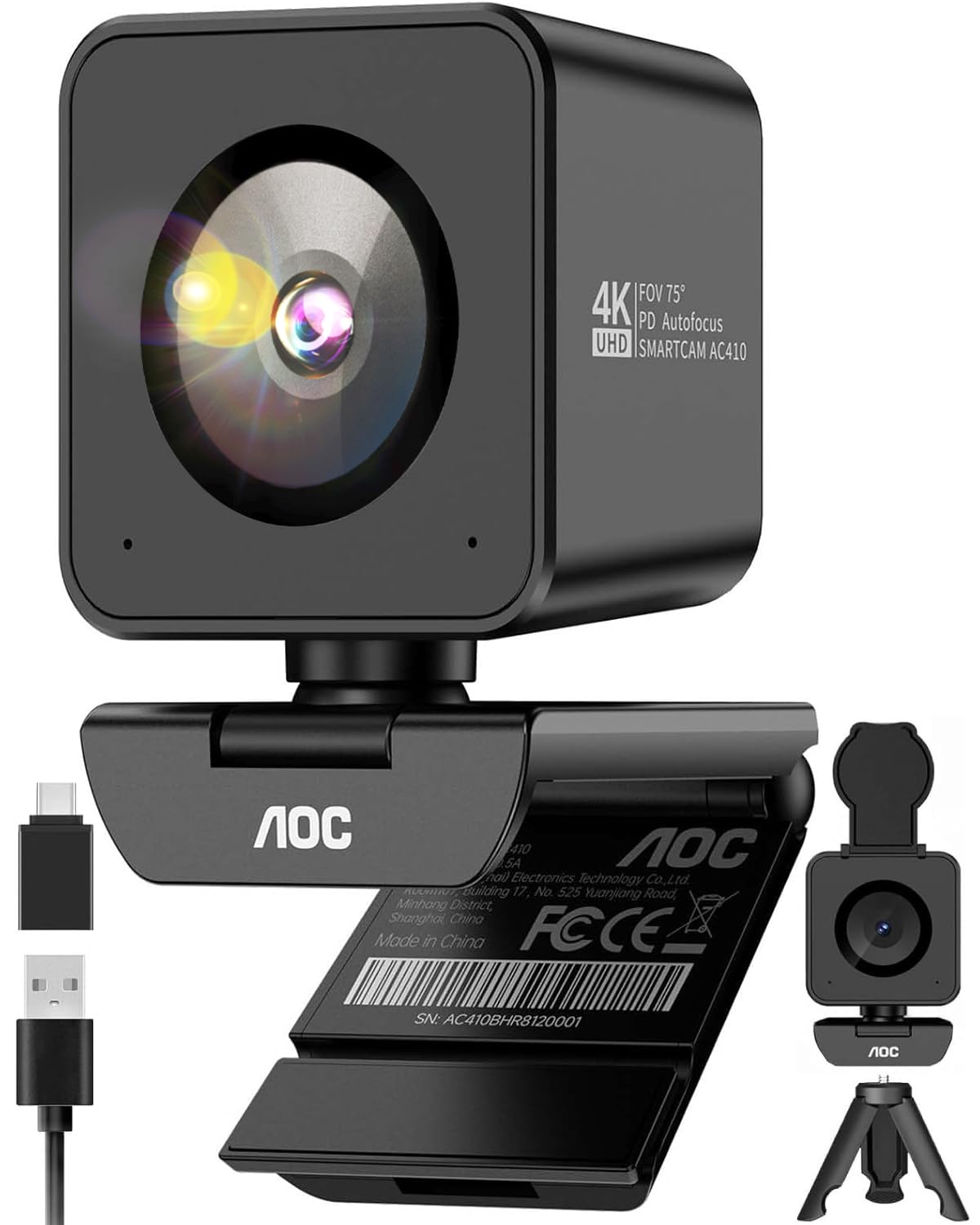

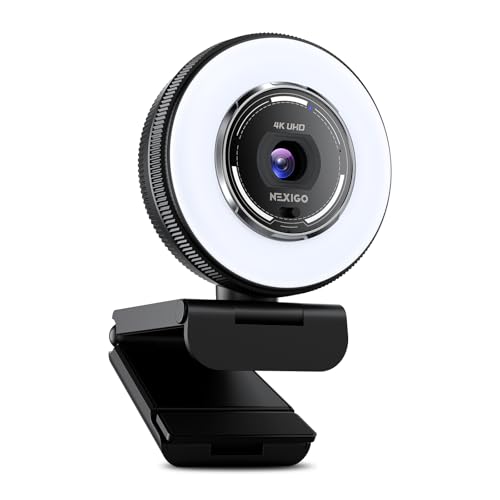


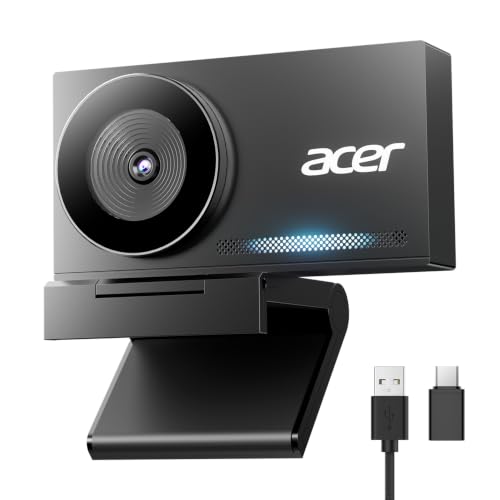

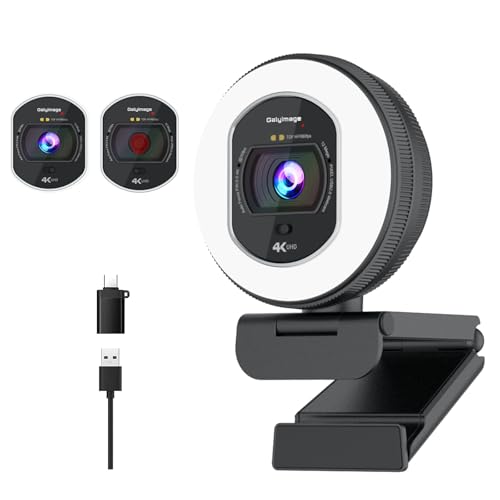

Who Each Price Level Suits Best
Price alone is a poor guide because the same camera can feel generous to one buyer and limiting to another. The groups below describe the most common Zoom routines, so you can place yourself first.
Occasional Callers Who Want a Simple, Reliable Upgrade
If you join a few calls each week from a laptop at home, your built in camera is probably the weak point, with soft detail and dull color under ceiling lights. A budget model with honest 1080p video and a simple clip solves that without new software or settings to learn. Spend your remaining money on a small desk light, because even light on your face improves a modest camera more than extra resolution does.
Daily Presenters, Teachers, and Team Leads
If you present slides, teach classes, or lead team meetings most days, small annoyances become real costs, like focus hunting while you gesture or a frame that crops your hands. A midrange camera with fast autofocus and a choice of viewing angles keeps attention on your message. For deeper advice on meeting habits, agendas, and room setup, see our guide to the best computer cameras for zoom meetings.
Streamers, Trainers, and Shared Room Users
If you record lessons, host webinars, or share a table with colleagues, the camera must cover more than one chair and keep faces readable at a distance. Premium models earn their price with wider viewing angles, automatic framing that follows the speaker, and cleaner detail when the image is cropped. A tripod thread and a longer cable also matter, because the best spot may be a shelf or a stand rather than the top of a monitor.
What Your Money Gets You at Each Price Tier
The three tiers below describe what typical listings include at each level on Amazon in the United States, along with the trade offs you accept. If you want a broader view before narrowing by price, see our guide to the best computer cameras and then return to the tier that fits your budget.
Budget Tier: What to Expect
Most budget cameras cost under $60 and deliver 1080p or 720p video with fixed focus and a fairly narrow view. Colors can look flat in mixed lighting, and the built in microphone usually sounds thin in a large room. You still get true plug and play use and a picture that beats most laptop cameras. Choose this tier for a spare room or a first upgrade with modest expectations.
Midrange Tier: Where Daily Call Quality Jumps
Midrange models cost about $80 to $150, and this is where autofocus, wider viewing angles, and larger sensors start to combine. Faces stay sharp when you lean in, dual microphones catch your voice more clearly, and many models add a sliding privacy cover. Low light handling improves as well, so evening calls look cleaner without extra lamps. For anyone on camera every workday, this tier offers the strongest value in the market.
Premium Tier: What the Extra Money Actually Adds
Premium cameras cost about $180 to $300 and center on 4K sensors, automatic framing, and more accurate color. The extra resolution mainly buys cropping room, so digital panning and zooming stay detailed during a call. Some buyers at this level instead connect a stills camera they already own, an approach covered in our guide to the best digital cameras, though adapters and cables add cost. Choose premium when you record, present to large groups, or sit in a room with tricky light.
Features Worth Paying For and Ones to Skip
This section separates the features that change your picture from the ones you can safely ignore.
Ease of Use and Setup for Your Skill Level
A good Zoom camera should work the moment you plug it in, with no drivers and no account required. Look for standard USB video support, clear controls inside the Zoom settings panel, and a companion app that stays optional rather than required. Automatic exposure and white balance matter more than long menus of manual sliders for most desks. Skip bundled editing suites and cloud extras, because Zoom itself already handles backgrounds, touch up tools, and recording for your meetings.
Size, Mounting, and Placement
Most webcams clip onto the top of a monitor, so check that the clip opens wide enough for a thick display and folds flat for a thin laptop lid. A standard tripod thread underneath adds real flexibility, letting you raise the lens to eye level on a small stand. Cable length counts too, because a short cable forces awkward placement on desktop computers. Compact bodies travel well in a laptop bag.
Features That Matter for Zoom Calls
Autofocus speed decides whether your face stays sharp when you lean in or hold up a sketch. Field of view decides fit, with about 65 degrees suiting one person, about 78 degrees adding elbow room, and about 90 degrees covering two people at one desk. Automatic framing and digital magnification crop and follow you, though heavy cropping softens detail. Here Zoom means the meeting app, and readers who meant lens reach should see our guide to the best cameras for zoom.
Video Capabilities
For live calls, 1080p at 30 frames per second looks clean and stable, and 60 frames per second adds smoother motion when you move or write on a board. 4K video helps most when you record locally or crop the frame, because Zoom often sends a lower resolution to other participants anyway. Flip screens and log profiles belong to recording cameras, not desk webcams. Pay for frame rate and clean 1080p first, and treat 4K as a recording bonus.
Sensor Size and Image Quality
Sensor size shapes your picture more than the megapixel count printed on the box. A larger sensor gathers more light, so faces look cleaner in a dim room and colors stay closer to real life. Smaller sensors lean on software sharpening, which can make skin look waxy under ceiling lights. Electronic image stabilization sounds appealing, but a camera sitting on a monitor barely moves, so it is one feature you can safely skip paying extra for.
Long Term Costs to Factor In
The camera itself is only part of the spending. A small stand or tripod may cost about $20 to $40, a longer USB cable about $10 to $15, and a simple desk light about $30 to $60, yet the light often improves your image more than a camera upgrade would. Some brands also place advanced framing tools inside a paid software plan, so check what stays free after the first year before you buy.
Plan for replacement parts and time as well. Clips loosen, cables fray near the connector, and a longer warranty can be worth more than a small discount. Keep the lens clean with a soft dry cloth, store the camera with its cover closed, and update the companion app when Zoom changes its settings layout.
Common Mistakes to Avoid
Most disappointing purchases come from a handful of repeat errors rather than bad hardware.
- Buying a 4K camera for a dim room leaves you with a sharper but still grainy picture, because resolution cannot fix weak light.
- Choosing the widest field of view for solo calls makes you look small in the frame and shows more of the room behind you.
- Mounting the camera far below eye level gives colleagues an upward view of you and makes natural eye contact almost impossible.
- Ignoring microphone quality leaves you with clear video and tiring, echoing audio that wears out a meeting.
- Forgetting to check whether your computer uses USB A or USB C ports can leave a new camera waiting on an adapter before its first call.
FAQs
What Features Matter Most in a Computer Camera for Zoom Calls?
Autofocus, field of view, and light handling matter most, in that order, for a typical desk setup. One feature listings rarely explain is face priority exposure, which keeps your face correctly bright when a window or lamp sits behind you. Test this by sitting in your usual spot at your usual call time and checking whether your face or the background looks properly exposed. If the background wins, look for exposure controls inside the companion app.
Can a Smartphone Replace a Computer Camera for Zoom Calls?
A smartphone can replace a webcam for occasional calls, and its camera is often sharper than a budget webcam. The trade offs appear over a long day, because calls drain the battery quickly, incoming alerts can interrupt your meeting, and you lose access to your phone while it acts as a camera. A stand is also essential, since a phone propped against books rarely stays at eye level.
What Does Digital Zoom Mean on a Computer Camera for Zoom Calls?
Digital zoom means the camera crops the center of its sensor image and enlarges that crop to fill your frame. It is not the same as an optical zoom lens, which moves glass to magnify a scene without discarding detail. Higher sensor resolution leaves more detail inside each crop, which is why 4K models handle this trick best. For true lens reach in photography, see our guide to the best zoom lens cameras instead.
Which Computer Camera Features Help Most in Low Light on Zoom Calls?
A larger sensor and a lens that admits plenty of light help most, supported by exposure controls you can adjust yourself. Placement of your light matters just as much, so set a lamp slightly above eye level and angled toward your face to soften shadows under your eyes. Sitting a little closer to the camera also helps, because your face catches more light and fills more of the frame. Avoid a bright window directly behind you, which turns your face into a silhouette.
How Much Should You Spend on Your First Computer Camera for Zoom?
Most first time buyers should spend about $80 to $150, which covers the midrange tier described in the product table above. That level buys autofocus, a sensible field of view, and a privacy cover without paying for recording features you may never use. Buy from a seller with easy returns, because the only true test is your own room at your worst calling hour. If evening calls look clean during the return window, you have spent enough.
Will a Computer Camera for Zoom Work on Windows, Mac, and Chromebook Computers?
Yes, nearly all modern webcams follow the standard USB video class, so Windows, Mac, and Chromebook computers recognize them without drivers. The main exception is companion software, which some brands offer only for Windows and Mac, leaving Chromebook users with core video but fewer controls. On a work laptop, company security settings can also block camera access, so check the privacy permissions inside Zoom before your first important call.
The Bottom Line
Start with your light and your layout, because sensor quality and field of view only pay off when the camera sits at eye level in a reasonably lit room. Then choose the tier that matches your week, from simple budget models to premium designs with automatic framing, and compare the finalists in the product table above. Matched to your room and routine, the best computer cameras for zoom stop being a spec hunt and become the quiet upgrade your meetings deserved.


