
Best Colorful Laptops 2026: What Matters Before You Buy
Disclosure: We may earn a commission when you buy through links on this page, at no extra cost to you. As an Amazon Associate I earn from qualifying purchases. Learn more

Colorful laptops compared by processor, display, memory, battery, and build, with price tiers that show what each budget should deliver.
A bright lid is easy to spot in a store, but color alone tells you nothing about speed, comfort, or how long the machine will feel useful. This guide uses a simple checklist to judge the best colorful laptops on the parts you live with every day. You will see clear thresholds for the processor, display, memory, and battery, so you can tell a good value from a pretty shell with weak parts inside.
Work through the criteria in order, note the two or three that matter most for your routine, and then compare the product table below against that short list. That order matters, because it stops a favorite color from hiding a slow drive or a dim screen.
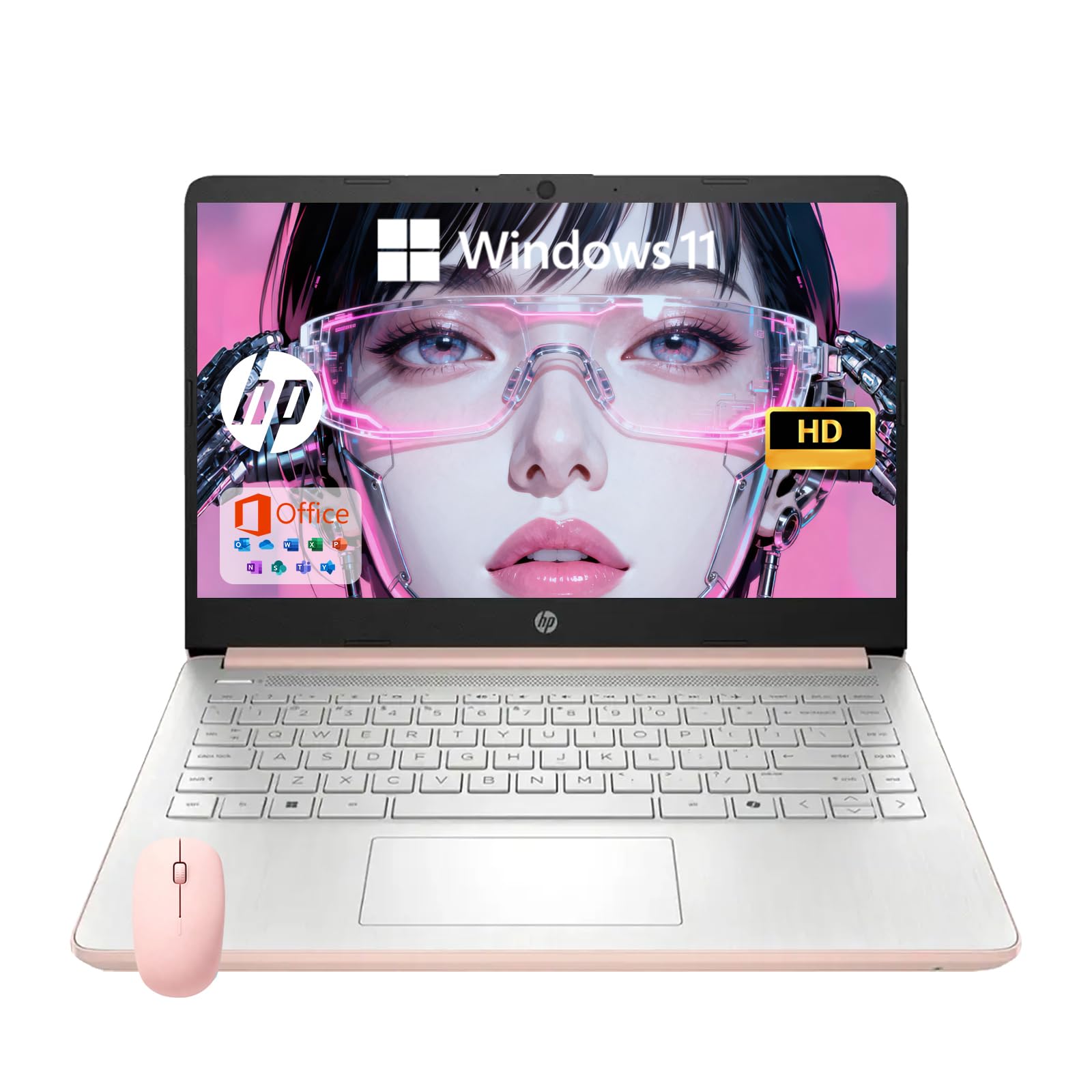

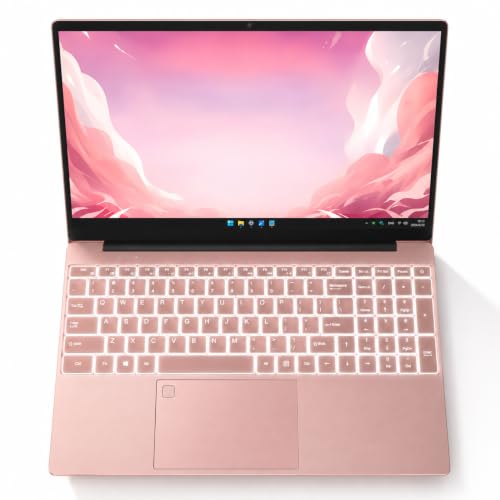
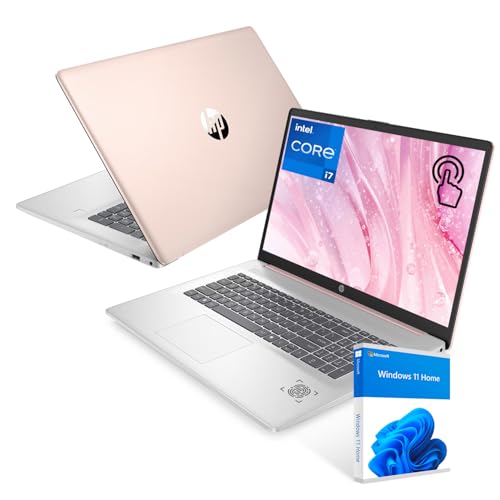

How We Evaluate Colorful Laptops
Think of this section as a scorecard you can reuse for any model you find. A laptop does not need top marks in every row, but it should clear the minimom in the rows tied to your main tasks. A weakness you notice once a month is a fair trade for a lower price, while a weakness you feel every hour will annoy you for years. Keep notes as you read, and be honest about how you actually work rather than how you might work one day.
Processor and Performance Tier
Current mid range processors from the Intel Core Ultra, AMD Ryzen, and Apple M families handle browsing, office documents, video calls, and photo edits with ease. That tier is the sweet spot for most buyers. Step down to entry chips only for light schoolwork and streaming, and expect slower multitasking. Step up if you edit video, compile code, or keep many large spreadsheets open, because a stronger processor adds years of comfortable use even though it raises the price.
Display Size, Resolution, and Brightness
Screens from 13 to 16 inches cover most needs, with 14 inches balancing space and portability well. Look for at least 300 nits of brightness for indoor work, and more if you sit near windows. Full HD resolution is the practical floor, while sharper panels help with text and detailed images. OLED panels give rich color that suits a colorful design, but check the refresh rate too, since 60 Hz suits office work while higher rates feel smoother in games and fast scrolling.
Keyboard, Trackpad, and Build
You touch the keyboard and trackpad more than any other part, so comfort here matters as much as speed. Look for firm keys with clear travel, a trackpad that tracks without skipping, and a backlight if you type in dim rooms. An aluminum lid or deck usually resists flex better than thin plastic, and it also protects the finish. Check hinge stiffness by reading the specifications and return terms, since a wobbly hinge is hard to fix later.
Weight and Portability
Weight under 3 lb suits students and commuters who carry a laptop all day, especially with a charger in the same bag. Around 3 to 4 lb is fine for a short commute or moving between rooms at home. Heavier models make sense mainly as desk machines with larger screens. Remember to add the charger weight when you compare, because a compact laptop with a bulky brick can feel heavier in practice than the headline figure suggests.
RAM and Storage
Treat 8 GB of RAM as the minimom for light use, and choose 16 GB if you keep many tabs open, join video calls while working, or plan to keep the laptop for four years or more. Storage should be an SSD, since it makes startup, loading, and file copies far faster than older drive types. For capacity, 256 GB works for cloud based work, while 512 GB gives safer room for photos, games, and offline files.
Operating System
Choose the system that fits the software and devices you already own. Windows offers the widest choice of colorful models and price points. macOS suits buyers already using an iPhone and Apple services, though color choice is narrower. ChromeOS is simple, secure, and often cheaper, and it covers school and browser based work well. Changing systems means learning new shortcuts and sometimes replacing paid apps, so count that cost before you switch for color alone. If you like compact, light designs in any system, see our guide to the best notebook laptops for more on that category.
Battery Life in Real World Use
Advertised battery figures assume light tasks and a dim screen, so expect less during video calls, bright display use, or heavy multitasking. As a rule, a claim of 10 hours often means about 7 to 8 hours of mixed real use. Fast charging over USB C is a genuine plus, since a short top up before you leave can save a day. A standard USB C charger also means one brick can serve your phone and laptop on trips.
Price Tiers That Pass Our Checklist
Instead of chasing a single model, use these tiers to see what your budget should deliver. If a colorful laptop sits in a higher tier but only offers lower tier parts, its color is carrying the price, and you should keep looking.
The Balanced Tier
Balanced models, often around $700 to $1,100, should give you a current mid range processor, 16 GB of RAM, a 512 GB SSD, and a bright screen near 300 nits or more. This is the tier most buyers should aim for, because it stays comfortable for years without paying for power you will not use. Color choice is usually widest here too, so you can pick a shade you love without giving up the basics. For students comparing this tier with campus needs, our guide to the best laptops for college adds helpful context on durability and support.
The Value Tier
Value models, often under $700, can still pass the checklist if you choose carefully. Expect 8 GB of RAM, a 256 GB SSD, and a slightly dimmer screen, but do not accept a slow entry processor paired with a spinning hard drive at any price. Chromebooks often shine here for school use. If value is your main goal, compare this tier with the options in our guide to the best economical laptops, and watch for sales rather than cutting core parts.
The Heavy Use Tier
Heavy use models, often above $1,100, should add a stronger processor, a sharper or faster display, more storage, and a sturdier case. This tier suits creators, engineers, and gamers who push their machines daily. Pay for it only when your software truly needs the extra power, because the added weight and cost bring little benefit for email and documents. Timing can soften the price, so it is worth reading our guide to the best time to purchase laptops before you buy at full price.
Quick Buyer Checklist
Answer each question before you pay. A no answer does not always end the deal, but it should make you pause and compare one more option.
- Does the processor match your heaviest weekly task, not just your lightest one?
- Is the screen at least 300 nits and Full HD or sharper?
- Does it have 16 GB of RAM, or 8 GB with a clear light use plan?
- Is storage an SSD of 256 GB or more?
- Can you carry the laptop plus its charger comfortably for your normal trip?
- Does it run the operating system your school, job, or apps require?
- Does the color finish hide wear well, or will scratches show at once?
- Is the warranty at least one year, with a return window you can actually use?
If you answered yes to most of these and the price fits your budget, you have likely found a sound match. Buyers who want a sensible middle ground can also browse our guide to the best reasonable laptops for a broader view of balanced choices.
Red Flags to Watch For
Vague specifications are the first warning sign, especially when a listing hides the exact processor model or screen brightness. A colorful finish over a very old chip is another, since the machine may struggle within a year. Watch for tiny storage paired with no way to add more, because updates and photos fill space fast. Unusually glowing reviews that repeat the same phrases deserve skepticism. Finally, a very short warranty or a seller with unclear returns suggests the maker expects problems, and your color choice will not make up for weak support.
How to Make Your Colorful Laptop Last Longer
Keep the operating system and firmware updated, since updates fix security flaws and often improve battery behavior. Avoid holding the battery at 100 percent charge all the time if your settings allow a charge limit for desk use. Carry the laptop in a padded sleeve, which protects both the case and the colored finish from keys and zippers. Clean the vents with gentle air now and then, and back up important files so a failure never becomes a crisis.
Frequently Asked Questions
Is a Chromebook enough for school?
Yes, for most schoolwork built on browsers, documents, and classroom apps, a Chromebook is enough. It starts fast, updates quietly, and usually costs less. Check two things first: whether your school requires a specific Windows or Mac app, and whether you need offline tools for art, coding, or science work. If either answer points away from the browser, choose Windows or macOS instead.
Is a dedicated GPU worth it?
It is worth it only if you play demanding games, edit video often, or use 3D and engineering software. For office work, browsing, and streaming, integrated graphics handle everything while using less power and adding less weight. Many buyers are better served by spending that money on more RAM or a better screen. Check the requirements of your main software, and let that list, not a sales pitch, decide.
How long should a colorful laptop last?
A well chosen mid range laptop should stay useful for about four to six years. The battery usually fades first, often after three or four years of daily charging, and many models allow a battery replacement. The finish itself does not affect lifespan, but a sturdier case protects the parts inside. Choosing 16 GB of RAM and a mid range processor today is the simplest way to stretch that lifespan.
Should I buy a laptop or a tablet?
Buy a laptop if you type long documents, manage files, or run full desktop software, since a real keyboard and trackpad make long sessions easier. A tablet suits reading, drawing, and media, and it weighs less in a bag. Some buyers pair a basic laptop with no tablet at all and spend the savings on a better screen. If your work lives in a browser and you travel light, a tablet with a keyboard cover can be a fair middle path.
How much RAM do I need?
Most buyers need 16 GB for comfortable multitasking over several years. Choose 8 GB only for light use such as email, streaming, and a handful of tabs, or when the price gap is large and your needs are simple. Creators and heavy tab users may want 32 GB. Because many colorful ultraportables cannot be upgraded later, decide based on your busiest day, not your quietest one.
Our Verdict
Start with the processor, RAM, and display, because those three shape every day you own the machine. Then check weight, battery, and the operating system against your routine, and only then fall in love with a color. When the basics pass the checklist, the best colorful laptops give you a machine that feels personal without costing you speed or comfort. Compare your short list with the product table above, and choose the one that clears your top criteria at a price you feel good about.


