
Best Chromebook Laptops 2026 Buying Guide
Disclosure: We may earn a commission when you buy through links on this page, at no extra cost to you. As an Amazon Associate I earn from qualifying purchases. Learn more

Compare the best chromebook laptops by battery life, screen, keyboard, memory and update support to find one that fits school, work and browsing.
A Chromebook is a laptop built around the Chrome browser and ChromeOS, designed to start in seconds, update itself, and keep most of your files in the cloud. It costs less than most Windows laptops, needs little upkeep, and suits email, documents, video calls, streaming, and web apps. The best chromebook laptops are not the most powerful ones, but the ones that match the way you work, with a screen you like, a keyboard that feels good, and software support that lasts. The comparison table below lines up the main models, and this guide explains how to choose.
Prices run from about $200 for a basic 14 inch model to $800 or more for premium convertibles, and the difference mostly shows in the screen, the speed, and the build.

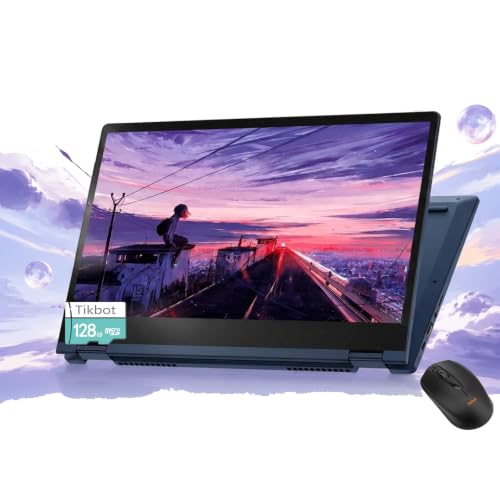
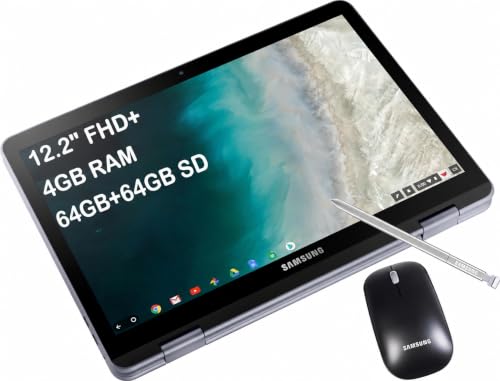
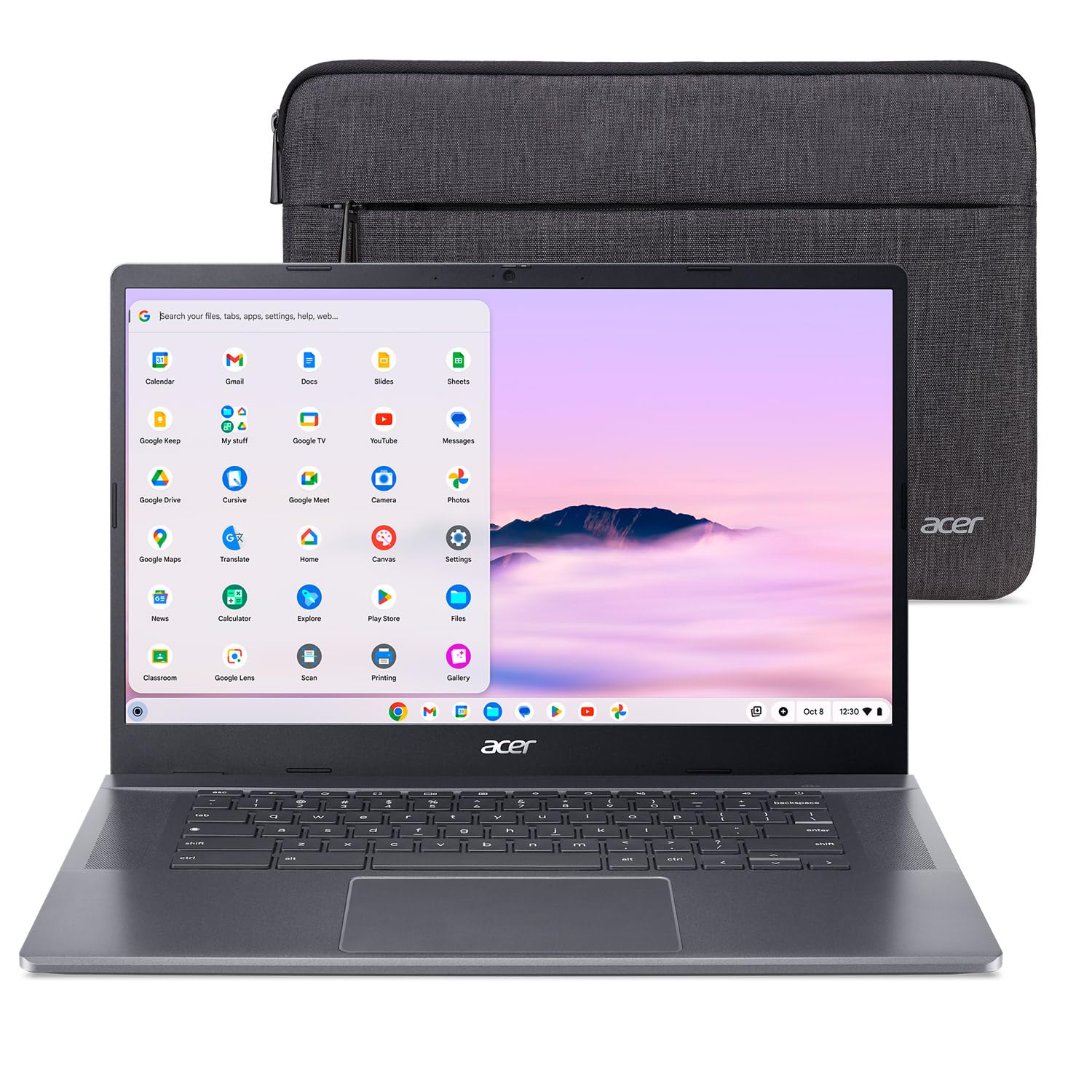
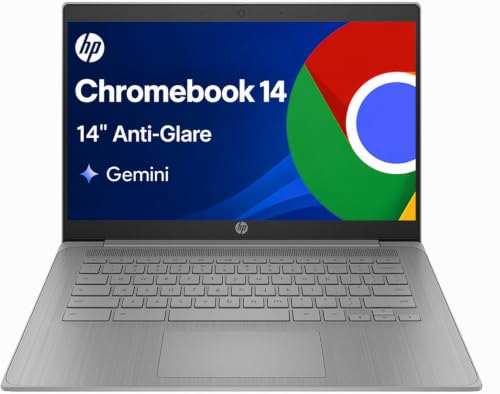

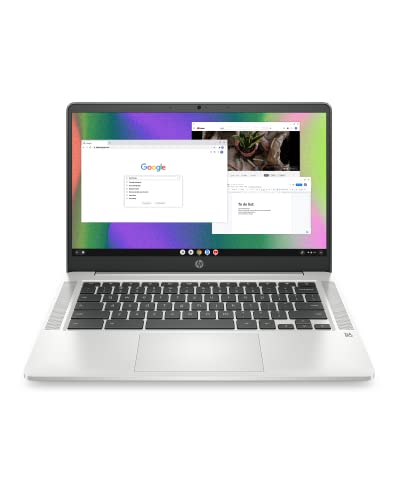


What Is Different About a Chromebook
A Chromebook runs ChromeOS instead of Windows or macOS. You sign in with a Google account, and your settings, bookmarks, and files follow you. Apps come from the web, from the Google Play Store (Android apps), and on many models from Linux. There is no traditional desktop software installer, so programs such as full video editors, certain accounting packages, and some games are not available.
The reward is simplicity. The system is light, so a modest processor feels quick. Security is built in, with automatic updates and sandboxed apps. Batteries tend to last through a school or work day. If your daily tools already live in a browser, a Chromebook is hard to beat for the price. For more traditional machines, see our guides to the best notebook laptops and the best non chromebook laptops.
Who Should Buy One
- Students: light, inexpensive, and easy for schools to manage. Our guide to best chromebook laptops for students covers budget tiers in detail.
- Home users: web browsing, video, family photos, and streaming without virus worries or slowdowns.
- Remote and office workers: email, documents, spreadsheets, and video calls through web apps.
- Second laptop buyers: a cheap travel or couch machine alongside a desktop.
Screen Size and Type
Most Chromebooks come in 11 to 15 inch sizes. A 14 inch model is a good balance for most people. A 15 inch model gives you more room for two windows side by side, while an 11 or 12 inch model is easier to carry. Look for a full HD display (1080p) over a basic HD panel, since text looks much sharper. Touchscreens and 2-in-1 hinges that fold into tablet mode are handy for note taking and Android apps, but add weight and cost.
Processor and Memory
Entry processors such as Intel Celeron or MediaTek handle browsing, documents, and video well, but slow down with many tabs open. Mid range Intel Core i3 and i5 chips, found in Chromebook Plus models, keep many tabs, video calls, and Android apps smooth. RAM matters as much as the processor: 4 GB is the minimum, 8 GB is a comfortable target for most people, and more is useful if you run Linux apps or keep dozens of tabs open. RAM cannot be added later, so buy what you need now.
Storage
ChromeOS stores most files online, so 64 GB is enough for light use, but 128 GB gives room for offline files, downloads, and Android apps. A microSD slot on some models is an easy and cheap way to add space. Fast solid state storage makes the system start and open apps quickly.
Battery, Ports, and Charging
A good Chromebook lasts through a full school or work day on a charge. Real use with video calls and many tabs shortens the quoted time, so allow some margin. USB-C charging is common, which means one charger can power a laptop, a phone, and a tablet. Look for at least two USB-C ports and, if you use older accessories, a USB-A port. An HDMI port or USB-C display output helps if you connect a monitor or a TV.
Build and Keyboard
Plastic bodies keep the price low, and metal bodies feel more solid and premium. A comfortable keyboard with good key travel makes a big difference if you write a lot. A backlit keyboard helps in dim rooms. For heavy daily use in a school bag, look for reinforced corners, a spill resistant keyboard, and a firm hinge.
Update Support Matters
Every Chromebook gets security and feature updates for a fixed number of years, and the end date is listed on the maker site. A model near its end date is a poor buy, even at a discount. Choose a newer model with an end date several years away, since it stays secure and keeps working with new web features.
Peripherals and Compatibility
Most USB and Bluetooth mice, keyboards, headphones, and external drives work. Printers need to support ChromeOS or network printing. Check that any software your school or workplace requires runs in a browser or as an Android app before you buy.
Common Mistakes
- Buying a model with only 4 GB of RAM and then running many tabs.
- Choosing a basic HD screen for a laptop used for long reading or writing.
- Ignoring the update end date on clearance stock.
- Assuming a favorite desktop program will run on ChromeOS.
- Overspending on a premium model when your work only needs the web.
Frequently Asked Questions
Can a Chromebook replace a Windows laptop?
For web based work, yes. For specialist desktop software, no. List the programs you need and check for a web or Android version.
Do Chromebooks work without internet?
Many things do, including Google Docs offline, downloaded movies, and Android apps that do not need a connection. Set up offline access before you travel.
How long does a Chromebook last?
Most last four to six years in daily use, but the update end date sets the true limit. Choose one with a later date.
How much should I spend?
Around $200 to $300 covers a basic model. Around $350 to $550 buys a better screen and more memory. Premium models cost more and suit heavy daily use.
Can I use Microsoft Office?
Yes, through the web versions or Android apps. Check the features you rely on, since the web apps are lighter than the desktop versions.
Final Thoughts
Decide how you will use the laptop, pick a screen size and memory level that fit, and check the update end date. Compare the product table above with your budget, and one of the best chromebook laptops will serve you well for years. If you are choosing for college, our guide to the best laptops for college compares all laptop types.


