
Best Chromebook Laptops for Students by Budget: Smart Picks for 2026
Disclosure: We may earn a commission when you buy through links on this page, at no extra cost to you. As an Amazon Associate I earn from qualifying purchases. Learn more

Learn how to choose the best chromebook laptops for students by budget, display, battery life, and storage, with a clear checklist for school use.
Chromebook prices stretch from under $200 to well past $700, and the listings rarely explain what the extra money actually buys you. A cheap model can handle essays and web research just fine, while a costly one may only add a nicer screen you never needed. This guide to the best chromebook laptops for students sorts the spending for you.
We walk through what each price tier delivers, which features deserve your money, and which ones you can safely skip. Start with the comparison table below, then use the sections that follow to match a tier to your classes, your commute, and your budget.
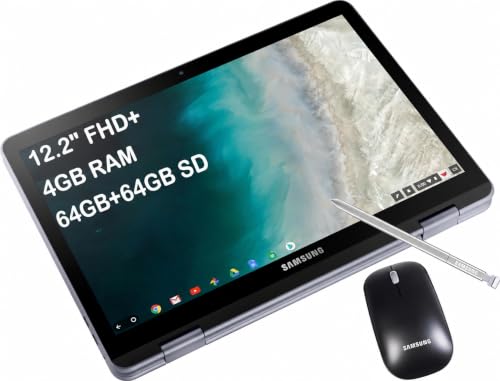


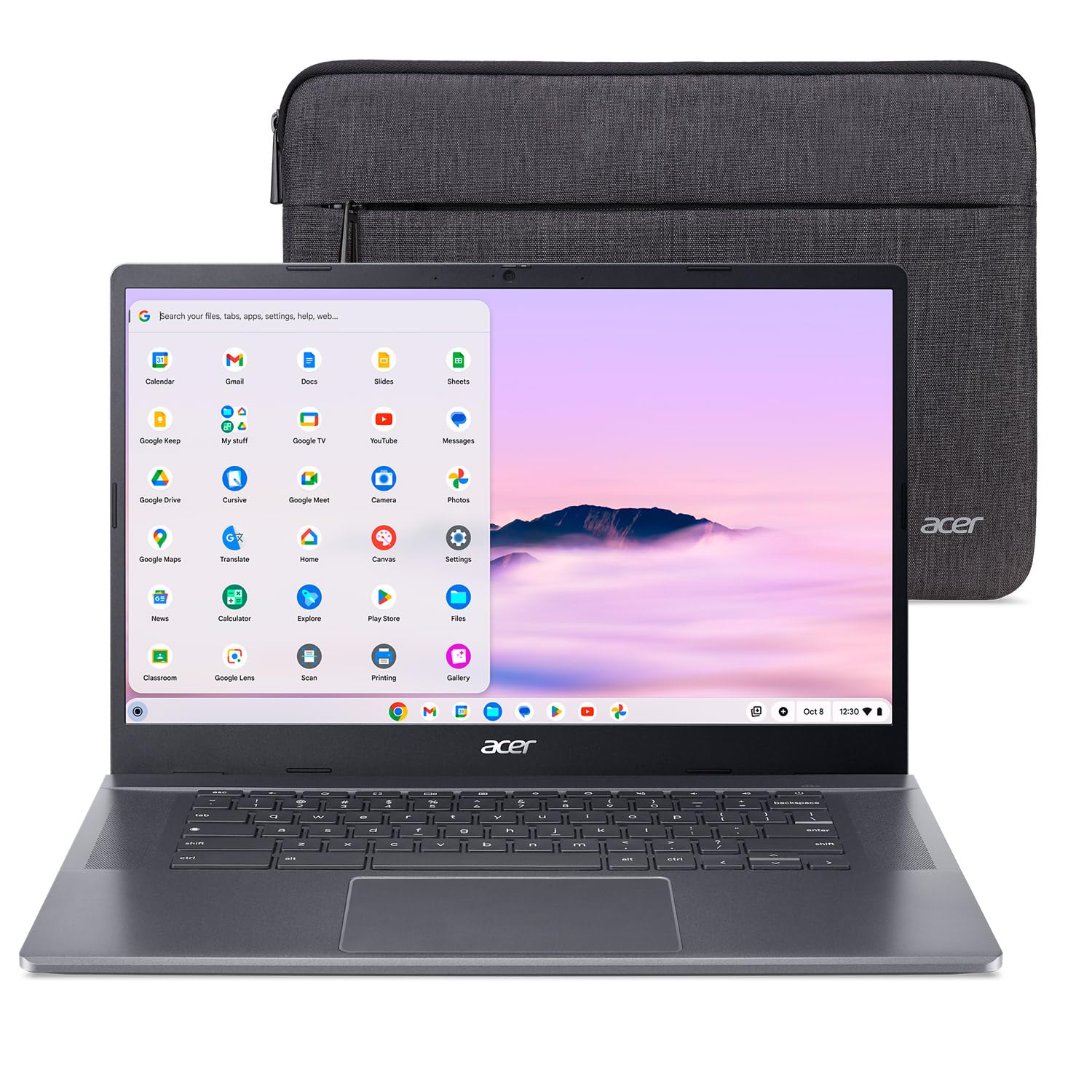


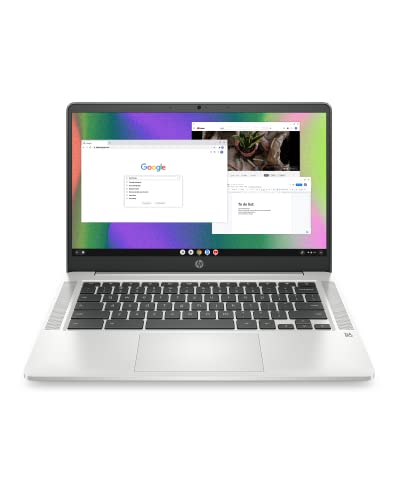


Three Budget Profiles for Students
Think of these three profiles as budget targets rather than single models, because stock and pricing change through the school year. Match your daily workload to one profile, then compare the specific options in the product table above against that profile. A profile that fits your classes will serve you better than a longer spec list bought on impulse.
The Budget Profile
Around $200 to $300, look for a simple clamshell design with at least 4 GB of RAM, 64 GB of storage, and a battery rated for a full school day. This profile suits younger students and anyone whose work lives in documents, slides, email, and browser based classes. Expect a plastic body and a basic display, and accept slower loading when many tabs stay open. Spend your savings on a padded sleeve and a spare charger instead of chasing small spec bumps at this tier.
The Midrange Profile
Around $350 to $550, you should get 8 GB of RAM, 128 GB of storage, a brighter 1080p display, and a sturdier body that survives daily bag travel. This profile fits most high school and college students because it keeps many tabs, video calls, and light photo work moving without constant pauses. A touchscreen with pen support often appears here, which helps for marking up readings and taking notes. The trade off is a slightly higher weight and a price that starts to overlap basic Windows machines.
The Premium Profile
Around $600 to $800, expect a metal body, a fast processor, 16 GB of RAM on some models, and a sharp display with strong speakers for media work. This profile suits students who edit video, run Linux apps, or plan to keep one machine through a full degree. Battery life stays strong, and keyboards and trackpads feel noticeably better for long writing sessions. The limit is value, since much of the gain is comfort and speed rather than new capability for standard schoolwork.
What Your Money Gets You at Each Price Tier
Price tiers in this category are unusually honest, because each step tends to fix one clear weakness of the tier below it. The sections below explain the typical feature set, the trade off you accept, and who should stop at each level. If you want broader context on the category itself, our guide to the best chromebook laptops covers how these machines differ from other portable computers.
Budget Tier: What to Expect
Budget models focus on the basics: a modest processor, a smaller SSD or flash storage, and a display that looks fine indoors but washes out in bright light. They run web apps and documents well, yet they slow down when you stack video calls on top of twenty open tabs. This tier works for elementary and middle school students, loaner style backup machines, and families buying for one school year at a time. Check the update end date before buying, since older budget stock can lose software support sooner.
Midrange Tier: The Sweet Spot for Most Buyers
Midrange models add the upgrades students feel every day: double the RAM, double the storage, a backlit keyboard on many models, and USB C charging on both sides on some designs. Multitasking feels calm, video calls stay smooth, and the machine still feels quick in year three. Most college students should land here because the cost per year of use drops even though the sticker price rises. If your budget forces a choice, pick this tier over a premium model plus paid accessories.
Premium Tier: When Spending More Pays Off
Premium models buy refinement: thinner metal bodies, taller displays with more working room, faster storage, and stronger speakers and microphones for recorded lectures. They also tend to carry later update end dates, which stretches their useful life. This tier pays off for graduate students, media and design coursework that runs in the browser, and anyone who types for hours daily. It makes little sense if your work is only documents and quizzes, because the core apps run the same.
Features Worth Paying For (and Ones to Skip)
Not every upgrade on a spec sheet matters in a classroom. The features below are ranked by how much they change daily student life, and each one notes the tier where it usually appears. Use this section to build your personal must have list before you compare the best chromebook laptops for students in the table above.
What Students Should Look For
Start with the update end date, printed by the maker as the last year of automatic updates, because a cheap machine near that date is no bargain. Next, confirm the school platform your classes require, since a few exam and course tools still need Windows or macOS software. A comfortable keyboard, a webcam that handles dim dorm lighting, and two USB C ports round out the student essentials. Everything past that list is a comfort upgrade, not a requirement.
Display Size, Resolution, and Brightness
Most students do best with a 13 to 15 inch display, since 11 inch screens cramp split screen work and 16 inch models fill a backpack. Choose 1080p resolution as your floor for crisp text during long reading sessions. Brightness around 300 nits or higher keeps the screen readable near windows and in bright lecture halls. Touchscreens help for annotating readings, but glossy panels reflect more, so weigh your study spaces before paying for touch.
Weight and Portability
Aim for under 3 lb if you walk or ride transit between classes, because the charger, water bottle, and books add weight fast. Slim ultraportables feel great on day one and still feel great in month six, which is when heavy machines start getting left behind. If you mostly study at one desk, a slightly heavier 15 inch model gives you screen room for free. Readers comparing formats may also like our guide to the best notebook laptops for slimmer Windows alternatives.
Processor and Performance Tier
Entry processors handle documents and browsing, while midrange Intel and ARM chips add headroom for video calls, many tabs, and light editing. RAM matters more than raw processor speed here, so 8 GB is the safer target for college workloads. Students in technical programs should check software needs early, and our guide to the best laptops for it students explains when a Chromebook stops being enough. A dedicated GPU is not a Chromebook feature, so gaming laptops sit in a different category entirely.
Long Term Costs to Factor In
Budget for a protective sleeve or case, a second USB C charger for your bag, and possibly a wireless mouse for desk work, which together add around $50 to $100. Cloud storage is often free through school accounts, but personal backup space can add a small yearly fee after graduation. Accidental damage coverage deserves a look for younger students, since one cracked screen can cost more than the plan. Build quality stretches the timeline, and our guide to the best quality laptops for students shows what durable construction looks like across categories. A machine kept four years at the midrange tier usually beats two budget machines bought back to back.
FAQs
What makes chromebook laptops for students different?
Student focused Chromebooks differ mainly in durability, price, and simple management rather than raw power. Many include reinforced ports, spill resistant keyboards, and bodies built for daily bag travel. They also favor long battery life over heavy local software, since schoolwork runs in the browser. Schools can manage them centrally, which is why districts buy them in bulk.
Is a Chromebook enough for school?
Yes, a Chromebook is enough for most schoolwork, including essays, research, slides, spreadsheets, and video classes. The exception is coursework that requires installed Windows or macOS programs, such as some engineering, statistics, or media tools. Check your course software list before buying. Many schools also offer remote access to course software that fills the remaining gaps.
Should I buy a laptop or a tablet?
Buy the laptop if typing long assignments is part of your week, because a real keyboard and trackpad speed up writing and editing. Tablets shine for reading, drawing, and light media, but file handling and multitasking feel cramped. Some students pair a Chromebook with a cheap tablet later. Our guide to the best notebook laptops for students helps if you lean toward a traditional laptop instead.
How long should a chromebook laptop last?
A chromebook laptop should last about four to six years of student use when the update end date is far enough out. Battery wear usually shows first, with runtime shrinking after a few hundred charge cycles. Physical care matters too, since hinges and ports suffer most in backpacks. Buying a current model at the midrange tier gives the longest realistic service life.
Is a dedicated GPU worth it?
No, a dedicated GPU is not worth chasing here, because Chromebooks rely on integrated graphics by design. Integrated graphics handle video, casual browser games, and light photo edits without trouble. Students who need GPU power for gaming or 3D coursework should shop gaming laptops or Windows machines instead. Spending that money on RAM and storage serves a Chromebook buyer far better.
How much RAM do I need?
Most students need 8 GB of RAM for comfortable multitasking across tabs, documents, and video calls. Four GB still works for younger students with a handful of tabs and simple assignments. Choose 16 GB only if you run Linux apps, edit media, or keep dozens of research tabs open. RAM cannot be upgraded later on nearly all Chromebooks, so decide generously at purchase.
Our Verdict
For most students, the midrange tier wins: 8 GB of RAM, 128 GB of storage, a bright 1080p display, and an update end date at least five years out. Budget buyers with simple needs can spend less without regret, while premium models reward heavy writers and media students. Whichever tier you choose, the best chromebook laptops for students are the ones matched to your actual classes, so compare your shortlist in the product table above before you buy.


