Best Case for Multiple Hard Drives in 2026: A Simple First Time Guide
Disclosure: We may earn a commission when you buy through links on this page, at no extra cost to you. As an Amazon Associate I earn from qualifying purchases. Learn more

The best case for multiple hard drives gives each drive a bay, cool air and a tidy cable path; here are the basics for a first build.
Adding drives sounds simple until you open a case and find only two places to mount them. The best case for multiple hard drives gives every drive a secure bay, cool air, and a tidy cable path. This guide starts with the basic terms, then walks through the choices in plain language, so you can read the product table with confidence.
Begin by counting the drives you own now and the ones you expect to add in the next few years. That number shapes the size, price, and layout you need. The sections below match bay counts and features to home servers, media libraries, and desktops that have outgrown their storage.




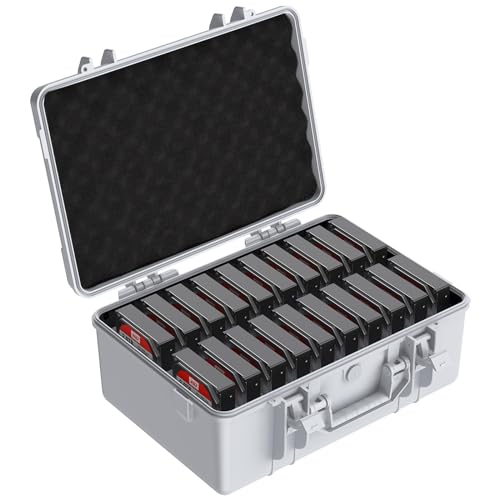
Cases 101: The Basics for Multiple Drive Builds
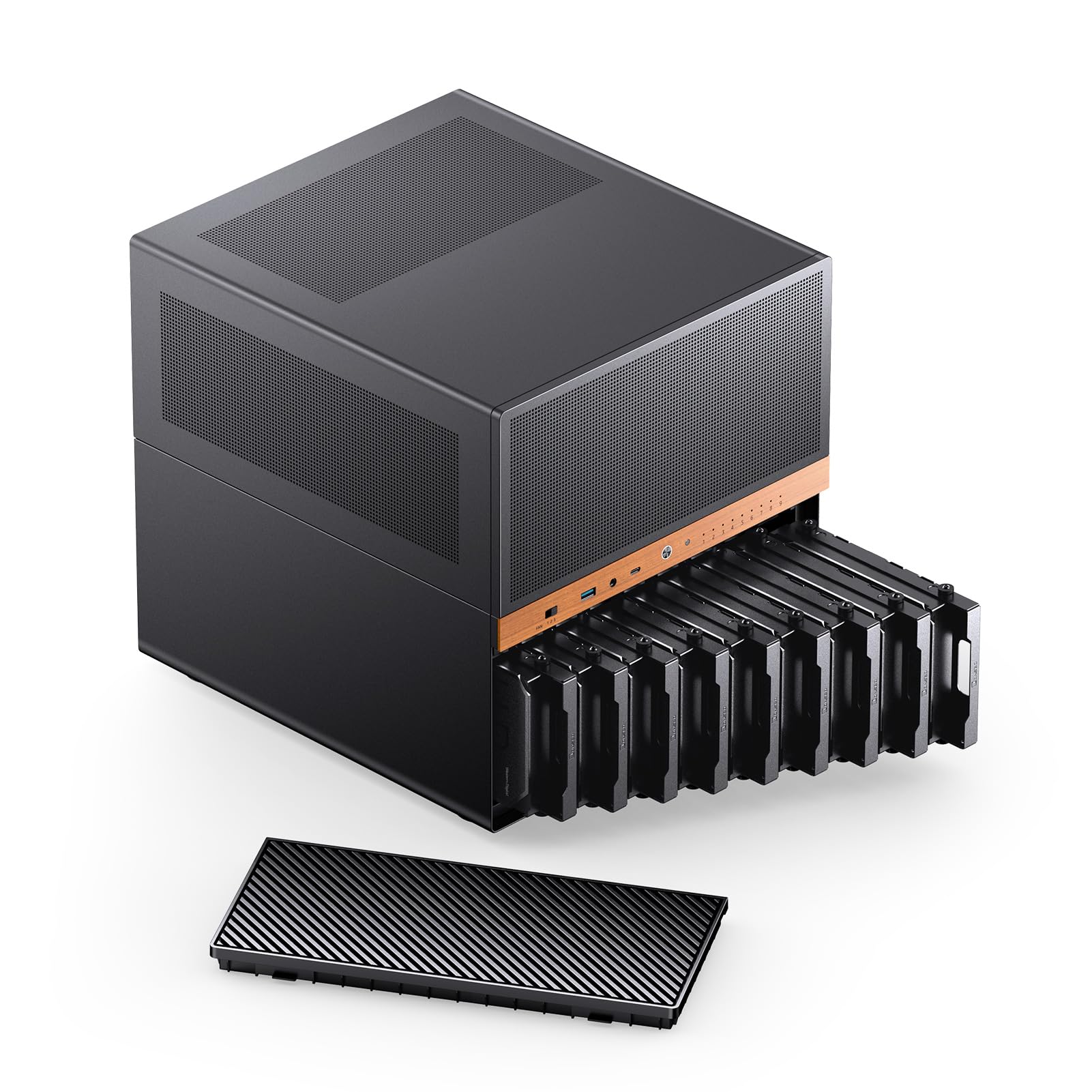
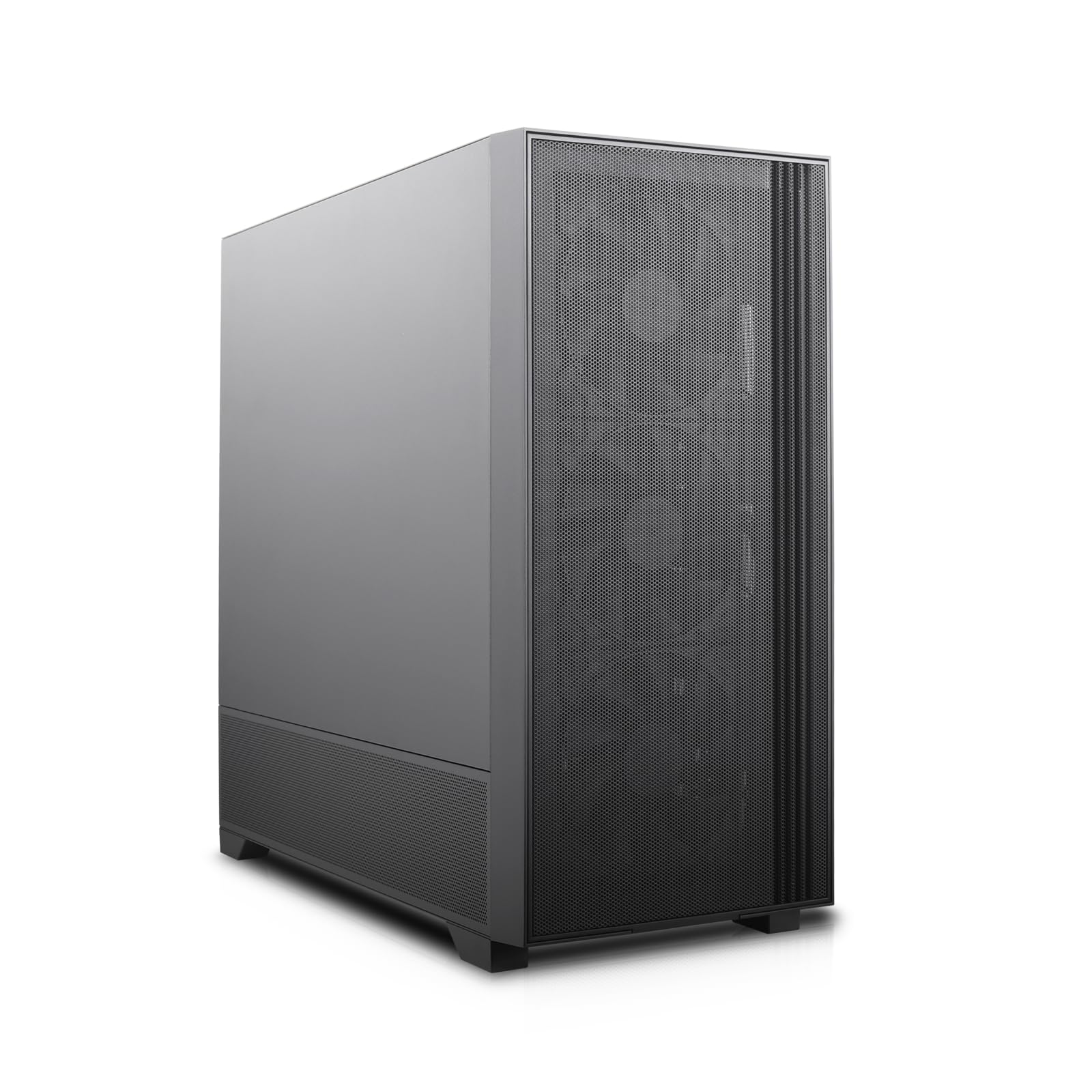
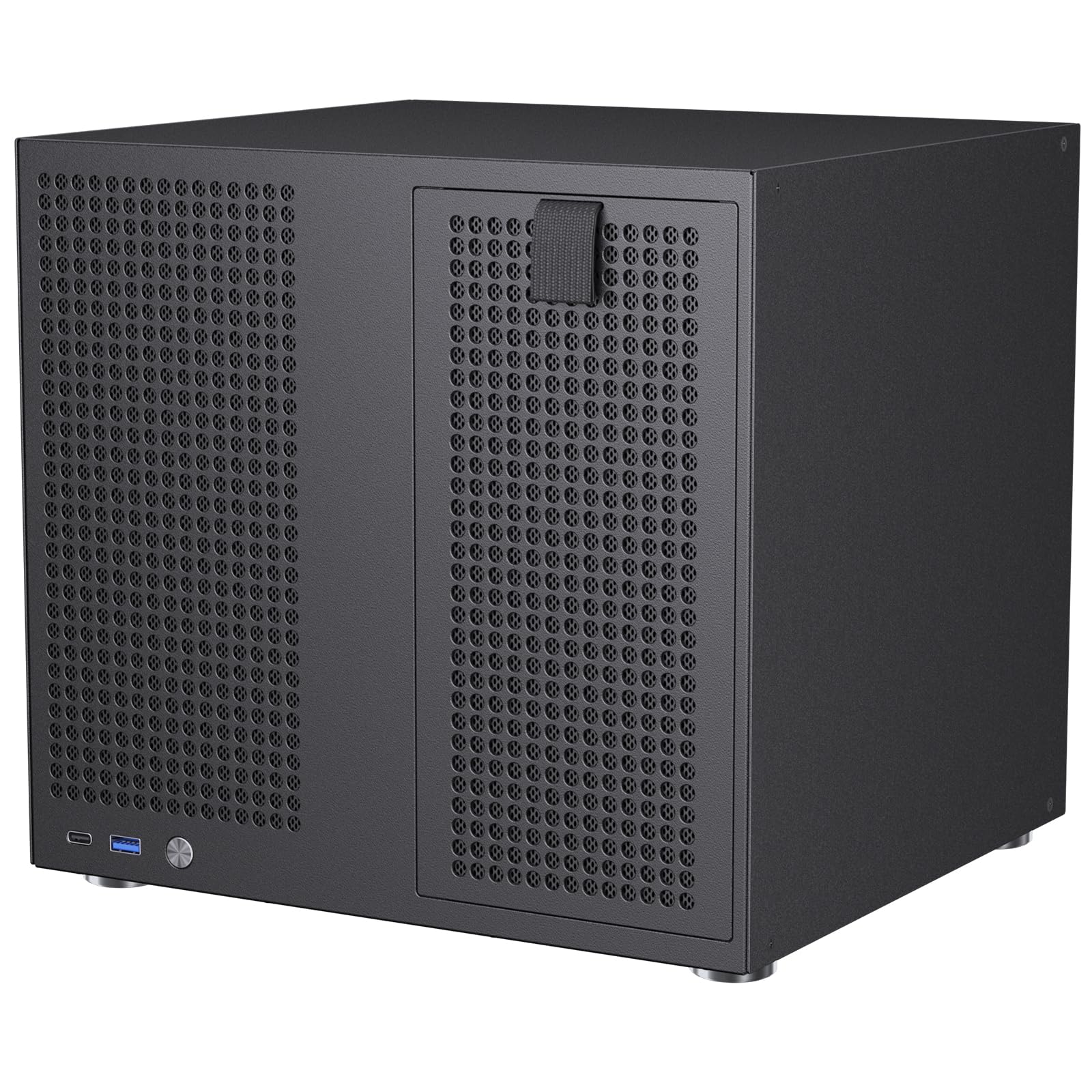
A computer case is the metal box that holds your motherboard, power supply, and drives, and it protects those parts while air moves through them. A drive bay is a slot sized for one drive. Most large drives use 3.5 inch bays, while smaller laptop style drives and solid state drives use 2.5 inch mounts. If you only expect one or two drives, see our guide to the best case for hard drives for that simpler layout.
Drives often sit together inside a cage, a stacked frame at the front or bottom of the case. Each drive slides into the cage on a tray that locks it in place. Cases for multiple hard drives give you more of these bays, plus the fan mounts and cable room a tall stack requires.
Who Should Buy a Case Built for Many Drives?
Choose this type of case when the number of drives, not raw speed, is your main problem.
Home Server and Backup Builders
You store family photos, documents, and backups for several computers in one place, with spare copies on separate drives. Look for at least four to six 3.5 inch bays, so one failed drive never holds the only copy of a file. A plain case without a glass panel often suits a server in a closet or spare room.
Video Editors and Media Collectors
You keep large video projects, music, and film libraries that fill a single drive quickly. Look for six or more bays and easy front access, because you will swap project drives often. The drives themselves matter just as much, so see our guide to the best quality hard drives when you plan what will fill those bays.
First Time Builders Planning to Expand Storage
You are building your first desktop and want room to grow instead of buying a second case later. Choose two more bays than you need today, a layout you can open without special tools, and clear markings on each tray. That spare room saves a full rebuild when a new drive arrives.
Key Features to Compare
When you compare the best case for multiple hard drives, work through the five factors below in order, because bay count alone tells only part of the story.
Drive Bay Count and the Mix of Sizes
Count 3.5 inch bays and 2.5 inch mounts separately, because a case can promise many drives yet offer most of that room in the smaller size. A typical multiple drive case offers about four to eight 3.5 inch bays and about two to four 2.5 inch mounts. Count your current drives, add the ones you plan to buy, then add one spare bay.
Removable Cages, Trays, and Easy Access
Each drive should sit on its own tray that slides out from the side you open most often, so you never remove a working drive to reach a failed one. Some cages come out in sections, which lets you trade two bays for space for a long graphics card. Check how trays lock, since simple clips are faster for frequent swaps, while screws hold firmer in a case that travels.
Airflow and Cooling Around Stacked Drives
A stack of spinning drives warms the air around it, so look for intake fan mounts that blow directly across the cage, not only mounts at the rear or top. A mesh front panel feeds those fans far better than a solid panel with small side vents. Removable dust filters in front of the intake fans protect the drives from dust buildup. Choose at least two front fan mounts if you plan to fill every bay.
Vibration Control, Noise, and Build Quality
Several spinning drives can hum together and make thin panels rattle, so look for rubber mounts or padded trays where each drive meets its tray. Steel panels feel sturdier and resist that rattle better than very thin metal. Rolled edges inside the case protect your hands and cables during a build. Solid rubber feet also help, because they grip the desk and absorb small vibrations before they reach the panels.
Cable Space, Power Routing, and Internal Fit
Every drive needs its own data cable and a share of a power lead, so look for room behind the motherboard tray and cutouts near the cage. Your board also needs enough data ports, so see our guide to the best motherboard for multiple hard drives before you commit. Measure your desk or shelf space as well, since a full tower with eight bays is far taller than a mid tower with five.
First Build: Tray Order and Cage Removal
Read the manual before your first build, because tray order and cage removal differ between layouts. Readers set on a desktop tower format can also see our guide to the best pc case for multiple hard drives for that narrower view of the same layouts.
- Open both side panels and remove the drive cages so you can work without bending cables.
- Fit each drive onto its tray, slide the tray in until it locks, and note which bay holds which drive.
- Connect one data cable per drive, then connect the power leads without forcing any plug.
- Route spare cable length behind the motherboard tray and close the panels only after a trial start.
- Start the computer, confirm that every drive appears, and label each tray with its contents.
Leave some slack in each cable rather than pulling it tight across a fan or a sharp edge. Slack makes later drive swaps easier and keeps plugs seated.
Rookie Mistakes to Avoid
These errors are common on a first multiple drive build.
- Counting total mounts instead of 3.5 inch bays leaves your large drives with nowhere to sit.
- Filling every bay in a case with weak front airflow lets the middle drives run hot.
- Forgetting to count data ports on your motherboard leaves a mounted drive unconnected.
- Packing cables tightly against the cage blocks air and makes the next drive swap a struggle.
- Placing a loaded case on a soft or uneven surface lets it rock and adds vibration noise.
Care and Maintenance for a Multiple Drive Case
Clean the front dust filters about once a month in a dusty room, or every few months in a clean one. Slide each filter out, tap or rinse the dust away as the manual allows, and let it dry fully before you refit it. Wipe the front panel vents at the same time.
Every few months, open the case and inspect the trays, cable plugs, and fan blades for dust or looseness. Listen for a new rattle after you move the case, since a loose tray or panel is usually the cause. Replace any cable with a cracked plug or worn insulation, because damaged power leads put every drive on that lead at risk.
Frequently Asked Questions
What features matter most in a case for multiple hard drives?
Bay count, airflow across the cage, and cable room matter most in a case for multiple hard drives. One point many first time buyers miss is total loaded weight, because six drives can add roughly 8 to 10 pounds to a build. Place the finished computer on a sturdy, level surface, and lift it with two hands whenever you move it.
How much should I spend on a case for multiple hard drives?
Most buyers should spend about $70 to $140 on a case for multiple hard drives. Cases under about $70 often hold fewer drives or include no intake fans, so you may pay extra for fans later. Cases above about $160 usually add thicker panels, more cages, or quieter operation. Spend first on bays and fan mounts, and only then on looks.
Can a case for multiple hard drives also hold 2.5 inch solid state drives?
Yes, a case for multiple hard drives can usually hold 2.5 inch solid state drives as well. Many cases place small mounts behind the motherboard tray or on top of the power supply cover. If a mount is missing, a simple adapter bracket lets a small drive sit safely in a 3.5 inch bay. Keep one small mount free if you plan to add a fast system drive later.
How do I keep several hard drives cool inside one case?
You keep several hard drives cool by leaving an empty slot between drives when your bay count allows it. Spreading drives across the cage gives each one a path for moving air, instead of trapping heat between two touching units. You can also check drive temperatures in your system software after a long file transfer. If one drive always runs far warmer than the rest, move it nearer a front fan.
How long does a case for multiple hard drives usually last?
A case for multiple hard drives usually lasts through several drive and motherboard changes, often ten years or more. The case itself has few parts that wear out, and its fans are the items you are most likely to replace. Standard bay sizes change slowly, so a well sized case stays useful for years.
Our Verdict
Start with your drive count today plus one spare bay, then check front airflow, tray access, and cable room in that order. Use the product table above to compare bay counts, sizes, and prices side by side before you order.
For most first time buyers, the best case for multiple hard drives is a mid range case with at least two front fans, rubber mounted trays, and room to grow. Buy for the drives you will own in three years, not only the drives on your desk today.