Best Cameras to Use with Obs in 2026: What Actually Matters Before You Buy
Disclosure: We may earn a commission when you buy through links on this page, at no extra cost to you. As an Amazon Associate I earn from qualifying purchases. Learn more

Compare the best cameras to use with obs by clean HDMI output, continuous power, autofocus and field of view, with a setup checklist for streamers.
A camera can take lovely photos and still fail as a streaming camera. It may add menus to the video feed, stop after a short clip limit, or lose power mid stream. The best cameras to use with obs avoid those traps and send a clean, steady picture into OBS for hours. This guide uses a simple checklist to judge that fit, and the comparison table below is easier to read once you know which points matter most.
Start with how you appear on screen. A solo desk stream, a two person podcast and a church service place different demands on lens reach, autofocus and cable length.


Who Should Buy Which Camera for OBS?
Your format should choose the camera type before brand or price does.
Solo Streamers and Remote Workers at a Desk
You sit two to four feet from the camera and want a picture sharper than a laptop camera without a complex rig. A USB webcam or a mirrorless camera suits you best. Prioritize face autofocus and a field of view that shows your head and shoulders. If you also shoot everyday photos, see our guide to the best cameras for personal use for that wider view.
Podcasters, Teachers and Interview Hosts
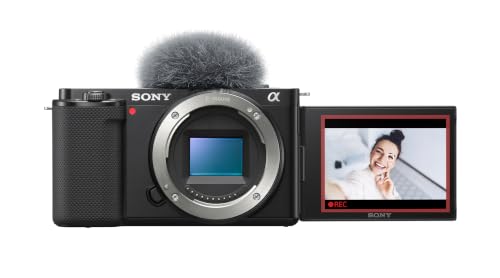
You record longer sessions, often with a guest, and may feed two cameras into OBS scenes. A mirrorless camera or camcorder with clean HDMI output gives consistent color across angles and frames a wider two person shot. You need continuous power more than portability, because a class cannot pause for a battery swap. A flip screen helps you check framing before recording.
Live Event, Worship and Performance Streamers
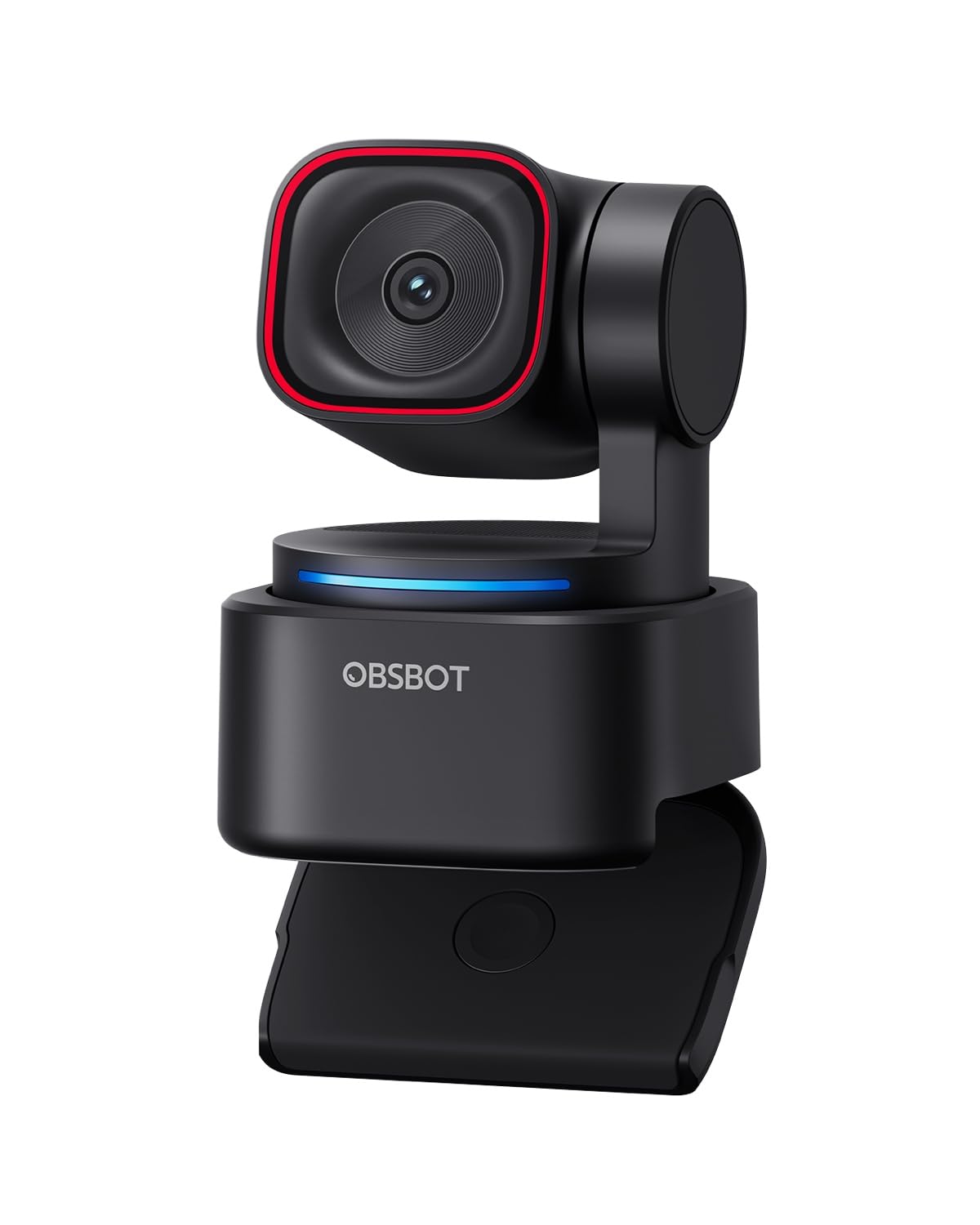
You film from the back of a room and need reach more than a wide desk view. A camcorder with strong optical zoom or a PTZ camera you can pan and zoom remotely fits this work. Long cable runs and remote control matter most, because the camera sits on a tripod in one place while you manage the stream elsewhere.
Key Features to Compare
Judge every candidate against the same five points, in this order.
Clean HDMI Output and the Capture Path into OBS
OBS needs a video source it can recognize. A USB camera that follows the UVC standard appears in OBS as soon as you plug it in, with no extra hardware. A camera with clean HDMI output sends the picture without menu icons or battery warnings, but needs a capture device before your computer. Confirm the maker lists clean output as a real feature. Also check that you can disable any auto shutoff timer, because a camera that sleeps will blank your scene.
Sensor Size and Image Quality in Room Light
Sensor size shapes how clean your picture looks in room light. A 1 inch sensor gathers more light than the small sensor in most webcams, and APS C and full frame sensors gather more again, so faces stay smooth with less grain in a dim room. Megapixels matter less, because OBS usually sends 1080p even when a camera can shoot 4K video. For photo first advice on general models, see our guide to the best digital cameras, then return to this streaming checklist.
Continuous Autofocus and Lens Field of View
Streaming autofocus must hold your face while you lean, gesture and look down at notes. Look for continuous autofocus with face and eye detection that refocuses smoothly instead of pulsing. Lens choice sets framing. About 16 to 24 mm on an APS C camera, or an equal field of view on other formats, suits a desk and shows some background. Longer lenses flatter faces from farther away but need more room. Fixed lens webcams are simpler, so check their field of view, often about 78 to 90 degrees.
Continuous Power, Heat and Session Length
A camera battery built for photo bursts may last only about one hour of video. For OBS work, look for USB C power delivery or a dummy battery that runs the camera from a wall outlet, so a three hour stream is routine. Heat is the other limit. Some cameras stop when warm, and small bodies run warmer in 4K than in 1080p. Choose a model known for sustained video and test a full session before an important stream.
Mounting, Monitoring Screen and Audio Sync
A standard tripod thread lets you place the camera at eye level on a desk mount or tripod, which looks far better than a low laptop angle. A screen that flips toward you helps you frame the shot and check focus before you go live. Audio needs one check. Video through a capture device can arrive a little late, so OBS lets you add a sync offset to your microphone. Run a clap test and adjust once, and speech will match your lips.
Camera Types Compared for OBS Setups
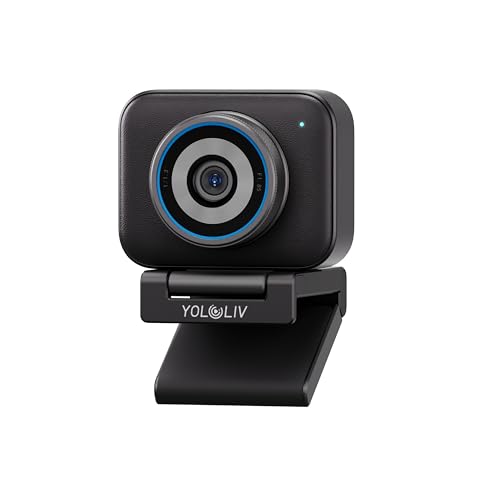
Four types cover nearly every OBS setup. USB webcams are simplest and cost least, and suit one person at a desk, but small sensors struggle in dim rooms. Mirrorless cameras give the best image quality and lens choice, but cost more and need care with power and heat. The best cameras to use with obs for most growing channels sit in this group, once clean output and wall power check out.
Camcorders are built for long runs, rarely overheat, and often include a useful zoom, though smaller sensors give a plainer low light look. Action cameras suit a second wide angle on a workbench, but distort faces up close. For a broader starting point, see our guide to the best cameras to use and weigh it against the OBS points above.
Quick Buyer Checklist Before You Buy
Answer each question with yes before you order. A no points to your next research step.
- Does the camera offer clean HDMI output or a UVC USB connection OBS recognizes?
- Can it run from wall power for your longest planned session?
- Can you turn off auto shutoff and on screen displays in the feed?
- Does continuous autofocus track a face smoothly at your seating distance?
- Does the lens field of view fit your room and your framing?
- Can you mount the camera at eye level on a tripod thread?
- Does your computer have a free port and capacity for your resolution?
Common Mistakes to Avoid
- Buying for megapixels alone leaves grainy video in dim rooms, because sensor size drives streaming quality more.
- Skipping the clean output check puts focus boxes and battery icons on your live picture.
- Planning battery swaps mid stream forces a pause and may shift the camera when you touch it.
- Choosing 4K for every scene overloads an older computer, so the stream drops frames.
- Mounting below eye level makes you look down at viewers, which reads as distant on screen.
- Testing for five minutes hides heat and power limits that appear after an hour.
Setup and Care Tips for OBS Cameras
Set up in a fixed order. Mount the camera at eye level, connect power first and video second, then add it as a source in OBS and set resolution and frame rate to match your stream, usually 1080p at 30 or 60 frames per second. Lock white balance to your room lights, then run a private test recording as long as your real sessions.
Clean the lens with a lens cloth, not your shirt, because shirt fabric can drag grit across the coating. Keep cables loose so a bump does not pull the camera off angle. Store the camera in a dry, padded bag with a spare cable, and update firmware only between streams, never on the day of an important session.
FAQ
Is a smartphone enough as an OBS camera for streaming?
Yes, a recent smartphone can serve as an OBS camera and often beats a budget webcam, because its low light processing is strong for its size. The new point to weigh is interruption. Calls, alerts and updates can break your feed, and a phone tied to your desk cannot take messages. Many creators start with a phone, then switch once streaming becomes weekly.
Do you need a capture card to use a camera with OBS?
No, you need a capture card only when a camera sends video over HDMI rather than USB. A UVC webcam connects directly, and some mirrorless cameras offer a USB streaming mode at limited resolution. A capture device adds a small delay, so after installing one, repeat the clap test and set your microphone offset to match that delay.
How much should you spend on a first camera for OBS?
Most first time streamers spend about $100 to $300 on a webcam, or about $500 to $900 on a mirrorless camera with a kit lens and dummy battery. Spend on light before spending past that point. A panel light at about $40 to $80 often improves your picture more than a costlier sensor, because a strong sensor still looks dull when your face sits in shadow.
Which camera type is better for low light rooms in OBS?
A mirrorless camera with an APS C or full frame sensor is better for low light rooms in OBS. Its larger sensor collects more light, so you can keep gain lower and faces look cleaner. Room layout helps too. Sitting closer to a window or lamp lets any camera lower its gain, and a bright background can fool auto exposure into darkening your face.
What resolution and frame rate should an OBS camera use?
Use 1080p at 30 frames per second for talk, teaching and podcasts, and 60 frames per second for fast hand movement or gameplay beside your face. That match matters more than raw resolution, because sending 4K into a 1080p OBS canvas adds computer load without adding viewer detail. A steady 1080p stream also holds up better than a 4K stream that keeps buffering.
Final Thoughts
Connection, power and light decide most of your result. Choose a camera OBS recognizes without fuss, that runs from the wall for your longest session, and that focuses on your face without hunting. Then use the product table above to compare models that pass those tests.
When the best cameras to use with obs fit your room and format this closely, streaming feels simple. Set the camera once, save your OBS scene, and spend your energy on the session itself.