Best Cameras to Use As a Webcam 2026 for Every Need: How to Pick the Right One
Disclosure: We may earn a commission when you buy through links on this page, at no extra cost to you. As an Amazon Associate I earn from qualifying purchases. Learn more

Discover the best cameras to use as a webcam for your needs. We match features to real use cases so you avoid overpaying and get the right fit the first time.
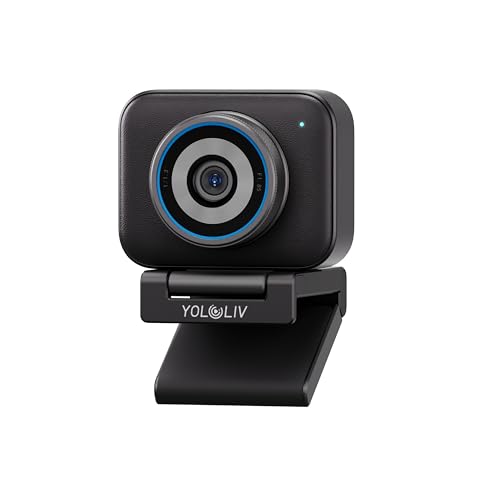
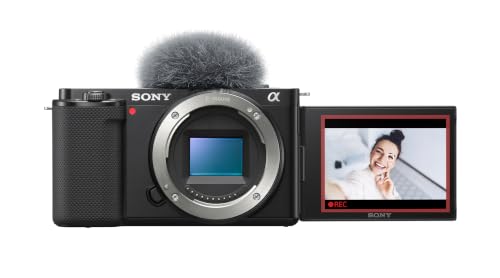
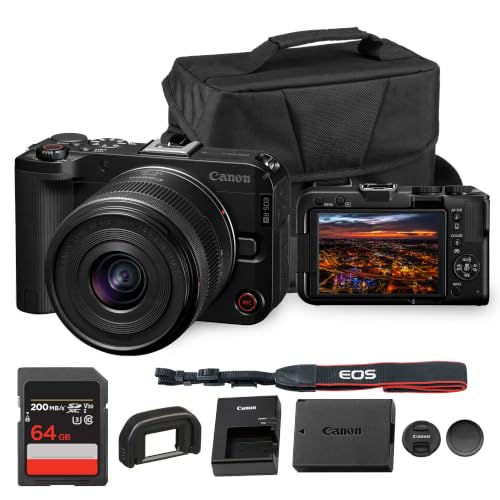
A camera you already own can look far better on calls than the small lens built into a laptop, but only if it can stay powered, stay in focus and send a clean picture to your computer. The best cameras to use as a webcam are not the most expensive models. They are the ones whose connection, lens and runtime match the way you actually sit and speak each day. Use the comparison table below to check those basics first.
Start with your main use. A person in back to back meetings needs reliability above all else. A streamer needs a wide, flattering view and room to move. A teacher needs the board behind them to stay readable. The sections below match each situation to the connection, sensor, lens and power setup that serves it.





Who Should Buy Which Camera to Use as a Webcam?
Pick by the session you repeat most often. Room light, sitting distance and call length matter most.
Remote Workers in Calls All Day
You need a camera that starts fast, holds focus on your face and runs for hours without attention. Choose direct USB connection if your maker offers webcam software, because one cable keeps your desk simple. Prioritize steady autofocus, natural skin tones in office light and a lens that frames your head and shoulders from about three feet away.
Streamers, Teachers and Course Creators
You are on screen longer, you move more and your background is part of the picture. Choose a larger sensor and a lens you can swap, because that pairing gives you a softer background and more control over framing. A capture card setup tends to give the most consistent picture in streaming software. Plan a separate microphone, since your voice carries lessons more than fine image detail does.
Home Users Who Want a Simple Upgrade
You join family calls, school meetings and the odd interview, and you want a clear step up from a laptop camera without a complex setup. A compact camera with USB webcam support and a fixed lens near your monitor is often enough. If the camera will also handle birthdays and trips, see our guide to the best cameras for family use for everyday shooting needs.
Choosing a Camera for Your Webcam Situation
Best Video Cameras to Use As Webcams
The phrase best video cameras to use as webcams points to a useful distinction. Models built mainly for video tend to run longer without heat limits, offer clean output as a standard feature and keep recording controls simple while tethered. Cameras built mainly for still photos can still work well, but check their video runtime limits and menu behavior first.
Key Features to Compare
When you shortlist the best cameras to use as a webcam, compare these factors in order. Connection and power come first, because a beautiful sensor is useless if the feed stops mid call.
Connection by USB or by Capture Card
Direct USB connection is the simplest route. Many makers offer free webcam software or a built in USB webcam mode, and your computer sees the camera like a normal webcam in Zoom, Teams or Meet. Resolution over USB is often capped at 1080p or lower. A capture card takes the HDMI feed instead and can give higher quality with less compression, but it adds a device, a second cable and one more setting to check before each session.
Clean HDMI Output and Power for Long Sessions
Clean output means the HDMI feed shows only the scene, with no focus boxes, battery icons or menu text on screen. Confirm the camera can turn those overlays off and can disable its automatic sleep timer. A standard battery may last only one to two hours in video mode, so use a dummy battery on wall power, or steady USB power where supported, for a full workday.
Sensor Size and Low Light Image Quality
Sensor size shapes how clean your picture looks in a dim room. Larger sensors, such as full frame or APS C formats, gather more light and hold detail with less grain at the higher sensitivity settings a home office often needs. Smaller sensors still work well in a bright room with a window or a desk lamp aimed at your face. If your room is dark, budget for light before a bigger sensor.
Resolution, Frame Rate and Field of View
Most call apps show you at 720p or 1080p, so a clean 1080p feed at 30 frames per second covers meetings fully. Sixty frames per second helps fast hand movement look smooth for product demos or sign language. Field of view decides how much room shows around you. A wide view suits small desks where you sit close, while a narrower view flatters your face and hides clutter.
Autofocus and Exposure Control
Face and eye detection autofocus keeps you sharp when you lean in to read or gesture at a board. Exposure control matters when a bright window sits behind you, because the camera may darken your face to protect the window light. Look for exposure compensation you can lock, so your brightness stays steady through a whole call.
Mounting, Placement and Audio Options
A standard tripod thread under the body lets the camera sit on a small desk tripod or a monitor mount at eye level, which is the most flattering height. Built in camera microphones pick up room echo and fan noise, so treat them as a backup. A USB or headset microphone placed near your mouth will improve how you sound more than any camera upgrade.
Setting Up a Camera as a Webcam, Step by Step
Mount the camera at eye level on a tripod or monitor mount, close enough that your head and shoulders fill most of the frame. Connect steady power first, then the USB cable or the HDMI cable and capture card. In the menu, set video to 1080p, turn off on screen display items, disable automatic power off and choose continuous autofocus with face detection.
Open your call app, select the camera or capture card as the video source and check the preview before anyone joins. Set white balance to match your room light, because automatic settings can shift your skin tone when clouds pass. If you are still deciding whether a separate camera suits your desk, see our guide to the best cameras to use for a broader look at camera types. For light duty personal calls at a spare desk, see our guide to the best cameras for personal use instead of buying twice.
Common Mistakes to Avoid
- Buying a camera with no clean HDMI output and no USB webcam mode leaves you with a feed covered in menu icons or no feed at all.
- Running long calls on a standard battery ends the picture mid meeting when the charge runs out.
- Mounting the camera far below eye level makes viewers look up at you and exaggerates every glance down at notes.
- Ignoring heat warnings in the manual leads to shutdowns during summer streams in warm rooms.
- Paying for 4K output your call app shrinks to 720p wastes money that better light would have used well.
How to Make Your Camera Last Longer in Webcam Service
Keep the lens clean with a blower and a soft microfiber cloth, and cap it when the desk sits unused, because dust on the front glass softens every call. Leave space around the body so vents and warm surfaces can shed heat, and remove the battery during long wall powered sessions if the maker advises it, since a hot battery ages faster.
Update firmware through the maker support page when a release mentions video or USB fixes, and store spare batteries at partial charge away from heat. Coil cables loosely rather than bending them sharply at the port, because strained ports are a common failure on desk cameras.
FAQ
Can a camera used as a webcam also take photos without moving cables?
Yes, on many models you can switch from webcam mode back to photo mode in the menu, then shoot as normal. Tethered photo software and webcam software often claim the USB connection one at a time, so close one program before opening the other.
Which lens suits a camera used as a webcam in a small room?
A lens around 16 to 24 mm on a full frame body, or the similar view on smaller sensors, suits a small room well. It frames your head and shoulders from about two to three feet, which matches a desk against a wall. Test with a tape measure and a chair in place, because a few inches of desk depth change the framing a lot.
Will using a camera as a webcam wear out the sensor or shutter?
Webcam use is gentle on the shutter, because the mechanical shutter stays open and does not fire for each frame. The sensor and processor do build heat during long sessions, so breaks between calls and good airflow matter more than total hours.
Can a camera used as a webcam record video while it streams?
Some models can record to the memory card while sending a live feed, and others stop the output or the recording when you try both. Check the manual under HDMI output or USB streaming for that exact limit. If you need a local copy, recording inside your streaming software works on nearly every setup.
Does a camera used as a webcam need special software on a Mac or Windows computer?
It depends on the connection route you choose. A capture card usually needs no camera software at all, because the computer treats the card itself as the webcam. Direct USB use often needs the maker webcam utility, and both Mac and Windows privacy settings must grant your call app access to cameras before the picture appears. Check that permission first when the preview stays black.
The Bottom Line
Match the connection to your patience, the sensor and lens to your room light and sitting distance, and the power setup to your longest session. The product table above lets you check output type, resolution and power options side by side. Chosen that way, the best cameras to use as a webcam for your desk will start every call calmly and keep you well lit and in focus.