Best Cameras for Web Streaming: Types, Features and How to Choose for 2026
Disclosure: We may earn a commission when you buy through links on this page, at no extra cost to you. As an Amazon Associate I earn from qualifying purchases. Learn more
Compare the best cameras for web streaming by type, resolution, low light and autofocus, plus setup tips that make a live stream look clean and steady.
Streaming to a web audience asks more of a camera than a quick video call does. It has to hold sharp focus for hours, handle a mix of window light and monitor glow, and send a clean picture to your streaming software without lag. The best cameras for web streaming do that job reliably, and the right type depends on your desk, your light and how often you go live. The comparison table above lines up current options so you can match one to your setup.
This guide explains the camera types that work for live streaming, the specs that change what viewers see, and the extras that make a stream look finished. It stays practical, so you can decide quickly and spend the rest of your budget where it matters.


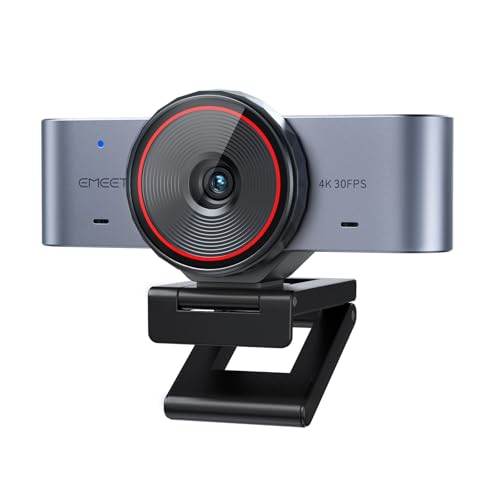

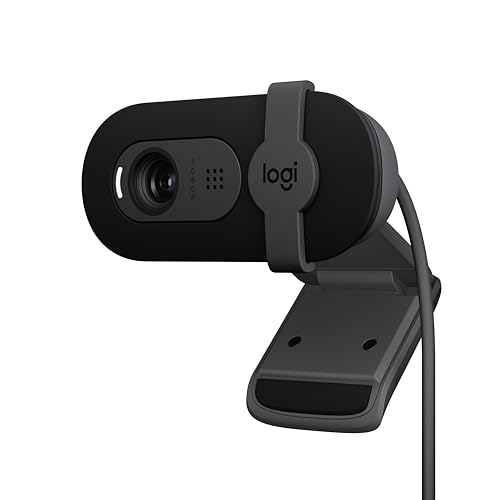
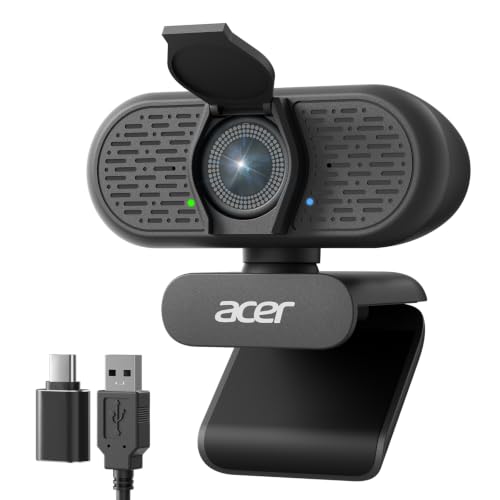

The Best Cameras for Web Streaming by Type
Four kinds of camera show up on streaming desks, and each trades price, image quality and setup effort differently.
USB Webcams for Plug and Play Streaming
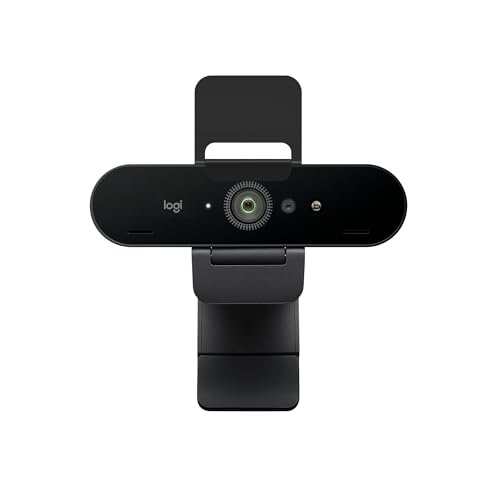
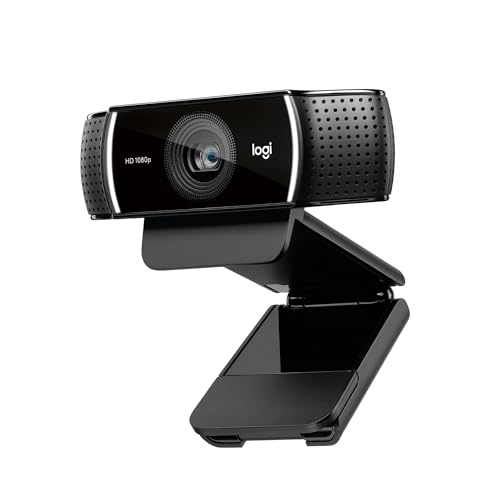
A USB webcam clips to your monitor and shows up in your streaming software within seconds. Entry models send 1080p video at 30 frames per second, and better ones add 4K video, sharper autofocus and larger sensors that cope with dim rooms. Webcams cost about $30 to $250, and they ask for no capture card, no battery and no extra power. For most new streamers this is the right first camera, because it removes setup problems while you learn lighting and framing. For a wider look at this group, see our guide to the best live streaming web cameras.
Tracking and Pan Tilt Webcams for Movement
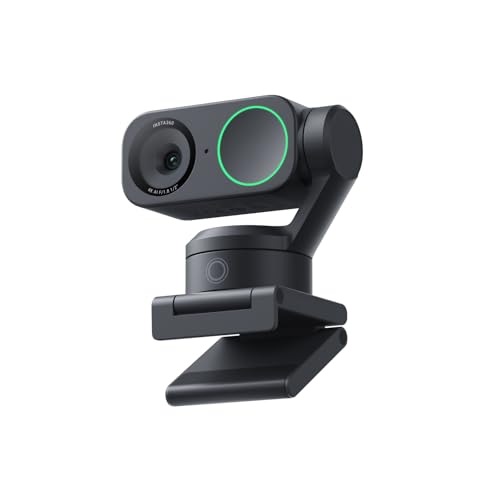
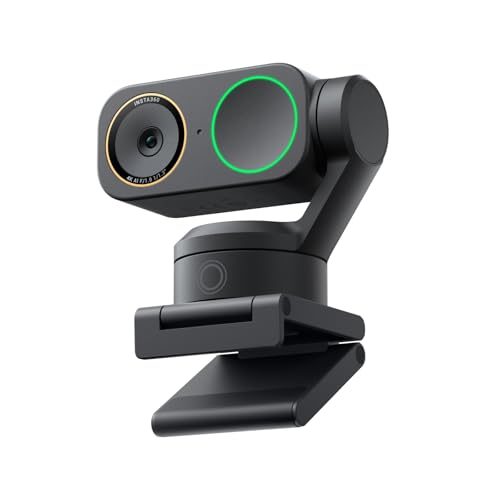
Some premium webcams follow your face with a small motorized gimbal, keep you centered when you lean or stand, and can zoom in on a product you hold up. They suit streamers who cook, craft, teach or demonstrate on camera. Expect about $150 to $350 and a slightly larger body, plus companion software for gestures and framing presets. If you only sit still and talk, you can skip the motor and spend that money on light.
Mirrorless and Digital Cameras Through a Capture Device
A mirrorless camera with a clean HDMI output, or one that works as a USB webcam, gives you the largest sensor, blurred backgrounds and the best low light picture. The costs are real: a body and lens often run $700 to $2,000, you may need a capture card or a power adapter that replaces the battery, and long sessions can make some bodies run warm. Choose this route when streaming is your income or when the camera will also serve you for photography. Our guide to the best digital cameras covers that wider market.
Action Cameras as Secondary Angles
A small action camera works well as a second angle that shows your hands, a game controller or a workbench. Its wide lens bends straight lines near the edges, and its built in microphone sounds thin, so most streamers use it beside a main camera rather than as the only one.
What to Compare Before You Choose a Streaming Camera
Work through these points in order when you compare the best cameras for web streaming. They explain most of the difference you will see on screen.
Resolution and Frame Rate
For most streams, clean 1080p at 30 frames per second is enough, because platforms compress your video and many viewers watch on phones. Choose 60 frames per second when you move quickly or stream fast games with a face cam. A 4K sensor helps when it lets you crop the frame without losing sharpness, but it can limit frame rate over USB, so read the specification line carefully.
Sensor Size and Low Light Handling
A bigger sensor gathers more light, so your face looks cleaner and less grainy in an evening room. Small webcam sensors are fine near a window or a key light, while larger sensors in premium webcams and mirrorless cameras keep skin tones steady when the room is dim. One soft light placed in front of you improves any camera more than a spec upgrade.
Autofocus and Exposure That Stay Calm
Focus that hunts when you lean forward is distracting, so look for autofocus that locks quickly and holds steady. Manual focus and exposure controls help if your software exposes them, because auto exposure can pump brighter and darker whenever a bright game scene changes your monitor glow.
Field of View and Mounting
A field of view of about 65 to 80 degrees frames you at a desk without showing too much room. Wider views suit two people or a standing setup, but they push your face toward the edges. A standard tripod thread lets you mount the camera on an arm or a small tripod at eye level, which flatters you more than a monitor clip pointing upward.
Microphones and Audio
Built in microphones are fine for casual calls, yet most streamers use a separate USB or XLR microphone because voice clarity matters more to viewers than picture sharpness. Treat the camera microphone as a backup. If you want an all in one device, look for dual microphones with noise reduction.
Common Mistakes to Avoid
- Buying 4K video and ignoring light, so your face still looks noisy and flat.
- Placing the camera below eye level, which gives viewers an upward angle that few faces enjoy.
- Choosing a mirrorless body without checking clean HDMI output or recording limits for long streams.
- Relying on the built in microphone and losing viewers to echo and room noise.
- Leaving auto exposure on while your bright monitor changes the picture every few seconds.
Setup Tips for a Cleaner Stream
Place the lens at eye level, about an arm length from your face, with your eyes near the upper third of the frame. Put a soft light in front of you and slightly to one side, and keep a window beside you instead of behind you. Use a short, good quality USB cable plugged into a port on the computer itself, since a crowded hub can drop frames. Run a private test stream before you go live, and check that your software has selected the camera and microphone you intend to use. Clean the lens with a soft lens cloth, update the camera software when the maker offers a fix, and cover the lens with a shutter when you are off air. If you also use the same device for work calls, see our guide to the best web cameras for PC or the best web cameras for Mac.
Questions Answered for Streamers
What features matter most in a camera for web streaming?
Steady autofocus, clean exposure in your real room light and reliable software support matter most. A camera that looks slightly less sharp but stays steady for hours beats one that hunts or shuts down. Also check that it works with your streaming software without extra drivers.
Which camera type is better for low light streaming?
A mirrorless camera with a large sensor and a bright lens handles low light best, followed by a premium webcam with a larger sensor. Before you upgrade, add one soft light in front of you, because better light helps more than any body.
Is a smartphone enough instead of a streaming camera?
A smartphone can work for a short or occasional stream through a camera app. For regular sessions it has limits, since calls and alerts can interrupt the feed, heat and battery drain build up and you lose your phone for other tasks. A webcam is cheaper than most people expect and removes those problems.
How much should I spend on my first camera for web streaming?
Most first time streamers do well at about $40 to $100 for a solid 1080p webcam. Move to about $100 to $250 for better low light, 4K video or tracking. Spend more only when streaming earns money or you want a mirrorless picture, and keep part of the budget for a light and a microphone.
Do I need a capture card for web streaming?
You need a capture card only when the camera has no USB video mode, as with many mirrorless bodies and camcorders. Webcams and some mirrorless models send video straight over USB, which is simpler and cheaper.
Wrapping Up
Start with a good USB webcam, light your face before you upgrade anything and add a separate microphone early. Move to a tracking webcam or a mirrorless camera only when your streams outgrow the basics. Use the product table above to compare current options, and the best cameras for web streaming will be the ones that stay steady through your longest session.