Best Cameras for Teaching Online in 2026: What Actually Matters Before You Buy
Disclosure: We may earn a commission when you buy through links on this page, at no extra cost to you. As an Amazon Associate I earn from qualifying purchases. Learn more
Compare cameras for online teaching by focus, framing, low light clarity, audio inputs and long session power, with a checklist for your class setup.
Teaching on camera asks more of a camera than a casual video call does. Students must read your expressions, follow your hands, and read notes you write while you speak. The best cameras for teaching online keep your face sharp, your board legible, and your sound clear for a full class. This guide turns those needs into a plain checklist, so you can judge the comparison table below by what happens in your room.
Start with how you actually teach. A tutor who sits and talks needs different framing from a teacher who stands at a board or an instructor who demonstrates with both hands.


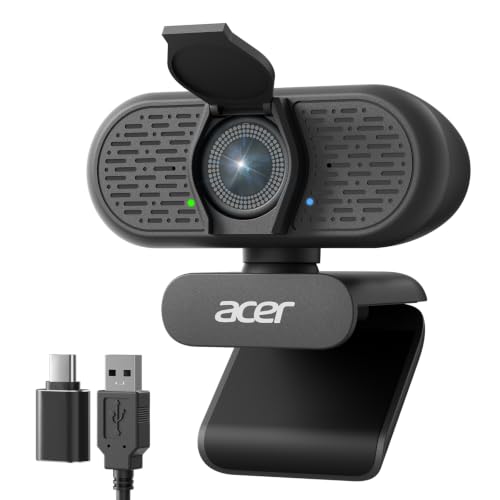
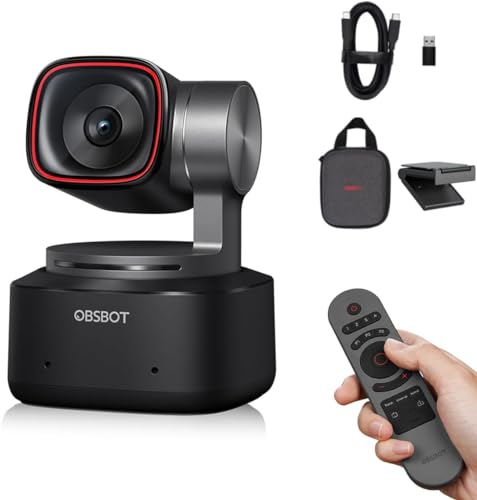

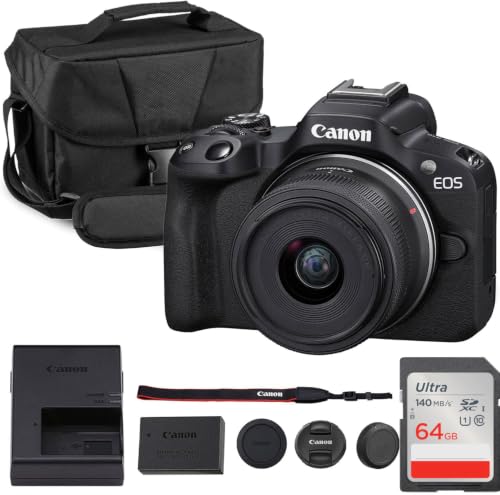

Who Should Buy Which Camera for Teaching Online?
Your teaching style decides where the camera sits and what it must hold in focus. Pick your group first.
Tutors Who Teach Face to Camera From a Desk
You sit for most of the lesson, share your screen often, and speak directly to one student or a small group. Choose a camera that frames your head and shoulders without crowding the shot and focuses reliably at desk distance. A simple webcam style camera usually suits you.
Teachers Who Write on a Board or on Paper
You turn away from the lens, write, then turn back to explain, so the camera must hold a wider scene and keep both you and your writing clear. Choose a wider field of view and focus that recovers quickly when you move. A board that looks fine from your chair can look tiny to a student.
Instructors Who Demonstrate With Their Hands
You teach art, music, cooking, crafts, or science demos, and students learn by watching your hands work. Choose a camera that can point down at a desk and focus closely without hunting, so finger position and brush strokes stay visible.
Key Features to Compare
Compare these factors in order, using your own room and class length as the test.
Resolution, Frame Rate, and Output for Class Software
Resolution sets how much detail students receive, and 1080p at 30 frames per second is enough for most live classes because platforms compress the stream anyway. A 4K camera helps mainly when you record lessons or want to crop the picture. Check that the camera sends a clean, standard signal your teaching app accepts without extra software.
Autofocus That Holds Your Face and Your Hands
Autofocus decides whether you stay sharp when you lean in, turn to a board, or bring an object toward the lens. Look for face detection and, on mirrorless models, eye detection, since those systems return to your face after you look away. For demonstration work, check how calmly focus settles, because constant hunting distracts students.
Sensor Size and Low Light Clarity in Home Rooms
Most teaching happens in ordinary rooms with one window and warm lamps, not in studios. A larger sensor, such as a 1 inch or APS C sensor, gathers more light and keeps skin tones and board writing cleaner in dim rooms. Smaller webcam sensors depend more on bright light in front of you.
Field of View, Lens Choice, and Room Framing
Field of view sets how much of the room students see. A view of about 65 to 78 degrees suits a seated tutor, while about 78 to 90 degrees helps a teacher who stands or writes. Very wide views shrink your face and expose clutter. On mirrorless cameras, a lens of about 16 to 24 mm on APS C frames a small room well.
Microphone Inputs and Audio Connections
Students forgive a soft picture sooner than unclear speech, so treat audio connections as a camera feature, not an extra. A 3.5 mm microphone input or a reliable USB connection lets you place a microphone near your mouth instead of across the desk. Check that audio reaches your class app without delay against the picture.
Power, Mounting, and Long Session Reliability
A class camera must run for your longest teaching block without stopping. Prefer power from USB or a mains adapter, or a dummy battery for a mirrorless camera, since a small internal battery may fade mid lesson. Look for a standard tripod thread and a mount that holds the camera at eye level. Image stabilization helps if your desk vibrates, though a firm mount matters more.
Camera Types Compared for Online Classes
The best cameras for teaching online fall into three broad types, and the right one depends on how much setup you will accept each day. Choose the type you can start in under a minute and trust for a full timetable. For a broader starting point on connected models, see our guide to the best online cameras.
Dedicated Webcams for Simple Daily Classes
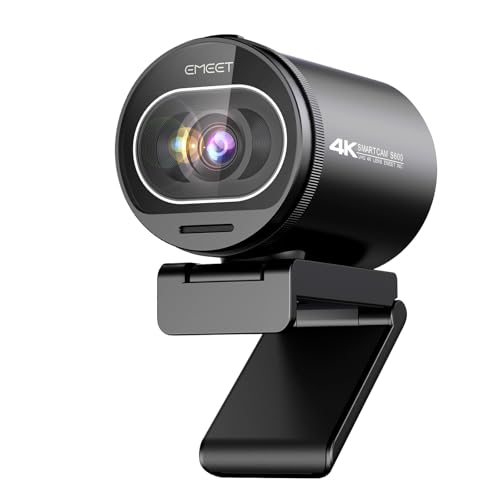
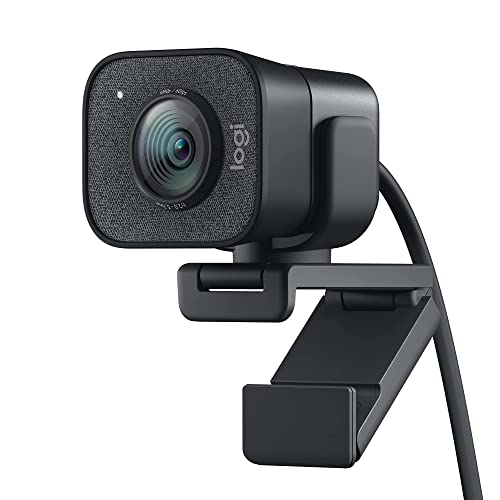
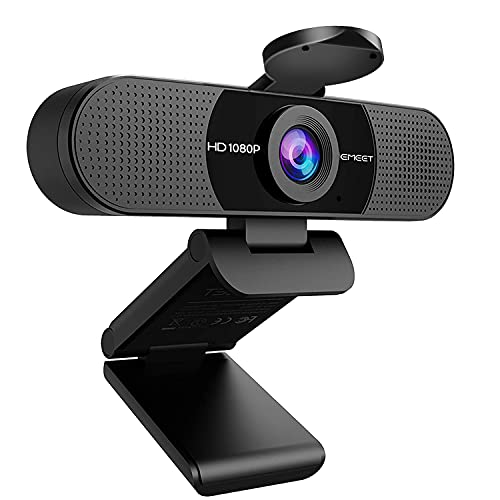
A dedicated webcam suits teachers who want fixed framing, quick starts, and no lens changes. It clips to a monitor, connects by USB, and opens directly in Zoom, Teams, or Google Meet. Its small sensor and fixed lens mean room light does most of the work.
Mirrorless Cameras for Boards and Demonstrations
A mirrorless camera gives you a larger sensor, changeable lenses, and stronger autofocus, which helps with boards, demonstrations, and dim rooms. It also asks for more setup: a mount, steady power, and a clean HDMI or USB output. If you are weighing this route, see our guide to the best digital cameras for the wider category.
Camcorders and Phones as Second Angles
A camcorder offers long running times, a flip screen for checking your framing, and zoom you can adjust while teaching. A phone can serve as a second angle pointed at paper, which frees your main camera to stay on your face.
Checks to Make in Your Teaching Room Before You Order
Answer these questions with your own room in front of you. A no answer points to what to fix before you spend on a higher resolution body. Your computer matters too: if it struggles with class apps and video at once, see our guide to the best laptops for online teaching.
- Can the camera frame your face and your board or work surface at teaching distance?
- Does the camera focus on your face again within a second after you turn away?
- Can you connect a microphone close to your mouth through this camera or computer?
- Will the camera run on steady power for your longest class without a battery swap?
- Does the mount hold the lens at eye level without shaking when you type?
- Does your class app list the camera as a source without extra paid software?
- Can students read your smallest normal writing in a test recording at phone size?
Common Mistakes to Avoid
- Buying for the highest resolution while teaching in dim light leaves your face grainy and your board hard to read.
- Mounting the camera well below eye level makes students feel talked down to.
- Choosing the widest view in a small room makes your face tiny and shows clutter.
- Relying on a microphone across the desk makes speech echo and lets keyboard noise cover your words.
- Skipping a full length test lets a flat battery or a hot camera end a paid class early.
- Writing board notes too small forces students to guess letters and lose the lesson thread.
Care and Maintenance for a Teaching Camera
Clean the lens with a soft lens cloth, not your shirt, because grit on fabric can scratch the coating. Keep a blower for dust, store the camera in a dry padded bag away from direct sun, and coil cables loosely.
Check mounts, cables, and firmware once a term, and keep a spare battery ready. Update camera software only between teaching days, then run a short test class. Clean a sensor only as the maker directs.
FAQ
Does 4K video matter for live online teaching?
For live classes, 4K matters less than most teachers expect, because class platforms usually send a compressed 720p or 1080p picture. The extra resolution pays off when you record a lesson and later crop in on a board or a demonstration. If you never record or crop, put that money toward light and a microphone first.
Is a smartphone enough for teaching online classes?
A smartphone is enough for occasional classes, and its camera is often better than an old laptop camera. The catch is daily use: calls interrupt, the battery drains fast under video, and the phone is hard to keep at eye level. Many teachers use a phone as a second view over paper while a main camera covers their face.
How much should a teacher spend on a first camera for online classes?
Expect about $60 to $150 for a capable webcam, about $150 to $400 for a stronger compact or camcorder style option, and about $500 to $1,000 for a mirrorless setup once a lens, mount, and power are counted. Spend only after light and sound are covered, because a modest camera in a bright, quiet room teaches better than a costly body in a dark one.
Can a teaching camera show a teacher and a whiteboard clearly at once?
Yes, a camera can show both clearly if the board sits close behind or beside you and the field of view covers it without pushing you far away. Write larger than you would in a classroom, use a dark marker, and keep light even across you and the writing. If letters fail at phone size, move the board closer rather than raising resolution.
How should a teacher test a camera before the first live class?
Record a ten minute practice lesson in your real class app, at your real teaching hour, then watch it on a phone. Check that your face stays in focus when you turn, that your writing reads clearly, and that your voice stays in step with the picture. Note the power level at the end, since heavy drain warns you about a full timetable.
Our Verdict
Choose by teaching style first, then check focus, framing, and steady power before you compare resolution numbers. A seated tutor needs simplicity, a board teacher needs width and legibility, and a demonstration teacher needs close focus. Use the product table above to match those needs against price.
Trust the checklist: the right choice among the best cameras for teaching online is the camera that starts fast, holds your face and your work in clear view, and runs without drama all day.