
Best Cameras for Desktop Computers: Every Type Explained Side by Side for 2026
Disclosure: We may earn a commission when you buy through links on this page, at no extra cost to you. As an Amazon Associate I earn from qualifying purchases. Learn more
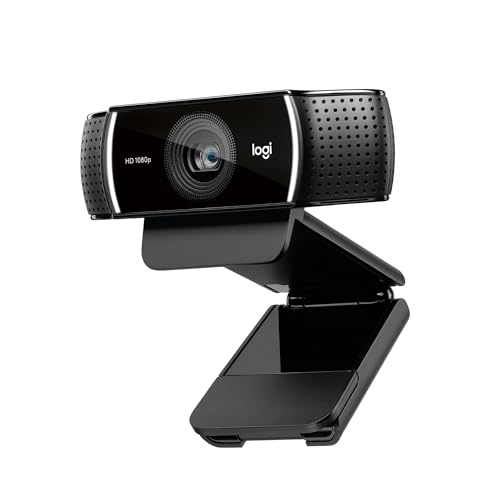
Compare webcam types for calls, streaming, and recording side by side to choose the best cameras for desktop computers for your desk, light, and budget.
Choosing a camera for a desktop setup feels confusing because listings lead with big numbers that tell you little about how you will look on a call. The best cameras for desktop computers are not always the ones with the highest resolution, and the right choice depends on your room light and daily use. This guide compares each type side by side so you can match a type to your desk instead of guessing.
Below you will find plain explanations of standard webcams, high resolution webcams, and larger cameras. The comparison table below gathers the key options in one place, and the sections after it explain what each row means for your calls and recordings.
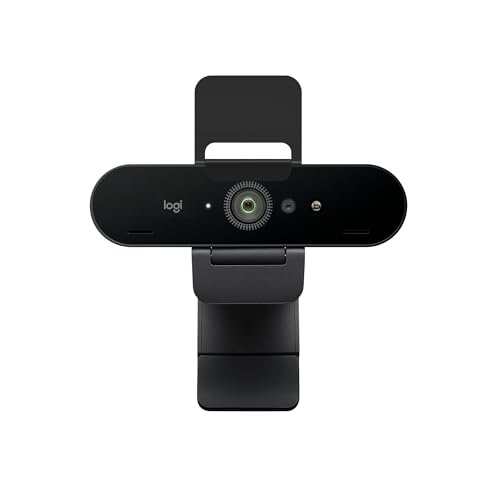

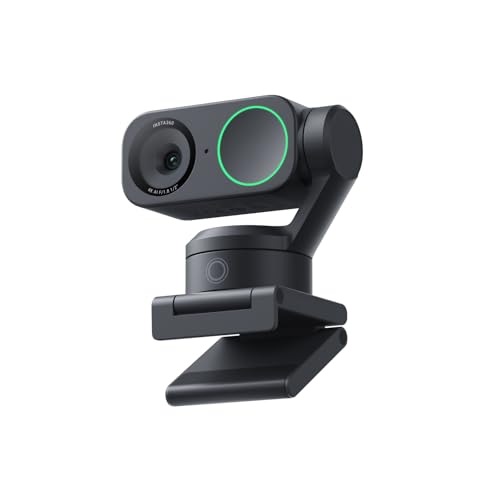

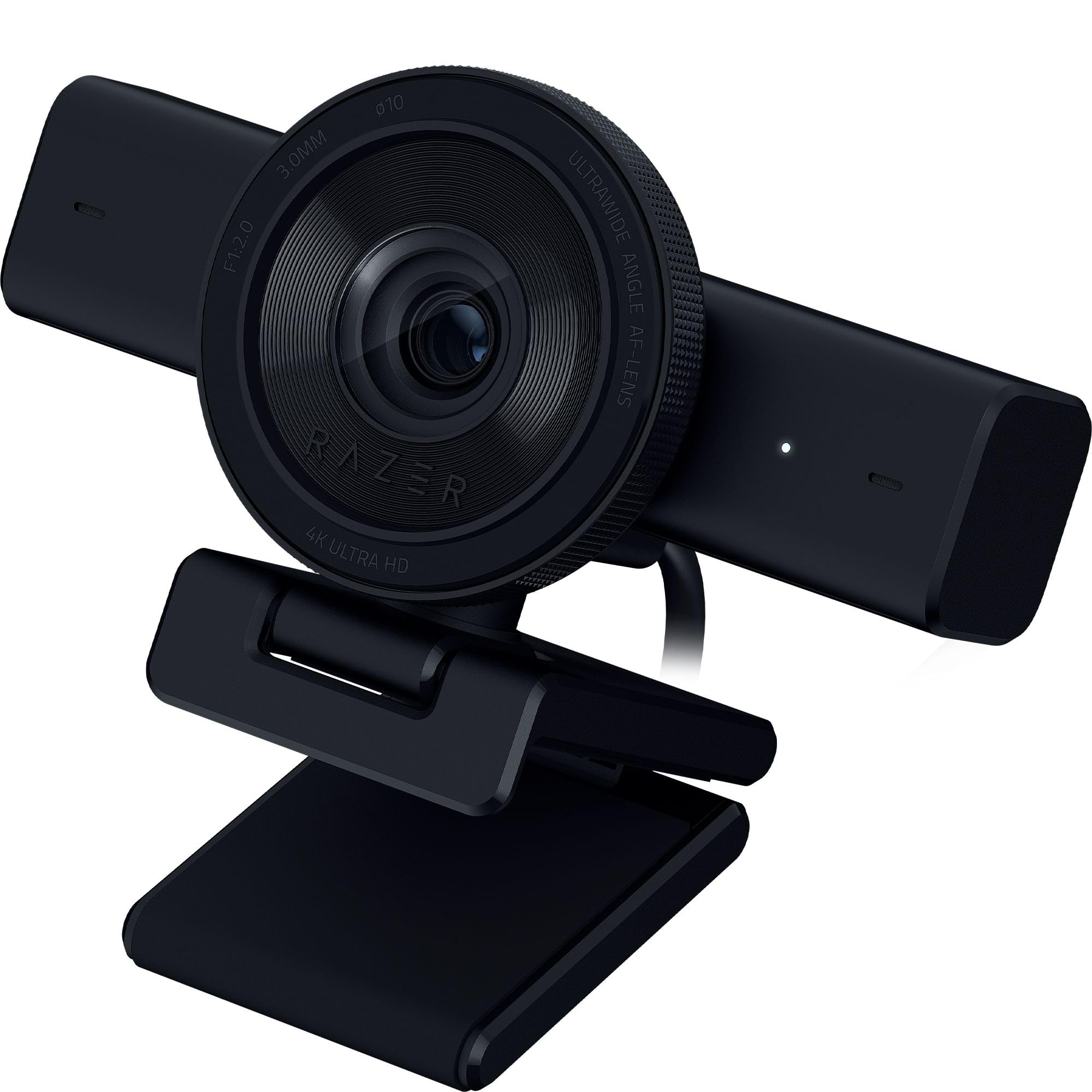



Types of Cameras Compared
Desktop cameras fall into three broad types, and the differences between them matter more than small gaps between models within one type. A standard webcam keeps things simple, a high resolution webcam adds detail and controls, and a mirrorless or DSLR camera used as a webcam gives you the most control at the highest cost. Prices rise with each step, from under $100 for basic models to about $250 for advanced webcams.
Standard USB Webcams for Everyday Calls
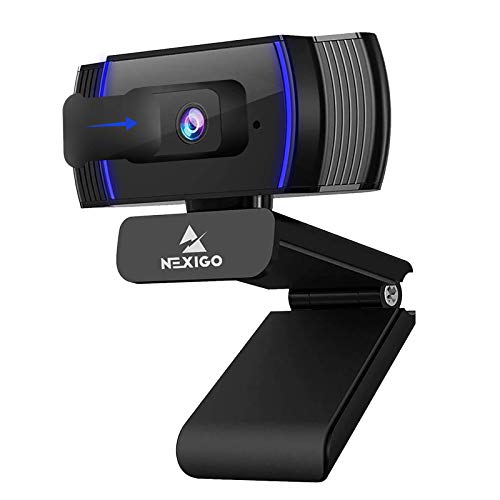
A standard USB webcam clips to the top of your monitor and connects with a single cable. Most models record at 1080p, include a built in microphone, and work as soon as you plug them in, with no drivers to install. Autofocus keeps your face sharp as you shift in your chair, and automatic exposure adjusts when clouds change the light from a window.
Choose this type if your camera time is mostly meetings, classes, and family calls where being seen and heard clearly is enough. The tradeoff is limited control over framing and color. Small sensors also struggle in dim rooms, where the picture can look grainy even when the stated resolution sounds impressive.
High Resolution Webcams for Streaming and Recording
A high resolution webcam looks similar but adds a larger sensor, 1440p or 4K recording, and software controls for zoom, pan, exposure, and color. Some models use digital zoom to keep you framed as you move, which helps presenters who gesture while they talk. Faster frame rates, such as 60 frames per second at 1080p, make motion look smooth during demos.
Choose this type if you record videos, stream regularly, or present to clients where a polished image supports your credibility. You will pay more, and you may need a USB 3 port to handle higher resolutions without delays. If you stream gameplay from the same desk, our guide to the best desktop computers for gaming helps you confirm your machine can encode video and run your game at once.
Mirrorless and DSLR Cameras Used as Webcams
A mirrorless or DSLR camera can serve as your desktop camera through a USB cable and the maker webcam utility, or through a capture card that takes the HDMI signal. The larger sensor and interchangeable lens produce shallow depth of field, so your face stays sharp while the room softens, and low light performance improves a lot. Photographers who already own a suitable body may find this route cheaper than it first appears.
Choose this type if image quality is the priority and you accept extra setup and attention to battery power during long sessions. Before building a setup around a body you own, see our guide to the best digital cameras to check which models support clean HDMI output and continuous power. For a single weekly meeting, this type is usually more gear than you need.
Standard Webcams Versus Larger Camera Setups: Which Should You Choose?
Start with how often the camera runs. If you join calls daily and rarely record, a webcam covers you with almost no setup, while a larger camera rewards daily recording where viewers notice detail. Next, consider light, since a desk lamp lifts a webcam picture more than a resolution upgrade, while a larger sensor forgives weaker light.
Desk space matters too. A webcam lives on your monitor and stays ready, while a larger camera needs a mount and a minute of setup before each session. Budget honestly, counting cables and a capture card if your camera needs one. Move to a larger setup only when recording quality limits work you publish.
How to Choose the Right Camera for Your Desktop
Work through resolution, optics, audio, and connection in that order, because each one changes what the others can deliver. The best cameras for desktop computers for one desk can disappoint on another, so use the product table above as a shortlist and test each candidate against the checks below. Keep your main use in front of you, whether that is meetings, streaming, or recording.
Resolution, Frame Rate, and Field of View
Resolution describes how many pixels the camera records, with 1080p as the practical standard for calls and 1440p or 4K giving room to crop without losing sharpness. Most meeting apps send 720p or 1080p anyway, so extra resolution helps recording more than a routine call. Frame rate controls smoothness, and 30 frames per second suits talking head video, while 60 suits movement.
Field of view describes how much of the room the lens shows, measured in degrees. A view around 65 to 78 degrees frames one person at a desk, while 90 degrees or wider suits two people or a whiteboard. Wider is not always better, because a wide lens can stretch faces near the edges and expose clutter.
Focus, Exposure, and Low Light Performance
Autofocus systems differ in speed and reliability, and a camera that hunts for focus during a call distracts everyone watching. Fixed focus models work fine at a steady distance, while autofocus suits presenters who move closer and farther from the desk. Automatic exposure should brighten a backlit face without blowing out a bright window, and manual controls help when automatic choices keep missing.
Low light results depend mostly on sensor size and lens brightness rather than on resolution, so a 1080p camera with a larger sensor can beat a 4K camera with a tiny sensor in a dim room. Add light before you upgrade, since a modest lamp improves color and reduces grain. If your days are filled with video meetings, see our guide to the best computer cameras for zoom for features that matter inside that app.
Microphones, Mounts, and Desk Space
Most desktop cameras include microphones that pick up your voice clearly within about three to six feet, though they also capture keyboard noise and echo. A separate USB microphone sounds better, but a built in mic keeps the desk simple in a quiet room. Watch for echo when speakers sit close to the mic, and if you are upgrading desk audio, see our guide to the best desktop computer speakers for placement ideas.
The mount decides where the camera sits, and eye level placement matters more than most spec upgrades. A flexible clip grips monitors of different thicknesses, and a tripod thread in the base lets you use a small desk tripod. Measure your monitor bezel before ordering, especially if a light bar already occupies the top center spot.
Connection, Compatibility, and Software Controls
Check the connector first, since newer cameras often use USB C while many desktops offer mostly USB A ports, and an adapter usually solves the mismatch. Confirm support for your operating system and main apps, including Zoom, Microsoft Teams, Google Meet, and OBS if you stream. Most webcams need no drivers, but the companion app unlocks zoom, pan, and firmware updates, so software support is part of the purchase.
Privacy deserves a quick check too. A physical shutter protects you between calls, and an indicator light shows when the camera is live. For shared office machines, our guide to the best desktop computers for business can help you match camera ports and mounting space to your computers.
Common Mistakes to Avoid
Most disappointing purchases come from a handful of repeat errors that are easy to avoid.
- Buying 4K resolution for calls alone, since most meeting apps cap your sent video at 1080p or lower and the extra detail never reaches viewers.
- Mounting the camera far above eye level, since a steep downward angle makes you look distant and hides eye contact.
- Ignoring room light and blaming the camera, since a dim or strongly backlit room makes even costly cameras look grainy and flat.
- Choosing the widest field of view by default, since an overly wide shot shows clutter and makes your face small in the frame.
- Forgetting to check ports and cable length, since a short fixed cable may not reach a tower placed under your desk.
- Leaving default settings untouched, since a few minutes adjusting exposure usually improves the picture more than a pricier model would.
Care and Maintenance Tips for Desktop Cameras
Clean the lens gently with a dry microfiber cloth made for optics, and avoid paper towels that can leave scratches. Dust the body and mount hinge with a soft brush, and keep drinks away from the desk edge. If the picture looks hazy, check the lens for fingerprints before changing settings, because skin oil is the most common cause.
Update firmware through the maker app when a fix addresses focus or compatibility, and read the release notes before installing it ahead of an important call. Store a camera you use only occasionally in a drawer with the lens cover closed, and coil its cable loosely. Close the privacy shutter when you share the desk, in case an app opens the camera by mistake.
FAQs
What features matter most in cameras for desktop computers?
Sensor quality, autofocus reliability, and field of view matter most in cameras for desktop computers. Resolution helps recording, but light and lens quality shape your call picture more. Also weigh the microphone, the mount, and software controls. A helpful extra check is cable length, because towers often sit farther from the monitor than laptop ports do.
Do desktop computer cameras need 4K resolution for Zoom and Teams calls?
No, desktop computer cameras do not need 4K resolution for Zoom and Teams calls. Both apps compress and cap the video you send, so viewers usually receive 720p or 1080p regardless of your sensor. Choose 4K only if you record locally or crop your frame. Your upload speed matters more, since a weak connection lowers quality anyway.
Can a DSLR camera work as a camera for a desktop computer?
Yes, a DSLR camera can work as a camera for a desktop computer through a maker webcam utility or a capture card. Check that your model outputs a clean HDMI signal without on screen icons, and plan for continuous power with an AC adapter. Shoppers often ask whether the best computer cameras for desktop computer use are webcams or bodies, and webcams win on convenience while bodies win on quality.
Where should you mount a desktop computer camera for the best angle?
Mount a desktop computer camera at eye level, about two to three feet from your face, for the most natural angle. Top of monitor placement works when the screen is not too tall, and a small tripod helps with large displays. Leave a little headroom in the frame, and angle the camera down only if it otherwise points at the ceiling.
How long do desktop computer webcams usually last?
Desktop computer webcams usually last about three to five years of regular use. The lens and sensor rarely wear out, so most replacements happen because software support ends or a hinge fails. You can extend that span by keeping the cable strain free. When people search for the best cameras for desktop computer upgrades, the age of the companion app is a smart detail to check.
The Bottom Line
Match the camera type to your real week first, then compare resolution, field of view, and light handling within that type. A standard webcam serves meeting heavy schedules, and a larger camera setup rewards people who record often. Use the product table above to revisit your shortlist, and choose the best cameras for desktop computers for your desk, your light, and the work you actually do.

