Best Bluetooth Gaming Mouse for Mac in 2026: Every Type Explained Side by Side
Disclosure: We may earn a commission when you buy through links on this page, at no extra cost to you. As an Amazon Associate I earn from qualifying purchases. Learn more

Compare Bluetooth gaming mouse types for Mac by latency, battery life, sensor accuracy and fit, with a clear checklist for MacBook and iMac players.
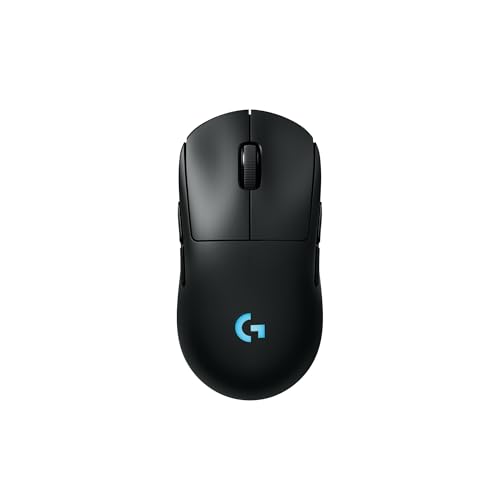
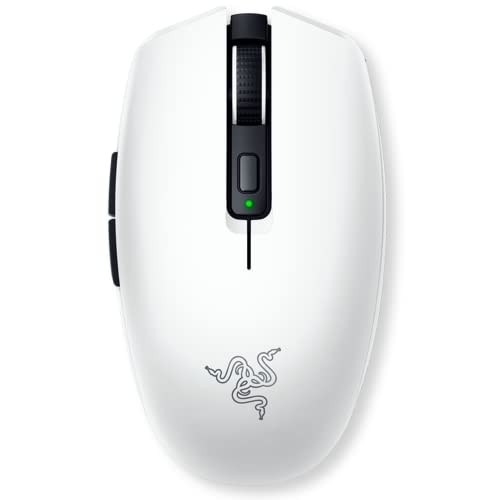
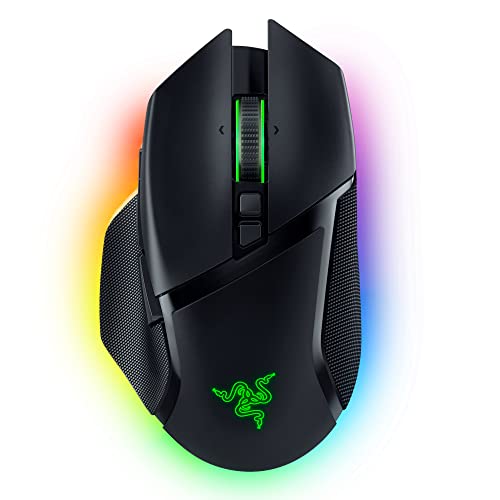
Many gaming mice are built for Windows first, so ports, software and pairing work differently on a Mac. The best bluetooth gaming mouse for mac players choose pairs without a dongle, tracks accurately and answers fast in a match. The comparison table below sorts the main types first.
Start with how you play. A MacBook player who moves between rooms needs a different mouse from a Mac mini owner at a fixed desk. Your grip and your games narrow the field quickly.




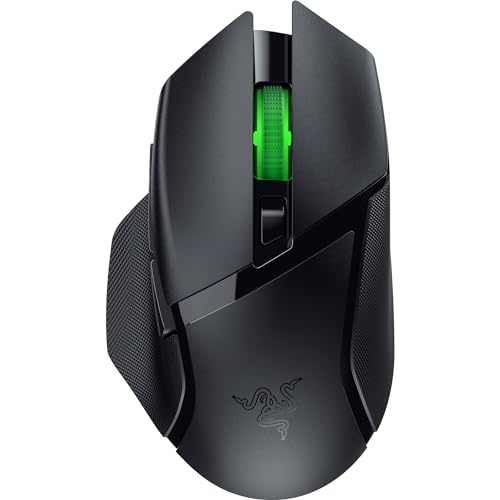
How Bluetooth Gaming Mice Compare to Other Options
Each connection type trades speed, tidiness and flexibility in a different balance, so compare all three before you buy.
Bluetooth Gaming Mice vs Wired Models
A wired mouse gives the lowest delay and never needs charging. The cable can drag on the desk edge, though, and claims a port your Mac may not spare. Bluetooth frees the desk and the port, at the cost of a small delay and a battery. For cable options, see our guide to the best mouse for gaming.
Bluetooth Gaming Mice vs Compact Travel Models
A compact travel mouse is small and flat, so it slips into a laptop sleeve yet tires a hand in long sessions, and its sensor is tuned for office work. A Bluetooth gaming mouse is fuller in the palm, tracks fast turns more reliably and adds side buttons for game commands. Choose the gaming shape for sessions over an hour.
Bluetooth Gaming Mice vs 2.4 GHz Wireless Models
A 2.4 GHz model talks to a small receiver and reports movement far more often than Bluetooth, so aim feels sharper in fast games. That receiver needs a free port, and most Macs offer only USB C ports, so an adapter may join the setup. Bluetooth pairs inside the Mac with nothing plugged in. For models built around that pairing, see our guide to the best wireless bluetooth gaming mouse.
Who Should Choose a Bluetooth Gaming Mouse for a Mac?
The right buyer values easy pairing, a tidy desk and games where a tiny delay rarely decides the result.
MacBook Players Who Game Away From a Desk
You play on a sofa, at a kitchen table or in a hotel room, and you pack up often. Bluetooth pairs with the MacBook you carry, so there is no receiver to lose. Pick a mid size shell and a battery that lasts weeks, since charging chances on a trip can be scarce.
Mac Mini and iMac Players With a Clean Desk
You sit at one desk and dislike cables crossing it. A Bluetooth mouse keeps the surface clear and wakes with the Mac for work as well as play. Choose a fuller ergonomic shape, since the mouse stays in your hand all day.
Players Who Switch Between a Mac and Another Device
You move between a Mac and an iPad or a work laptop during the day. Multi host pairing stores two or three connections and swaps with a button under the shell, which saves repeated trips through pairing menus. If your second device runs Windows, confirm the maker software works on both systems.
Key Features to Compare on a Mac
Compare these factors in order, since a strong sensor cannot fix poor macOS pairing or a weak battery.
Battery Life and Charging Over USB C
Battery life sets how often the mouse leaves your desk to charge. Many models run for about 70 to 150 hours of play with lighting off, and far less with bright lighting on. USB C charging matters because the cable that charges your MacBook can also refill the mouse, and a wired fallback mode lets you play while it refills.
Sensor Accuracy, DPI and Tracking Speed
The sensor decides how faithfully the pointer follows your hand. Most players settle between about 800 and 1600 DPI for shooters, then raise the setting for large displays. More important is clean tracking with no smoothing, since smoothing makes small aim corrections feel delayed.
Latency and Polling Rate Over Bluetooth
Polling rate is how often the mouse reports its position each second. Bluetooth commonly reports at about 125 times per second, while a gaming receiver or a cable often reaches 1000 or more, so Bluetooth carries a small built in delay. Fast shooters at a high level reveal it.
Features That Matter for Mac Software
Mac support is where many gaming mice fall short. Check that the maker offers macOS software, since button remapping, DPI steps and lighting control often live there. Confirm that side buttons register in macOS without extra tools, and note how the scroll wheel behaves, because macOS scrolling acceleration feels different from Windows.
Weight, Shape and Build Quality
Light models at about 50 to 80 grams suit fingertip or claw grips, while shells near 90 to 110 grams feel steadier for palm grips. Match shape to hand size first, because a shell that fills your palm badly will ache long before weight matters. Look for firm mechanical switches, a crisp click and even glide feet. Some models offer hot swappable click switches, which extend life when a click wears out.
Compatibility With macOS and Other Devices
Check the listed macOS versions against your own Mac, especially on older machines. Apple silicon and Intel Macs pair over Bluetooth in the same way, so limits usually sit in the maker software, not the connection. Console support is far narrower, as many consoles restrict which mice a game may use. To compare models screened for Apple systems, see our guide to the best mac compatible gaming mouse.
Bluetooth Gaming Mice for Specific Mac Needs
Match the type to the games and the desk you actually have.
Which Type Works Best on a Mac
The best gaming mouse on mac setups is usually a dual mode model that pairs over Bluetooth for daily use and adds a receiver for serious matches. That mix covers tidy work, casual play and fast games. Prioritize clean macOS software and onboard settings storage, since those points decide how much you can adjust on a Mac.
For most players, the best bluetooth gaming mouse for mac use is not the lightest model on paper. It is the one that pairs cleanly each morning, holds its charge for weeks and tracks without surprises. Strategy titles suit a Bluetooth only model at about $50 to $100, while faster play justifies about $100 to $150 for dual mode. Our guide to the best gaming mouse for apple mac compares that narrower field.
Common Mistakes to Avoid
- Buying a mouse with Windows only software leaves DPI steps and side buttons stuck at defaults on your Mac.
- Choosing Bluetooth alone for high level shooter play adds delay that can cost close fights.
- Ignoring receiver port type means an adapter hunt before a dual mode mouse works with your Mac.
- Picking the smallest travel shape for long sessions strains your hand and weakens late game aim.
- Leaving bright lighting on at all times drains the battery far faster than headline figures suggest.
- Skipping the grip check means a glossy shell can slip during fast turns on warm days.
Tips to Get the Most From Your Bluetooth Gaming Mouse on a Mac
Wipe the sensor lens and glide feet with a dry soft cloth every few weeks, because dust and grit make tracking feel uneven before anything is broken. Clean the scroll wheel edges with a dry cotton swab, and keep liquids away from switches and the charge port.
Update firmware through the maker app when an update appears, since makers often fix pairing drops and sleep wake faults that way. Play on a quality mouse pad, because a bare glossy desk can confuse an optical sensor.
Frequently Asked Questions
What features matter most in a Bluetooth gaming mouse for Mac play?
Clean macOS software matters most, because it unlocks button remapping and DPI control that the mouse may not offer on a Mac by default. Next check onboard settings storage, which keeps your choices between computers. Many buyers miss sleep wake delay, so pick a mouse that reconnects within a second or two after the Mac wakes.
Does a Bluetooth gaming mouse work with a Mac and a games console?
A Bluetooth gaming mouse works fully with a Mac, while console support depends on the console and the game. Many consoles accept a mouse in menus or in a short list of titles and ignore it elsewhere, so check the game list for your console first. A receiver helps only where the console accepts it.
What DPI should a Bluetooth gaming mouse use for gaming on a Mac?
Most Mac players should start at about 800 to 1200 DPI and adjust in small steps. A large 4K or 5K display may feel slow at that setting, so raise it until one sweep crosses the screen without lifting the mouse. Keep one lower step saved for aiming, since many mice let a side button drop DPI while held.
Is Bluetooth fast enough for competitive gaming on a Mac?
Bluetooth is fast enough for most gaming on a Mac, including ranked play in slower paced titles. The limit shows in fast shooters, where a receiver or cable reports movement about eight times more often. Serious competitors keep Bluetooth for work and plug in the receiver for matches, so dual mode models suit mixed use.
Can a Bluetooth gaming mouse stay paired to two computers at once?
Yes, a multi host Bluetooth gaming mouse can stay paired to two or three devices and switch on demand. Only one connection is active at a time, so the pointer follows the device you select under the shell. This suits a Mac beside a work laptop and removes daily repairing work.
Wrapping Up
Decide by connection first, then by macOS software, then by fit. Bluetooth alone suits tidy desks, travel and slower paced games, while a dual mode model adds speed for fast titles. Battery life and onboard settings storage shape daily use most.
When you judge the best bluetooth gaming mouse for mac by those points, the right type stands out. Compare finalists in the product table above, check the macOS notes on each listing, and buy the shape your hand can hold for a full session.