Best Battery Saver for Android Phones 2026: Settings, Apps and Habits
Disclosure: We may earn a commission when you buy through links on this page, at no extra cost to you. As an Amazon Associate I earn from qualifying purchases. Learn more
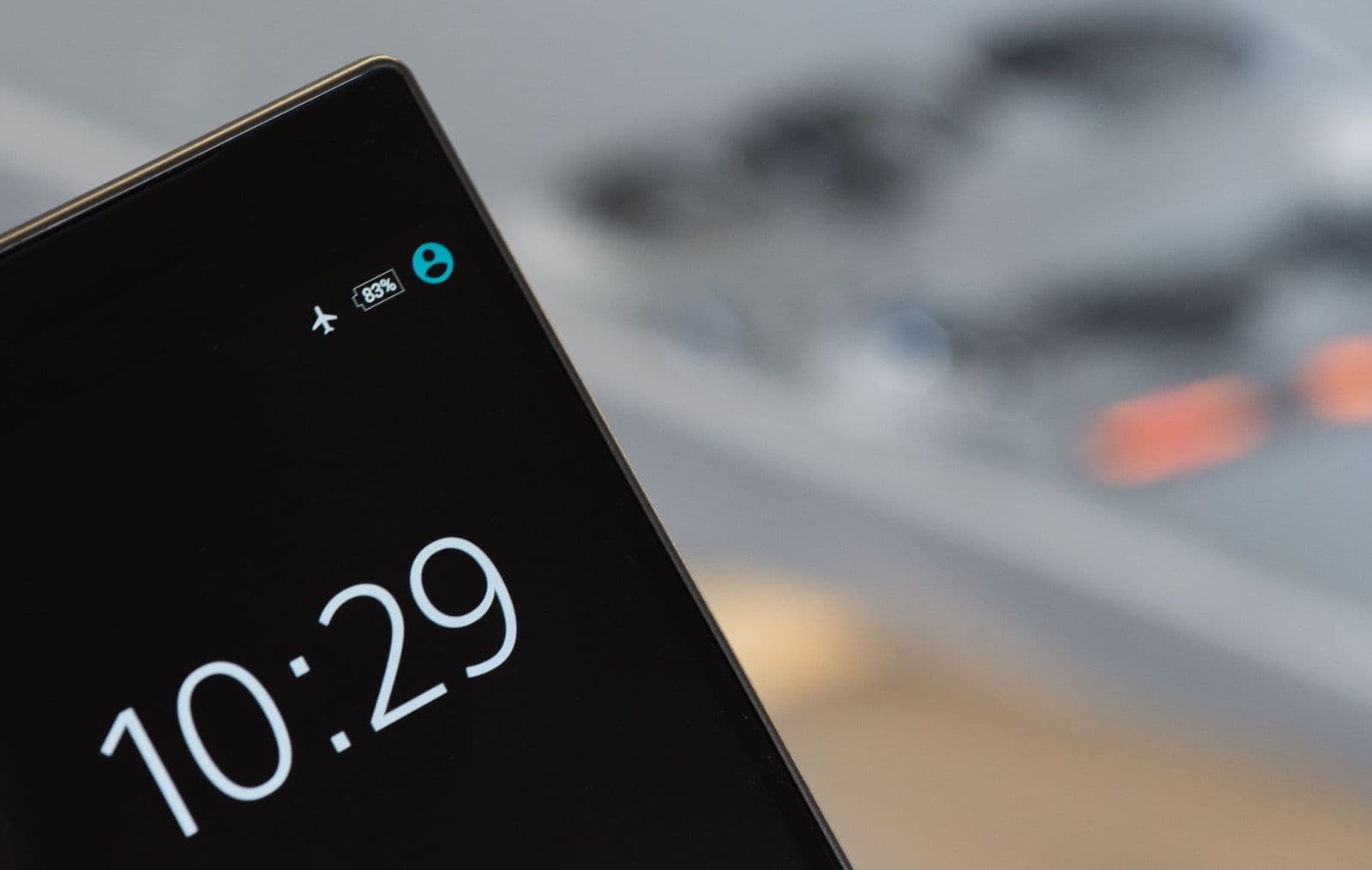
The best battery saver for android phones is a mix of built in modes, smart settings and charging habits. Here is what really works.
Battery saver is a built in feature of Android that cuts background activity to stretch the charge, and a number of apps and settings add to it. The best battery saver for android phones is usually not a separate app at all: it is the right combination of the phone's own power modes, a few display and connectivity changes and some habits that reduce drain. This guide explains what works, what does not and when hardware like a power bank makes more sense.
How Android Battery Saver Works
When you turn on Battery Saver, Android reduces performance, limits background activity, dims some visual effects and may pause syncing for apps you are not using. Many phones can turn it on automatically at a chosen percentage, such as 20 percent. Extreme or adaptive modes go further, restricting more apps and sometimes switching to a simplified home screen. These modes extend the life of a charge but can delay notifications, so choose the level that fits your day.
Settings That Save the Most Battery
Screen brightness and timeout
The display is the largest consumer of power on most phones. Use adaptive brightness, lower the maximum brightness indoors and set a short screen timeout, such as 30 seconds. Dark mode saves power on phones with OLED screens, because black pixels use almost no energy.
Refresh rate
A 120 Hz display feels smooth but uses more power than 60 Hz. If your phone offers a standard mode, it can add noticeable hours on heavy use days.
Location and connectivity
Set location access to while using the app for most apps. Turn off Bluetooth, Wi-Fi scanning and NFC when not needed. In areas with poor signal, the phone raises transmit power, so airplane mode can save battery when you do not need a connection, for instance during a long flight.
Background activity
Check the battery usage screen in settings to see which apps drain the most. Restrict background activity for apps you rarely use, and uninstall apps you do not need. Social media and video apps are the typical heavy users.
Notifications and sync
Disable push notifications for apps that do not need them, and lengthen sync intervals for email and cloud apps. Fewer wakeups mean less drain.
Do Battery Saver Apps Work?
Most third party battery saver and task killer apps provide little benefit and can even shorten battery life. Android already manages background apps, and a task killer that closes them forces the phone to restart them, which wastes energy. Some apps also contain ads or request unnecessary permissions. Prefer built in tools, and consider an app only if it provides clear information, such as battery health or per app usage, rather than a promise to boost the battery.
Battery Health and Charging Habits
- Avoid heat. Do not leave the phone in direct sun or a hot car, and take it out of thick cases when charging if it gets warm.
- Use an adaptive or optimized charging setting if your phone has one. It slows charging near full to reduce wear.
- Try to keep the charge between about 20 and 80 percent for daily use when possible.
- Use the manufacturer's charger or a good quality one with the right standard.
- Check battery health in settings if your phone shows it. A worn battery may need replacement rather than software tweaks.
When Software Is Not Enough
If your phone is several years old, the battery may have lost a large part of its capacity. A battery replacement at an authorized service center can restore much of the original life. For heavy users, a power bank gives a charge on the go. For anyone shopping for a new phone, battery capacity, an efficient processor and a high quality display matter more than any app. Related reading includes our guides to the best android phones with good battery life and the best android phones with long battery life.
A Simple Battery Saving Routine
The best battery saver for android phones is a routine you will actually follow, so keep it short.
- Turn on adaptive battery and adaptive brightness.
- Set Battery Saver to start automatically at 20 percent.
- Use dark mode and a short screen timeout.
- Review battery usage weekly and restrict the worst offenders.
- Update apps and Android, since updates often improve efficiency.
- Carry a small power bank on days when you will be away from outlets.
Common Mistakes to Avoid
- Installing several battery saver apps, which compete with each other.
- Closing all apps manually every few minutes.
- Leaving the screen at full brightness outdoors all day.
- Charging overnight on a bed or under a pillow, where heat builds up.
Frequently Asked Questions
Does battery saver slow down my phone?
It can reduce peak performance and limit background tasks, so apps may feel slightly slower. Most people notice little in normal use.
Is dark mode really helpful?
On phones with OLED displays, yes. On LCD screens, the saving is small.
Should I close apps from the recent apps screen?
Generally not. Android suspends unused apps, and reopening a closed app uses more power than resuming it.
How long should a phone battery last?
Many batteries keep good capacity for two to three years of daily use. After that, capacity declines gradually.
Does fast charging damage the battery?
Modern phones manage heat and speed to limit wear, but frequent heat does reduce life over time.
Understanding Your Battery Usage Screen
The battery usage screen, found in settings under battery or device care, lists apps by the share of charge they used since the last full charge. Look at both the percentage and the time the app ran in the foreground and background. An app with high background use that you rarely open is a good candidate for restriction. Screen use at the top of the list is normal, and it is a hint that brightness and timeout are the most helpful settings to adjust.
Check usage over a full day, not a short window, and compare it between days. If a particular app suddenly drains much more than usual, a recent update, a poor signal or a bug may be the cause. Updating or reinstalling the app often fixes the problem.
Travel and Heavy Use Days
On travel days, download maps, music and videos on Wi-Fi beforehand so that the phone is not streaming over a weak cellular connection. Turn on battery saver at the start of the day rather than waiting until the charge is low, and switch the phone to airplane mode while in transit if you do not need a connection. Keep a short charging cable and a small power bank in your bag. Dim the screen, avoid heavy games and use headphones rather than the speaker, which uses less power.
Signs of a Failing Battery
A battery that drops from 40 percent to off in minutes, a phone that shuts down in cold weather, a swollen back cover or noticeable heat during normal use are signs that the battery itself needs attention. Do not keep using a swollen battery. Contact the maker or an authorized repair shop, which can replace the battery safely.
Final Thoughts
Start with the built in tools, adjust the screen and connectivity settings and build healthy charging habits. The best battery saver for android phones is a mix of settings and habits that lengthens your day without adding clutter. If your phone still struggles, a battery replacement or a power bank will do more than another app.