Best Background for Dual Monitors Made Simple: A Clear Buying Guide for 2026
Disclosure: We may earn a commission when you buy through links on this page, at no extra cost to you. As an Amazon Associate I earn from qualifying purchases. Learn more
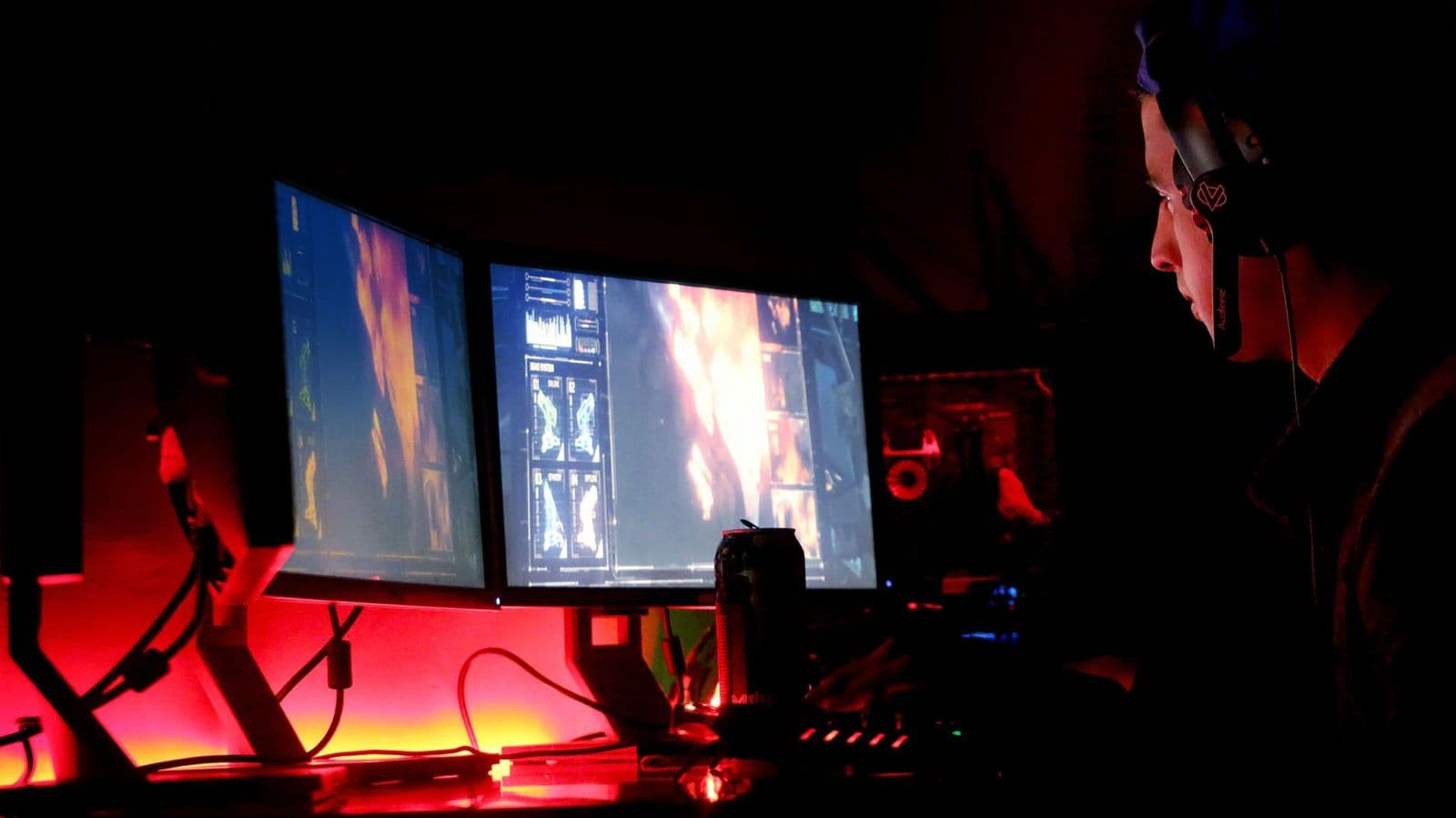
Shopping for the best background for dual monitors for the first time? Learn the terms, compare options, and avoid rookie mistakes with this easy guide.
Two screens side by side look great until a stretched, blurry image ruins the effect. Choosing the best background for dual monitors is mostly about matching the image to your combined screen size, then picking colors and detail that suit your work. This guide starts with the basics, explains the specs in plain English, and ends with simple setup steps.
You do not need design skills or paid software to get a clean result. You need one image with the right pixel count, a layout that respects the gap between your screens, and a few minutes of display settings.
Backgrounds 101: The Basics
A dual monitor background is one wide image, or two matched images, that your operating system spreads across both screens. When the image width equals the combined width of your two displays, every part stays sharp and nothing important falls behind the bezels. When the image is too small, the system stretches it and fine detail turns soft.
Most computers offer three layout modes. Span mode treats both screens as one large canvas, which suits wide landscapes and city scenes. Duplicate mode shows the same image twice, which works for logos and patterns. Separate mode gives each screen its own image, which helps when the screens differ in size or orientation.
Two terms matter most. Resolution means the pixel count of the image, written as width by height, such as 5120 by 1440 for two 1440p screens. Aspect ratio means the shape of that canvas, and a wide panoramic shape is what makes a spanned image feel natural instead of squeezed.
Key Specs Explained in Plain English
Features That Matter for Dual Monitors
A background for two screens must do jobs a single screen image never faces. It must stay sharp across a much wider canvas, keep its subject clear of the center gap, and look balanced when one screen shows bright windows all day. Look for images offered at several sizes, with the subject placed off center or spread evenly across the frame.
Also check the file format and weight. A high quality JPEG or PNG loads fast and will not slow your sign in screen. If the screens themselves still need choosing, read our guide to the best monitors for dual monitor setups before you settle on image sizes, because screen resolution decides everything else.
Panel Technology (IPS, VA, OLED, Mini LED)
Your panel type changes how any background looks, so it helps to know what you own. IPS panels show accurate color and wide viewing angles, which keeps a spanned image consistent when you lean to one side. VA panels give deeper contrast, so night scenes and dark gradients look richer, though colors can shift at sharp angles.
OLED panels produce true black and striking contrast, but a static image shown for many hours can raise the risk of burn in over time. Mini LED panels sit between the two, with bright highlights and strong contrast. Whatever you own, a varied image with no fixed bright logo is the safer long term choice.
Refresh Rate and Response Time
Refresh rate, measured in hertz, is how often the screen redraws each second, and response time is how fast pixels change color. A still background does not move, so these specs matter less here than for games or video. They matter when your background is animated or when a live wallpaper plays motion across both screens.
Animated backgrounds look smoothest on screens running at 120Hz or higher, and mismatched refresh rates between two screens can make motion look uneven. If you play games on one screen and work on the other, our guide to the best gaming monitors explains refresh choices in more depth. For a still image, spend your effort on resolution instead.
Stand, Mounting, and Ergonomics
How your screens sit changes how a background lines up. Two monitors at slightly different heights break a spanned image at the seam, even when the file itself is perfect. Stands with height and tilt adjustment, or a dual arm with VESA mounts, let you level the top edges and close the gap between the panels.
Before you blame an image, sit in your normal chair and check that both screens sit at eye level with their inner edges touching or nearly touching. A small physical gap is normal, and good operating system settings let you tell the computer where each screen sits so the image flows in the right order.
HDR and Brightness
Brightness is measured in nits, and HDR describes how a screen handles very bright and very dark areas at once. A background with bright sky and deep shadow looks flat on a dim screen and can look washed out on a very bright one. Images with gentle mid tones tend to survive both extremes well.
If your monitors support HDR, choose images labeled for wide color or HDR use, and keep desktop brightness at a level that stays comfortable for hours. Text and icons sit on top of your background, so avoid images with extreme bright spots where your icons live. A calm area in the corners keeps shortcuts easy to read.
Resolution and Screen Size
Match the image to your combined pixel count, not to a marketing label. Two 1080p screens side by side need an image about 3840 pixels wide and 1080 tall. Two 1440p screens need about 5120 by 1440, and two 4K screens need about 7680 by 2160. A larger file can scale down cleanly, while a smaller file cannot scale up without softness.
Screen size in inches matters less than pixel count, but it affects viewing distance and how busy an image feels. On smaller screens, fine patterns can look noisy, so simple scenes with larger shapes read better. If you are comparing matched pairs, our guide to the best dual screen monitors covers size and resolution pairings in detail.
Choosing Backgrounds for Your Situation
Best Desktop Backgrounds for Dual Monitors
When people search for best desktop backgrounds for dual monitors, they usually want one image that spans the full desk setup. Choose a scene with a wide horizon, a subject placed to one side, and calm areas where icons will sit. Landscapes, aerial coasts, and wide architecture shots span well because the center gap rarely cuts a face or a key detail.
Best Computer Backgrounds for Dual Monitors
The phrase best computer backgrounds for dual monitors often points to everyday work use rather than pure looks. For work, pick lower contrast images with muted color so open windows and text stay easy on your eyes through a long day. Abstract gradients, soft geometry, and dark neutral scenes are safe choices, and they hide the seam between screens better than busy photos.
Best 4K Backgrounds for Dual Monitors
Hunting for best 4k backgrounds for dual monitors only pays off when your screens can show that detail. On two 1080p screens, a 4K file simply scales down, which is fine but offers no extra sharpness. On two 4K screens, download the full combined size near 7680 pixels wide, and expect larger files that may load a moment slower at sign in.
Best Panoramic Backgrounds for Dual Monitors
Fans of best panoramic backgrounds for dual monitors want that single sweep of scenery across both panels. Panoramic images work best when the horizon sits at the same height on both screens, so level your monitors before judging the result. Mountain ranges, deserts, and ocean views are forgiving subjects, while city skylines need care so tall buildings do not split awkwardly at the seam.
Rookie Mistakes to Avoid
- Using a single screen image and stretching it. A 1920 by 1080 file across two screens will always look soft, no matter how pretty the photo is.
- Ignoring the center gap. Faces, text, and focal points placed in the middle of the image land right behind the bezels.
- Mixing resolutions without checking settings. A 4K screen beside a 1080p screen needs per screen images or careful scaling, or one side will look cropped.
- Choosing images that fight your icons. Busy, bright corners make shortcuts and file names hard to read at a glance.
- Leaving one bright static image up for months. On OLED screens especially, rotate images now and then to spread wear evenly.
Getting Started: Setup and First Use
Start by confirming each screen resolution in your display settings, then add the two widths together to get your target image size. Download or export the image at that size or larger, save it in a folder you will not move, and set it with the span or fill option your system offers. Check that the screens are arranged in the same order on screen as they are on your desk.
Next, open your picture settings and move away from the vivid mode many monitors ship with, since it oversaturates color and makes photos look harsh. A standard or user mode with moderate brightness is kinder for all day viewing. If one of your screens is OLED, run its pixel refresh routine as the maker directs and let the screen rest on a schedule. Readers planning a full desk build may also like our guide to the best dual computer monitors for matched pair advice, and anyone running screens from a portable machine should see our guide to the best laptop for dual monitors for docking tips.
Frequently Asked Questions
What features matter most in backgrounds for dual monitors?
Pixel size, subject placement, and calm icon areas matter most. The image should meet or exceed your combined screen resolution so nothing stretches. Its main subject should sit clear of the center gap, and the corners should stay quiet enough for shortcuts to remain readable. Color that suits your room light and your panel type comes next in importance.
Is 4K worth it for dual monitor backgrounds?
4K source images are worth it when at least one of your screens is 4K, because the extra pixels keep fine detail crisp at normal desk distance. They also give you room to crop without losing sharpness. On two 1080p screens the benefit is small, since the system scales the file down, so a correct size 1080p pair image looks just as good.
What background size should I get for my room or desk?
Choose the size from your screens, not from your room. Add the pixel widths of both monitors and use that total as your image width, with the height of the taller screen as your image height. Room and desk size only affect how far you sit, which changes how detailed an image you can appreciate, not the file size you need.
IPS vs OLED: which is better for dual monitor backgrounds?
Neither panel wins for every desk. IPS gives steady color from wide angles and no worry about static images, which suits a background you keep for months. OLED gives deeper black and richer contrast, so night scenes look superb, but you should rotate images and avoid fixed bright elements to lower the chance of uneven wear over time.
Does refresh rate matter for non gamers?
For a still background, refresh rate does not matter at all, because nothing on the image moves. It only enters the picture with animated or video backgrounds, where a higher rate makes motion look smoother. Non gamers can safely put their budget toward resolution and panel quality instead, which change what you see far more every day.
The Bottom Line
Start with the math: one image at your combined resolution, a subject clear of the center seam, and corners calm enough for icons. Match the mood to your work, level your screens, and soften any vivid picture mode before you judge the result. Remember that the best background for dual monitors is the one sized correctly for the screens you already own.