
Best Back Up Hard Drives for Mac: Our 2026 Checklist and Top 3 Picks
Disclosure: We may earn a commission when you buy through links on this page, at no extra cost to you. As an Amazon Associate I earn from qualifying purchases. Learn more

Run this checklist for the best back up hard drives for mac covering capacity, speed, format, Time Machine fit, build quality, and fair value.
A backup drive is insurance you hope never to use, which makes choosing one feel abstract until a laptop fails. This checklist for the best back up hard drives for mac turns that vague worry into concrete specs on capacity, format, speed, and build.
You can check each option the same way, then check red flags that listings rarely advertise. Start with the comparison table below, and keep your current storage use and your next Mac in mind as you read.

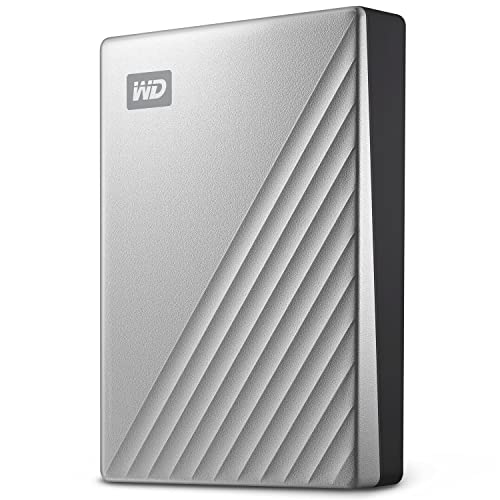


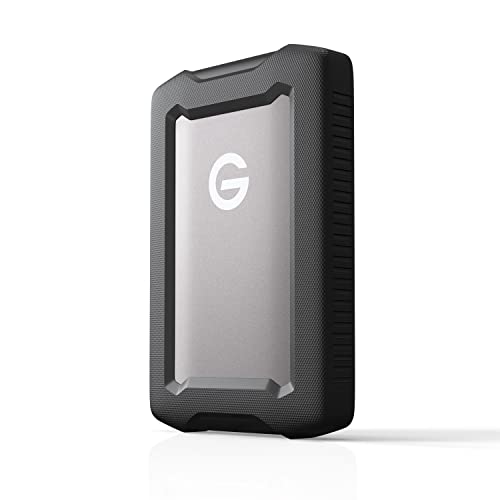
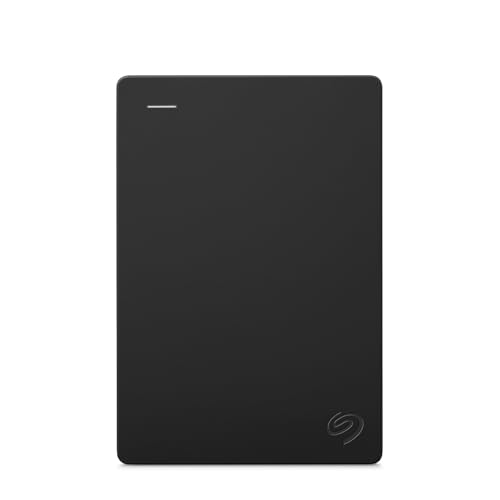

How to Evaluate Back Up Hard Drives
Start with one question: will this drive still be trusted in three years? Everything below supports that answer, from Mac specific formatting to warranty terms you can actually claim.
Features That Matter for Mac
Mac backup has specific needs. The drive must work smoothly with Time Machine, the built in backup tool in macOS, and it should connect by USB C or Thunderbolt so it plugs into modern Mac laptops without a drawer full of adapters.
Look for a drive that can be formatted as APFS, the file system Time Machine now requires for backup disks. A drive sold as Mac ready saves setup time, while a drive formatted for Windows needs a quick erase before first use, which is fine as long as you know before you plug it in.
Intended Use and Who It Is For
Match the drive to the job. A student backing up one laptop needs a small portable drive around 1 to 2 terabytes. A photo or video creator needs 4 terabytes or more, plus faster transfer speeds so large libraries do not take all night to copy.
Households with several Macs may prefer one larger desktop drive that stays plugged in, since automatic hourly backups only happen when the drive is connected. Decide honestly whether you will plug in a portable drive often enough, or whether an always connected drive fits your habits better.
Build Quality and Materials
A backup drive lives a rough life in bags, drawers, and desk clutter. A metal enclosure sheds heat better than thin plastic and resists dents, while a short sturdy cable with solid connectors survives daily plugging far better than a flimsy one.
For portable drives, ask whether the maker rates the unit for drops or adds a rubber bumper. No consumer drive is indestructible, so treat build quality as risk reduction. Your true safety net is a second copy of critical files in another location, such as cloud storage.
Warranty and Customer Support
Look for at least a two year warranty, and three years is better for a drive you plan to trust for a long cycle. Check whether the maker offers data recovery services or a clear replacement process in the United States, since a backup drive failure is stressful enough without a support maze.
Read the warranty limits too. Many warranties replace the hardware but never promise your data back, which is exactly why one drive should never be your only copy of family photos or business records.
Ease of Use and Setup
Good backup feels invisible. The best setup takes minutes: plug in, let macOS offer the drive for Time Machine, confirm encryption with a password you store safely, and let the first backup run while you do other things.
Drives that rely on bundled software for basic backup add friction and update prompts. You can ignore most bundled tools and use Time Machine alone. If you want a broader view of formats and sizes, our guide to the best external hard drives for mac compares everyday external storage beyond backup duty.
Key Performance Specs
Capacity comes first: buy at least twice the storage inside your Mac, and three times is better if you keep many Time Machine versions or large media libraries. A 512 gigabyte Mac deserves a 2 terabyte backup drive as a practical minimum for growing room.
Speed comes second. A spinning hard drive moves data at roughly 100 to 160 megabytes per second, which is fine for overnight backups. A solid state drive can run several times faster over USB C, which matters when the first full backup or a full restore cannot wait.
Price vs Value
Budget portable hard drives often cost around $60 to $120 depending on capacity, mid range options with larger storage or faster solid state designs run about $130 to $300, and premium desktop units with very large capacity cost more. Judge value by cost per terabyte plus warranty length, not by the sticker alone.
Paying a little more for double the capacity is usually smart, because a drive you outgrow in a year protects nothing after it fills. Saving money with a no name drive of unclear origin is the classic false economy in this category.
What Each Price Tier Usually Delivers
Mid Range Tier
The mid range tier for most Mac owners is a portable drive of 2 to 5 terabytes from an established storage brand, priced around $90 to $180 in hard drive form. It balances capacity, price, and simple Time Machine use, and it travels easily between home and office.
The limit is speed. Restoring a full system from a spinning drive takes patience, so schedule restores overnight when you can. For a single laptop household, though, this tier covers the real risks at a fair cost.
Budget Tier
Value picks are smaller hard drives, often around $60 to $90 for 1 to 2 terabytes. They suit students and light users whose Mac holds mostly documents, photos from a phone, and school or office work. Setup is the same, and the protection per dollar is excellent.
The trade off is headroom. Once the drive fills, Time Machine deletes the oldest backups, so you lose deep history. Watch free space every few months and upgrade before the drive becomes a short memory backup.
Premium Tier
Premium options include fast solid state portable drives and large desktop drives for creators. Expect around $200 to $450 depending on capacity and speed. A solid state drive finishes the first backup in a fraction of the time and survives travel knocks better, since it has no moving parts.
This tier fits video editors, photographers, and anyone whose downtime costs money. If your work lives on your Mac, faster restores and bigger capacity stop being luxuries and start being part of the job. Travel focused shoppers can compare carry friendly options in our guide to the best portable hard drives mac.
Quick Buyer Checklist
- Is the capacity at least twice the storage used and planned inside your Mac?
- Does the drive connect by USB C or Thunderbolt without an adapter you might lose?
- Can the drive be formatted as APFS for current Time Machine backups?
- Is the warranty at least two years from a maker with United States support?
- Will the drive stay connected often enough for automatic backups to run?
- Do you have a second copy of your most critical files somewhere else?
- Have you planned a safe place to store the password for an encrypted backup?
Red Flags to Watch For
Walk away from listings with vague capacity claims, no stated warranty, or speeds quoted without a connection standard. A drive that promises huge storage at a fraction of normal market price is a classic counterfeit pattern, and it may report false capacity while silently losing your files.
Also avoid drives with only a USB Micro B style port when your Mac uses USB C and you hate adapters, units with many reports of disconnecting mid backup, and sellers who bundle unwanted software subscriptions into the price. For general background, our guide to the best back up hard drives covers backup habits that apply beyond Mac as well.
Best Back Up Hard Drives for Specific Needs
Best Back Up Hard Drives for a Mac
When people search for the best back up hard drives for a mac, they usually mean one single Mac at home that must just work. For that case, prioritize three things: a portable 2 terabyte or larger drive, APFS formatting with Time Machine encryption turned on, and a physical spot by the desk where plugging in becomes a nightly habit.
A desktop drive makes sense instead when the Mac never leaves the desk. Our guide to the best desktop hard drives for mac explains when the larger always connected format is worth the extra cost and space.
Tips to Get the Most From Your Back Up Hard Drive
Read the manual before first use, even if setup looks obvious, since a few drives ship with a hardware encryption mode you must set once. Keep the first backup running on wall power, label the drive with its purchase date, and test the backup monthly by opening a few files from inside Time Machine.
Clean and inspect the cable and port regularly, store the drive in a dry place away from heat, and eject it properly before unplugging. A backup you verify is worth ten backups you only assume are working.
Back Up Hard Drives: Your Questions Answered
What features matter most in a Mac backup drive?
Capacity, APFS support, and reliable USB C connection matter most. A drive with twice your Mac storage, clean Time Machine behavior, and a solid warranty will serve you better than exotic extras. Encryption support matters too, because a stolen backup drive should never hand a stranger your entire digital life in readable form.
What features matter most when buying any backup drive?
Across all computers, the key features are honest capacity, a connection your machine supports, and a maker who will honor the warranty. Speed ranks next for large libraries. If you want a second opinion on naming and formats, our guide to the best hard drives for backing up mac approaches the same choice from the drive side.
How do I maintain a back up hard drive?
Keep the drive connected on a regular schedule, confirm backups complete without error messages, and leave at least ten percent of the capacity free. Replace cables at the first sign of loose fit or dropouts. Every year, open Time Machine and restore one older file as a drill, so you learn the process before a real emergency.
Are expensive back up hard drives worth it?
They are worth it when they buy speed, capacity, or durability you will truly use. A creator restoring a terabyte of footage saves real hours with a fast solid state drive. For a documents only laptop, the same money buys little extra protection, so a solid mid range hard drive plus a cloud copy is the smarter spend.
How much should I spend on a back up hard drive?
Most Mac owners should plan around $70 to $180 for a portable hard drive with enough capacity, or around $200 to $400 for a fast solid state or large desktop option. Spend first on capacity and warranty. If your budget forces a choice, a larger basic drive you keep connected beats a small premium drive that fills within a year.
How long does a back up hard drive last?
A hard drive typically lasts about three to five years in regular backup duty, and a solid state drive can last longer but still ages. Treat year four as a prompt to check health and budget for a replacement. Drives fail without asking permission, so retire an aging backup while it still works and copy everything to its successor calmly.
Wrapping Up
Buy capacity with headroom, insist on clean Time Machine support, and never let one drive be your only copy. With those rules set, choosing among the best back up hard drives for mac becomes a short task. Compare your finalists in the product table above and set up your first backup the day your drive arrives.
