Best Anti Glare Laptops for 2026: What Actually Matters Before You Buy
Disclosure: We may earn a commission when you buy through links on this page, at no extra cost to you. As an Amazon Associate I earn from qualifying purchases. Learn more

Use this checklist to choose the best anti glare laptops, covering matte displays, brightness, performance, battery life, and ports for work and study.
A glossy screen can turn a bright office, a cafe window seat, or a classroom into a mirror. Matte anti glare panels scatter that reflected light, so text stays readable and your eyes work less hard across a long day. This checklist first approach helps you judge the best anti glare laptops on the display itself, then on the performance, battery, and ports that decide whether the machine still suits you in three years.
Start with the comparison table below for a quick view of screen sizes, brightness ratings, and weights. Then score each candidate against the evaluation criteria that follow, and use the red flags section to cross weak options off your list early.


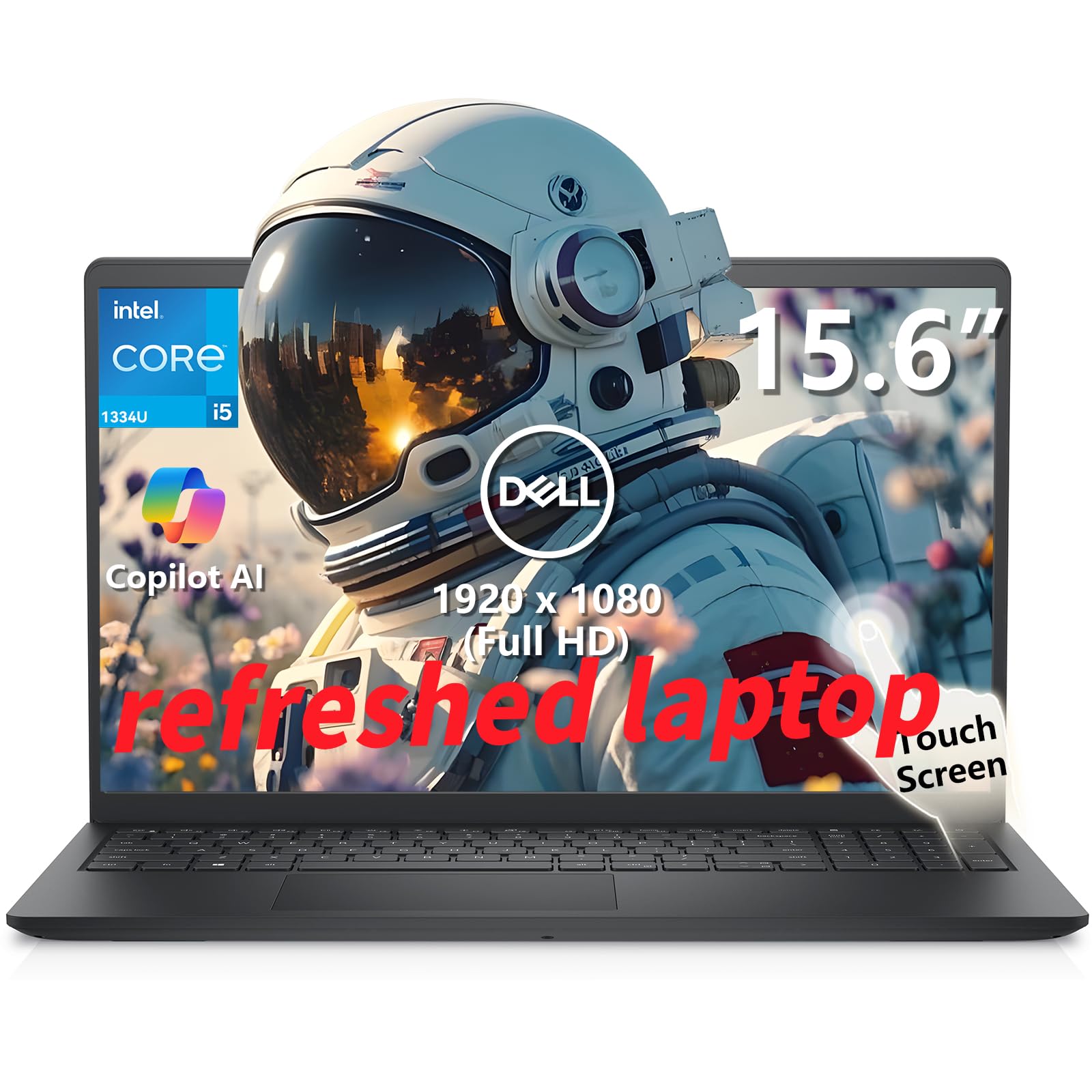
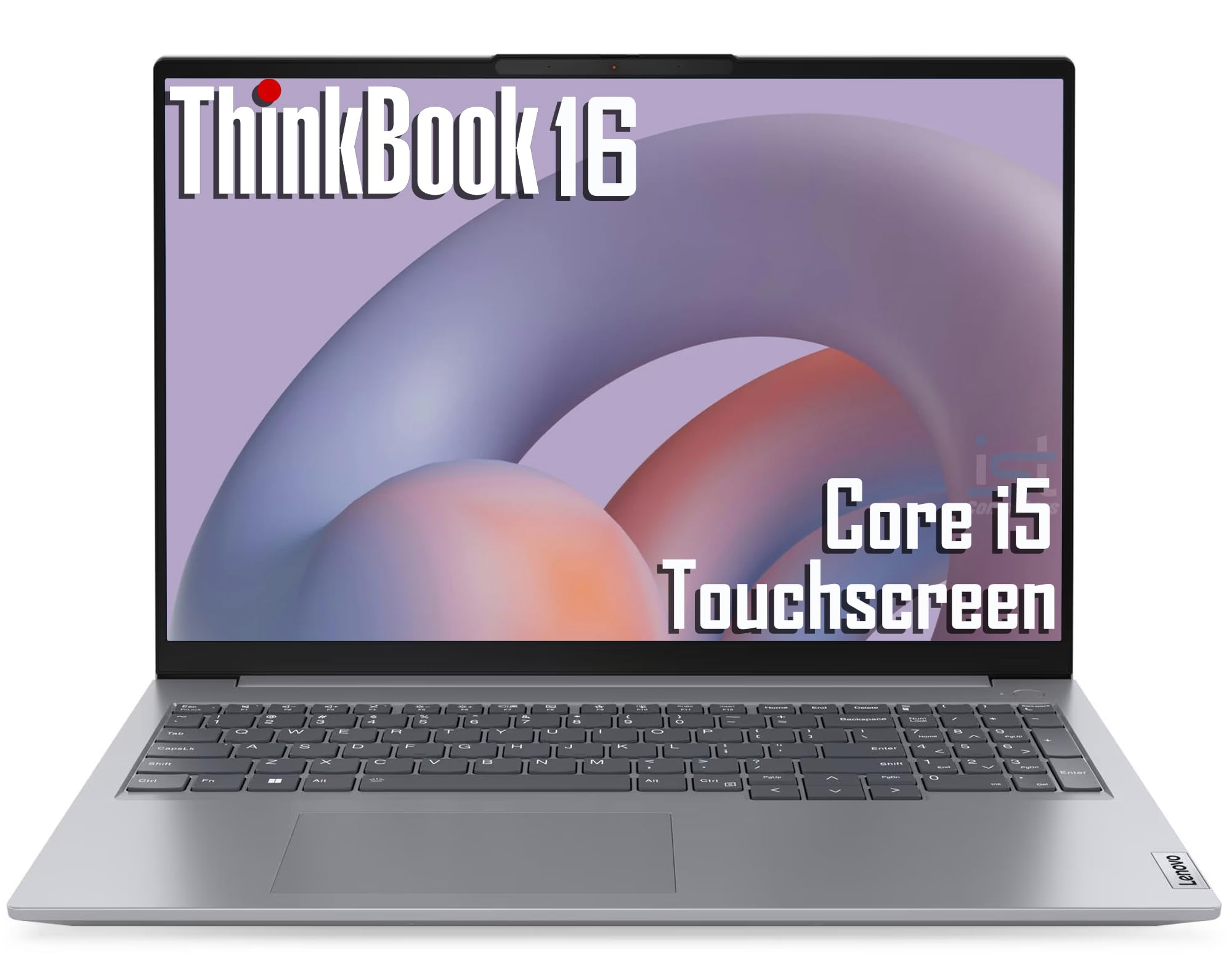
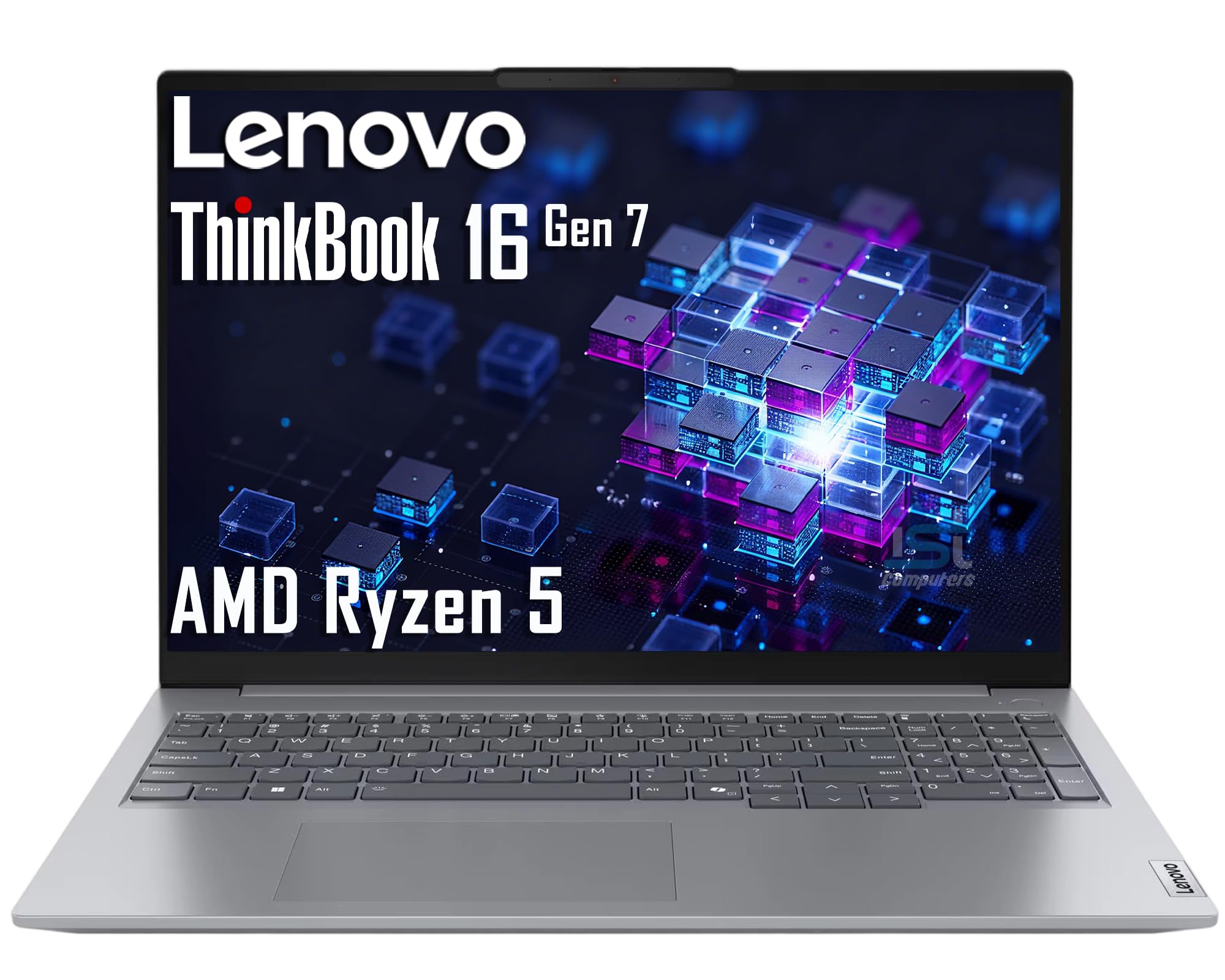
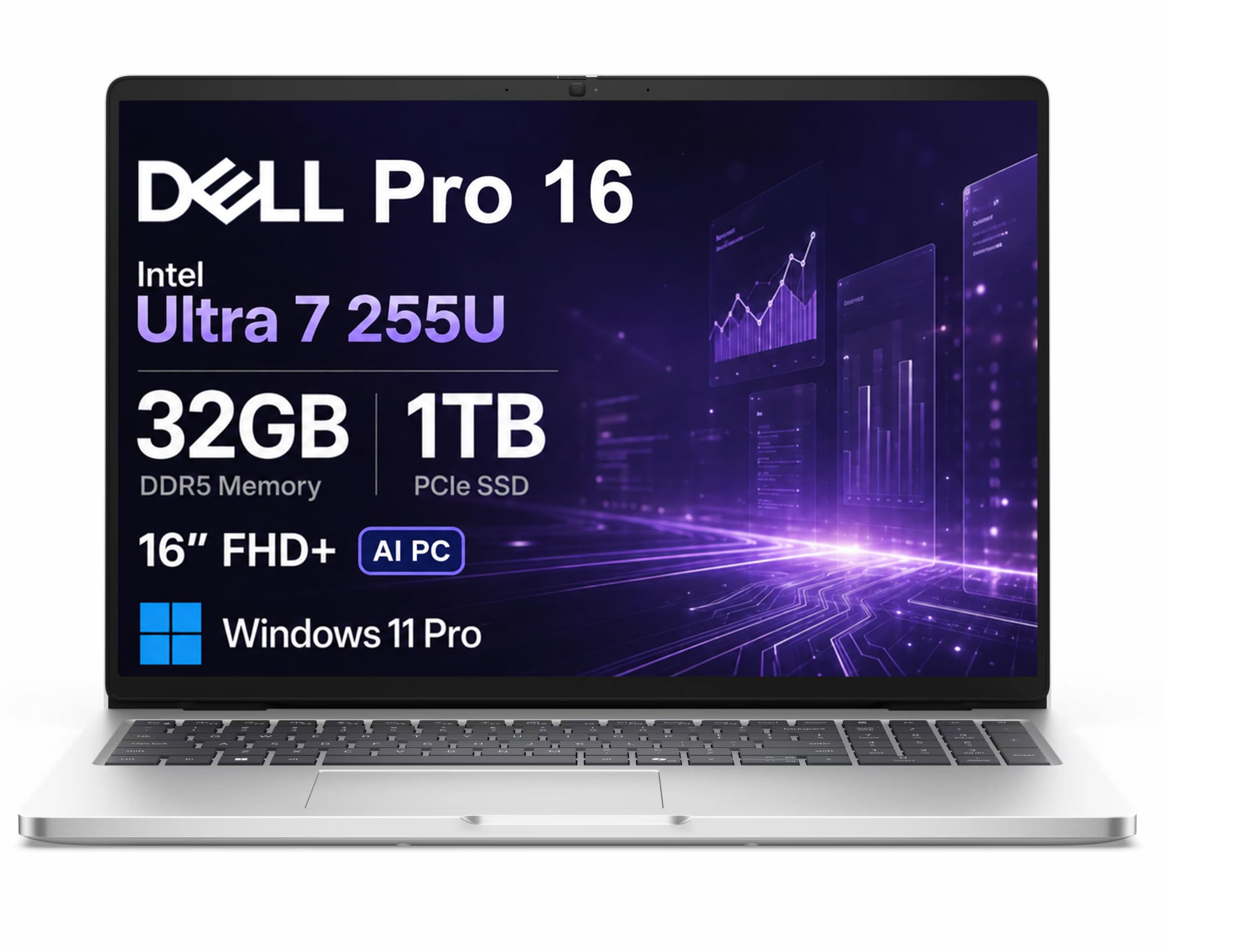


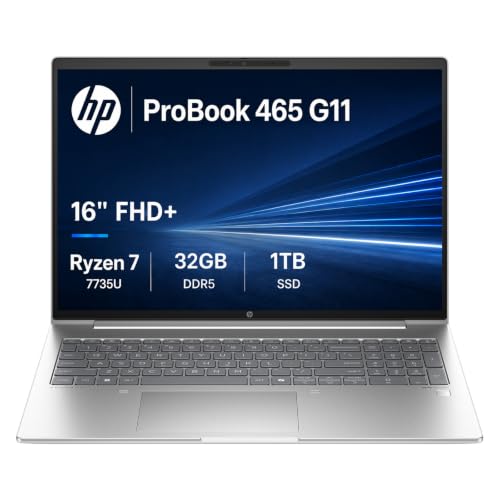
How to Evaluate Anti Glare Laptops
Processor and Performance Tier
For office work, study, and web based tools, a current midrange processor from the Intel Core Ultra, AMD Ryzen, or Apple M families handles everything smoothly. Step up a tier if you compile code, edit large photo sets, or run virtual machines, because processor limits cannot be fixed later. Treat entry level chips paired with slow storage as a false saving. A simple test is to match the processor tier to your heaviest weekly task, not your lightest daily one.
Graphics (Integrated vs Dedicated GPU)
Integrated graphics now drive multiple external displays, light photo editing, and casual games without trouble, and they keep weight and heat down. A dedicated GPU earns its cost and bulk if you game seriously, edit video, or work in 3D tools. It also cuts battery life, sometimes by hours. If your work is documents, spreadsheets, and video calls, skip the dedicated GPU and spend the savings on RAM, storage, or a brighter matte panel.
RAM and Storage
Treat 8GB of RAM as a bare minimum for light use, and choose 16GB if you keep many browser tabs, large spreadsheets, or creative apps open at once. Many thin laptops cannot be upgraded later, so buy the RAM you will need in year three, not just year one. For storage, a solid state drive of 256GB suits cloud based workers, while 512GB gives local photo and video libraries proper room. Slow spinning drives have no place in a modern laptop at any price.
Operating System (Windows, macOS, ChromeOS)
Windows offers the widest software and hardware choice and suits most workplaces. macOS fits buyers already using an iPhone or Apple services, and its laptops pair strong battery life with matte display options on many models. ChromeOS is simple, fast, and cheap for web based school and office work, but it cannot run full desktop apps. Match the system to the software your school or employer requires first, because no display quality can fix a missing app.
Battery Life in Real World Use
Maker claims assume dim screens and light tasks, so expect real world results to land one to three hours lower. For a full work or school day away from outlets, target a model whose independent estimates reach eight hours or more with mixed use. Fast charging over USB C is worth having, since a short top up at lunch can rescue a low battery. Remember that brighter matte panels draw more power, so brightness and battery life trade against each other.
Display Size, Resolution, and Brightness
This is the core criterion for this category. Confirm the panel is truly matte or anti glare, not just marketed as low reflection, and look for brightness of at least 300 nits so the coating still looks clear near windows. Sizes from 13 to 16 inches cover most needs, with 14 inches the common balance of screen room and portability. Resolution of 1920 by 1200 or higher keeps text crisp, and higher refresh rates smooth scrolling but matter most for gaming. If a glossy model tempts you, our guide to the best anti glare screen protector for laptops explains the add on film option and its limits.
Ports and Connectivity
Count the ports you use weekly before you buy. Two USB C ports, at least one full size USB port, and HDMI output cover most desks without a dock, and Thunderbolt support adds fast drives and single cable docking. WiFi 6E or WiFi 7 keeps crowded networks fast, and Bluetooth 5.3 or later pairs modern mice and headsets reliably. A card reader still matters if you move photos from a camera. Dongles are cheap, but needing one every day gets old fast.
Three Laptop Profiles That Pass the Checklist
Best Overall Profile
The overall profile that passes every section pairs a 14 inch matte panel at 300 nits or more with a midrange processor, 16GB of RAM, and a 512GB solid state drive, at around $800 to $1,200. It suits professionals and students who carry one machine everywhere. The usual compromise is integrated graphics, so serious gamers and video editors should look at the value and compact profiles only as starting points and budget for a GPU model instead.
Best Value Profile
A value profile around $500 to $800 keeps the matte display, 16GB of RAM, and a capable processor, while accepting a heavier body, a smaller battery, or fewer ports. It is the right pattern for home offices and school use where the laptop mostly lives on a desk. Check the brightness figure carefully at this price, because dim 250 nit panels are the most common corner cut. Our roundup of best notebook laptops shows how general notebook designs compare when display finish is not the first filter.
Best Compact Profile
The compact profile uses a 13 inch matte screen, a weight near or under 2.5 lb, and strong battery life, usually around $900 to $1,400. It suits commuters, field staff, and anyone who works from cafes and trains, where glare is worst and space is tight. The trade offs are a smaller keyboard, fewer ports, and no room for a dedicated GPU. Pair it with a good sleeve and a compact USB C charger to keep the travel kit light.
Quick Buyer Checklist
- Is the display finish listed as matte or anti glare, with brightness of at least 300 nits?
- Does it have 16GB of RAM, or a clear upgrade path if it starts at 8GB?
- Is storage a solid state drive of 256GB or more?
- Will the battery realistically cover your longest day away from an outlet?
- Do the built in ports match your monitor, drives, and accessories without daily dongles?
- Does the operating system run every app your work or school requires?
- Is the weight comfortable for your actual commute or carry routine?
- Does the return policy let you test the screen in your own lighting at home?
Red Flags to Watch For
Walk away from listings that hide the brightness figure or describe the screen only with vague words like vivid or crystal clear, because dim glossy panels often hide behind that language. Be wary of 8GB of RAM paired with no upgrade slot on a machine priced as a premium model. Extremely short warranties, no published weight, and review patterns full of identical praise are further warnings. Finally, a matte claim on a touchscreen deserves a check, since many touch panels stay glossy even when the same model without touch is matte. For a second screen at your desk, the same finish logic applies, as our guide to best anti glare monitors explains for desktop displays.
Choosing Anti Glare Laptops for Your Situation
Best Anti Glare Laptops for Students: What to Check
For the best anti glare laptops for students, weight, battery life, and price matter more than raw power. A 13 or 14 inch matte model under 3 lb with all day battery survives lectures in bright rooms and library windows without a charger hunt. Prioritize a sturdy hinge, a spill resistant keyboard if offered, and at least a two year coverage option, because bags and shared desks are hard on hardware.
Care and Maintenance Tips
Keep the operating system and firmware updated, since makers often improve battery and display behavior through updates. Avoid running at a full charge all the time if your laptop offers a charge limit setting, because holding at 100 percent speeds battery wear. Use a padded sleeve when commuting, and clean the matte screen with a dry or slightly damp microfiber cloth only, since solvents and rough paper can polish the coating into shiny spots.
FAQs
Should I buy an anti glare laptop or a tablet?
Buy the laptop if you type long documents, multitask across windows, or need full desktop software for work or school. A tablet wins for reading, drawing, and media on the couch, but adds cost once you buy its keyboard and still limits some apps. Students who write essays daily almost always do better with a laptop. Tablets make a good second device, rarely a good only device for coursework.
Is a dedicated GPU worth it in an anti glare laptop?
It is worth it only if your software can use it, such as modern games, video editing suites, CAD tools, or local AI workloads. For documents, browsing, and calls, a dedicated GPU adds weight, heat, fan noise, and cost while draining the battery faster. One middle path is a strong integrated chip, which now handles light creative work well. Check the stated requirements of your main apps before paying for graphics power.
How long should an anti glare laptop last?
A well chosen model should serve four to six years, with the battery as the first part to fade. Matte coatings themselves do not wear out under normal cleaning, though harsh chemicals can damage them. Buying 16GB of RAM and a midrange processor extends useful life more than any other choice. Plan a battery replacement around year three or four if run time drops sharply, which is far cheaper than a new machine.
How much RAM do I need in an anti glare laptop?
Choose 16GB if you can, because browsers, chat apps, and office suites together now use more memory than they did a few years ago. 8GB still works for light ChromeOS or single task use, but it limits multitasking and future proofing. Creative work with large files benefits from 32GB. Since many thin models have soldered memory that cannot be upgraded, treat the RAM choice at purchase as final.
Is a Chromebook enough for school?
A Chromebook is enough when your school runs on web apps, Google Workspace, and browser based testing, and many matte screen Chromebooks cost very little. It falls short when a course needs Windows or macOS software, offline desktop apps, or specific exam tools. Check your school software list before buying. If any required program lacks a web version, choose a Windows laptop or a Mac instead.
Final Thoughts
Score the display first: a true matte finish, 300 nits or more, and a size you can carry. Then confirm 16GB of RAM, solid state storage, and battery life that covers your real day. Compare your finalists in the product table above, and pick the best anti glare laptops option that passes every line of your own checklist, not just the first page of search results.