
Best Aluminum Laptops 2026: Buying Guide
Disclosure: We may earn a commission when you buy through links on this page, at no extra cost to you. As an Amazon Associate I earn from qualifying purchases. Learn more

What to check on the best aluminum laptops: metal build level, processor, screen, weight, keyboard and battery life for school, work and travel.
Buying your first metal bodied laptop can feel confusing, because listings throw around terms like processor tiers, refresh rate, and USB C charging as if everyone already knows them. The good news is that you only need a handful of ideas to choose well, and this guide explains each one in plain language before you spend anything.
We will walk from the basics to a confident shortlist of the best aluminum laptops for your needs, including the best all aluminum laptops with a fully metal shell. Use the comparison table below to note sizes and prices as you read, and return to it once the terms make sense.
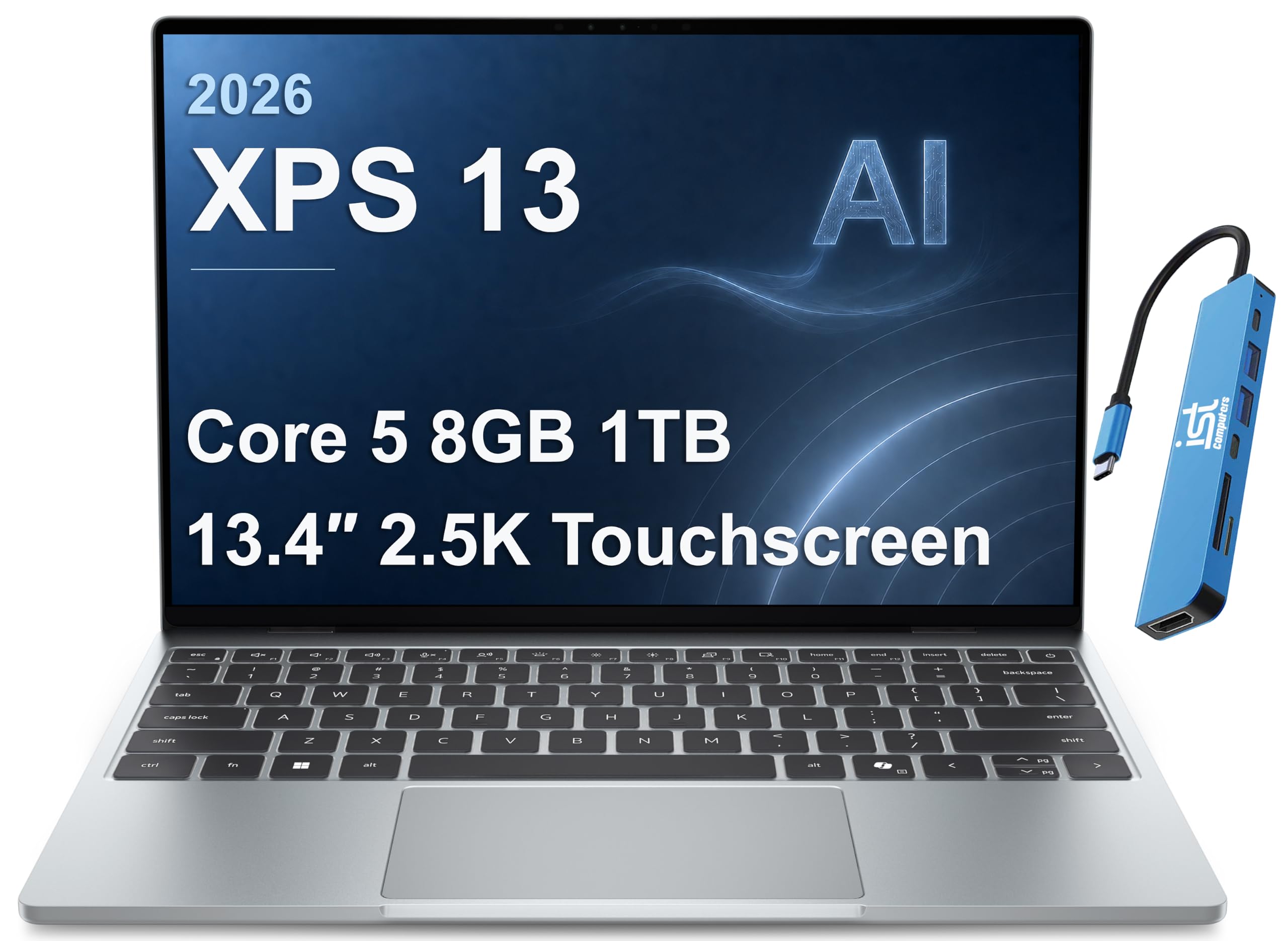
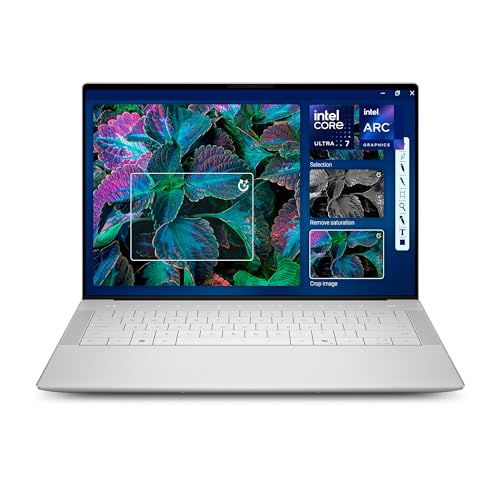

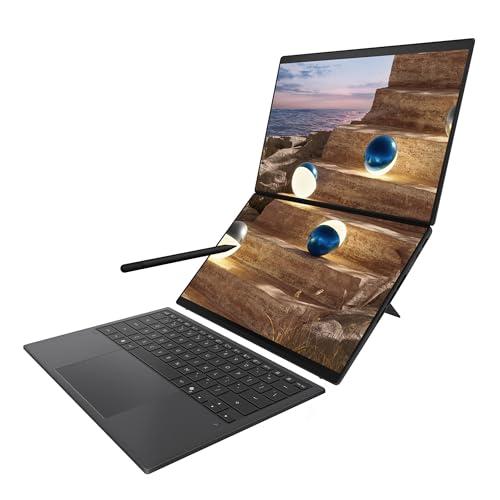
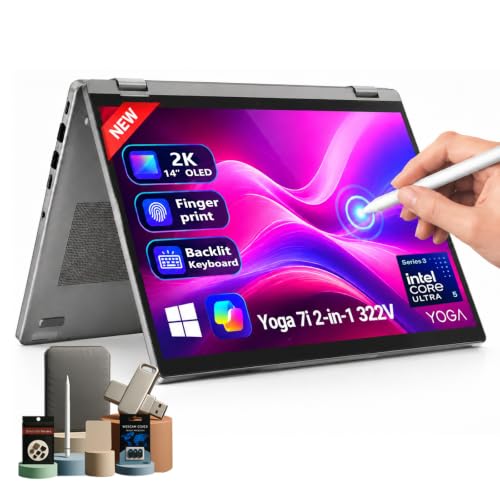


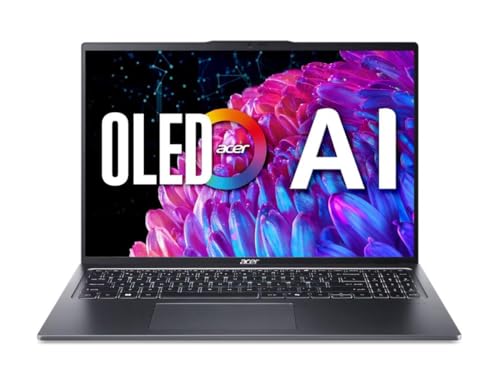
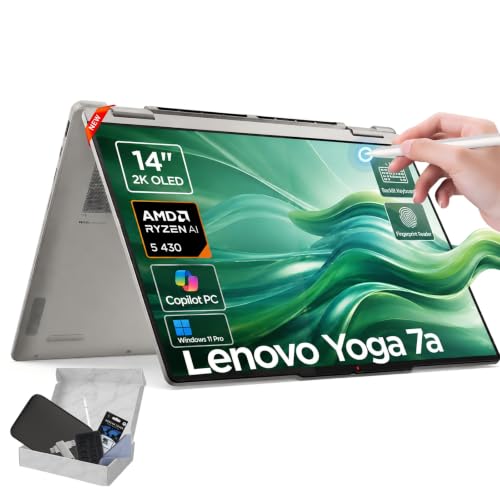
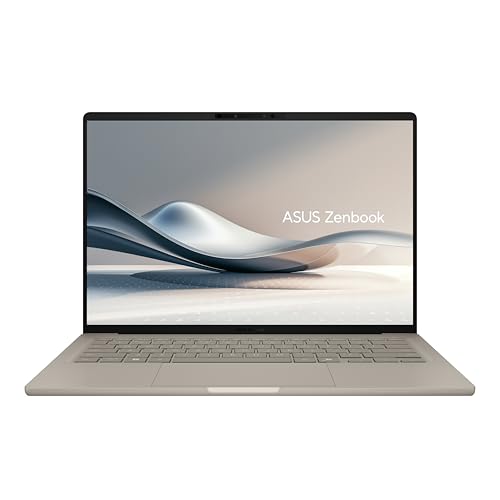
Aluminum Laptops 101: The Basics
An aluminum laptop uses aluminum for its outer shell, and sometimes for the inner frame as well. The metal makes the body feel firm, protects the screen when the laptop rides in a bag, and helps spread heat away from the parts inside. It does not by itself make a laptop fast. Speed comes from the processor, memory, and storage, which the next section explains one by one.
You will see three build levels in listings. Some models use aluminum only for the lid, some add an aluminum keyboard deck, and full metal models wrap the whole body. Each step up usually feels sturdier and costs more. For a first purchase, a metal lid and deck already give most of the daily benefit. Riders of public transit and students carrying books in the same bag gain the most, because the shell shrugs off bumps that can crack cheaper plastic.
Key Specs Explained in Plain English
Processor and Performance Tier
The processor is the brain of the laptop, and it sets how quickly programs open and respond. Current chips from Intel, AMD, and Apple all sit in tiers, with entry tiers fine for email, browsing, documents, and video, and higher tiers suited to photo editing, coding, and larger projects. A simple rule for first time buyers: match the tier to your hardest weekly task, not your easiest. If your work is office apps and study, a mid tier chip with headroom beats a top tier chip you will never push.
Display Size, Resolution, and Brightness
Display size is measured diagonally, and 13 to 14 inch screens balance portability with comfort, while 15 to 16 inch screens suit desk work and split screen tasks. Resolution describes sharpness: full HD is the sensible minimum, and higher resolutions look crisper for text and photos. Brightness, measured in nits, decides whether the screen stays readable near windows, so look for about 300 nits or more. Refresh rate matters mainly for games and fast scrolling, and OLED panels give deeper blacks if your budget allows.
Weight and Portability
Weight decides whether you take the laptop with you or leave it at home. Models under about 3 lb feel easy for students and commuters, and even a half pound difference shows up on a long walk across campus. Remember to add the charger weight, because some larger models ship with heavy power bricks. If you mostly work at one desk, weight matters less and a bigger screen may serve you better. Compact shoppers may also like our guide to the best notebook laptops for smaller formats.
Keyboard, Trackpad, and Build
You touch the keyboard and trackpad every minute you use the laptop, so they deserve real attention. Good keys press with a clear, quiet click and enough travel to feel distinct, and backlighting helps in dim rooms. A large, smooth trackpad makes scrolling and selecting text far less frustrating. The aluminum deck helps here because it stays rigid while you type. If you shop in a store, type a full paragraph and try a long scroll before you judge any model.
Battery Life in Real World Use
Battery claims are best case numbers, so expect real life to be shorter, especially with a bright screen, video calls, and many tabs open. As a guide, a rating of 10 hours or more usually means a comfortable full day of mixed work, while 7 to 8 hours means carrying the charger. Fast charging over USB C is a genuinely useful feature, because a short top up during lunch can add hours of use. Screen brightness is the biggest lever you control, so lowering it slightly extends your day more than any setting hidden in menus.
Choosing Aluminum Laptops for Your Situation
Start from your situation rather than from a spec sheet. A student needs light weight, battery life, and a price that leaves room for books and software, and our guide to the best laptops for college covers campus needs in detail. A home office worker needs a good webcam, a comfortable keyboard, and enough ports for a monitor. A casual home user can choose a lower tier with confidence and put the savings toward a larger screen or a longer warranty.
Full Aluminum Builds
When you compare the best full aluminum laptops, check three things that separate a true full metal build from a partly metal one. First, confirm the base and lid are both aluminum, not just the deck. Second, press the corners and the keyboard area in store: a full metal body should feel even and quiet, with no hollow flex. Third, weigh the upgrade honestly, because full metal adds cost and sometimes a little weight, and it pays off most for daily travelers.
Rookie Mistakes to Avoid
- Paying for power you will never use. A top tier processor and graphics chip add cost, heat, and weight that light users never benefit from.
- Choosing too little memory. Many slim models cannot be upgraded later, so 16 GB is the safer first purchase for most people.
- Ignoring the screen. A dull, dim display tires your eyes daily, long after the excitement of a fast chip fades.
- Forgetting total cost. Add a case, a spare cable, and any software you need. Shoppers comparing value can also check our guide to the best reasonable laptops.
- Buying at the wrong moment. Prices move with sale seasons, a point explained in our guide to the best time to purchase laptops.
Getting Started: Setup and First Use
Your first hour with a new laptop sets it up for years of smooth use. Charge it fully, then run the system updates and firmware updates the machine offers, because they often improve battery life and security. Sign in, turn on automatic backups or cloud sync for your documents folder, and remove trial programs you do not want. Avoid running the battery at 100 percent charge all the time if the settings offer a charge limit, since holding a battery near full for months can shorten its life. Finally, learn the trackpad gestures and keyboard shortcuts for screenshots and window snapping, because those small skills save time every single day. If build details are your main interest, our guide to the best aluminum body laptops looks closely at shell construction.
FAQs
Is a dedicated GPU worth it for a first time buyer?
For most first time buyers, no, a dedicated graphics chip is not worth the extra cost. Integrated graphics in current processors handle office work, study, streaming, and light photo editing well. Pay for a graphics chip only if you plan to play demanding games, edit high resolution video, or use three dimensional design tools, because the chip also reduces battery life and adds fan noise during heavy work.
How long should an aluminum laptop last?
Expect about five to seven years of useful life for everyday tasks. The aluminum shell holds up well, so the limits are usually battery wear and whether the memory and storage still suit newer software. You can extend life by keeping the vents clean, updating the system, and replacing the battery when runtime falls, rather than replacing the whole laptop at the first sign of age.
Should I buy a laptop or a tablet?
Choose a laptop if you write essays, manage files, or need full programs, because the built in keyboard, trackpad, and file system make long work sessions much easier. Choose a tablet if you mainly read, watch video, and take handwritten notes. Some best all aluminum laptops offer convertible hinges that fold for media viewing, which can cover both needs, but check the folded thickness and total price with accessories before you decide.
Is a Chromebook enough for school?
A Chromebook is enough when schoolwork lives in a browser and the school uses web based tools, and it keeps cost low. It falls short when a course requires specific installed software, large offline files, or special exam programs. Ask the school for its software list first. If any required program names Windows or Mac versions only, choose a full laptop instead and save yourself a mid term scramble.
How much RAM do I need as a beginner?
Choose 16 GB of RAM for a laptop you plan to keep for several years, because it comfortably handles browsing with many tabs, documents, calls, and light creative work at once. Eight GB can work for very light use and tight budgets, but it is the first limit you will feel as software grows. Because many aluminum models cannot be upgraded later, buying enough memory at the start is the cheapest insurance you can get.
The Bottom Line
For a first purchase, keep it simple: pick a screen size you can carry, choose 16 GB of memory and a mid tier processor, and insist on a bright display and a keyboard you enjoy. The aluminum shell then does its quiet job of protecting your investment for years. Go back to the product table above with those four checks in mind, and you will spot the best aluminum laptops choice for your routine without needing to decode every spec on the page.


