Best Affordable Work from Home Laptops: Our 2026 Checklist and Buying Guide
Disclosure: We may earn a commission when you buy through links on this page, at no extra cost to you. As an Amazon Associate I earn from qualifying purchases. Learn more

Use this checklist to compare the best affordable work from home laptops by processor, memory, storage, battery life, ports, webcam, and warranty.
Working from home on the wrong laptop is a daily tax, paid in slow video calls, spinning fans, and a battery that dies before your last meeting. This checklist for the best affordable work from home laptops shows you exactly which specifications protect your workday and which ones are safe to skip. Each criterion below comes with a clear pass level you can apply to any listing.
Score the options in the comparison table below as you read. A laptop that passes the processor, memory, and display checks will feel fast for years, even if it gives up premium touches like a metal shell or a giant trackpad.
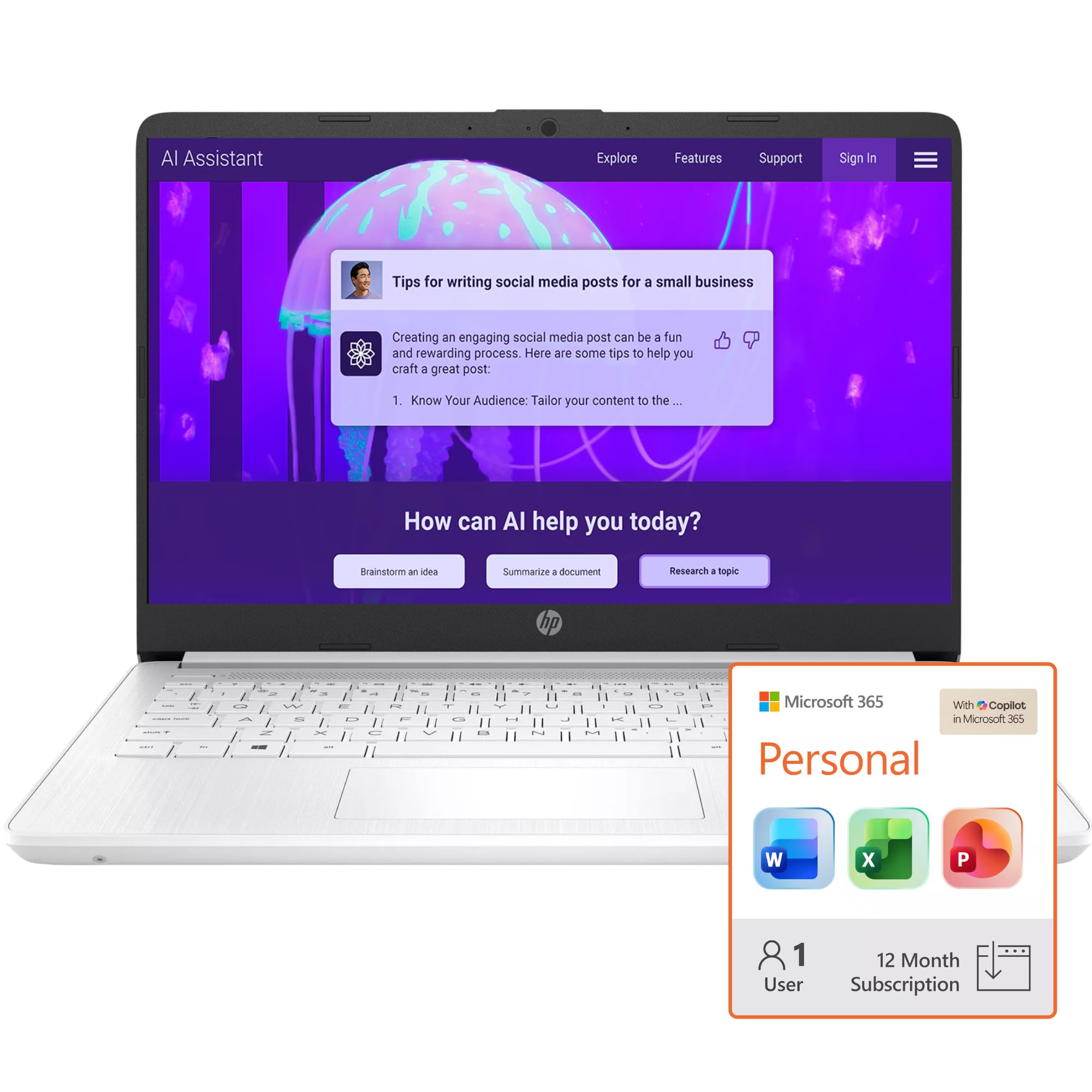
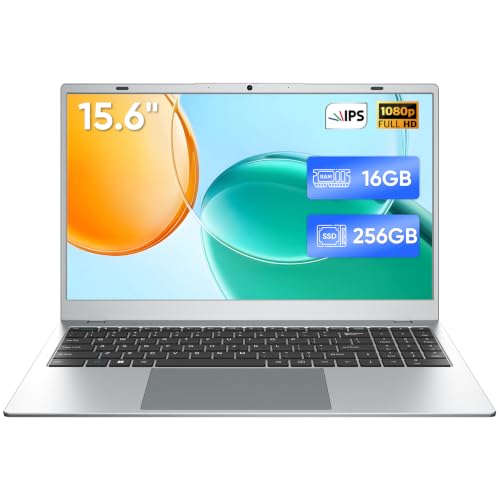
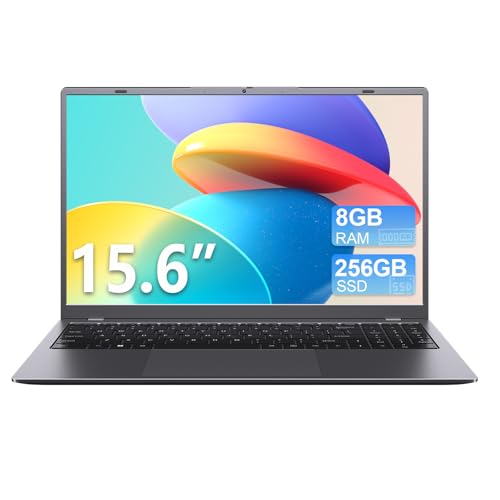
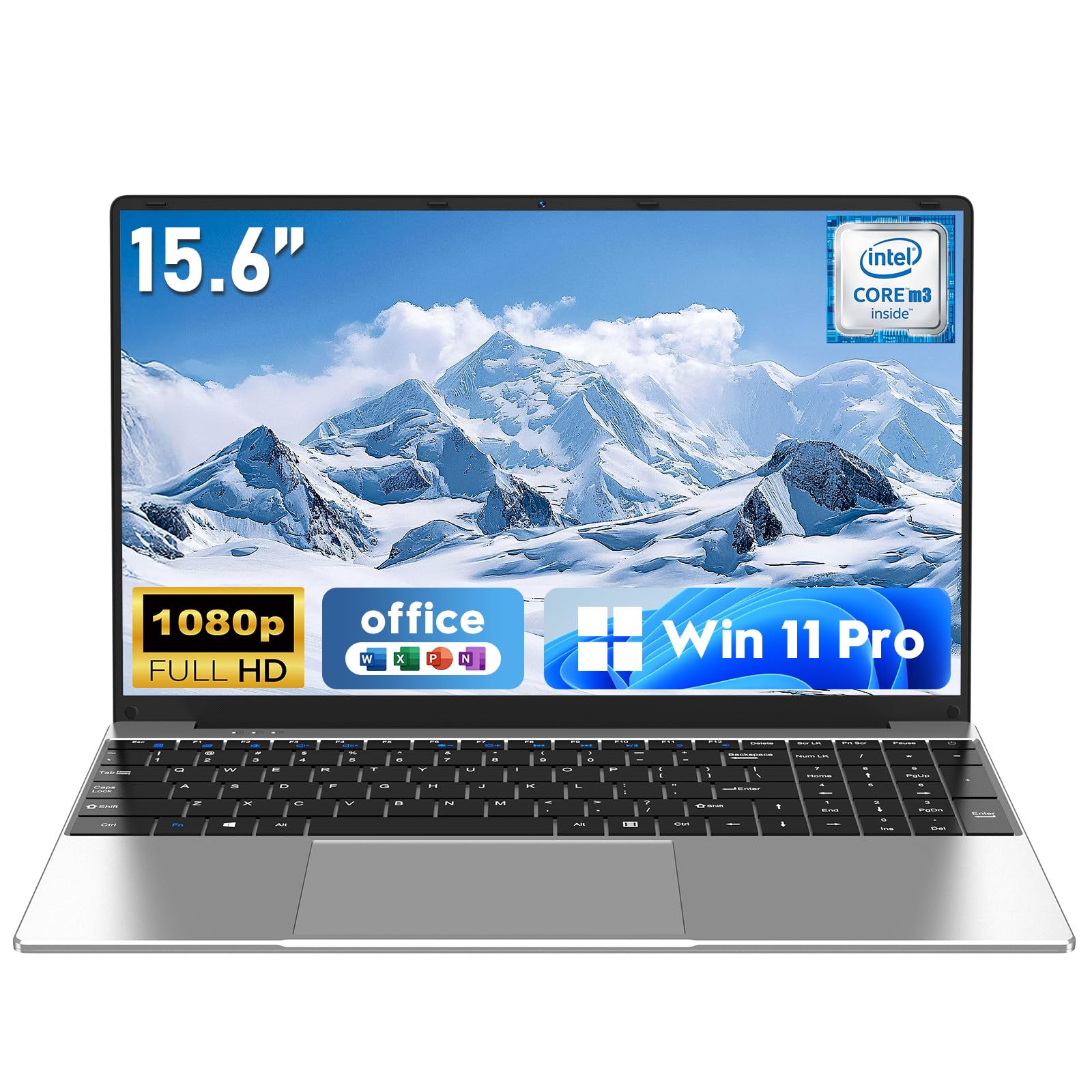
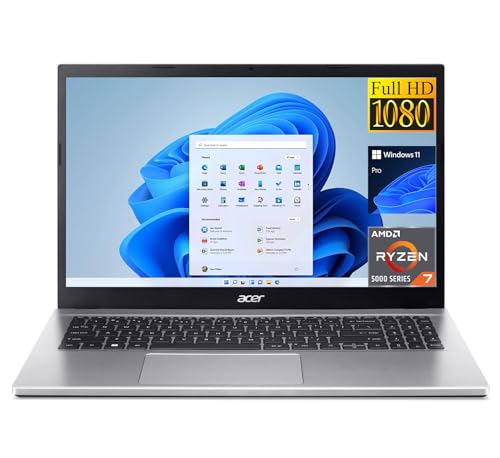
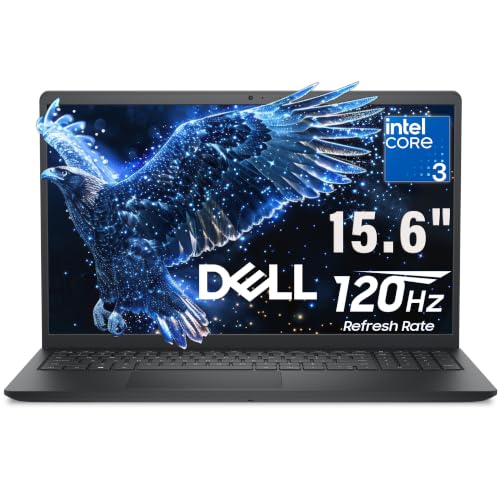
What to Check on Work from Home Laptops
Remote work stresses a laptop in specific ways: long video calls, many browser tabs, cloud documents, and hours on the same charge or the same desk. These criteria are weighted for that reality.
What You Can Realistically Get on a Budget
Around $350 to $700 is the working range for a capable home office laptop. At this level expect a modern midrange processor, 8 to 16 GB of memory, a solid state drive, and a full HD display. What gets cut is screen brightness and color range, speaker quality, and build materials. Do not accept cuts to memory or storage, because those decide how the machine ages. A laptop with 4 GB of memory or a spinning hard drive fails this checklist outright, whatever the discount.
Processor and Performance Tier
The processor is the engine for calls, spreadsheets, and multitasking. Current Intel Core and Core Ultra chips, AMD Ryzen 5 and Ryzen 7 lines, and Apple M series chips all handle office work with ease. For typical documents, mail, and video meetings, a recent midrange chip beats an older high end chip, because newer designs run cooler and sip power. Avoid the lowest entry level processors if you keep many tabs open, since they stutter under screen sharing. Check that the fan design is rated for quiet rooms if you record audio or take calls without a headset.
Battery Life in Real World Use
Manufacturer battery claims assume light brightness and gentle tasks, so discount them. A rating of 10 hours usually means about 7 to 8 hours of real mixed work with video calls. For a desk bound setup, even 5 real hours is workable, but a stronger battery gives you freedom to work from a sofa or garden. Fast charging over USB C is a valuable extra, because a half hour plugged in can restore enough charge for an afternoon. Also check the charger wattage and whether a phone charger can serve as a backup.
Operating System (Windows, macOS, ChromeOS, Android, iPadOS)
Choose the system your work software and employer support. Windows runs the widest range of office and industry tools and dominates this price range. macOS suits people invested in Apple services, though prices start higher. ChromeOS is simple, secure, and cheap, and it handles browser based jobs well, but it struggles with specialized desktop software and offline work. Tablets running Android or iPadOS can pinch hit with a keyboard case, yet file handling and external monitor support still lag behind a true laptop for full time work.
Graphics (Integrated vs Dedicated GPU)
Integrated graphics, built into the processor, handle video calls, documents, streaming, and light photo edits without trouble, and they are the right choice for most home workers. A dedicated GPU earns its cost only if you edit video often, work with 3D models, or play demanding games after hours. It also adds weight, heat, and price while cutting battery life. If your work is browser and office based, spend the GPU money on memory and a better screen instead, and your daily experience will improve far more.
Ports and Connectivity
Ports decide how much dongle juggling your desk needs. Look for at least two USB C ports, one USB A port for older gear, an HDMI output for a monitor or television, and a headphone jack. WiFi 6 or newer gives steadier calls when the household is online at once, and Bluetooth 5 or later pairs headsets and mice reliably. A microSD or SD card slot is a bonus for photo work. If you plan a single cable desk with a dock, confirm the USB C port supports video output and charging. Readers comparing similar searches can see our guide to the best affordable laptops for working from home for parallel criteria.
Three Profiles That Pass the Checklist
Use these profiles to sort the product table above. Each one passes the core checks above but trades size, price, and extras differently.
The Everyday Profile
The overall profile is a 14 or 15 inch laptop with a recent midrange processor, 16 GB of memory, a 512 GB solid state drive, and a bright full HD screen. It adds a 1080p webcam, backlit keyboard, and enough ports to skip a dock. Around $550 to $700 is typical. It suits full time remote workers who keep many apps open all day. Its limit is portability, since larger screens and batteries add weight that matters if you carry it between rooms or sites daily.
The Value Profile
The value profile keeps the same processor family but steps down to 8 GB of memory and a 256 GB drive, which is still fine for cloud based work where files live online. Expect a slightly dimmer screen and a plastic shell. Around $350 to $500 covers this tier. It suits part time remote work, admin roles, and anyone whose tools are mostly in a browser. Its limit is headroom, because memory that cannot be upgraded will define how long the machine stays comfortable.
The Compact Profile
The compact profile favors a 13 inch screen, a weight near or under 3 lb, and long battery life for moving around the house or traveling. Convertible designs that fold into tablet mode live in this group and help for reading and markup. Around $450 to $650 is common. It suits consultants and hybrid workers who split time between home and office. Its limit is screen space, so budget for an external monitor at your main desk. For job focused shortlists, see our guide to the best laptops for work from home jobs.
Quick Buyer Checklist
- Does it have at least 8 GB of memory, with 16 GB preferred?
- Is storage a solid state drive of 256 GB or more, with no spinning hard drive?
- Is the display at least full HD with brightness around 300 nits or more?
- Is the webcam at least 720p, with 1080p preferred for client calls?
- Does it offer USB C charging and an HDMI port or video capable USB C?
- Is WiFi 6 or newer listed in the specifications?
- Is the warranty at least one year, with a return window for home testing?
Red Flags to Watch For
- Tiny memory that cannot grow. Four GB models look cheap and feel slow within months.
- Low resolution screens. A 1366 by 768 display makes documents and spreadsheets cramped and tiring.
- Vague processor names. Listings that hide the exact chip generation are usually clearing old stock.
- No webcam or microphone details. For remote work, missing camera specifications are a warning, not a detail.
- Very short warranties. Ninety day coverage on a new machine signals low confidence from the maker.
If two or more flags appear on one listing, skip it. The budget segment has enough honest machines that you never need to settle, and our guide to the best laptops for home and work shows the same flags in a mixed use context.
Tips to Get the Most From Your Work from Home Laptop
Keep the operating system and firmware updated, because updates fix the security flaws and battery bugs that age a machine early. Avoid running at 100 percent charge all the time if your laptop offers a battery limit setting, since holding a battery near 80 percent slows wear for desk bound use. Use a padded sleeve when commuting, and back up your work folder weekly to cloud storage or an external drive so a hardware failure never becomes a work crisis.
FAQs
How long should a work from home laptop last?
A well chosen budget laptop should last about four to six years for office work. Longevity depends mostly on memory and storage headroom, which is why this checklist favors 16 GB when the budget allows. A practical extra is replacing the battery around year three or four if run time fades, which is far cheaper than a new machine and keeps a still capable laptop in service.
How much RAM do I need?
You need 8 GB at minimum and 16 GB for comfort. Video calls, chat apps, and twenty browser tabs can consume most of 8 GB on their own, leaving little for documents. If you run virtual machines, large spreadsheets, or design tools, treat 16 GB as the floor. Also check whether memory is soldered, because soldered memory can never be upgraded later, whatever the manual for other configurations suggests.
Should I buy a laptop or a tablet?
Buy a laptop if your work is full time, document heavy, or depends on specific desktop software and an external monitor. A tablet with a keyboard suits light mail, reading, and note taking, and it shines as a second device. The deciding test is file work: if you regularly rename, move, and attach many files or run two apps side by side all day, the laptop wins clearly.
Is a Chromebook enough for school?
A Chromebook is enough for school when classes and assignments run in a browser, which covers most writing, research, and video lessons. It falls short for specialized software, advanced science tools, and offline work in places with weak internet. Before buying, check the school list of required programs and the device update expiry date, because Chromebooks stop receiving updates after a set year and that date matters more than the hardware.
Is a dedicated GPU worth it?
A dedicated GPU is worth it only for video editing, 3D work, engineering tools, or serious gaming. For office work it adds cost, heat, and fan noise while draining the battery faster. Spend that money on a brighter screen and more memory instead. One exception is if your employer software lists a GPU requirement, in which case meet the stated level exactly and do not pay for tiers above it.
The Bottom Line
Pass or fail comes down to memory, storage type, and screen quality, supported by a processor from a recent generation. Apply the checklist to the comparison table above and the best affordable work from home laptops for your job will stand out quickly. To widen the net, see our guide to the best affordable laptops for work, or if price is the hard limit, our guide to the best work from home laptops under 500.