
Best Affordable Powerful Laptops: Types Compared and How to Choose for 2026
Disclosure: We may earn a commission when you buy through links on this page, at no extra cost to you. As an Amazon Associate I earn from qualifying purchases. Learn more

Compare types in this guide to the best affordable powerful laptops, with clear advice on RAM, processors, displays, and systems for work, study, and play.
Powerful can describe a slim laptop that flies through office work, a convertible that edits photos in tablet mode, or a thicker machine built for games and video rendering. With so many shapes on sale, it is easy to pay for the wrong kind of power. This guide compares each type clearly so you can match the best affordable powerful laptops to the work you actually do.
You will see who each type suits, where each one compromises, and which specifications to fund first. The comparison table below then lets you check specific options against the type you have chosen.
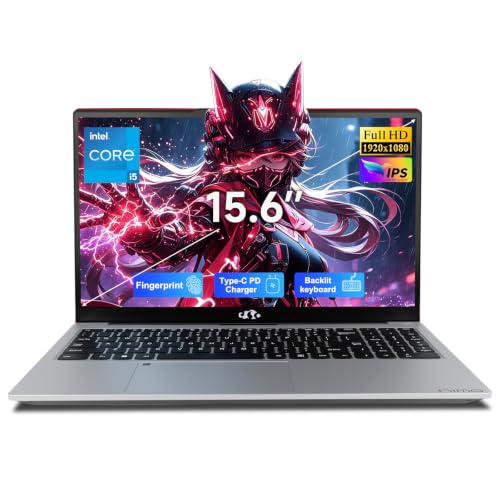

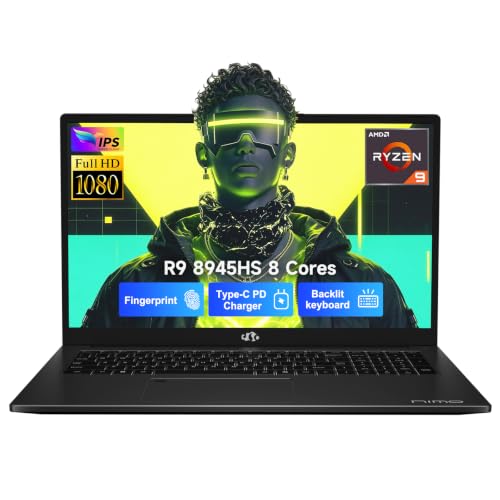


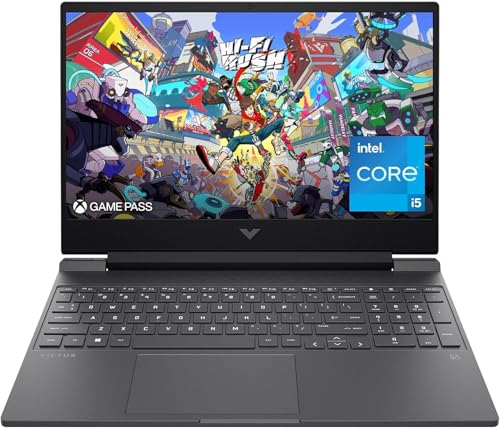


Types of Powerful Laptops Compared
Think of these types as different ways to spend the same budget. One spends it on flexibility, another on low weight, another on simplicity, and the strongest all around work usually comes from the type that fits your desk and travel habits best.
2 in 1 Convertibles
A convertible has a hinge that folds the screen back, so the laptop becomes a thick tablet for reading, drawing, presenting, or marking up documents. The best use is mixed work, such as notes with a pen in meetings, then full typing at a desk. Pros include flexible positioning and touch input. Cons include extra weight from the hinge and touchscreen, and cooling limits in slim bodies that can slow sustained heavy work. Typical prices run around $600 to $1,100 for capable models. Choose this type if touch and pen input will be weekly habits, not rare novelties.
Chromebooks
A Chromebook runs ChromeOS and centers on the browser, web apps, and cloud storage. Strong points are simplicity, quick startup, long battery life, and lower prices, often around $300 to $700 even for sharp screens and fast processors for web work. The limit is software, since many desktop programs for editing, engineering, gaming, and advanced office work are missing or reduced to web versions. A Chromebook can feel fast for study and writing, but it is rarely the right answer when powerful means running demanding local software. Choose it only after checking every required app.
Tablets
A tablet with a keyboard cover can handle reading, media, drawing, light writing, and some impressive creative apps in a very light package, often around $400 to $1,000 once the keyboard and pen are added. The pros are portability, instant wake, and excellent screens. The cons are real for power users: smaller displays, limited ports, simpler file handling, and multitasking that feels cramped beside a laptop. Many tablet apps are simplified versions of desktop software. Choose a tablet as your main device only if your work is light and mobile, or as a companion to a laptop you already own.
Ultraportables
Ultraportables are slim clamshell laptops, usually 13 or 14 inches, built for travel, battery life, and strong everyday speed. Modern processors make them genuinely powerful for office work, coding, photo editing, and light video work, while staying easy to carry. Prices often run around $700 to $1,200 for the affordable performance end. The main cons are limited graphics power, soldered memory on many models, and cooling that favors short bursts over long rendering sessions. Choose this type if you travel or commute often and your heavy tasks are measured in minutes rather than hours.
2 in 1 Convertibles vs Chromebooks: Which Should You Choose?
On software, the convertible wins for most buyers because a Windows convertible runs full desktop apps, while a Chromebook depends on web and Android apps. On simplicity and battery life, the Chromebook often wins, starting fast and needing little maintenance. On input, the convertible usually offers a better keyboard and trackpad for long work, plus pen support in a larger body. On price, Chromebooks start lower, but a capable Chromebook and a sale priced convertible can meet in the middle. Choose the convertible for mixed work and study needs, and the Chromebook for a focused, web based school or writing life. If your shortlist leans toward classic designs, our guide to the best notebook laptops covers traditional clamshell models in detail.
How to Choose the Right Powerful Laptop
RAM and Storage
Sixteen GB of RAM is the practical target for a powerful laptop, because it keeps editing, coding, gaming, and heavy multitasking smooth at the same time. Eight GB can feel fine on a Chromebook or a light ultraportable, but it limits a Windows machine sooner than most buyers expect. For storage, choose an SSD of at least 512 GB if you install games, keep video projects, or store photos locally. Check whether either part can be upgraded, since an upgrade path can add years of useful life at modest cost.
Processor and Performance Tier
Recent mid range and upper mid range processors deliver the best value, with enough cores for multitasking and strong single core speed for everyday responsiveness. More cores help video exports, data work, and compiling, while graphics heavy tasks depend more on the GPU. Integrated graphics in current processors can handle light gaming and photo work, but a dedicated GPU remains the step up for modern games and 3D tasks. Avoid old generations sold cheaply if efficiency and modern ports matter, because battery life and USB C features may lag well behind current models.
Display Size, Resolution, and Brightness
A 14 inch screen balances portability and working room, while 15 or 16 inch models suit desk based editing and gaming. Resolution of 1080p or slightly higher looks sharp at these sizes without draining the battery the way very high resolution panels can. Brightness around 300 nits or more keeps the screen usable in bright rooms and near windows. For creative work, check color coverage as well as resolution. Gamers should value refresh rate, since 120 Hz looks smoother than 60 Hz when the graphics hardware can feed it.
Operating System (Windows, macOS, ChromeOS, Android, iPadOS)
Your operating system decides which software you can run, so choose it before you choose a shape. Windows offers the widest range of work software and games. macOS suits buyers already in the Apple ecosystem who use its creative and productivity apps. ChromeOS is simple and secure for web based school and office work. Android and iPadOS power tablets, with strong app stores but desktop software limits. Match the system to your school, employer, and existing phone and cloud accounts, because switching systems costs time in file moves and new app purchases.
What You Can Realistically Get on a Budget
Around $600 to $900, expect a strong recent processor, 16 GB of RAM in the better value models, a 512 GB SSD, and integrated graphics, in a plastic or partly metal case. Around $900 to $1,200, you can add a brighter and more color accurate screen, a metal case, or entry level dedicated graphics. Budget models most often cut screen quality, speakers, and upgrade options. Do not save by dropping to 8 GB of RAM on a Windows performance laptop, because that single cut will be felt daily. Fund memory, storage, and the screen first.
Setup and Care Tips
Keep the operating system and firmware updated, since updates improve security, battery behavior, and fan control across every type above. Avoid running at 100 percent charge all the time if your laptop offers a charge limit for desk use. Use a padded sleeve when commuting, and keep vents clear during heavy work by using a hard surface. A practical know how habit for convertibles and tablets is to clean the screen and hinge area before folding, because grit trapped at the hinge can scratch the display or the keys. Back up your files weekly to cloud storage or an external drive.
During setup, sign in to your cloud accounts, move your documents, and install only the apps you need for the first week. That keeps the new machine fast and makes problems easier to spot. For students comparing value across types, our guide to the best affordable laptops for students adds budget and battery advice for campus life.
FAQs
Is a Chromebook enough for school?
It can be, when the school runs on web apps, documents, and video classes, and when long battery life matters more than desktop software. It is not enough when a course requires Windows or macOS programs for coding, design, music, or lab work. Check the school software list before buying, and remember that a Chromebook offers little upgrade room later. For a single device that must also game or edit video, a Windows laptop or convertible is the safer school choice.
How much RAM do I need?
Sixteen GB is the right amount for most buyers of a powerful laptop, covering multitasking, editing, and gaming together. Eight GB suits a Chromebook or very light Windows use, but it will feel tight within a few years as apps grow. Thirty two GB is justified for large video timelines, virtual machines, and heavy data work. Because many slim models cannot be upgraded, treat RAM as a buy it now decision rather than a later fix.
Is a dedicated GPU worth it?
Yes, when your regular tasks include modern games, 3D design, or video editing with effects, because a dedicated GPU can cut export times and keep frame rates smooth. It adds cost, heat, weight, and fan noise, and it shortens battery life. If your power needs are fast documents, coding, and photo work, strong integrated graphics in a current processor usually suffice. Decide from your software list, and if gaming leads that list, our guide to the best gaming laptops affordable explains the graphics tiers.
How long should a powerful laptop last?
Expect four to six years of useful service from a model bought with 16 GB of RAM, a current processor, and a 512 GB SSD. The battery will weaken first, and heavy creative or gaming loads will age the machine faster than office work. Slim models with soldered parts depend entirely on the headroom you buy on day one. Regular updates, clear vents, and a battery charge limit for desk use all help the laptop reach the longer end of that range.
Should I buy a laptop or a tablet?
Buy a laptop when you type long documents, manage many files, use desktop software, or connect several accessories, because it does all of that without workarounds. Buy a tablet when reading, drawing, media, and travel weight lead your list, and your writing is short. Adding a keyboard, pen, and extra storage to a tablet can close the price gap quickly. For most buyers who need one powerful main device, the laptop wins, and our guide to the best and affordable laptops gives a broad value comparison.
Our Verdict
Pick the type first, ultraportable for travel, convertible for pen and touch work, Chromebook only for web based study, and a fuller sized laptop for sustained power. Then fund RAM, storage, and the display before extras. Compare your final choices in the product table above, and for a pure power shortlist see our guide to the best powerful laptops. Matched to your routine, the best affordable powerful laptops deliver real speed without paying for strength you will never use.


