Best Affordable TVs for Gaming: A Clear Buying Guide for 2026
Disclosure: We may earn a commission when you buy through links on this page, at no extra cost to you. As an Amazon Associate I earn from qualifying purchases. Learn more
Compare affordable gaming TVs by native refresh rate, input lag, HDMI 2.1 and size to find a screen that suits your console, your room and your budget.
A good gaming TV does not need a premium price, but it does need the right features: a 4K panel, a 120 Hz refresh rate, low input lag and HDMI 2.1 ports. This guide explains how to choose best affordable tvs for gaming so your console or PC looks smooth and responds quickly without paying for extras you will not use.
The product table lists current options, and the sections below show how to read their specs. Start by thinking about your room, your viewing distance and the games you play most.
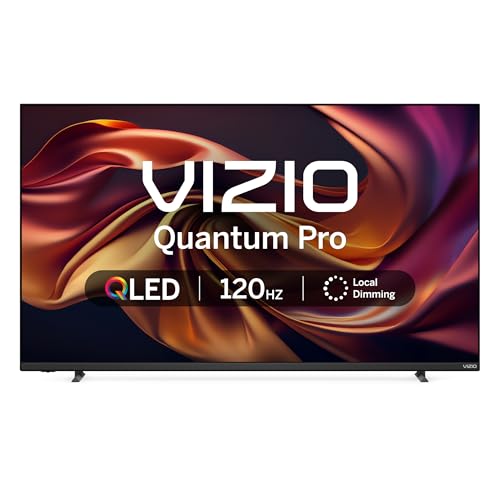
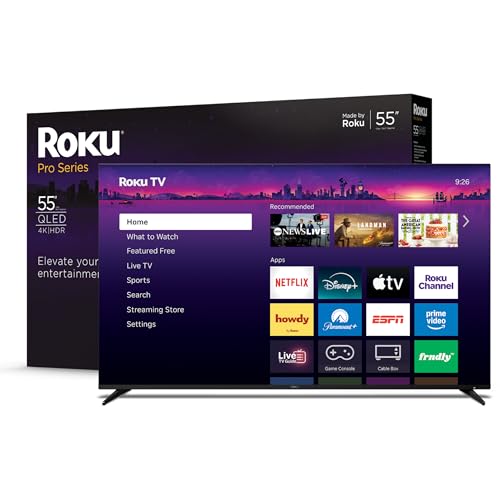
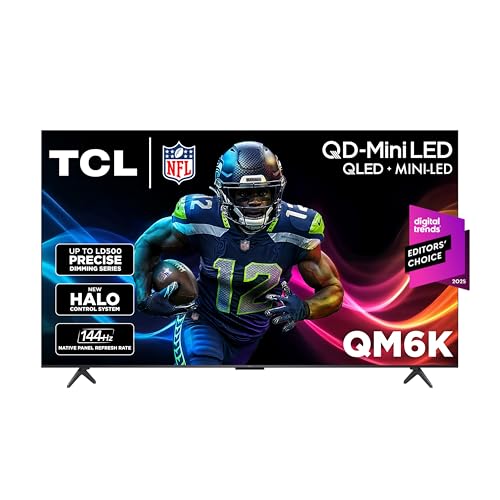
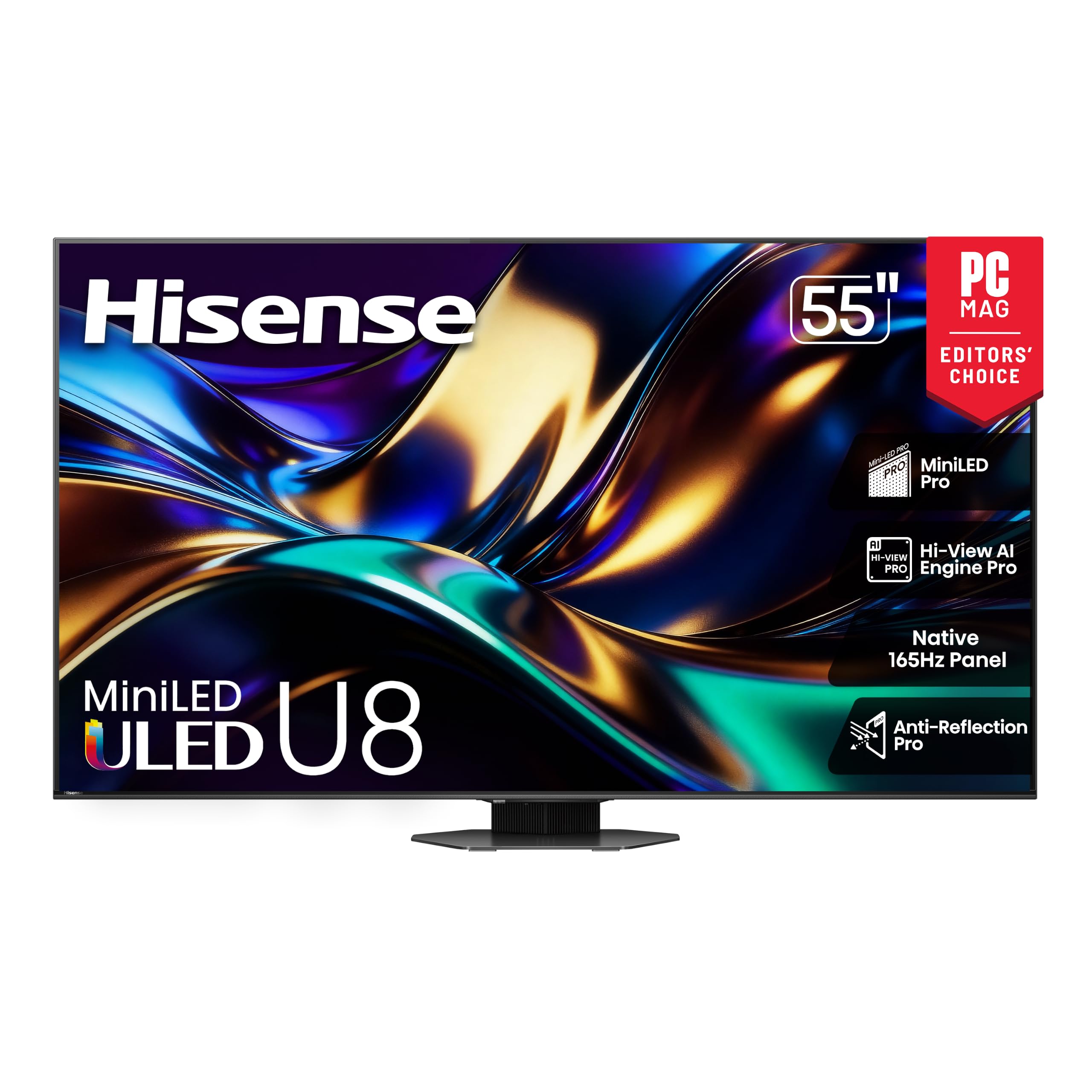

Who Should Buy Which Type of Gaming TV
Console players on PS5 or Xbox Series X
You need HDMI 2.1 for 4K at 120 frames per second, variable refresh rate (VRR) and an auto low latency mode (ALLM) that switches the TV into game mode. Most budget TVs offer only one or two full-speed HDMI ports, so check which ones carry full bandwidth.
PC gamers using a TV as a monitor
Look for a 120 Hz or higher panel, a game mode that keeps text sharp, and a size you can sit close to. Large TVs viewed at desk distance feel overwhelming, so many PC players choose 42 to 50 inch models.
Casual players who also watch streaming and sports
If gaming is only part of your use, a bright QLED with good motion handling and a built-in smart platform covers everything. Put brightness and sound ahead of top-end refresh rates.
Key Features of the Best Affordable TVs for Gaming
Refresh rate and VRR
A native 120 Hz panel doubles the frame rate of a standard 60 Hz TV, which makes fast games feel smoother. VRR lets the TV match the console's frame rate and removes screen tearing. Be careful with marketing terms such as "motion rate" or "effective 120 Hz", which are not the same as a native 120 Hz panel.
Input lag and game mode
Input lag is the delay between pressing a button and seeing the result. Game mode switches off heavy picture processing to reduce it. ALLM turns game mode on automatically when it detects a console.
HDMI 2.1 and ports
HDMI 2.1 carries 4K at 120 Hz. Count your devices, check which ports are full speed, and look for eARC if you plan to add a soundbar or headset system.
Panel type
VA panels offer deep blacks at friendly prices but lose color from the side. IPS panels keep color at wider angles but look grayer in dark rooms. OLED has the best contrast and response time and costs more, so it is rarely the budget choice.
Brightness and HDR
HDR looks best on a bright panel with local dimming. At budget prices, HDR is more about wider color than dramatic highlights, so judge by brightness and contrast rather than the HDR label alone.
What a Budget Really Buys
Around $300 to $450 usually buys a 50 or 55 inch 4K QLED with a 120 Hz panel and at least one full-speed HDMI input. Between about $450 and $700 you can expect better brightness, more HDMI 2.1 ports and local dimming. Above that you approach mini LED and OLED territory.
Smaller screens cost less and suit desks and bedrooms. For a living room 8 to 10 feet from the sofa, 55 inches is a sensible minimum. If you need a TV for everything, see our guide to the best affordable tvs, and for the widest view across all price levels read the best tvs of all time guide.
Types Compared
Entry-level 120 Hz QLED
These models focus on 4K, a 120 Hz panel and a handful of gaming features at the lowest price. Expect moderate brightness and basic sound.
Mid-range mini LED or full array
Mini LED backlights and local dimming give better contrast and brighter highlights, and the extra HDMI 2.1 ports are useful if you own several consoles.
Premium OLED
OLED panels respond almost instantly and offer perfect black levels, but they cost more and can be dimmer in bright rooms. They are best for dedicated game rooms.
Picture Settings That Help Gaming
Once the TV is home, a few settings make a visible difference. Choose the game picture mode, then lower sharpness if edges look haloed. Turn off motion smoothing, which adds delay and can make games look unnatural. If the picture looks washed out, check that HDR is switched on for both the console and the TV input, and that the HDMI port is set to its enhanced or full-bandwidth mode.
In a bright room, raise backlight and keep local dimming on a medium setting. In a dark room, lower the backlight to reduce eye strain and make blacks look deeper. Take a few minutes to run the console calibration screens, because they match the output to your TV and avoid crushed shadows or clipped highlights.
Common Mistakes to Avoid
- Buying on size alone and ending up with a 60 Hz panel and no HDMI 2.1
- Trusting "effective" refresh rates instead of native 120 Hz
- Forgetting that only some HDMI ports carry full bandwidth
- Sitting too close to a very large screen, which makes HUD text hard to follow
- Skipping the return window, which matters if you notice backlight bleed or a slow game mode
Setup and Everyday Tips
Turn off vivid or store demo modes when you set the TV up, switch on game mode for consoles, and enable VRR and 120 Hz in the console settings. Use a certified high-speed HDMI 2.1 cable, since older cables can cap the signal at 60 Hz. For a matching display on the desk, our guide to the best affordable gaming monitors covers a related choice, and the best affordable gaming headsets guide helps with sound.
Frequently Asked Questions
Do I need HDMI 2.1 for a PS5 or Xbox Series X?
You need it for 4K at 120 frames per second and for full VRR support. A TV without it still works, but it will cap at 60 Hz.
Is 120 Hz worth it for casual players?
It is a nice upgrade for fast games and sports, but only if the games you play support it. Many titles run at 60 frames per second.
What size is best for gaming?
Fifty-five inches suits most living rooms. Desks and bedrooms do better with 42 to 50 inch models.
Is a gaming TV better than a monitor?
A TV is bigger and better for sofa play, while a monitor is sharper at close range and often has lower input lag. Choose by where you will sit.
Do I need a soundbar?
Slim TVs have small speakers. A budget soundbar or headset improves dialogue and effects a lot.
Will a gaming TV burn in?
Burn-in is mainly an OLED concern. LED and QLED TVs do not suffer from it, which is another reason budget gaming sets use them. If you buy an OLED, vary what is on screen and use the built-in care features.
Final Thoughts
Choosing best affordable tvs for gaming comes down to native 120 Hz, HDMI 2.1, low input lag and a size that suits your room. Compare a short list from the product table, check the specs that matter, and read the return terms before you buy.