
Best Affordable Touchscreen Laptops in 2026: A Buying Guide
Disclosure: We may earn a commission when you buy through links on this page, at no extra cost to you. As an Amazon Associate I earn from qualifying purchases. Learn more

Compare affordable touchscreen laptops by screen quality, hinge, pen support and battery life to find the right one for notes, sketching and everyday use.
A touchscreen lets you tap, scroll and sketch directly on the display, and it is no longer reserved for premium machines. This guide explains how to choose best affordable touchscreen laptops by screen quality, hinge design, pen support, memory and battery life, so your money goes to parts you will notice every day.
Start with how you will use the touch screen. Students taking handwritten notes need different things from someone who just likes swiping through apps, and that single question narrows the field quickly. The product table lists current options, and the sections below show how to read it.


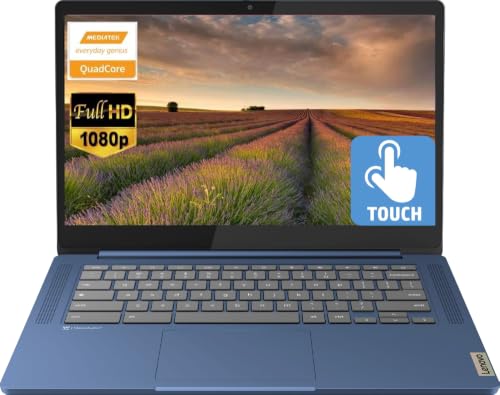


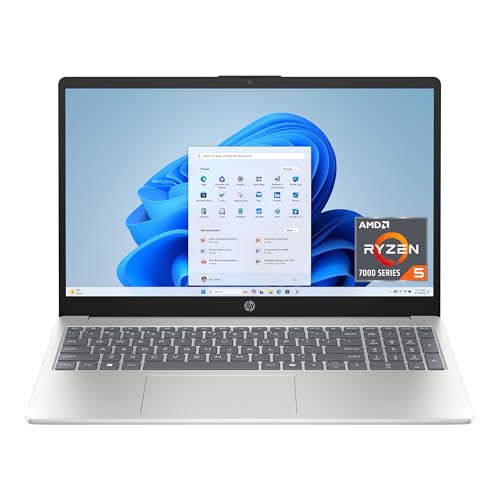


Who Should Buy a Touchscreen Laptop
Students who annotate notes and draw diagrams
Look for a convertible that folds flat or into tent mode, a screen that supports a stylus, and a battery that lasts a full school day. Lightweight models are easier to carry between classes.
Creative users who sketch and edit with a pen or finger
Sketching rewards a bright, color-accurate display and a stylus with low lag. Check that the pen is supported by the model and whether it is included, since some laptops sell it separately.
Home users who enjoy tapping and swiping through apps
If you mostly browse, stream and use apps, a standard laptop with a touch panel is plenty. Pay more attention to the keyboard and screen size than to hinge flexibility.
Key Features of the Best Affordable Touchscreen Laptops
Screen quality and glare
Aim for at least a full HD (1920 x 1080) panel, ideally IPS for wider viewing angles. Touch panels are usually glossy, so reflections can be a problem near windows. Brightness around 250 to 300 nits is comfortable indoors, while dimmer screens struggle in daylight.
Touch accuracy and palm rejection
A good panel registers light taps without ghost touches, and palm rejection stops your hand from drawing stray marks while you write. Read buyer feedback on these points, since spec sheets rarely mention them.
Hinge style
A 360-degree hinge turns the laptop into a tablet or tent, which suits note-taking and presentations. A standard hinge keeps the laptop lighter and usually cheaper, and works well if you only touch the screen occasionally. Either way, the hinge should hold the screen steady when you tap it.
Pen support
Not every touchscreen laptop works with a pen. If you plan to draw or write, confirm which stylus standard the model supports and whether a pen is in the box.
Memory, storage and processor
Eight gigabytes of RAM is a sensible minimum for Windows, and 256 GB of solid-state storage keeps the system quick. Chromebooks run lighter software, so they get by with less. Avoid very slow eMMC storage if you plan to keep many files.
Battery life with touch use
Bright screens and touch input draw more power, so look for a battery rated for at least eight hours of mixed use and keep expectations modest. A USB-C charger is handy because it also works with phones and tablets.
How to Read a Spec Sheet at This Price
Listings for budget laptops often lead with a processor name and a large screen size, but the details that decide daily comfort sit further down. Check the display resolution, the type of storage (solid-state is far faster than eMMC), the amount of RAM, and the weight. A 15-inch model with a plain HD panel and 4 GB of RAM will feel slow and dim next to a 14-inch full HD model with 8 GB, even if the first one looks more powerful on paper.
Also check the ports. A USB-C port that supports charging, at least one USB-A port for accessories, and a headphone jack cover most needs. A backlit keyboard is a bonus for evening study, and a webcam with a privacy shutter is useful for calls.
Windows or Chromebook
Windows touchscreen laptops run full desktop programs and usually cost $450 to $700 in the affordable range. Chromebooks cost less, often $250 to $400, boot fast and run web apps and Android apps well, but they cannot install most desktop software. Choose by the programs you need, not the badge on the lid.
Spending Smart: Where Your Money Goes Furthest
If you will not use touch weekly, a standard laptop may offer better value, so be honest about your habits before paying extra. Put money into the display, memory and storage first, because those cannot be upgraded later on most thin laptops.
Set a clear budget before you browse, then allow a little flexibility for a model that clearly fits your needs better. A short list of two or three options is easier to judge than a long list of similar machines.
Care and Everyday Use
Clean the screen with a soft, slightly damp microfiber cloth, avoid pressing hard, and keep the hinge free of grit. Use a screen protector only if it is made for touch displays, since a thick one can make taps less responsive. Follow the manufacturer guidance for cleaning and charging.
Mistakes to Avoid
- Buying on price alone without checking RAM, storage and screen resolution
- Assuming every touchscreen laptop supports a stylus
- Choosing a 360-degree hinge when you never fold the screen back
- Skipping the return policy, which matters if the keyboard or screen does not suit you
Frequently Asked Questions
Are touchscreen laptops worth it?
They are worth it if you take handwritten notes, sketch, or like using apps by touch. If you only type and browse, a standard laptop gives you more for the same money.
How much should I spend on a touchscreen laptop?
Budget roughly $250 to $400 for a Chromebook and $450 to $700 for a Windows model with a decent screen, 8 GB of RAM and a solid-state drive. Prices vary with sales and configurations.
Do touchscreen laptops drain the battery faster?
The touch layer uses little power, but bright glossy screens do. Lower the brightness when you can, and choose a model with solid battery life.
Can I use any pen with a touchscreen laptop?
Only pens that match the laptop's stylus standard give pressure sensitivity and palm rejection. A basic capacitive stylus works for tapping but is poor for drawing.
Is a 2-in-1 better than a regular touchscreen laptop?
A 2-in-1 is more flexible for notes and tablet use, but the hinge adds weight and cost. A regular clamshell with touch is lighter and simpler.
What screen size should I choose?
A 14-inch screen is the best balance of portability and workspace for most students. Fifteen-inch models give more room for split windows and a number pad but weigh more, while 11 to 12 inch Chromebooks are the easiest to carry and the cheapest. Whatever size you pick, make sure the resolution is at least full HD so text stays sharp.
Final Thoughts
Choosing best affordable touchscreen laptops is easier when you start with your routine and judge each option against it. The product table summarises the main choices, and this guide explains why each feature matters in practice.
Compare a short list, check the screen, RAM and storage, and read the return terms before you order. For related buying guides, see best and affordable laptops, best notebook laptops, best gaming laptops affordable, best affordable laptops for students and best affordable laptops for work.


