
Best Affordable Laptops for Artists: Every Type Explained Side by Side for 2026
Disclosure: We may earn a commission when you buy through links on this page, at no extra cost to you. As an Amazon Associate I earn from qualifying purchases. Learn more

Compare types to find the best affordable laptops for artists, with plain guidance on displays, stylus support, memory, storage, and budget tiers.
Shopping for an art laptop gets confusing fast, because Chromebooks, tablets, ultraportables, and budget laptops all claim to suit creative work, yet they serve very different artists. A digital painter, a photo editor, and a design student need different screens, inputs, and power. This guide compares each type plainly so you can find the best affordable laptops for artists for the way you actually create.
This guide walks through what each type does best, where each one struggles, and the specifications that matter once you have picked a lane. Start with the product table below, then read the type breakdowns that follow it.
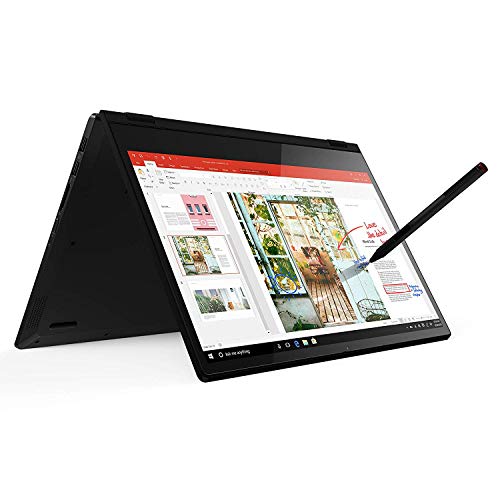
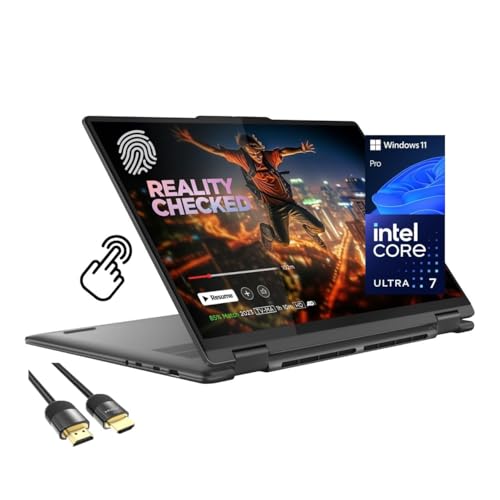
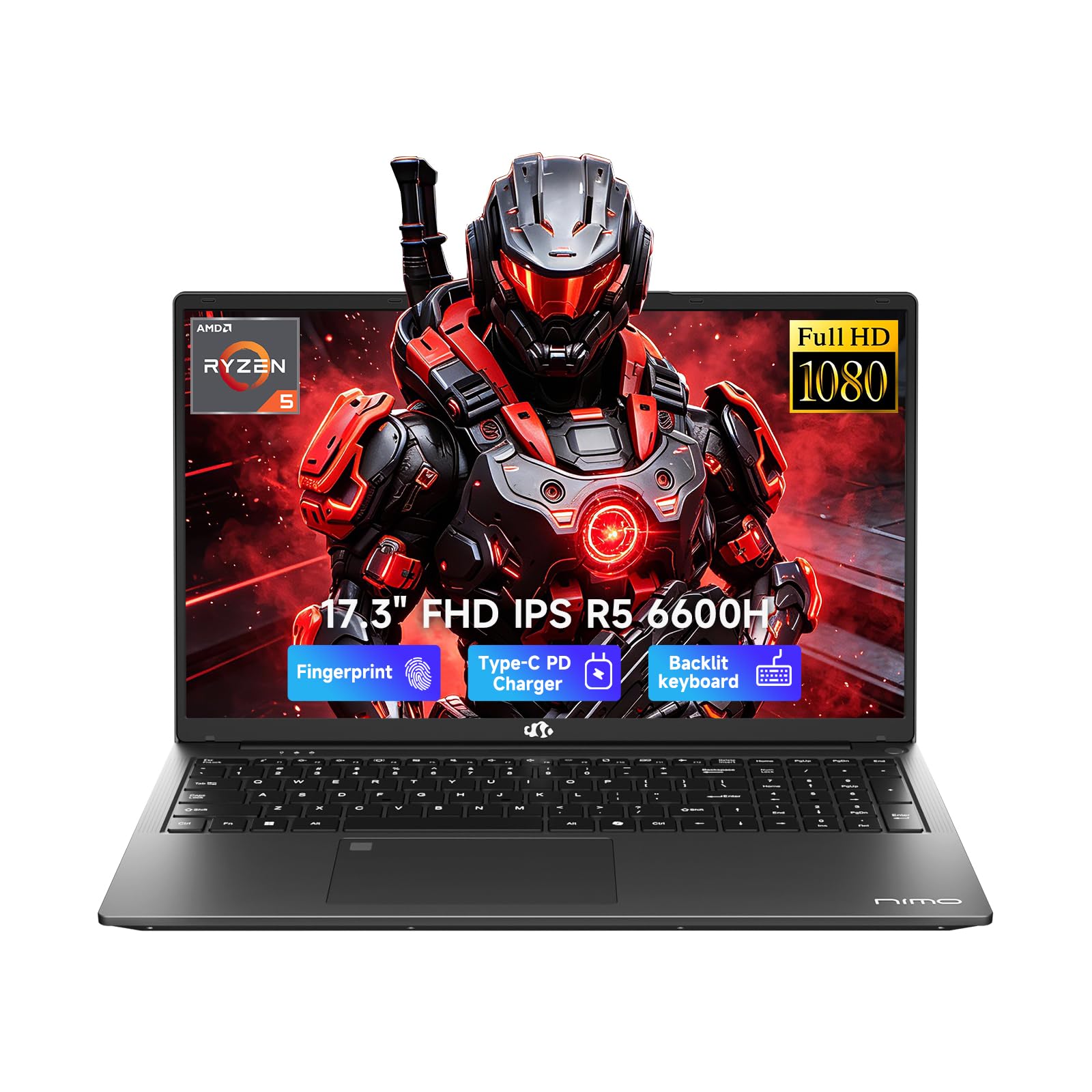
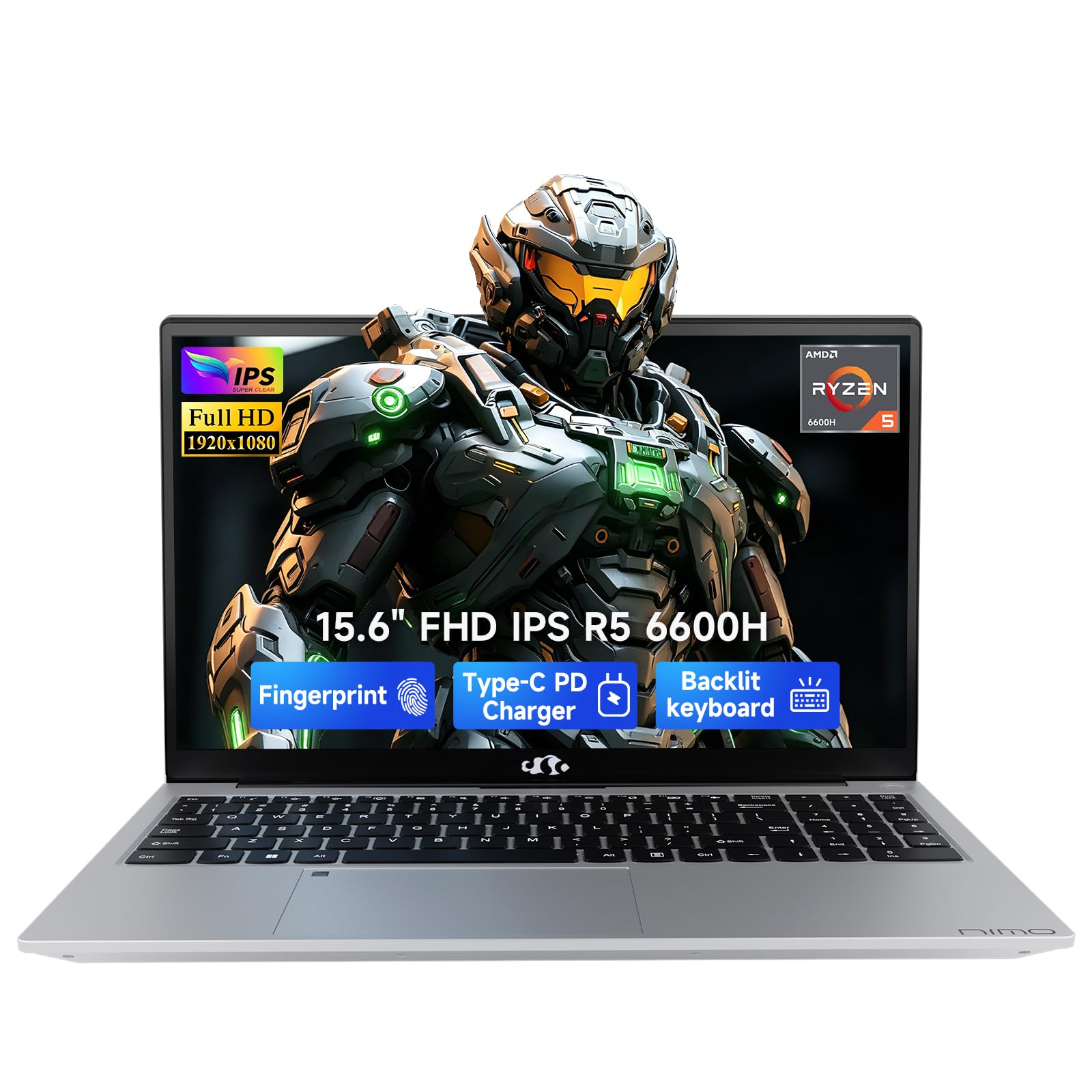
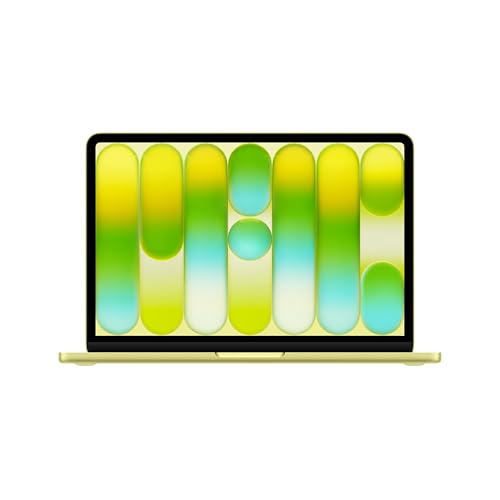


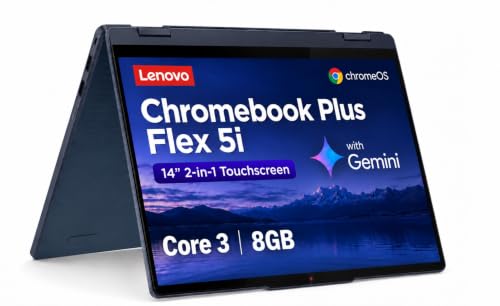
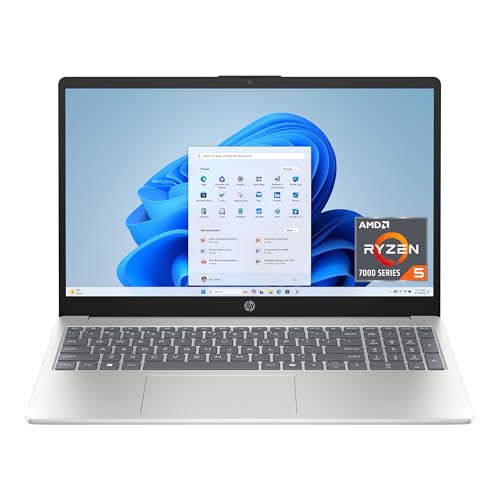
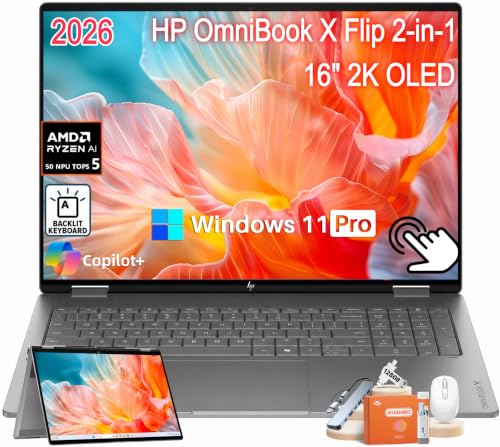
Types of Laptops Compared
Think of the four types as answers to four questions. Do you work mostly in a browser? Do you draw directly on the screen? Do you travel constantly?
Or do you need maximum power per dollar at a desk? Your answer points to one type, and the rest of this article helps you buy well inside it. Typical prices run from about $250 for simple Chromebooks to about $900 for capable ultraportables, with tablets and budget laptops spread between.
Chromebooks
Chromebooks run ChromeOS and center on web apps, which now include capable drawing and photo tools that work in a browser. They start fast, update quietly, and often cost the least of any type here. Battery life is usually excellent, and many models fold flat or accept a stylus.
The limits are real for artists: professional desktop software for print design, large layered files, and some color management tools are missing or reduced. A Chromebook suits sketching, illustration in web apps, art students on school platforms, and anyone whose whole workflow already lives online. It fails artists who must deliver print ready files in specific desktop programs.
Tablets
Tablets put the drawing surface under your pen, which makes them feel the most natural for illustration, lettering, and inking. A good stylus with pressure sensitivity turns the screen into a sketchbook, and art apps for tablets are powerful and affordable. As a full computer, though, a tablet leans on accessories: you add a keyboard, a stand, and often cloud storage to do everything a laptop does.
File management and precise color work for print can feel cramped. Tablets suit illustrators who draw daily and value portability over desk software. Many artists pair a tablet for drawing with an older laptop for files and admin.
Ultraportables
Ultraportables are thin, light laptops, usually 13 or 14 inches and under 3 lb, built for people who create in many places. They run full desktop art software, offer sharp and often color rich screens, and sip battery through a day of classes or client visits. The compromises are price and power: you pay more for the slim body, and sustained heavy work like big renders can slow as the thin cooling reaches its limit.
Ultraportables suit design students, photographers who edit on location, and freelance illustrators who meet clients in person. If your art is your income and your office is wherever you sit, this type earns its premium.
Budget Laptops
Budget laptops are standard 15 inch machines that put money into the processor, memory, and storage instead of thinness. For artists, that means full desktop software, roomy screens, and often the option to upgrade memory or add storage later, all for about $450 to $700. The trade offs are weight, plainer screens, and build quality, so you must check display color coverage carefully because the cheapest panels look washed out.
Budget laptops suit home studio artists, hobbyists stepping up from a tablet, and students whose art stays at a desk. Paired with an affordable drawing tablet accessory, they form the classic starter setup for digital painting.
Chromebooks vs Tablets: Which Should You Choose?
These two confuse buyers most, so compare them directly. For input, a tablet with a quality stylus beats a Chromebook for drawing feel, unless the Chromebook is a convertible with pen support. For software, both rely on apps rather than full desktop programs, but Chromebooks handle files, multitasking, and external drives more like a traditional computer.
For typing and admin, the Chromebook wins outright thanks to its real keyboard and trackpad. For portability, the tablet wins, since it is lighter and works on a lap or a train tray. For price, a Chromebook usually gives more computer per dollar, while a tablet plus keyboard and pen can cost as much as a budget laptop.
Choose the Chromebook if your art is one part of a wider student or work life. Choose the tablet if drawing is the main event and you already have access to another computer for everything else. If neither sounds right, the wider guides to the best and affordable laptops and the best notebook laptops show the standard laptop options that sit between these two types.
How to Choose the Best Affordable Laptops for Artists
Once the type is settled, these five checks separate a good art machine from a frustrating one. Apply them to any shortlist, whatever the type. Artists comparing best affordable laptops for artists should put the display first, because your screen is both your canvas and your only proofing tool.
Weight and Portability
Weight decides whether the machine joins you or stays home. Under 3 lb disappears into a bag with art supplies, while a 5 lb budget laptop plus its charger becomes a deliberate carry. Students crossing campus and artists who sketch on location should protect portability, even at some cost in screen size.
Desk based artists can ignore weight almost entirely and take the bigger screen and better value instead. Be honest about your routine: the best machine is the one present when an idea arrives.
RAM and Storage
Layered artwork eats memory. Eight gigabytes is a floor for light illustration and photo touch ups, while 16 GB is the comfortable target once files gain layers, effects, and high resolutions. Storage fills with project files, backups, and asset libraries, so choose a 512 GB SSD where you can, and avoid 64 GB or 128 GB drives unless your work is fully cloud based.
An SSD also keeps big files opening quickly. If a budget model allows a later memory or storage upgrade, that flexibility can stretch its useful life by years.
Features That Matter for Artists
Three features matter more for artists than for anyone else. First, the display: aim for full HD resolution or better, brightness around 300 nits or more, and color coverage near 100% sRGB so the colors you pick are the colors viewers see. Second, input: if you draw on screen, confirm stylus support and pressure sensitivity, and if you draw on a separate tablet accessory, confirm a responsive USB C or USB port.
Third, color trust: a matte or low glare screen helps you judge tones under room light. Our specialist guide to the best laptops for artists digs deeper into display quality for readers who sell their work.
Processor and Performance Tier
Art software rewards a capable processor when you apply filters, export large files, or work in 3D and video alongside your main craft. A current mid range chip from the Intel Core Ultra, AMD Ryzen, or Apple M series families handles illustration and photo work smoothly. Integrated graphics are fine for 2D art, even at high resolutions.
Step up in power only if your week includes video editing, 3D sculpting, or very large photo batches. Money saved here can fund the better screen your eyes will thank you for daily, a trade most 2D artists should gladly make.
What You Can Realistically Get on a Budget
For about $400 to $800 you can get a machine that handles serious 2D art: a decent processor, 16 GB of memory on the better listings, a 512 GB SSD, and a screen that is good if you choose carefully. What you give up is usually the finest color accuracy, premium build, and, on screen drawing unless you pick a convertible or a tablet. Never save money on the display, because it is the one part an artist cannot work around. If gaming power tempts you at this price, our guide to the best gaming laptops affordable explains what that route gives artists and what it costs in screen quality and weight.
Setup and Care Tips
- Keep the OS and firmware updated. Updates protect your files and often improve stylus behavior and battery life, so install them between projects rather than mid deadline.
- Calibrate your workflow early. Set your art software to the color profile your clients or printers expect, and keep sample prints or exports to check that screen colors match output.
- Avoid running at 100% charge all the time. Desk bound machines last longer on a battery care setting that caps charging during long plugged in weeks.
- Use a padded sleeve when commuting. Screens are the costliest part to replace, and a sleeve guards against the bag knocks that crack them.
- Back up art files in two places. A cloud copy plus a local drive copy protects finished work and layered source files you could never recreate.
FAQs
What features matter most in laptops for artists?
The display matters most, because it is your canvas and your proofing screen at once, so prioritize resolution, brightness, and sRGB coverage. Next comes input, meaning stylus quality if you draw on screen, or port reliability if you use a drawing tablet accessory. Memory of 16 GB keeps layered files fluid. A detail many guides skip: check the screen finish in your actual workspace lighting, because a glossy panel that mirrors your studio window will tire your eyes and distort dark tones during long sessions.
How much RAM do I need?
Sixteen gigabytes is the right target for most artists, since layered illustrations, reference boards, and a browser open together will push past 8 GB quickly. Eight gigabytes still works for sketching, light illustration, and small photo edits if your budget is firm. Thirty two gigabytes suits photographers handling huge batches and artists working in 3D or video. If a model allows a memory upgrade later, starting at 8 GB is less risky, but confirm upgradeability before relying on that plan.
Is a dedicated GPU worth it?
For 2D illustration and photo editing, a dedicated GPU is rarely worth it, because integrated graphics already accelerate brushes and filters well. It becomes worthwhile for 3D sculpting, motion design, and video work, where rendering speed shapes your day. It also matters if you plan to drive a large external monitor at high resolution for long sessions. Otherwise, spend the same money on a better display and more memory, which improve every single hour of 2D art rather than a few export minutes.
Should I buy a laptop or a tablet?
Buy the laptop if you need full desktop software, careful file management, or print ready output, because tablets still treat those jobs as secondary. Buy the tablet if drawing feel is everything and your admin can live elsewhere. A practical check: list the five tasks you do weekly, and see which device handles all five without workarounds. Many artists eventually own both, starting with the laptop for production and adding a tablet later purely as a drawing surface and travel sketchbook.
How long should a laptop last?
An art laptop should last about four to six years, with the display and battery aging faster than the processor for most 2D work. Longevity improves when you buy memory and storage headroom up front, since art files grow every year. A screen that starts accurate also stays useful longer, while a dull panel feels outdated quickly. Protect the machine in transit and keep storage below full, because a nearly full SSD slows down and wears patience thin during exports and saves.
Is a Chromebook enough for school?
A Chromebook is enough for art school only if your program teaches in web based tools and accepts online submissions. Many programs require desktop software for typography, print production, or portfolio work, and a Chromebook cannot run those programs. Ask your school for its software list before buying, and ask specifically about final portfolio and print requirements in later years, not just first semester classes. If any required program is desktop only, choose a budget laptop or ultraportable instead and avoid a costly mid course switch.
The Verdict
Pick the type by how you create: tablet for drawing first artists, Chromebook for web based study, ultraportable for mobile professionals, and budget laptop for desk based value. Then let the display, memory, and storage checks guide the final choice, and compare with our guide to the best laptops for graphic artists if your work leans toward design clients. Check your finalists in the product table above and choose the best affordable laptops for artists option that fits your craft, your bag, and your budget.


