Best Adobe RGB Monitors: Budget, Midrange, and Premium Picks for 2026
Disclosure: We may earn a commission when you buy through links on this page, at no extra cost to you. As an Amazon Associate I earn from qualifying purchases. Learn more

Compare Adobe RGB monitors at every price point and learn what coverage, calibration, and panel quality you get at budget, midrange, and premium levels.
Prices for wide gamut monitors stretch from a few hundred dollars to several thousand. What matters is how much of the Adobe RGB space a panel truly covers, how evenly it shows that color, and how well accuracy holds over time. The best adobe rgb monitors make print and photo work predictable, and the product table groups current options so you can start with the ones that fit your work.
This guide explains what each tier gives you, which features deserve your money, and which ones you can skip, plus the ownership costs many buyers forget.




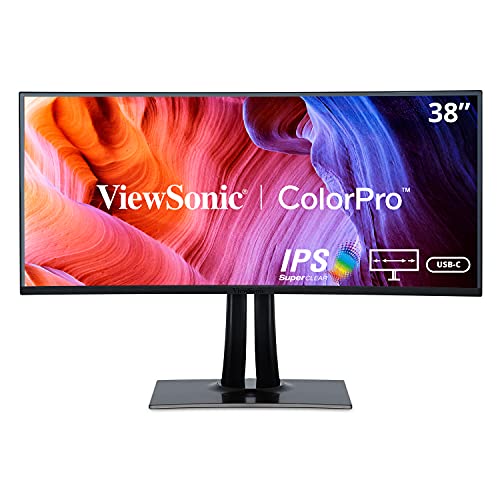
Who Should Buy an Adobe RGB Monitor
Adobe RGB matters most when your output leaves the screen, especially in print. If your work lives only on the web, a good sRGB panel may be enough, but the groups below gain real value from the wider gamut.
Print Photographers Who Match Screen Color to Paper
You print landscapes, portraits, or product work and are tired of greens and cyans shifting between screen and paper. Adobe RGB covers more printable colors than sRGB, so soft proofing becomes more trustworthy. A budget panel with honest coverage already improves proofs, while premium uniformity helps when a print must match across the full frame.
Designers and Retouchers Working With Wide Gamut Files
You edit files from clients, cameras, or scanners that already contain colors outside sRGB, and clipping them early limits every later choice. A monitor that displays those colors lets you decide what to convert instead of losing detail by default. Midrange models usually suit you best, since hardware calibration and even brightness matter more than sheer size.
Content Creators Who Split Time Between Photo and Video
You edit stills for print or clients and also cut video, so one desk must serve two color spaces. Look for a strong Adobe RGB mode for photos, a solid DCI P3 mode for video, and adaptive sync for smoother playback. If fast motion gaming also matters, see our guide to the best gaming monitors before trading color accuracy for refresh rate.
Price Tiers for Wide Gamut Photo Editing Displays
Setting a tier first keeps you from paying for traits your work cannot use. Shopping for the best adobe rgb monitors gets easier once you know what each step up adds.
Budget Tier: Honest Coverage for Everyday Editing
Budget displays, often about $250 to $450, usually offer around 95 percent Adobe RGB coverage on a 27 inch IPS panel at 1440p or basic 4K. Color is often good from the factory, but uniformity and calibration tools are limited. This tier fits hobbyist photographers and students who print occasionally. You give up some brightness consistency near the edges, yet the core wide gamut benefit is fully present.
Midrange Tier: Calibration Tools and Better Uniformity
Midrange models, often about $500 to $900, add traits serious editors feel daily. Expect near full Adobe RGB coverage, better uniformity, a 10 bit color path on many models, and hardware calibration that stores corrections inside the monitor. Sizes reach 27 or 32 inches at 4K. For most working photographers, this tier balances accuracy, size, and price best.
Premium Tier: Reference Accuracy and Large Screen Options
Premium models, often about $1,000 to $2,500 or more, push coverage to about 99 to 100 percent of Adobe RGB with very low color error and excellent uniformity across large screen options. Built in calibration sensors, shading hoods, and long color warranties appear here. If consistent output is billable work, see our guide to the best quality monitors, since panel consistency is exactly what the extra money buys.
Key Features to Compare on Adobe RGB Monitors
Adobe RGB Coverage and Gamut Volume
Coverage tells you what share of the Adobe RGB color space a panel can display, and serious photo models should reach at least 95 percent, with the best near 99 percent. A high DCI P3 number does not guarantee the same result, because that space weights reds and greens differently. For a broader look at colorful panels, see our guide to the best rgb monitors. Always read the Adobe RGB figure itself first.
Color Accuracy, Bit Depth, and Calibration
Accuracy is often quoted as Delta E, and an average value under 2 means errors are hard to see in normal work. A true 10 bit panel, or an 8 bit panel with frame rate control, shows smoother gradients in skies and skin tones. Factory reports are a useful start, but hardware calibration matters more over time, because corrections stored in the monitor stay stable across computers.
Resolution, Screen Size, and Pixel Density
A 27 inch 4K panel gives fine detail for pixel level retouching while keeping text readable with modest scaling. A 32 inch 4K model spreads the same pixels wider, suiting viewers who sit farther back or prefer larger interface elements. Match size and resolution together, because a large panel at low resolution makes grain and sharpening hard to judge.
Panel Technology and Screen Uniformity
IPS panels are the common choice for photo work because color stays stable at an angle and Adobe RGB coverage is widely available. OLED panels offer deep blacks and fast response time, but many favor DCI P3 and static interfaces raise image retention concerns. Uniformity deserves equal attention, since a panel brighter or warmer in one corner can mislead local edits even when average accuracy looks excellent.
Brightness, Contrast, and HDR Handling
For print matching, steady brightness around 120 to 160 candelas per square meter matters more than a huge peak number. Most photo monitors offer about 250 to 400 nits at maximum, leaving comfortable headroom in controlled rooms. HDR can help when you also grade video, but HDR modes often change tone and color behavior, so do critical print work in a standard Adobe RGB mode with fixed brightness.
Connectivity and Ports for a Photo Desk
USB C with power delivery lets one cable carry video, data, and laptop charging, keeping a photo desk tidy. DisplayPort and HDMI cover desktop computers and second machines, and HDMI 2.1 mainly matters if a console shares the screen. A built in USB hub keeps card readers and calibration sensors connected. Check port layout before you buy, because reaching ports on the back of a large panel gets old quickly.
Costs Beyond the Panel: Calibration Tools and Replacements
The panel price is only part of ownership. A calibration sensor costs about $150 to $300 if your monitor lacks a built in one, and it is close to essential for keeping color honest. Budget for a shading hood if your room has windows. Power use is modest, and most quality models carry warranties of about three years, with longer color coverage at premium tiers.
Common Mistakes to Avoid
- Buying on a high DCI P3 figure alone, because weak Adobe RGB coverage still clips printable greens and cyans.
- Editing in a bright room on a glossy screen, because reflections wash out shadow detail and skew contrast choices.
- Skipping a calibration sensor to save money, because panel color drifts and prints slowly stop matching the screen.
- Leaving the monitor in its vivid default mode for print work, because oversaturated color hides clipping in your files.
- Choosing a small 1080p panel for fine retouching, because low pixel density makes sharpening and noise hard to judge.
- Ignoring stand height and tilt, because a screen set too low changes your viewing angle and sense of brightness.
Care and Maintenance for Adobe RGB Monitors
Clean the screen with a dry or lightly dampened microfiber cloth and never spray liquid directly onto the panel, since moisture can seep past the edges. Let the monitor warm up for about 30 minutes before critical color work, because brightness settles as the backlight stabilizes. Recalibrate about once a month for active print work and keep the panel out of direct sunlight.
FAQs About Adobe RGB Monitors
Is IPS or OLED better for Adobe RGB photo editing?
IPS is the safer default for Adobe RGB photo editing today. Most OLED models target DCI P3 for video, so check the stated Adobe RGB coverage rather than trusting a wide gamut label. For long sessions with static toolbars, IPS also avoids retention worries and usually costs less at desk friendly sizes.
What size Adobe RGB monitor should I get for a photo editing desk?
A 27 inch Adobe RGB monitor suits most photo editing desks. Sit at about arm length from the screen, and confirm that a shading hood still leaves room for speakers or a second display. On shallow desks, a monitor arm reclaims surface space and lets you set viewing distance precisely instead of accepting wherever the stand lands.
Does refresh rate matter for Adobe RGB monitors used for photo editing?
Refresh rate matters very little for still photo editing on an Adobe RGB monitor. A standard 60 Hz panel updates fast enough for retouching, sorting, and soft proofing. A higher rate can smooth scrolling and video timeline playback, but spend the difference on coverage and calibration first and treat extra speed as a comfort extra, not a color benefit.
Is 4K worth it on an Adobe RGB monitor for print work?
Yes, 4K is worth it on an Adobe RGB monitor when you retouch at pixel level or judge fine print detail. One point spec sheets omit is scaling, since most systems enlarge interface text to about 125 to 150 percent at 4K, keeping menus readable while images stay sharp. Confirm your computer can drive 4K over one cable at full color depth first.
How long do Adobe RGB monitors last before color shifts?
Adobe RGB monitors often serve about five to seven years before backlight aging makes brightness and evenness noticeably worse. Color shifts gradually well before failure, so save each calibration result with its date. A rising correction trend tells you the panel is aging and lets you plan a replacement from evidence instead of guessing after a bad print run.
Our Verdict
Choose your tier by output, not by spec sheet length. Budget panels deliver real Adobe RGB coverage for occasional printing, midrange models add the calibration and uniformity daily editors need, and premium panels pay off when clients judge your color. The best adobe rgb monitors are the ones whose coverage, accuracy, and upkeep you can sustain, so compare your shortlist in the product table before you order.