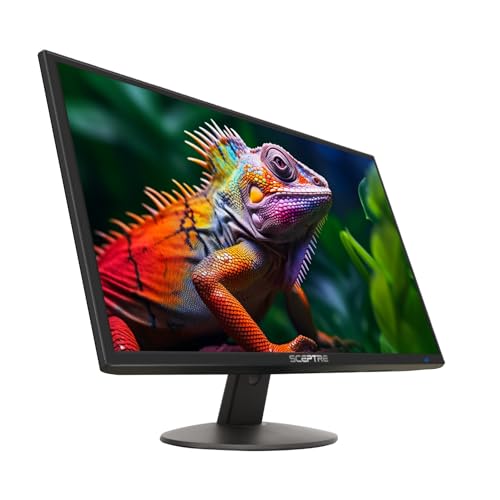
Best Adjustable Monitors: Our 2026 Checklist for a Better Desk Setup
Disclosure: We may earn a commission when you buy through links on this page, at no extra cost to you. As an Amazon Associate I earn from qualifying purchases. Learn more

Compare the best adjustable monitors by height range, tilt, pivot, panel and ports, with a clear checklist for desk size, posture and daily work.
An adjustable stand changes how a screen feels after two hours, not just how it looks in a photo. The best adjustable monitors let you raise the panel to eye level, tilt it against window glare, and turn it toward a second chair without lifting the base. Use this checklist and the product table to judge movement first, then panel and ports.
Start with your desk and posture. Note your seated eye height, your desk depth, and whether you read long pages in portrait view. Those facts rule out more poor choices than any headline spec.


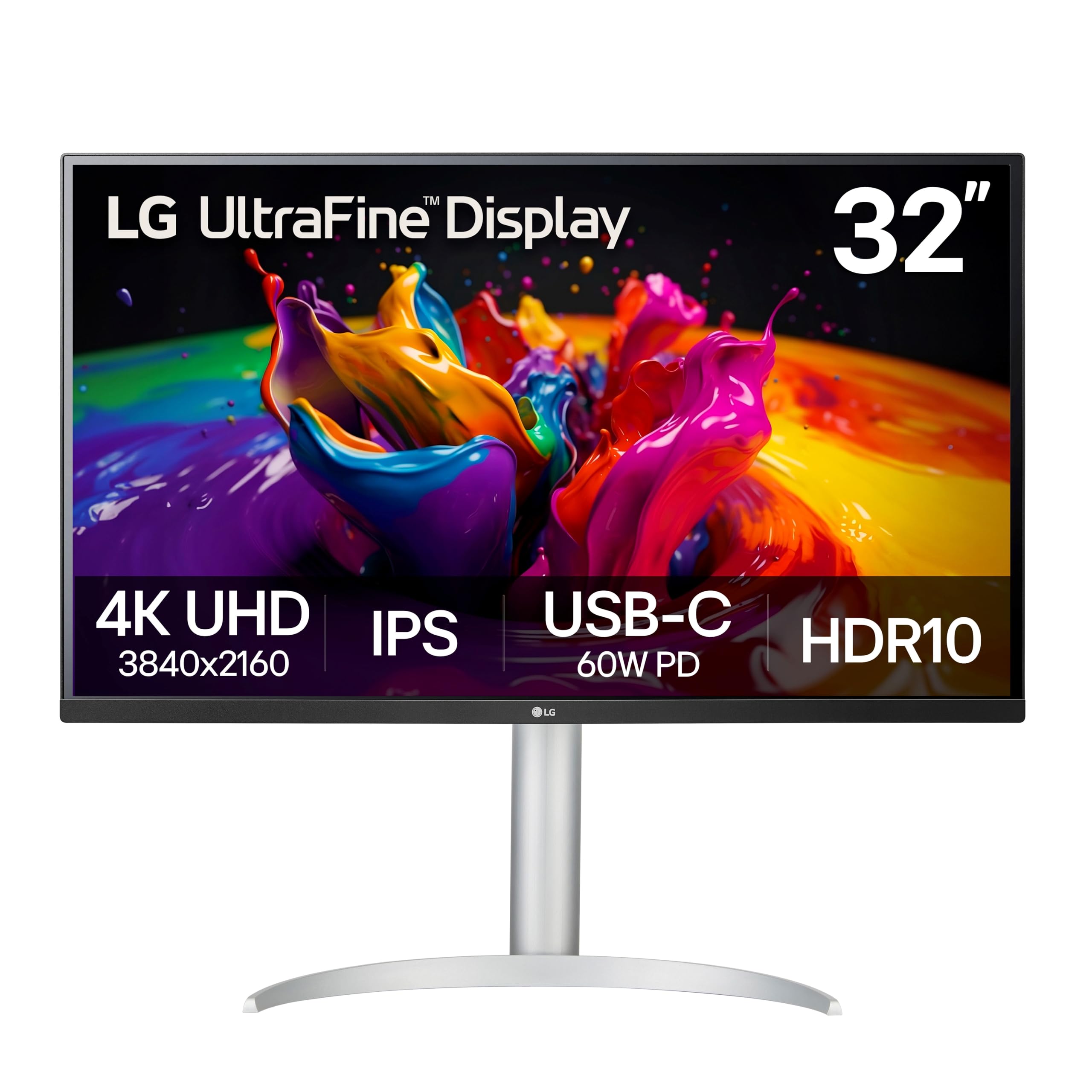

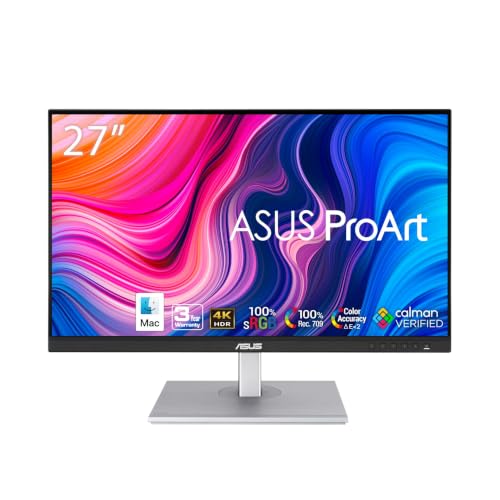


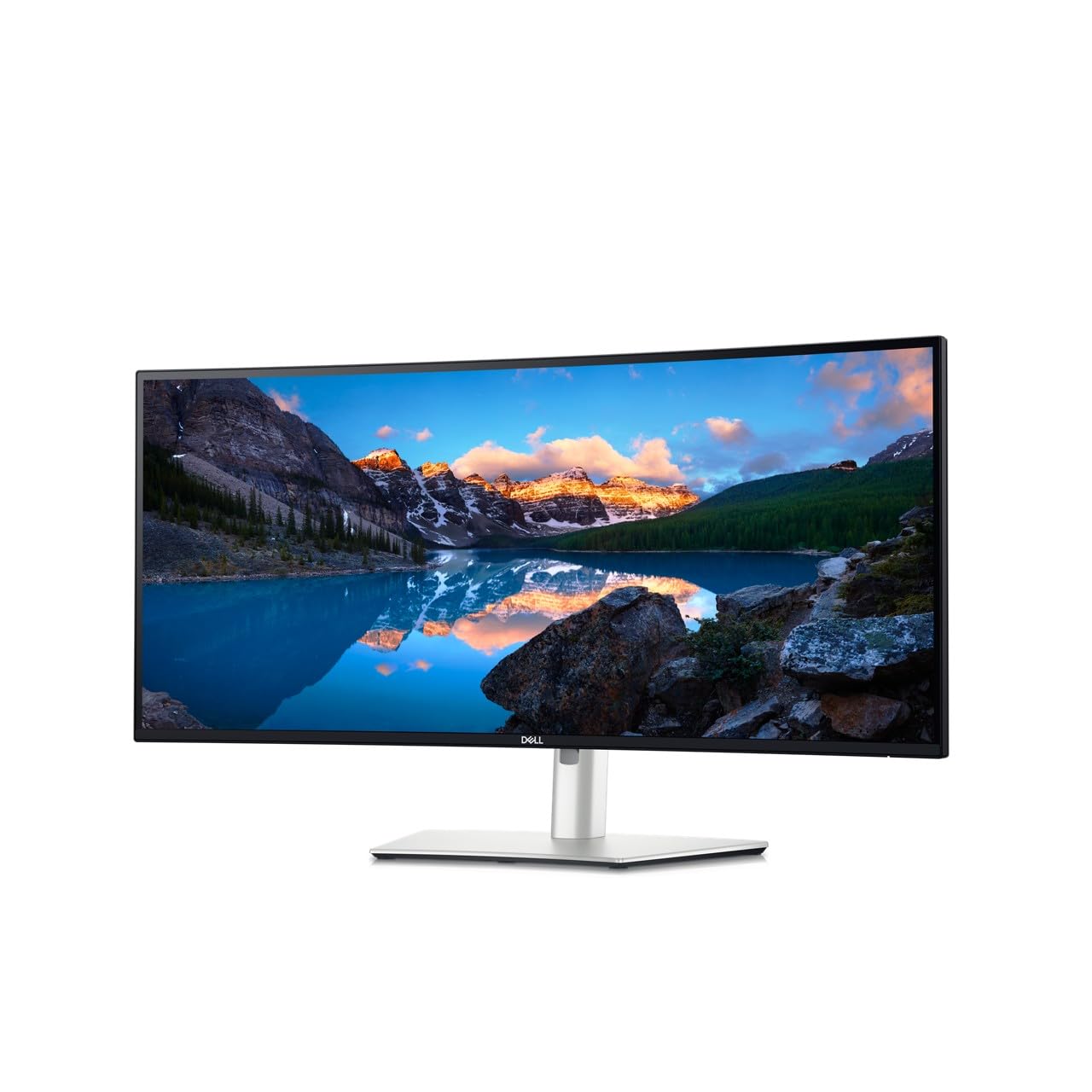
Who Should Buy an Adjustable Monitor?
Buy for the person and the desk that will use the screen daily. The right amount of movement differs for a solo office, a shared desk, and a reader who turns the screen upright.
Desk Workers Who Sit for Long Blocks
You need height travel more than any extra movement. If your current screen sits on books or leaves you looking down, choose a stand that lifts the panel close to eye level and holds that setting without drifting. A matte finish helps if your desk faces a bright window.
Households and Teams Sharing One Desk
Different users rarely share one eye height, so a stand that moves with one hand saves daily friction. Swivel lets one person show a page to another without moving the keyboard. If height is your main concern, see our guide to the best height adjustable monitors for models built around that single job.
Readers, Writers and Coders Who Use Portrait View
You benefit most from pivot, the turn that places the screen taller than it is wide. Portrait view shows more of a long document or a code file at once, and it can free width on a narrow desk. Check that pivot works in both directions if cables and a second screen sit on a set side.
Key Features to Compare
Judge each stand on paper first: range, direction, stability, and what happens to your cables when the panel moves.
Height Adjustment Range
Height range is the distance the panel travels from its lowest to its highest setting, often about 4 to 6 inches on a full stand. More travel helps tall users, short users, and anyone who changes chairs. The lift should feel smooth, with no sudden drop when you release the panel. A stand that stops short still leaves you stacking books, so match the range to your seated eye height first.
Tilt, Swivel and Pivot Movement
Tilt leans the screen back or forward and is the control you use against glare. Swivel turns the panel left and right on its base, which suits shared desks and small meetings. Pivot rotates the panel into portrait view for long pages. Look for a tilt range that lets the screen face your eyes rather than the ceiling, and leave clear space at each corner for a wide panel to turn.
VESA Mount and Stand Stability
VESA is the square pattern of holes on the back of the panel, commonly 75 by 75 mm or 100 by 100 mm, and it decides whether the screen fits a separate monitor arm later. Even if you keep the supplied stand, it gives you a second path when a desk changes. The base should stay planted when you adjust the panel and leave room for a keyboard in front.
Panel Type, Resolution and Screen Size
IPS panels give steady color from side angles, VA panels give deeper contrast for dark rooms, and OLED panels give very deep blacks with care needed for static images. Size and resolution work together: 24 inches suits 1080p at a close desk, 27 inches suits 1440p for most work, and 4K rewards a larger panel. HDR adds punch only when brightness is strong enough. For a broader look at panel quality, see our guide to the best quality monitors.
Ports, Cables and On Screen Controls
Ports decide how clean your moving setup stays. HDMI 2.1 matters for high refresh use, while a single USB C cable that carries picture and power reduces clutter on a laptop desk. Adaptive sync smooths motion in gaming displays, and a higher refresh rate makes scrolling feel calmer. Leave slack in every cable so height and pivot moves never pull a plug sideways, and keep the controls within reach after the panel is raised.
How to Measure Your Desk and Set the Screen Height
Sit in your normal chair with your feet flat and your back supported. Ask another person to measure from the desk surface to your eye level. The top third of the screen should sit near that line, with the center of the panel a little below your eyes so your gaze falls slightly downward.
Place the screen about 20 to 28 inches from your eyes, roughly an arm length for most adults. A deeper position suits a larger panel. When you compare best adjustable monitors for a tight desk, also check our guide to the best computer monitors adjustable height, because base depth can matter as much as screen size.
Set height first, then tilt the panel back a small amount so the surface faces your eyes. Turn off any vivid picture preset and lower brightness until white pages feel like paper under your room light. Glare that appears only at sunset may call for a small tilt change rather than a new panel.
Quick Buyer Checklist and Red Flags to Watch For
Before you order, answer each point yes or no.
- Does the height range place the screen near eye level in your chair?
- Does the base fit your desk depth with room for a keyboard?
- Do you need pivot for portrait reading, or will tilt and height do?
- Does the VESA pattern match a monitor arm you may add?
- Do your cables stay loose at the highest setting?
- Does the panel size match your viewing distance?
Treat vague movement claims as a warning sign. A listing that says adjustable without giving a height range in inches, a stand with no VESA pattern, and a very short warranty all make a fair comparison hard. Missing tilt figures matter too, because a screen you cannot angle away from a window will annoy you daily.
Common Mistakes to Avoid
- Buying height travel you do not need while ignoring base depth leaves a large screen crowding your keyboard.
- Setting the screen at full height for every user makes shorter users raise their chin and tire their neck.
- Pulling cables tight at the lowest setting tears at ports when you later raise or pivot the panel.
- Choosing a wide panel for a shallow desk forces you to sit too close and turn your head all day.
- Skipping the VESA pattern check blocks a simple monitor arm upgrade when your desk layout changes.
- Judging brightness in a bright store leads to a screen that feels harsh at home in the evening.
Care and Maintenance of Adjustable Monitors
Clean the screen only with a soft microfiber cloth, used dry or barely damp with water. Never spray liquid onto the panel, and never press hard while you wipe. Dust the vents and the stand joint with a dry cloth, because grit in the moving column can make the lift feel rough.
Move the panel with two hands and guide it slowly through its full range once in a while so the mechanism stays free. Support the panel before you remove the stand for a VESA arm, and lay it face down only on a clean, soft towel. If the lift starts to drift, stop forcing it and contact the maker, because a loose joint can worsen under load.
Adjustable Monitors: Your Questions Answered
Does refresh rate matter for an adjustable monitor used for office work?
Yes, refresh rate matters for office work, though less than stand fit. A rate above the basic 60 Hz makes cursor movement and page scrolling look smoother during long sessions. It will not fix poor posture or glare. If your budget is tight, spend first on height range and panel size, then treat a higher rate as a comfort extra.
Should you choose IPS or OLED for an adjustable monitor?
Choose IPS for most desks and OLED for dark room viewing where deep blacks matter most. OLED displays can show wear from fixed toolbars left in one place for many hours, so office users should vary content and use the built in pixel care tools. IPS has no such concern and costs less at common sizes, which makes it the safer default for shared desks.
Is 4K resolution worth it on an adjustable monitor?
Yes, 4K resolution is worth it when the panel is large enough and your computer can drive it well. On a 27 inch screen at a normal desk distance, many users see little gain over 1440p for text work, while photo editors gain real detail. Check that your daily apps stay sharp at the scaling your system uses for 4K text.
How long does an adjustable monitor usually last?
An adjustable monitor usually lasts about five to seven years of daily use before brightness or parts age show. The stand often decides the useful life: a lift that slips can end a setup while the panel still works. Keep the original stand screws and the VESA cover in one labeled bag, because lost parts delay a later arm change.
What adjustable monitor size fits a small desk?
A 24 inch adjustable monitor fits most small desks best. It leaves room for speakers, a lamp, or papers at each side, and its base tends to be shallower than a larger panel base. Measure depth as well as width, because a corner desk can lose usable space behind the stand. A single centered screen also keeps your posture straighter than two screens placed off center.
Our Verdict
Put movement before headline specs. The right height range, a stable base, and a panel size matched to your viewing distance will shape every workday, while extra ports help only after those basics fit. Use the product table to confirm stand travel, VESA size, and base depth.
Chosen with those checks, the best adjustable monitors stop feeling like fixed furniture and start fitting the person at the desk. Buy the simplest model that moves the way you need.