Best 2t External Hard Drives: Everything to Know Before Your First Purchase for 2026
Disclosure: We may earn a commission when you buy through links on this page, at no extra cost to you. As an Amazon Associate I earn from qualifying purchases. Learn more
Shopping for the best 2t external hard drives for the first time? Learn the terms, compare options, and avoid rookie mistakes with this easy guide.
Buying your first external drive sounds simple until the listings hit you with interface names, spin speeds, and formatting terms. This guide walks you from the basics to a confident choice among the best 2t external hard drives, in plain language, with no assumed knowledge. You will learn what the specs mean, which ones matter for your files, and which mistakes quietly cost first time buyers money.
By the end, you will know how to read the product table below like someone who has bought drives for years. Start with the basics, then work through each spec in order.





2t External Hard Drives 101: The Basics
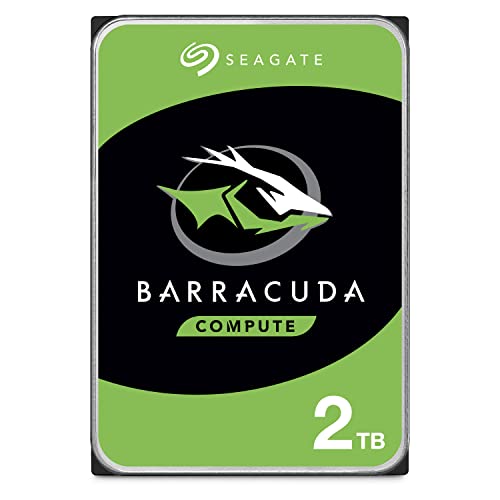
An external hard drive is a storage device in a small enclosure that connects to your computer with a cable, most often USB. Inside sits either a spinning magnetic disk, called an HDD, or flash memory, called a solid state drive or SSD. A 2 TB drive holds about 2,000 GB, which in practice means hundreds of thousands of photos, hundreds of hours of video, or several full backups of a typical laptop, depending on file sizes.
The drive draws power through the same cable that moves your data, so most portable models need no separate power brick. Desktop models are larger, plug into a wall outlet, and trade portability for lower cost per terabyte. Your computer sees the drive as an extra folder location, and you copy files to it by dragging them across or by letting backup software handle the job on a schedule. That simplicity is the whole appeal: extra room and a safety copy, without opening your computer.
Key Specs Explained in Plain English
Five specs decide whether a drive suits you. Connection type sets speed, compatibility decides whether your devices can use it, build quality decides how it survives travel, software decides how automatic your backups feel, and size decides where the drive will live. Take them one at a time.
Connection Type and Speed (USB C and Wireless)
Most drives connect by cable, and the connector and standard set your transfer speed. USB C is the small oval plug now standard on new laptops, while older rectangular USB A plugs remain common on desktops. A basic USB connection moves a large video file in minutes, while faster standards can cut that to under a minute, so look at the rated speed rather than the plug shape alone. A small number of wireless models connect over your home network instead, which suits shared family storage but runs slower and costs more. For most first time buyers, a wired USB C drive is the simple, fast, affordable answer.
Compatibility (PC, Mac, Console)
Compatibility is mostly about formatting, the filing system the drive uses. Drives formatted for Windows may read fine on a Mac but refuse new files until reformatted, and game consoles apply their own rules for game storage versus simple media playback. Many drives work across systems after a quick format you do once during setup, and the maker instructions walk you through it. Check the listing for your exact system before buying, especially for consoles, where a drive might store older games but not current titles. If you switch between Windows and Mac weekly, choose a drive formatted in the shared exFAT system from the start.
Size, Weight, and Build Quality
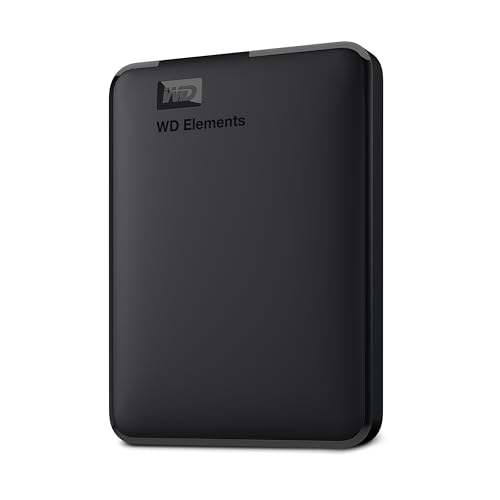
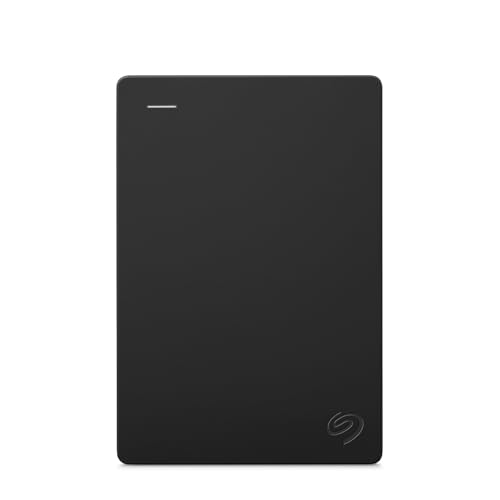
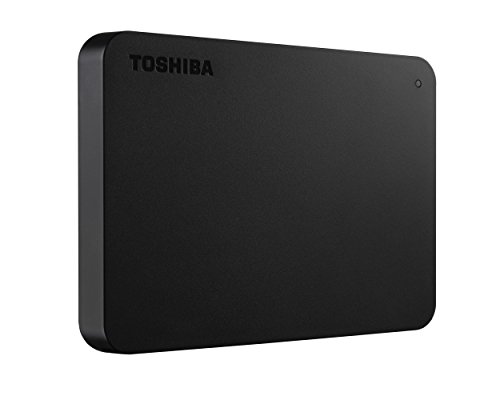
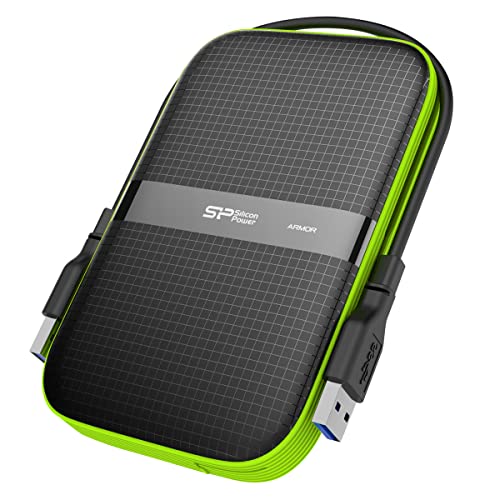
Portable drives are built to travel, so weight and shell design matter more than many buyers expect. A slim drive slips into a laptop bag pocket, while a rubber armored model survives drops to hard floors far better. Spinning HDD models dislike shocks while running, so a cushioned case is real protection, not decoration. SSD models have no moving parts and shrug off bumps that would damage a disk. Handles, stacking shape, and cable length sound minor until the drive lives on your desk daily. Buy the build that matches where the drive will actually spend its life.
Backup Software and Encryption
Software turns a plain storage box into a backup system. Many drives include backup programs that copy chosen folders automatically whenever the drive is connected, plus tools that keep older versions of changed files. Hardware encryption or a simple password lock protects tax records and family documents if the drive is lost. None of this is mandatory, since Windows and Mac both include capable built in backup tools, and using those is perfectly sensible. Decide based on habit: if you know you will forget manual copies, value the bundled automation and set it up on day one. Readers focused on that safety copy angle can also see our guide to the best external backup hard drives for backup specific advice.
Portability and Desk Fit
Think about hands and habits rather than grip styles. A travel drive should be light, draw power from the cable alone, and include a short cable that will not tangle in a bag. A desk drive can be bigger and quieter, with a longer cable and a footprint that fits beside your monitor. Fan noise matters in a quiet room, since cheaper desktop enclosures can hum. Also consider how the drive sits: vertical stands save desk space but tip over more easily, while flat models stack neatly under a shelf. Match the shape to the space before the space becomes a daily annoyance.
Rookie Mistakes to Avoid
- Buying capacity by guesswork. Add up your current files, then double the number for growth. A drive that fills in six months was not a bargain.
- Keeping only one copy. An external drive holding your sole copy of family photos is a risk, not a backup. A backup means the files also exist somewhere else.
- Ignoring the connector. Check which ports your laptop actually has, and whether an adapter is included, before the drive arrives.
- Skipping the first format check. Plug the drive in and confirm your computer, and any console, can both read and write to it before you load it with files.
- Leaving the drive on a hot or unstable surface. Heat and vibration shorten drive life, so give it a flat, cool, steady home.
Photo and video libraries deserve special care, since they grow fast and are hard to replace. If your main load is a growing photo archive, our guide to the best external hard drives for photography covers card workflows and library sizing in more depth.
Getting Started: Setup and First Use
Setup takes about ten minutes. Connect the cable, let your computer recognize the drive, and open the maker setup tool or your system disk utility to confirm the format matches your devices. Name the drive something clear, such as Family Backup, so future you knows its job. Next, turn on backup software or your system backup tool, choose the folders that matter, and run the first full backup while you do something else, since the first copy takes the longest.
After that first copy, check the drive by opening a few files directly from it. Eject it properly before unplugging, every time, because pulling the cable during a write can corrupt files. Update the drive firmware and backup software when the maker app offers it, and glance at backup reports monthly to confirm copies are still running. Store the drive away from heat and moisture, clean the ports gently with dry air if dust builds up, and repeat a small trial restore twice a year so you know the safety net works.
Frequently Asked Questions
Does a 2 TB external hard drive work with Mac and console systems?
Yes, most models work with Mac computers and game consoles, but formatting decides the details. A drive in the shared exFAT format reads and writes on both Windows and Mac without extra software. Consoles may require their own format for storing games, which erases the drive, so dedicate one drive to the console and keep a separate drive for computer files rather than swapping one drive between jobs.
Should a first time buyer choose a hard drive or a solid state drive?
Choose a hard drive when low cost per terabyte matters most and the drive will sit on a desk, and choose a solid state drive when speed, travel, or rough handling matter more. SSD models copy files several times faster and survive drops better, but cost more for the same 2 TB. Many households start with an affordable hard drive for backups, then add a small SSD later for active projects.
How fast should a 2 TB external hard drive be?
Fast enough depends on your files. For documents and photos, any current USB drive feels quick, since those files are small. For video editing or moving game libraries, rated speeds above 400 MB per second save real time on every transfer. Check how speed is written in the listing: makers quote the best case number, so expect large single files to approach it and folders of tiny files to run slower.
How much storage do I need if 2 TB sounds huge?
Estimate from what you own now. Add your computer used space, your phone photo library, and any video archives, then double the total for the next few years of growth. A household with one laptop and modest photos may use only a quarter of 2 TB at first, which is healthy headroom for backups that keep several versions. If you shoot lots of video, plan on 2 TB being a starting point rather than a finish line, a sizing topic our guide to the best external storage hard drives explores further.
Wrapping Up
Connection speed, correct formatting for your devices, and a backup habit you will actually keep matter more than any headline number. Compare the product table above with those three checks in mind, size your capacity with room to grow, and your first purchase among the best 2t external hard drives will quietly do its job for years.