Best Affordable Hard Drives: Buying Guide for 2026
Disclosure: We may earn a commission when you buy through links on this page, at no extra cost to you. As an Amazon Associate I earn from qualifying purchases. Learn more
A plain guide to the best affordable hard drives: capacity, portability, speed, and HDD or SSD choice.
Hard drives are still the cheapest way to store large amounts of photos, videos, and backups. If you are shopping for best affordable hard drives, the choices that matter are capacity, whether the drive is portable or desktop, internal or external, and how it connects. This guide explains each in plain terms and shows how to use the comparison table below.
A traditional hard disk drive stores data on spinning platters. It is slower than a solid state drive, but it costs far less per terabyte, so it suits backups, archives, and media libraries more than game loading or editing.




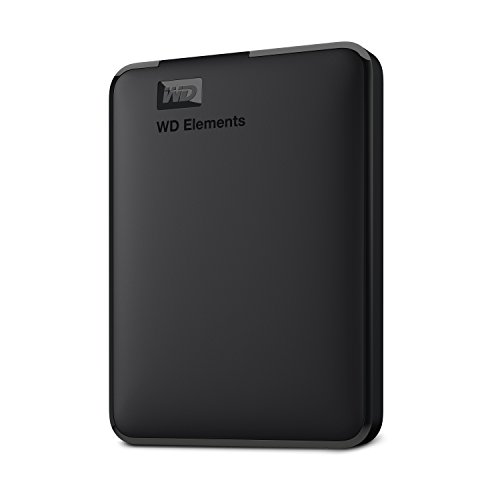
Hard Drive or SSD
A hard drive is the right choice when you need a lot of space for the money. A 2 TB portable drive often costs about as much as a 500 GB solid state drive. An SSD is faster, quieter, and more resistant to drops, so it suits your operating system, active projects, and games. Many people use both: an SSD for daily work and a hard drive for backups and big files.
Types of Affordable Hard Drives
Portable External Drives
Portable drives are pocket sized, powered through the USB cable, and easy to carry. They suit backups, travel, and moving files between computers. Typical capacities run from 1 TB to 5 TB. Look for a rugged model if you carry the drive often.
Desktop External Drives
Desktop drives are larger, need a power adapter, and offer more capacity, often 8 TB and above. They sit on a desk as a backup station and cost less per terabyte than portable drives.
Internal Drives
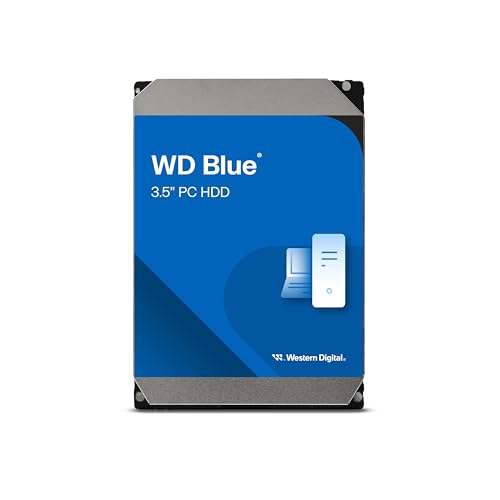
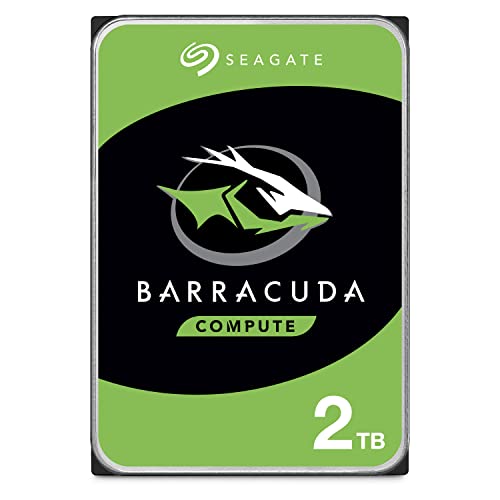
Internal 3.5 inch drives such as the Seagate BarraCuda line go inside a desktop computer or an external enclosure. They give the best price per terabyte, but you need a free bay and a SATA connection. For related choices, see our guide to the best affordable external hard drives.
Key Features to Compare
Capacity
Estimate how much you store now and add room for growth. Photos and documents fit easily in 1 TB, a video library or full system backup is better on 4 TB or more. It is usually cheaper per terabyte to buy one larger drive.
Speed and Interface
Most external drives use USB 3.0 or newer, which is fast enough for hard drive speeds of about 100 to 150 MB per second. Check that your computer has a USB 3 port, because older ports slow transfers. Internal drives use SATA, and a 7200 RPM model is a little faster than a 5400 RPM one.
Durability
Hard drives have moving parts, so avoid knocks while they run. Rugged enclosures with rubber bumpers protect against small drops, and some drives offer water and dust resistance. A warranty of two to three years is common.
Software and Compatibility
Most drives work with Windows right away and may need reformatting for a Mac. Many include backup software, which you can use or ignore. Check that the drive works with your console if you plan to expand game storage.
What You Can Realistically Get on a Budget
Around $50 to $80 buys a small portable drive for documents and photos. Around $120 to $160 buys a 2 TB portable drive, which is the sweet spot for most people. Around $190 to $270 buys 4 TB to 6 TB portable drives or large desktop models. Internal drives are cheaper per terabyte if you can install them.
Choosing by How You Will Use It
For travel and quick backups, pick a slim portable drive with a short cable and a capacity that fits your laptop's content, often 1 TB to 2 TB. For a home photo and video archive, a 4 TB to 8 TB desktop drive gives the best price per terabyte and can stay plugged in. For a games console, check the maker's list of supported drives, since consoles may require USB 3 and a minimum capacity.
If you need to share files between Windows and Mac computers, format the drive as exFAT, which both systems read and write. Windows only households can use NTFS for better handling of large files, and Mac only households can use APFS.
Setup and First Use
Connect the drive, let the computer recognize it, and format it if the system asks. Copy your most important files first, then confirm they open correctly from the new drive. Use the safe eject option every time, and keep the drive on a stable surface while it works. If you hear repeated clicking or the drive disappears, stop using it and copy off what you can before trying again.
Common Mistakes to Avoid
- Using one drive as the only copy of important photos, since every drive can fail.
- Buying too little capacity and then juggling files constantly.
- Ignoring USB speed, which makes large transfers slow on older ports.
- Unplugging without safely ejecting, which can corrupt files.
- Moving a drive while it is spinning, which can damage the platters.
Backup Basics
A simple rule is to keep three copies of important files: the original, a copy on a drive at home, and a second copy elsewhere, such as another drive stored away from the first or an online service. Schedule automatic backups so you do not rely on memory, and check the backup now and then by opening a few files. Replace drives every four to five years, since all hard drives wear out eventually.
Label each drive clearly with its contents and the date you bought it. Keep drives in a cool, dry place and avoid stacking heavy items on them.
Frequently Asked Questions
HDD or SSD: which should I buy?
Buy an HDD for large, low cost storage and backups. Buy an SSD when speed matters, such as for your system drive, games, or video editing.
How much storage do I need?
1 TB suits documents and photos. 2 TB to 4 TB suits video, music, and full backups. Larger drives suit big media libraries.
Are portable drives reliable for backup?
They are reliable enough for backup when kept as one of several copies. Handle them gently and replace them every few years.
What does USB speed mean in practice?
USB 3 ports move files much faster than USB 2 ports. A hard drive cannot use the full speed of the newest ports, but it benefits from USB 3.
Should I encrypt my portable drive?
If it holds private files and you carry it around, yes. Most operating systems include free encryption, and you should keep the password somewhere safe.
How long does a hard drive last?
Most last three to five years of regular use, though some run longer. Drives that are knocked while spinning or run hot tend to fail sooner. Back up anything you cannot replace, and plan to replace the drive before it starts showing errors.
Do external drives need their own power supply?
Portable models draw power through the USB cable. Large desktop models usually have a separate power adapter, which is why they are better as a fixed backup station than a travel drive.
Final Thoughts
Choose capacity first, then decide between portable, desktop, and internal, and keep a second copy of anything important. Use the product table above to compare current drives, and see our guide to the best hdd hard drives for more detail on the category. With those priorities set, best affordable hard drives give you plenty of space for your files at a fair price.