Best 4K TVs for Computer Monitors: Desk Size, Text and Lag Guide
Disclosure: We may earn a commission when you buy through links on this page, at no extra cost to you. As an Amazon Associate I earn from qualifying purchases. Learn more
A desk guide to the best 4k tvs for computer monitors, covering size, text sharpness, input lag, and setup.
A 4K TV can give you a huge, sharp workspace for far less money per inch than a dedicated monitor. The catch is that a TV is tuned for a couch, not for reading small text a few feet away. This guide to the best 4k tvs for computer monitors shows what to check so text stays crisp, the mouse feels quick, and your neck stays comfortable.
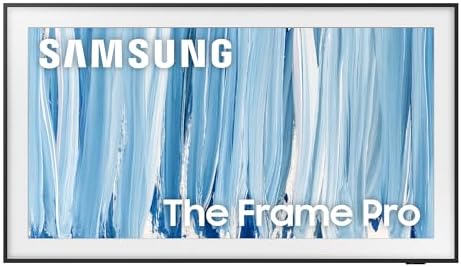
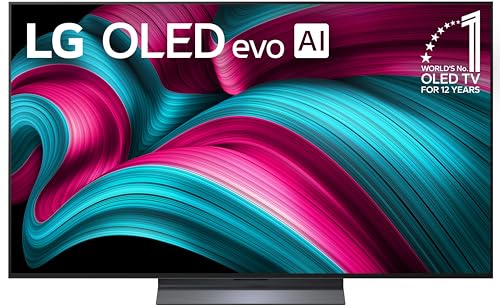
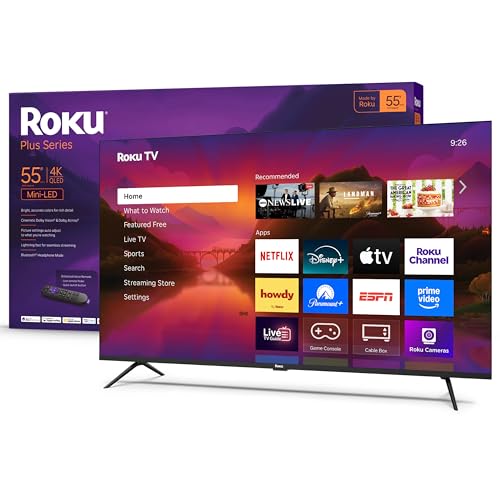
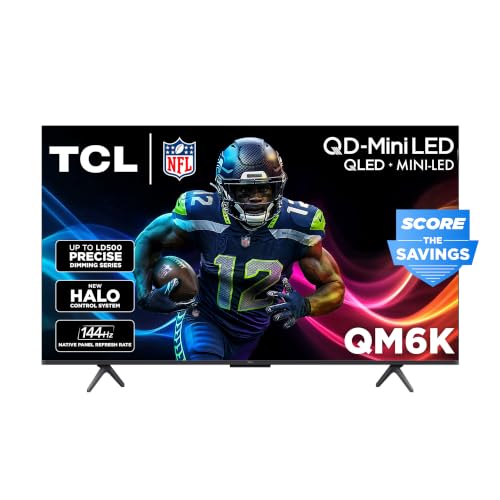
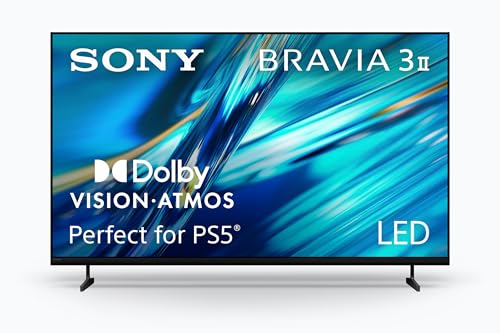
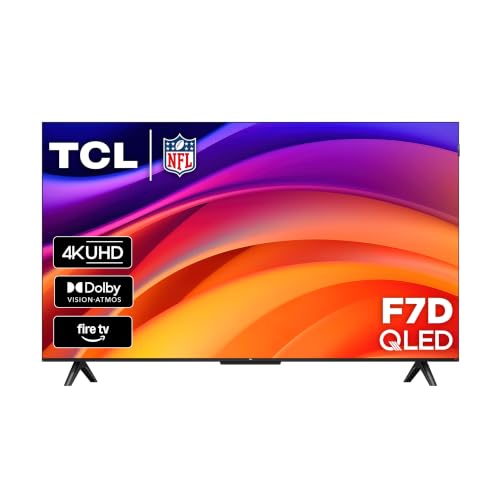
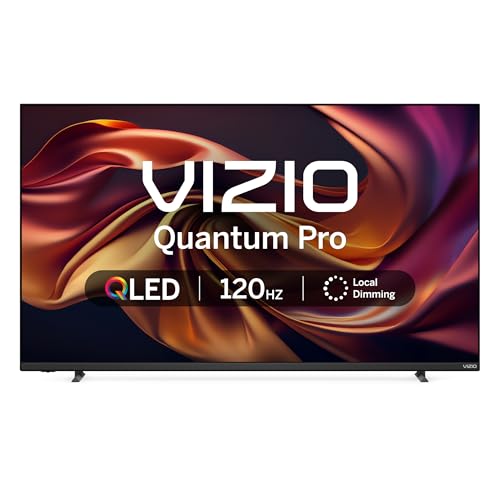
Use the product table below to compare sizes and panels, then read the checks that follow. Most desks suit a TV between 43 and 50 inches, which is why the models in the table lean toward those sizes.
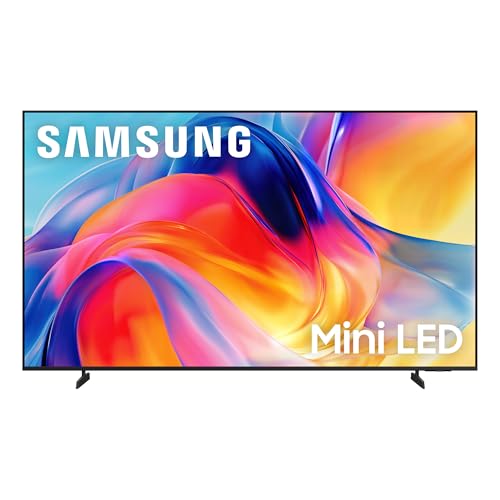

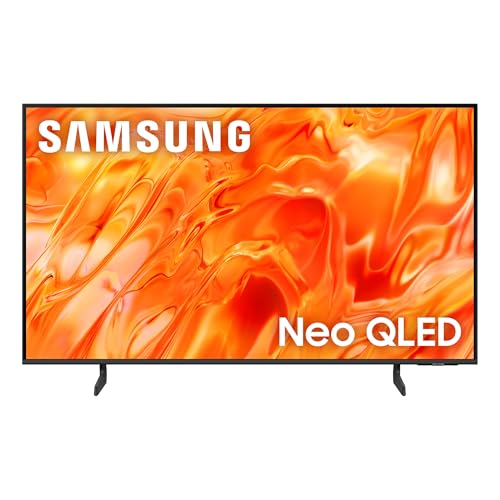
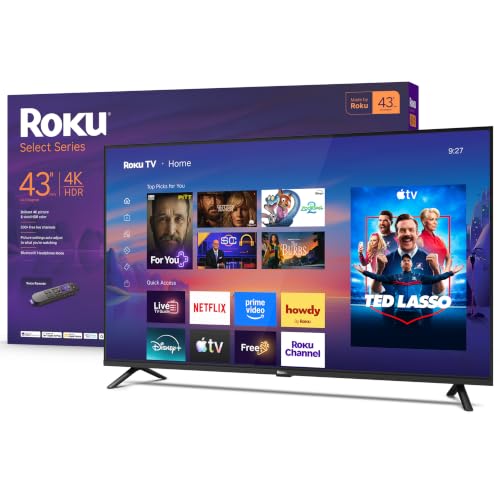
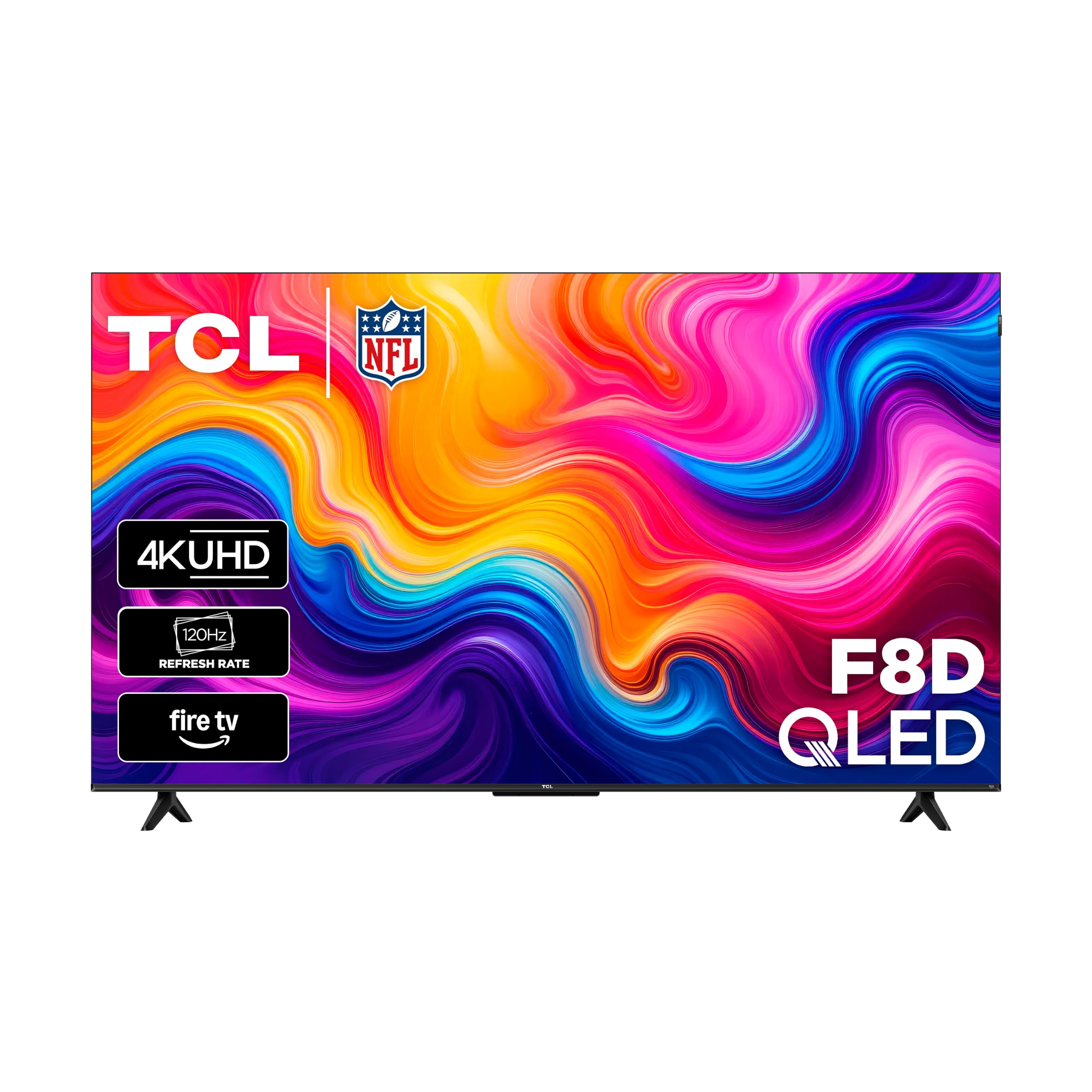

Why a 4K TV Works at a Desk
At 43 inches, a 4K panel has about the same pixel density as a 27 inch 1440p monitor would show at a bit larger scale, so you can open several windows side by side without squinting. Video editors, spreadsheet users, and traders like the room to spread out. A TV also adds a speaker and a remote, which a monitor often lacks.
The trade offs are real. TVs can look soft with small text, turn on slowly, and carry glossy screens that reflect a window. Picking the right model removes most of these problems.
Features That Matter for Desk Use
Text Sharpness and Chroma 4:4:4
Text looks clean only if the TV accepts full color information from your computer. Look for a PC or game mode and for support for 4:4:4 color over HDMI. Without it, colored text can look fringed. Turn off sharpening and noise reduction, which blur fine lines.
Panel Type
VA panels give deep contrast for movies but can show smearing in fast motion. IPS style panels hold color at an angle, which suits a wide desk. OLED looks excellent but risks burn in if you leave bright static windows up all day, so it fits mixed use better than a spreadsheet only desk.
Input Lag and Refresh Rate
Low input lag makes the cursor feel immediate. Game mode usually cuts the delay, and a 120 Hz panel feels smoother for scrolling as well as games. Check that your computer can output the rate you want over HDMI 2.1 or DisplayPort adapters.
Size and Viewing Distance
Sit about two to three feet from a 43 inch screen and a little farther from a 50 inch one. If you must turn your head to see the corners, the screen is too large for the desk. A wall mount or a deep desk gives you extra distance.
Brightness, Coating, and Eye Comfort
A matte or low reflection screen helps in a bright room. Set brightness to match the room rather than showroom levels, and take regular breaks. Larger text settings in your operating system are better than leaning toward the screen.
Choosing the Best 4K TVs for Computer Monitors by Use
Office and Study
Choose a 43 or 50 inch model with a PC mode and a sharp matte finish. Prioritize text quality over brightness. A simple smart platform is fine because the computer does the work.
Creative Work
Photo and video work benefits from wide color coverage and a uniform panel. Check for a color mode that looks natural and for calibration controls. A very bright screen is less important than accurate color.
Gaming and Mixed Use
Look for 120 Hz, variable refresh support, and low input lag. A TV that serves both a console and a PC saves space. Check which HDMI ports support the highest rate, because often only one or two do.
Setup Tips for Sharp Text
Set the computer to the TV's native 4K resolution and a 100 or 125 percent scale for comfortable text. Enable the PC or game picture mode, turn off motion smoothing, and set the HDMI input type to PC if the TV offers it. Use a certified high speed HDMI cable, and keep it short. Run ClearType or the macOS text options if letters look uneven.
Power and Sleep Settings
TVs often wake slowly and may dim the screen to save power. In the settings, turn off automatic brightness and eco modes while you work, and set the computer to send a signal that wakes the TV when you move the mouse. Some sets support HDMI control that switches on with the PC, which saves a trip to the remote each morning.
Common Mistakes to Avoid
Buying too large a screen is the most common mistake. Another is skipping a game mode and living with laggy input. Forgetting about the stand is a third: some TVs have wide feet that take up desk space, so check the footprint or plan a wall mount. Finally, do not assume every HDMI port supports full speed.
Frequently Asked Questions
Can a 4K TV replace a computer monitor?
Yes, for many tasks. Text clarity and input lag are the main checks. Test your usual work on the set within the return window if you can.
What size 4K TV works best at a desk?
Most desks suit 43 to 50 inches. A larger set needs a deeper desk or a wall mount so you can see the whole screen without turning your head.
Do I need a special HDMI cable?
You need a cable and port that support 4K at your chosen refresh rate. Look for a certified high speed or ultra high speed cable and use a short run.
Is a TV as a monitor bad for burn in?
OLED screens can retain static images if left on for many hours. LED and QLED sets do not have this problem to the same degree. Use a screen saver and vary your windows if you choose OLED.
Can I game on a TV used as a monitor?
Yes. Choose a set with low input lag in game mode and a 120 Hz panel. For very competitive games, a dedicated gaming monitor may still feel faster.
Final Thoughts
Decide your desk depth first, then choose the screen size, the panel type, and a model with a real PC mode. Check the product table above to compare the best 4k tvs for computer monitors against your budget. If you are still weighing options, the guide to the best 4k tvs for pc monitors and the guide to the best tvs as computer monitors cover related picks.