Best 3in1 Printers 2026: Print Scan and Copy Guide
Disclosure: We may earn a commission when you buy through links on this page, at no extra cost to you. As an Amazon Associate I earn from qualifying purchases. Learn more
Clear checks on features, price and upkeep to help you choose the best 3in1 printers.
best 3in1 printers combine printing, scanning, and copying in one machine, which suits home offices, students, and families who need occasional copies without a separate scanner. A 3 in 1 printer saves desk space and simplifies setup, yet print quality, ink costs, and scanning features vary widely. This guide explains what to check so your all in one actually earns its place.
The product table gives an overview of the main 3 in 1 types, and the sections that follow cover ink systems, print quality, scanning, connectivity, and running costs. A machine that prints well but scans poorly, or vice versa, may disappoint, so weigh all three functions before buying.



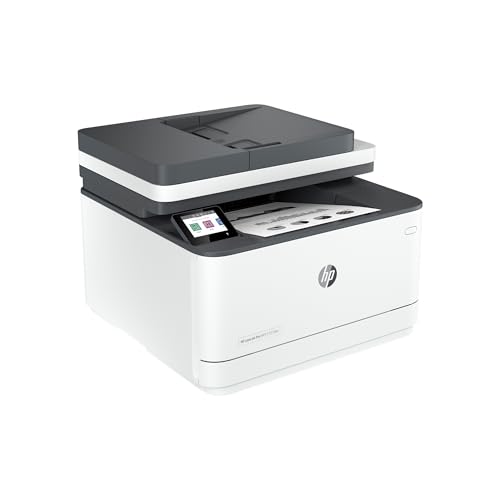

Inkjet Versus Laser 3 in 1 Printers
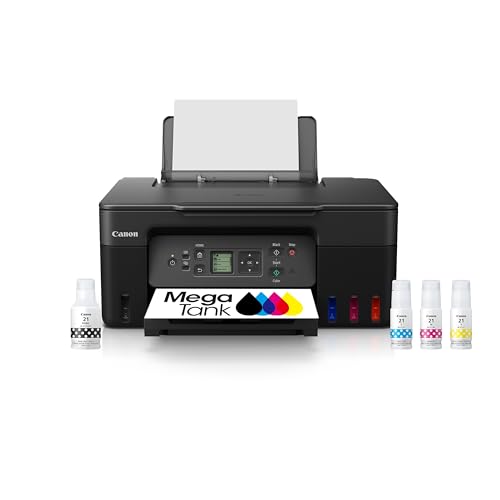
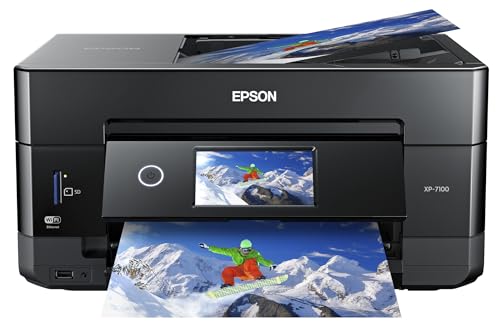
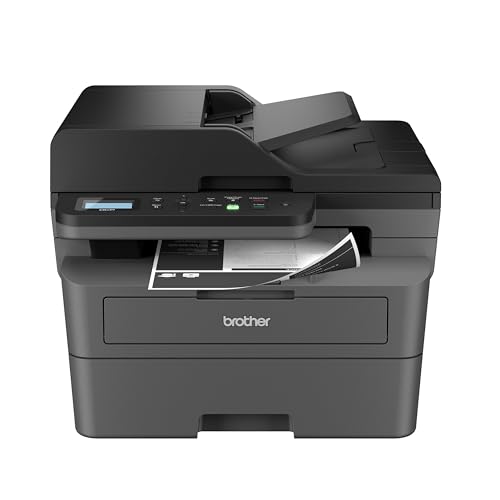
Inkjet 3 in 1 printers handle colour documents and photos well at low upfront cost, making them popular for family and student use. Laser 3 in 1 printers cost more initially but print crisp text quickly and cheaply per page, suiting home offices with heavy document volumes. Colour laser models add colour documents at higher cost, while mono laser models suit text only households best.
Tank inkjet models use refillable ink bottles instead of cartridges, cutting cost per page greatly for frequent colour printing. Cartridge models cost less upfront but charge more per page, which adds up quickly for regular use. Estimate your monthly page count honestly, since that figure decides which ink system saves money over two years.
Print Quality and Speed
Print quality needs differ by use, with documents needing sharp text, photos needing smooth colour, and schoolwork needing both at reasonable cost. Check sample prints for text sharpness and colour banding, since specs alone hide real world quality. Print speed matters for multi page documents, though single page home jobs rarely stress even modest speeds.
Duplex printing, which prints both sides automatically, saves paper and suits school and office documents well. Borderless photo printing matters only if you print photos regularly, so do not pay extra for it when documents dominate. Paper handling, including tray capacity and envelope support, affects daily convenience more than headline speed.
Scanning and Copying Features
Flatbed scanning suits books, photos, and single pages, while an automatic document feeder speeds multi page scanning and copying. Feeder capacity and duplex scanning matter for office users digitising archives, while occasional users manage fine with a flatbed alone. Scan resolution affects photo digitising, with higher optical resolution preserving detail better than software interpolation.
Copy features to check include reduction and enlargement, ID card copying, and copy quality settings for text versus photos. Direct scan to email, cloud, or USB saves steps for home office users, though setup varies by maker. Test the control panel in person if possible, since a confusing panel discourages scanning use entirely.
Connectivity and Mobile Printing
Wifi connectivity lets every household device print without cables, and it suits laptops, tablets, and phones sharing one printer. Check app support for your devices, since mobile printing ease varies greatly by maker and operating system. Ethernet suits a fixed home office with a router nearby, giving stable connections for shared use.
Cloud printing and voice assistant support add convenience for some households, while others prefer simple USB printing without accounts. Security matters for home offices handling sensitive documents, so set a strong wifi password and update printer firmware when prompted. A printer that connects easily gets used, while a fiddly one gathers dust.
Running Costs and Ink Habits
Running costs come from ink or toner, paper, and occasional maintenance, with ink dominating for most home users. Subscription ink services deliver cartridges automatically based on usage, which suits steady printers but may cost more for light users. Tank systems cut per page costs greatly, yet they need occasional printhead care and genuine ink for best results.
Print in draft mode for internal documents to save ink, and reserve best quality for photos and final copies. Keep the printer powered and used regularly, since long idle periods can clog inkjet nozzles and waste ink on cleaning cycles. Track your real page count for a month before judging whether a subscription or tank system saves money.
Space, Noise, and Longevity
Measure desk space including paper tray extension and scanner lid clearance, since 3 in 1 printers need more room than print only models. Noise matters in small homes, with laser printers often louder during warm up and inkjets quieter for single pages. Place the printer where paper loading and jam clearing feel easy, since awkward placement discourages use.
Longevity depends on build quality, driver support, and ink availability, so favour makers with long support records. Check warranty terms and local service options, especially for tank models with more complex ink systems. The product table can help you compare types once you know your volume and main functions.
A Final Check Before You Order
Before ordering, count your real monthly pages across documents, photos, and copies from the past few months. Honest counts decide ink systems far better than guesses, since tank savings depend on volume. Light users waste money on tank capacity they never use, while heavy users waste more on cartridges.
Check driver and app support for every device in your household, including older laptops and phones. A printer that works with one device but not others frustrates families. Test mobile printing setup during the return window, confirming scan and copy functions as well as printing.
Plan printer placement with ventilation, paper access, and scanner lid clearance in mind, since cramped corners discourage scanning use. A dedicated spot near your work area beats a distant shelf that requires trips for every copy. Convenience drives usage more than any feature list.
Finally, keep spare paper and a basic cleaning routine in mind from day one, since dust and low paper cause most home printing frustrations. A small stock of paper and occasional nozzle checks keep the machine ready. Simple habits prevent most support calls.
One More Practical Note
Consider paper types for different jobs, keeping plain paper for documents and photo paper for prints that deserve it. Using photo paper for drafts wastes money, while plain paper dulls photos that matter. A small stock of each type covers home needs without excess.
Think about firmware updates and driver support over the printer lifetime, since makers drop older models eventually. Check update history before buying, favouring models with recent support. Long support keeps scanning and mobile printing working as devices evolve.
Related Guides to Compare
For print quality focused comparisons, see best quality printers for document and photo output.
Home printer buyers should compare best computer printers for home for family and office models.
If photo printing matters most, best printers for pictures covers dedicated photo printers and quality.
Frequently Asked Questions About Best 3in1 Printers
Do I need a 3in1 printer or just a printer?
A 3in1 printer suits you if you scan or copy even occasionally, since it saves buying a separate scanner and desk space. Print only models cost less and suit households that never scan, though they limit future flexibility. Weigh your real scanning needs over the past year, not imagined ones, before choosing.
Are tank printers cheaper than cartridge printers?
Tank printers usually cost less per page for frequent colour printing, since bottled ink costs far less than cartridges over time. Cartridge printers cost less upfront and suit very light users who print rarely. Estimate monthly pages honestly, since tank savings grow with volume and shrink for occasional use. Track your real page counts for a month to confirm the maths.
Can a 3in1 printer scan to a phone?
Many modern 3in1 printers scan to phones, email, cloud storage, or USB through maker apps and wifi. Check app support for your phone system before buying, and test scan setup at home while return options remain. Older or budget models may scan only to a connected computer, which limits flexibility.
How do I stop inkjet nozzles clogging?
Print regularly, keep the printer powered so it can run maintenance, and use genuine ink suited to the model. Long idle periods dry nozzles, causing cleaning cycles that waste ink. If clogs appear, run the maker cleaning utility once or twice, and avoid repeated deep cleans that consume large ink amounts.
Is laser or inkjet better for home office use?
Laser suits heavy text document volumes with fast, cheap, crisp output, while inkjet suits colour documents and photos at lower upfront cost. Home offices printing mostly text benefit from laser, while mixed photo and document use favours inkjet or tank models. Estimate your colour versus text mix before deciding. Match the choice to your most common job, not to occasional tasks.
Final Thoughts
Choose a 3 in 1 printer by volume, ink system, and scanning needs, favouring tank ink for frequent colour and laser for heavy text. The product table summarises the main types, and honest page counts will save more money than any feature list. Print, scan, and copy should all feel easy, or the machine will not earn its desk space.
With best 3in1 printers matched to your home routine, one machine can handle documents, photos, and copies without fuss. Measure space, check apps, and track ink costs for a month to confirm the choice.