Best 2k Monitors: A Practical Buying Guide for 2026
Disclosure: We may earn a commission when you buy through links on this page, at no extra cost to you. As an Amazon Associate I earn from qualifying purchases. Learn more

Learn how to choose the best 2k monitors for gaming, editing, and everyday work. Compare panels, refresh rates, HDR, ports, and sizes before you buy.
A 2k display sits in a sweet spot for many desks. It gives you noticeably sharper text and more room for windows than a 1080p screen, without demanding the graphics power or the budget of a 4k screen. This guide to best 2k monitors explains what actually matters, so you can match a screen to your games, your editing work, or your daily office tasks.
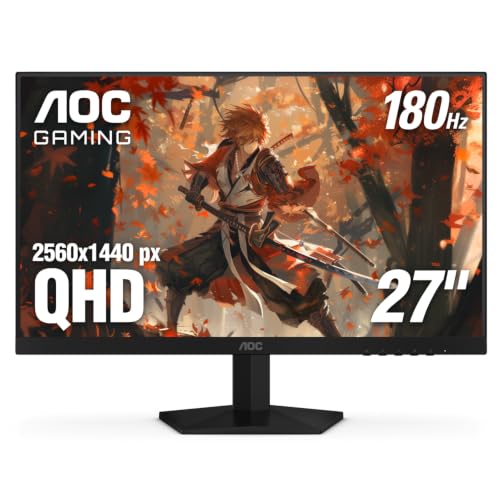
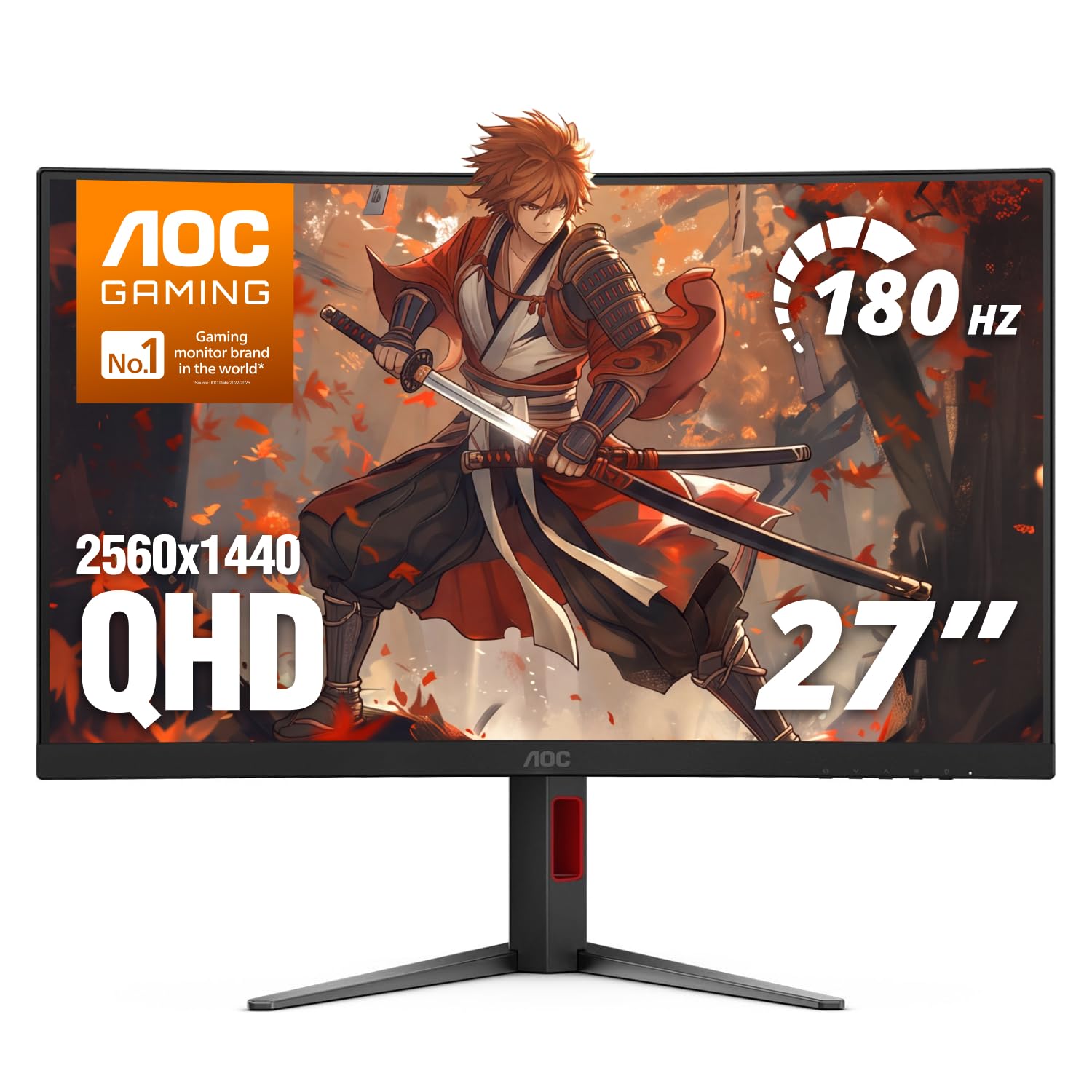
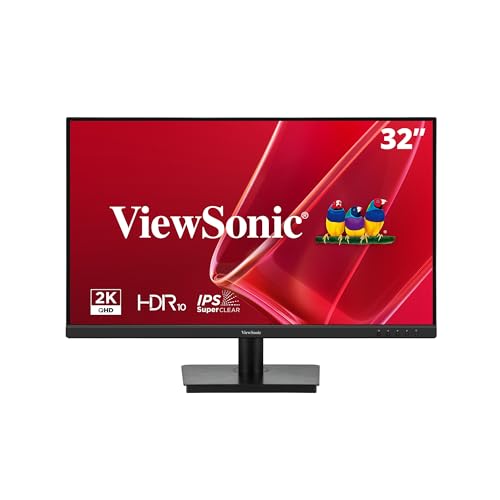
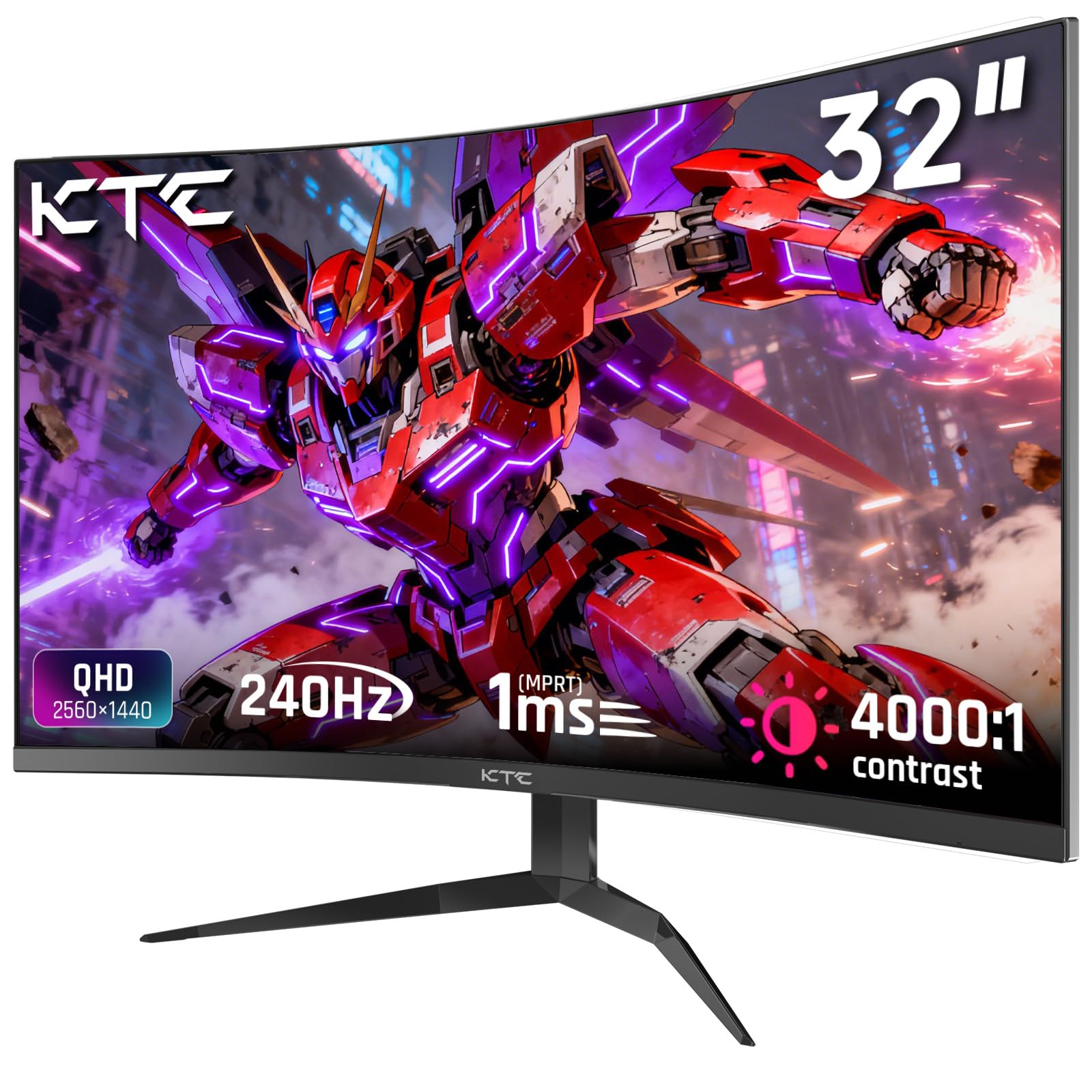
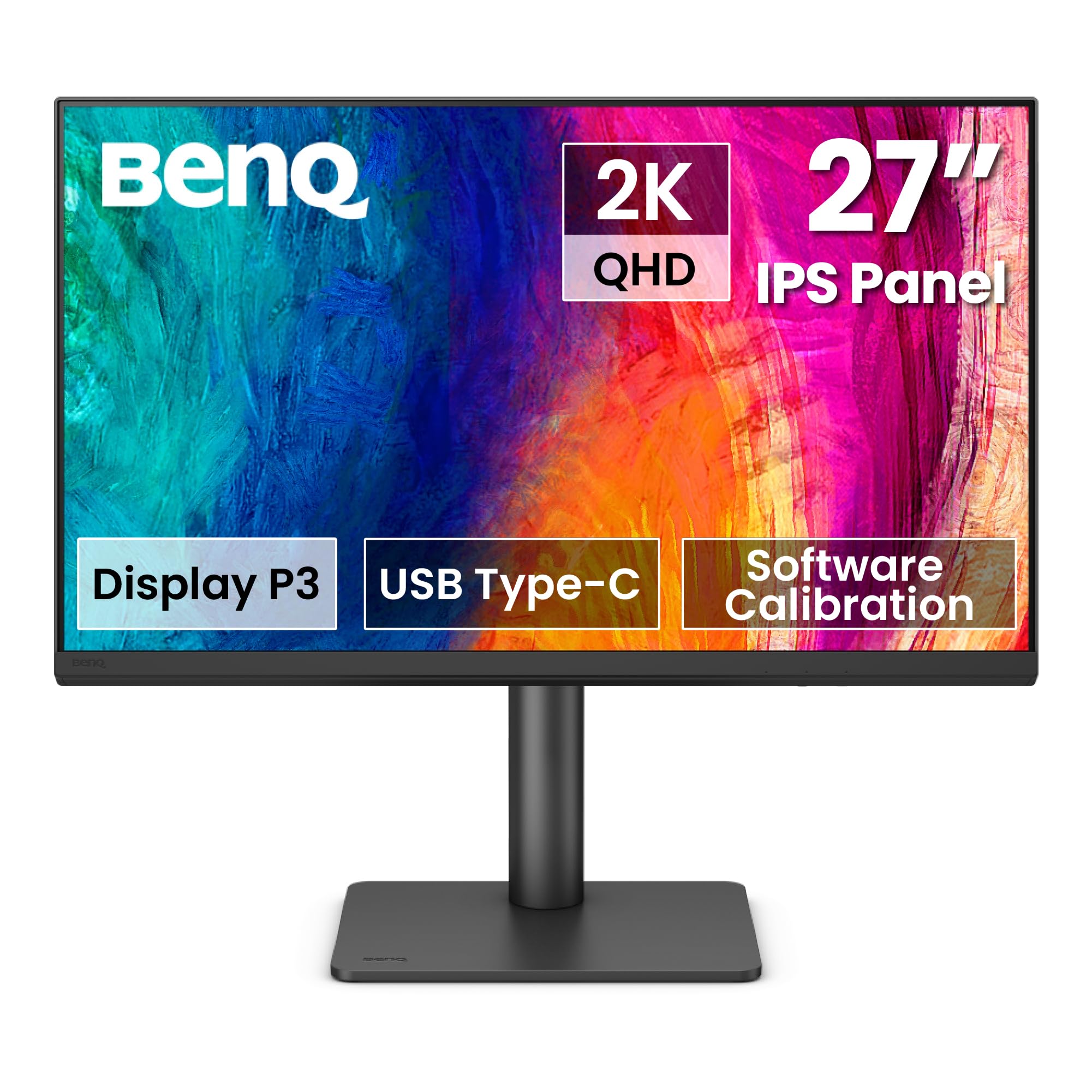
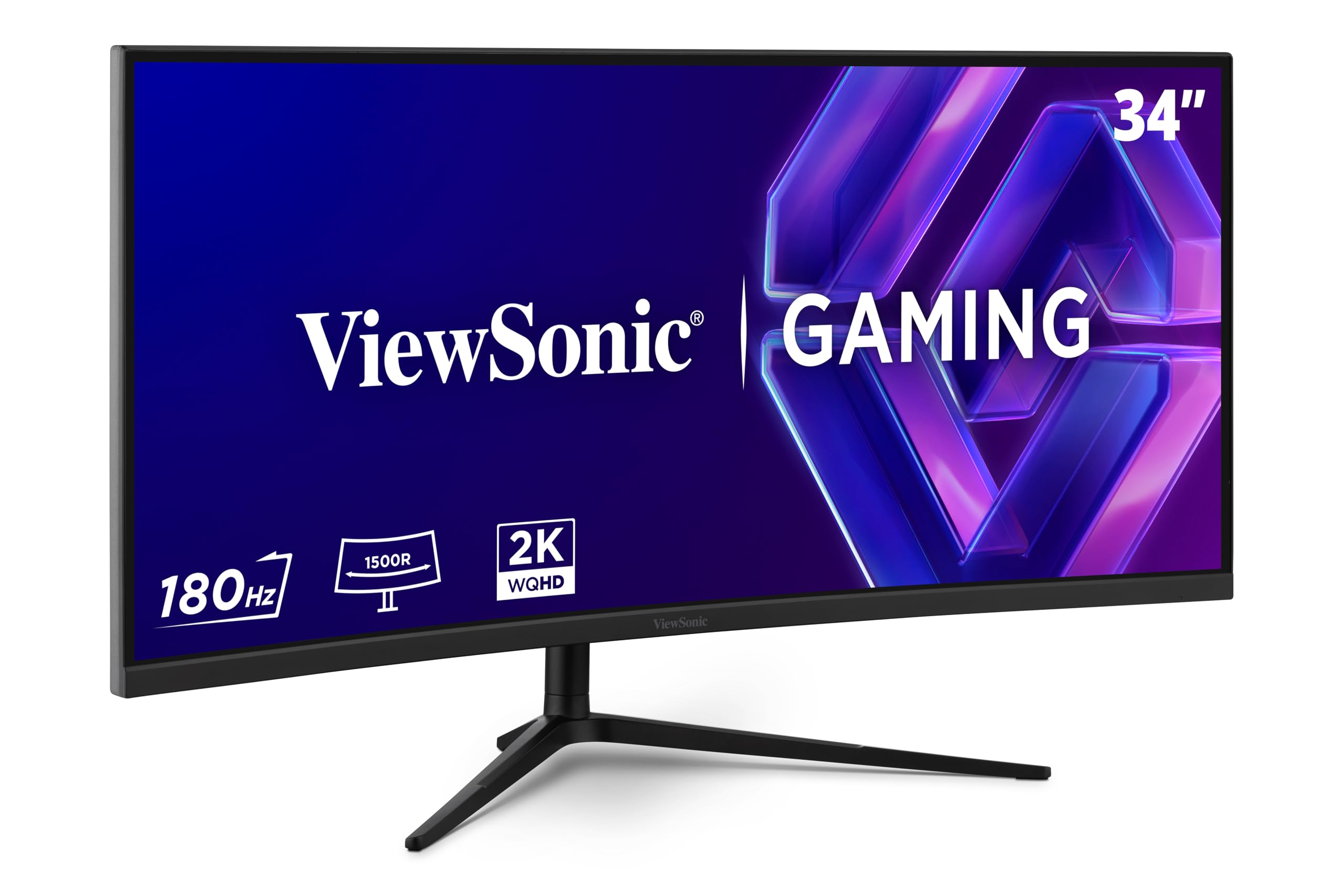
Start with resolution and size together, then weigh panel type, refresh rate, and ports. The product table above shows the picks in one place, and the sections that follow explain each choice in plain terms. By the end, you should know which trade offs are worth paying for and which ones you can safely skip.


Spending Levels That Make Sense
It helps to think in spending bands rather than chasing a single ideal screen. A sensible everyday band, about $150 to $250, buys a solid 27 inch display with a decent stand and a 100Hz to 165Hz refresh rate. That is plenty for office work, browsing, and casual games, and it leaves room in the budget for a good cable or a monitor arm.
A Strong Middle Band for Mixed Use
The middle band, about $250 to $450, is where most buyers land. Here you get better color accuracy, higher refresh rates, stronger HDR support, and more flexible stands. If you edit photos, play fast games, or keep many windows open, this band is usually worth the step up. Check the panel and the port list carefully, because a fast refresh rate means little if the screen cannot hold accurate color for your work.
When a Higher Band Is Worth It
Above about $450, you are paying for specialist strengths: OLED contrast, very high refresh rates, wide color coverage, or ultrawide formats. These screens suit competitive players, color critical editors, and people who want one large screen instead of two. Before spending here, confirm that your computer can drive the resolution and refresh rate you want, or the extra capability will sit unused.
How to Choose the Best 2k Monitors
Resolution alone does not make a good monitor. The panel, the refresh rate, the brightness, and the stand all shape how the screen feels after a full day of use. Work through the factors below in order, and let your main use decide which ones deserve the most weight.
Panel Technology
IPS panels are the safe default for most buyers. They offer wide viewing angles and dependable color, which matters when you share the screen or sit slightly off center. VA panels give deeper blacks and stronger contrast, but viewing angles and motion clarity can vary more.
OLED panels deliver outstanding contrast and fast response, yet they cost more and need care to avoid uneven wear from static images. Mini LED backlights improve contrast on LCD screens, though results depend on how many dimming zones the screen has.
Refresh Rate and Response Time
Refresh rate, measured in hertz, tells you how many times per second the screen updates. A 60Hz screen is fine for documents and video, while 144Hz or 165Hz makes mouse movement and games feel smoother. Response time describes how quickly pixels change color; slower pixels can leave a faint trail behind fast moving objects.
For competitive games, pair a high refresh rate with a fast response time. For office work, a 75Hz to 100Hz screen often feels smooth enough, so you can spend the difference on size or color instead.
HDR and Brightness
HDR, or high dynamic range, aims for brighter highlights and deeper shadows in supported video and games. True HDR needs high peak brightness, good local dimming, and wide color coverage, so a basic HDR label alone does not guarantee a strong result. Look at the peak brightness figure in nits and read how the screen handles dark scenes.
For a bright room, a screen that reaches about 350 to 400 nits will stay readable in daylight. In a dim room, contrast matters more than raw brightness.
Stand, Mounting, and Ergonomics
A good stand is easy to overlook and hard to live without. Height adjustment lets you set the top of the screen near eye level, which helps your neck during long sessions. Tilt and swivel help when you share the screen or shift position.
If the stand is basic, check for VESA mounting holes, which let you fit a monitor arm later. Measure your desk depth too, since a large screen on a shallow desk can feel overwhelming and force you to sit too close.
Adaptive Sync and Gaming Features
Adaptive sync matches the screen refresh rate to the frame rate from your graphics card, which reduces tearing and stutter in games. The two common systems work with different graphics cards, so confirm compatibility with your own hardware before you buy. Console players should check for 120Hz support over HDMI, while PC players should check DisplayPort support and the refresh range. Features such as a low input lag mode and a clear overdrive setting matter more in practice than a long list of gaming labels.
Connectivity and Ports
Ports decide how easily the screen fits your setup. DisplayPort is the usual choice for high refresh rates on a PC, while HDMI suits consoles and laptops. USB C can carry video, data, and charging over one cable, which is handy for a laptop desk, but check how much charging power it delivers.
Extra USB ports on the screen are useful for a keyboard, a mouse, or a webcam. If you plan to connect two computers, look for easy input switching and a clear on screen menu.
Resolution and Screen Size
At 2k resolution, which is commonly 2560 by 1440 pixels, a 27 inch screen gives sharp text at a normal desk distance. A 24 inch screen looks even sharper but shows less at once, while a 32 inch screen shows more but needs a deeper desk and a longer viewing distance. Sit about an arm length from a 27 inch screen and adjust from there. If text looks small, use the operating system scaling setting rather than moving closer, which can strain your eyes over time.
Types of 2k Displays
Most 2k screens fall into three broad groups. Knowing which group fits your routine narrows the choice quickly and keeps you from paying for strengths you will not use.
Budget Displays
Budget displays focus on the essentials: a clear panel, a usable stand, and enough brightness for a normal room. They suit students, home offices, and second screens. You may give up wide color coverage, high refresh rates, or USB C charging, but the core viewing experience remains solid. Spend the savings on a comfortable chair or better lighting if your desk setup needs it more.
OLED Displays
OLED displays stand out for contrast, with true blacks that make movies and dark games look rich. They also respond very quickly, which helps motion clarity. The trade offs are price and care: static toolbars and menus can wear unevenly over long periods, so use screen savers, hide taskbars when possible, and run the built in pixel refresh routine. For mixed work and play, weigh whether the contrast gain outweighs the extra cost and maintenance.
Productivity and Ultrawide Displays
Ultrawide displays stretch the 2k idea sideways, giving room for two documents or a wide timeline without a second screen. They suit editors, programmers, and anyone who juggles spreadsheets and reference material. Check that your desk is wide enough and that your graphics card supports the wider resolution. A standard 27 inch screen remains simpler if you prefer a single focused window or already use two screens.
Picking the Right Screen for Different Uses
Your main use should drive the final choice. The three groups below highlight the criteria that matter most for each routine, so you can compare screens on the right terms.
Best 2k Monitors for Editing
For editing, color accuracy comes first. Look for a screen that covers a wide color range and can be calibrated, with a uniform panel that does not shift brightness across the surface.
A 27 inch size gives room for tool panels beside your canvas. If you print work, check how the screen handles color profiles and whether it holds calibration over time. A slightly lower refresh rate is a fair trade for better color.
Best Gaming 2k Monitors
For gaming, refresh rate, response time, and adaptive sync lead the list. A 165Hz or higher screen with fast pixels keeps motion clean in fast titles. Check the input lag and the adaptive sync range, and confirm your graphics card can reach the frame rates you want at this resolution. If you play slower story driven games, you can trade some speed for better contrast and color instead.
Best Beginner 2k Monitors
For a first 2k screen, keep the choice simple. A 27 inch display with a height adjustable stand, HDMI and DisplayPort inputs, and a 100Hz to 144Hz refresh rate covers most needs. Avoid paying for specialist color tools or extreme refresh rates until you know which limits bother you. Set aside part of the budget for a decent cable and a comfortable viewing distance, which affect daily comfort more than a marginal spec gain.
Care and Maintenance Tips
- Calibrate picture settings by turning off vivid mode, then set brightness to suit your room rather than leaving it at maximum.
- Use pixel refresh on OLED screens when the screen prompts you, and avoid leaving the same static image on screen for hours.
- Clean screens with a microfiber cloth only, and never spray liquid directly onto the panel.
- Use quality HDMI 2.1 cables for 4k 120Hz sources, and check that your cable supports the refresh rate you plan to use.
- Keep vents clear and leave space behind the screen so heat can escape during long sessions.
Frequently Asked Questions
Is a 2k monitor sharper than a 1080p monitor?
Yes, a 2k monitor shows more detail than a 1080p monitor at the same size, because it packs more pixels into the same area. Text edges look cleaner, and you can fit more on screen without shrinking everything. The gain is clearest at 27 inches, where 1080p can look slightly soft. At smaller sizes, the difference is still visible but less dramatic, so size and viewing distance matter as much as the pixel count itself.
What size 2k monitor should I get for my desk?
A 27 inch screen suits most desks, since it balances sharpness, window space, and viewing distance. A 24 inch screen works well on a narrow desk or as a second screen, while a 32 inch screen needs a deeper desk to avoid eye strain. Measure your desk depth and your usual sitting distance before choosing. If you sit closer than an arm length away, a smaller screen will usually feel more comfortable.
How long does a 2k monitor last?
A well made monitor often lasts seven to ten years with normal use, though backlight brightness can fade gradually over time. OLED screens may show uneven wear sooner if static images stay on screen for long periods. Good habits help: use a screen saver, avoid maximum brightness, and keep the screen clean and ventilated. If the backlight dims unevenly or colors shift badly, that is a sign the panel is reaching the end of its useful life.
Is 4k worth it over 2k?
It depends on your work and your hardware. A 4k screen gives sharper text and more room for detailed editing, but it needs a stronger graphics card for games and costs more. For most gaming and office use, a 2k screen offers a better balance of sharpness, speed, and price. Choose 4k if you edit high resolution video or photos, sit close to a large screen, and have hardware that can drive it smoothly. Our guide to best 4k monitors covers that route.
Does refresh rate matter for non gamers?
Refresh rate matters less for documents and video than for games, but it still affects how smooth scrolling and mouse movement feel. A 75Hz to 100Hz screen feels noticeably smoother than a 60Hz screen in everyday use. Above about 144Hz, the benefit for office work is small, so spend on panel quality, size, or ergonomics instead. If you watch fast sports or edit video, a higher refresh rate can still help motion look cleaner.
The Bottom Line
Choose size first, then panel type, then refresh rate, and let your main use set the priority among them. A 27 inch IPS screen with a good stand covers most buyers well, while gamers and editors should weight speed or color more heavily. For related options, see our guide to best 2k ips monitors when panel quality is the priority, and our guide to best gaming monitors 2k when speed matters most.
If you want a broader comparison, our guide to best 2k computer monitors and our guide to best gaming monitors cover more ground. Check the product table above once more, confirm the ports match your computer, and choose best 2k monitors on the strength of the factors that fit your desk, not the longest spec list. If your eyes feel strained or your vision changes, take breaks and talk with an eye care professional.