Best 2k Computer Monitors for 2026: How to Choose Well
Disclosure: We may earn a commission when you buy through links on this page, at no extra cost to you. As an Amazon Associate I earn from qualifying purchases. Learn more

Compare the best 2k computer monitors by panel, size, refresh rate, color and ports, with a clear checklist for gaming, office work and creative tasks.
A 2K monitor gives you more room than 1080p without the heavy demands of 4K. The best 2k computer monitors sharpen text, fit more windows on screen and still let many graphics cards run games at high frame rates. Use the product table below to match size, panel and speed to your desk.
Start with how you spend most hours at the screen. Games reward speed, office work rewards clear text and flexible stands, and photo or video work rewards accurate color. The sections below turn those needs into specs you can check in order.




Who Should Buy a 2K Monitor?
Your main use decides which trade offs are worth paying for. Pick the group closest to your routine, then carry its priorities into the feature checks.
Gamers Who Want Speed Without 4K Costs
You play fast games and want smooth motion, but your graphics card strains at 4K. Choose 1440p at 144 Hz or higher, with adaptive sync and a response time near 1 ms. A 27 inch screen keeps targets large while your card holds high frame rates. For a deeper shortlist, see our guide to the best computer monitors for gaming.
Office and Hybrid Workers Who Read All Day
You work in documents, spreadsheets and browser tabs for long stretches. Choose a 27 inch IPS panel, a stand with height and tilt adjustment, and brightness you can lower in the evening. Clear text at 1440p lets you place two documents side by side. If you split time between sites, see our guide to the best portable computer monitors for a light second screen.
Creators and Coders Who Need Room and Accurate Color
You edit photos, cut video or write code across several windows. Choose wide color coverage, strong factory calibration and a matte finish that limits reflections. A 27 inch or 32 inch screen gives timelines and tool panels room without tiny text. USB C with power delivery can also cut cable clutter when you dock a laptop.
Key Features to Compare
Check these five factors in order. Size and panel shape everything else, while ports and stands decide how the monitor fits your setup.
Resolution, Screen Size and Pixel Density
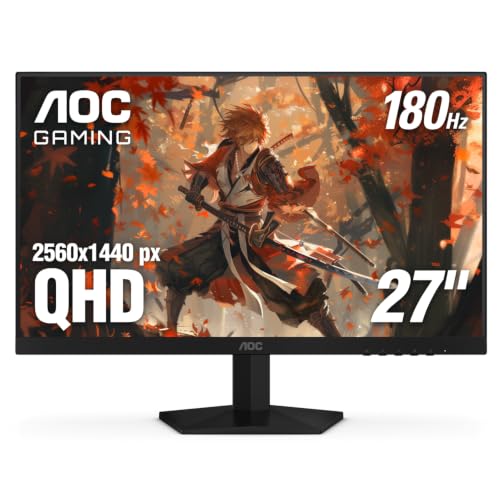
Here 2K means 2560 by 1440 pixels, also called QHD or 1440p. On a 27 inch screen that gives about 109 pixels per inch, so text looks crisp at a desk distance of about 24 to 32 inches. A 24 inch model packs pixels tighter and suits shallow desks, while a 32 inch model spreads the same pixels wider and favors big windows over fine detail. Go larger only if you can sit farther back.
Panel Technology: IPS, VA and OLED
IPS panels give accurate color and wide viewing angles, so they suit shared desks and color work, though blacks can look gray in a dark room. VA panels give deeper contrast for films and night scenes, but color can shift at wide angles and motion can smear. OLED panels give true blacks and very fast pixel changes, yet they cost more and need care to limit burn in from static toolbars. Mini LED backlights add bright highlights to IPS or VA panels.
Motion Specs for Work and Play on a 2K Desktop Screen
Refresh rate in hertz sets how often the image updates, and 144 Hz or 165 Hz feels far smoother than 60 Hz in games and scrolling. Response time in milliseconds sets how fast pixels change, and lower values reduce blur behind moving objects. Adaptive sync, sold as FreeSync or G Sync, matches the screen to your card output and cuts tearing. This is where most best 2k computer monitors separate for players, since a fast panel needs sync to look clean.
Color, HDR and Brightness
Look for coverage near 95 to 100 percent of the DCI P3 space if you edit photos or video, while sRGB coverage near 100 percent is enough for office work. Brightness of about 300 to 400 nits suits most rooms, and higher peaks help HDR highlights stand out. Treat basic HDR labels with care, because real HDR needs strong local dimming as well as peak brightness. A matte coating helps in bright rooms.
Connectivity, Ergonomics and VESA Mounts
DisplayPort is the safest choice for high refresh rates at 1440p, HDMI suits consoles and second computers, and USB C can carry video, data and laptop power in one cable. Check port versions and the cable in the box before you buy. A good stand adjusts for height, tilt and swivel, and portrait pivot helps coders. A 100 by 100 mm VESA pattern lets you use a monitor arm and free desk space.
Types of 2K Monitors Compared
Most models fall into three broad types. If a narrower shortlist helps, see our guide to the best 2k monitors, then return here to check panel, ports and stand details.
Gaming Displays Built for Motion Clarity
Gaming displays pair 144 Hz to 240 Hz refresh rates with adaptive sync and low input lag. Curved VA and flat IPS panels are common, and many add a black equalizer to lift shadow detail. They suit players who value motion first. For models tuned only for play, see our guide to the best gaming monitors.
Productivity and Ultrawide Displays for Multitasking
Productivity models favor IPS color, strong stands and USB hubs, while ultrawide versions stretch to 3440 by 1440 for a wide workspace. That extra width replaces two screens for spreadsheets, timelines and code, but it needs more desk depth and a stronger graphics card. Choose a flat 27 inch panel for simple scaling, or go ultrawide if you keep three windows open all day.
Large Screen and Creator Displays for Detail Work
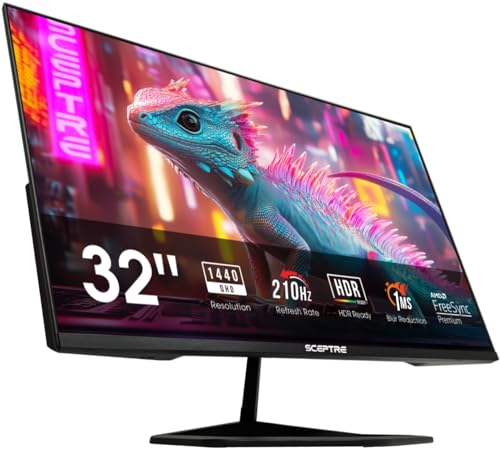
Large 32 inch models give you room to view a full page, a large photo or a video timeline without zooming in and out. Creator versions add wider color coverage, hardware calibration support and more uniform brightness. They cost more and need a deeper desk, because sitting too close makes corners hard to view. Choose one when screen room matters more than gaming speed.
Common Mistakes to Avoid
- Buying a 32 inch 1440p monitor for close desk use leaves text less sharp than expected.
- Chasing the highest refresh rate while your graphics card cannot feed it wastes money you could spend on a better panel.
- Ignoring USB C power limits leaves your laptop charging slowly or not at all through the monitor.
- Trusting a basic HDR label without local dimming leads to washed out highlights and raised blacks.
- Skipping the VESA pattern check leaves you unable to fit the monitor arm you already own.
- Leaving a static OLED desktop image at full brightness for months raises the risk of burn in.
Set Up and Care for Your 2K Monitor
Place the top of the screen near eye level and about an arm length away, then set brightness so white pages match the light in your room. Turn off vivid picture modes, choose the standard or sRGB mode for daily work, and set your computer output to 2560 by 1440 at the highest refresh rate the panel supports. Use the DisplayPort or rated HDMI cable supplied, because an old cable can limit refresh rate without warning.
Clean the screen only when it is off and cool, using a dry microfiber cloth and light pressure. For marks, dampen the cloth with plain water, never spray liquid onto the panel, and avoid paper towels that can scratch the coating. If you choose OLED, use the built in pixel refresh when prompted and hide the taskbar during long sessions. Dust rear vents with a soft brush so heat can escape.
FAQ
Does refresh rate matter for 2K monitor buyers who do not play games?
Yes, a higher refresh rate still helps if you do not play games, though the gain is smaller. Scrolling through long documents and moving windows look smoother at 120 Hz or 144 Hz, and the pointer feels more precise. Weigh cost here, because office buyers may gain more from a better stand or USB C hub than from paying extra for 240 Hz speed.
How long does a 2K computer monitor usually last?
A 2K computer monitor usually lasts about five to eight years of daily use. Backlights dim slowly, so a screen that once felt bright at half power may later need a higher setting. Keep the original box if you can, because safe packing matters when a panel is moved or resold, and check warranty cover for dead pixels before you order.
Is 4K worth choosing over a 2K computer monitor?
4K is worth it only if you sit close to a large screen or edit detailed photos and video at full resolution. For most desks, 1440p gives a clear step up from 1080p while costing less and letting graphics cards run faster. One extra factor is app scaling, since 4K often needs larger text settings that return part of the extra workspace.
Should you choose IPS or OLED for a 2K computer monitor?
Choose IPS for bright rooms, shared viewing and long days of static documents, and choose OLED for dark room gaming and film where deep blacks matter most. A practical point not covered above is warranty, because OLED burn in cover varies by brand. Read that cover closely if your desktop shows the same toolbar in the same place daily.
What size 2K computer monitor fits a small desk best?
A 24 inch or compact 27 inch 2K computer monitor fits a small desk best. Measure desk depth before width, because a deep stand can push the screen too close even when the panel fits. A VESA arm clamped to the rear edge can recover several inches, and that change often makes a 27 inch model comfortable in a tight space.
Wrapping Up
Match size to desk distance first, then choose the panel for your work, and only then pay for extra speed or HDR. Gamers should protect refresh rate and sync, workers should protect text clarity and stand comfort, and creators should protect color coverage. Use the product table above to confirm ports, VESA size and price.
With those checks done, the best 2k computer monitors become an easy shortlist rather than a long guess. Pick the simplest model that meets your main need, set it up at the right height, and enjoy the extra room daily.