Best 24 Inch Computer Monitors for Work: A First Time Buyer's Guide for 2026
Disclosure: We may earn a commission when you buy through links on this page, at no extra cost to you. As an Amazon Associate I earn from qualifying purchases. Learn more
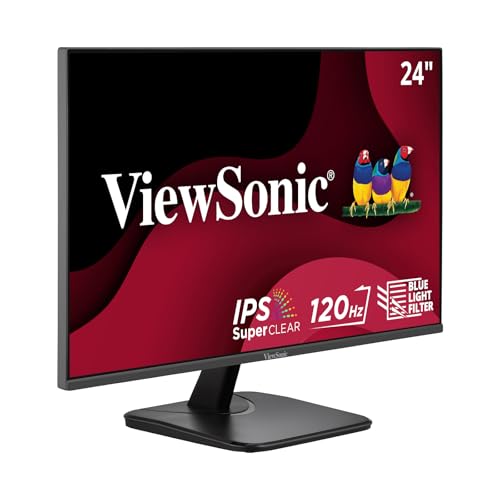
Plain English tips for choosing the best 24 inch computer monitors for work, from resolution and panels to stands and ports.
Buying your first work monitor is easier once you know which numbers change your day. The best 24 inch computer monitors for work make text sharp, sit at a comfortable height, and connect to your laptop without fuss. This guide explains each spec in plain English and helps you read the comparison table below with confidence.
You do not need a gaming screen or a television for a desk job. You need clear words, steady brightness during long reading, and a stand that fits your body and your desk. Keep your main tasks in mind as you read.
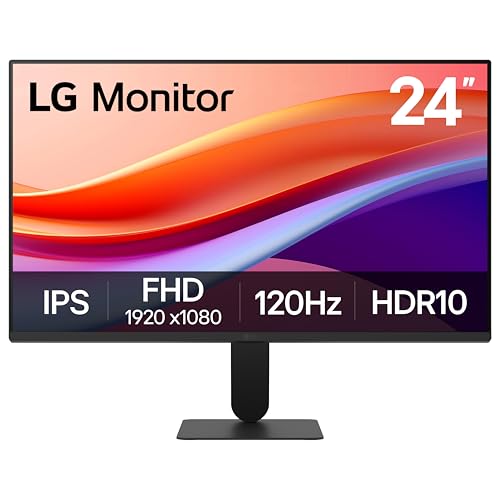
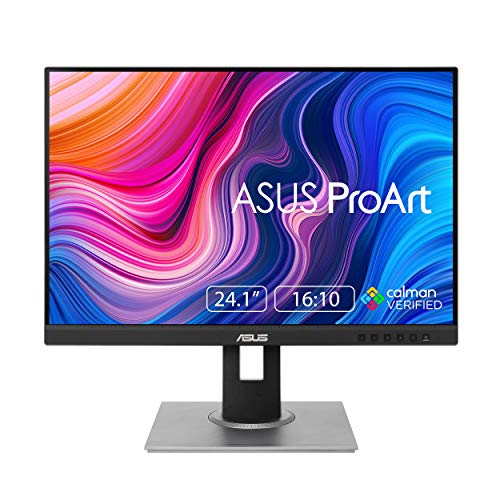
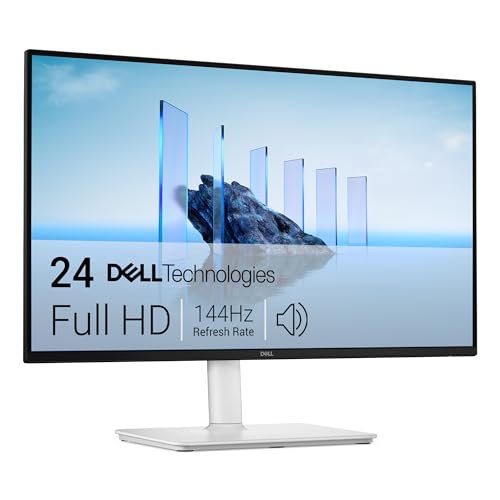
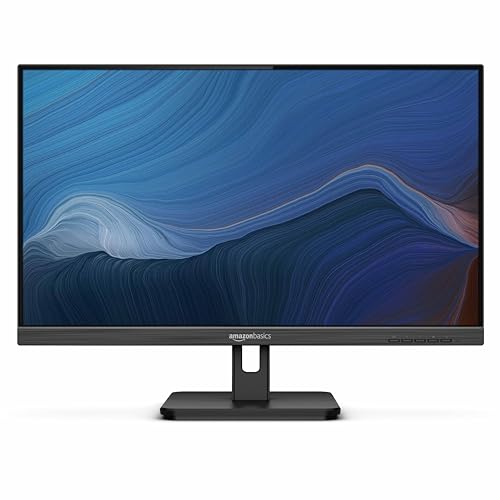
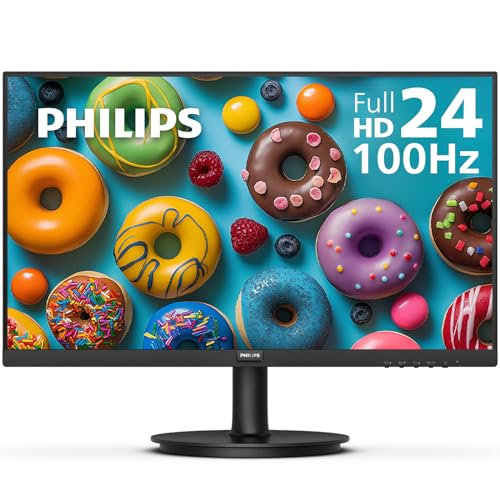
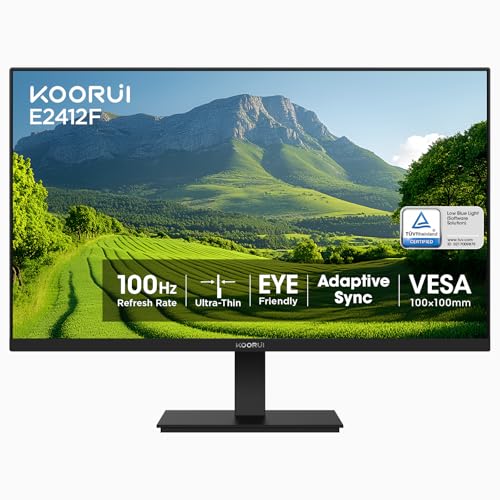
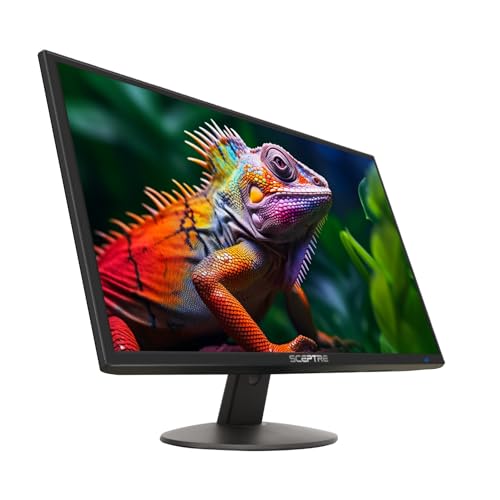
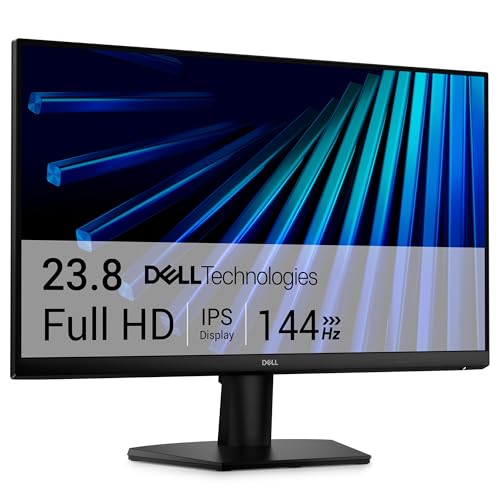


24 Inch Computer Monitors 101: The Basics for Work
A 24 inch monitor is measured diagonally, and most models are really about 23.8 inches of viewable screen. That size shows documents and tabs clearly while still fitting on a modest desk. Most work models use a 16 by 9 shape, so calls and office apps fill the screen without black bars.
At about 20 to 28 inches from your eyes, a 24 inch screen fills your view without forcing you to turn your head. If you often keep two large windows side by side, see our guide to the best 27 inch computer monitors and our guide to the best 32 inch computer monitors first.
Who Needs 24 Inch Computer Monitors for Work?
Start with the work you repeat daily, because choosing the best 24 inch computer monitors for work means matching the screen to your tasks. For a wider look, see our guide to the best computer monitors for work alongside the groups below.
Office Workers Who Live in Documents and Spreadsheets
You read small numbers, compare columns, and switch between email and files all day. Prioritize sharp text at 1920 by 1080 or higher, a matte surface that cuts glare, and a stand you can raise to eye level. A USB hub helps if you plug in a keyboard and mouse each morning.
Remote Workers With a Small Desk at Home
Your desk may also hold a laptop, a notebook, and a mug, so depth matters. A compact stand or a VESA mount can free several inches in front of the screen. One USB C cable for video and charging also helps, because fewer cables make a small space feel calmer.
Writers, Coders and Support Staff Who Read Text for Hours
You scroll through long pages and keep your eyes on words more than pictures. Look for flicker free backlighting, a low blue light mode you can leave on, and a pivot option if you like reading long documents in a tall view. Comfort over a full shift matters more than vivid color here.
Key Features to Compare in Plain English
Compare the factors below in order. Each one affects daily comfort or clarity, and none requires technical training to judge.
Resolution and Text Sharpness on a 24 Inch Screen
Resolution is the count of pixels, and more pixels make letters look smoother. Full HD at 1920 by 1080 is the common standard at this size and keeps text clear at a normal desk distance. QHD at 2560 by 1440 fits more rows on screen, but text may look small until you raise scaling. For most office jobs, Full HD is sharp enough and costs less.
Panel Technology: IPS, VA and TN Explained Simply
The panel makes the picture and controls color and viewing angles. IPS panels keep colors steady when you lean aside or share the screen, which suits most office work. VA panels show deeper blacks, but colors can shift at an angle. TN panels cost the least, yet colors wash out from above or below. OLED panels are rare at this size, and static toolbars raise a small risk of lasting image marks.
Brightness, Glare and Eye Comfort for Long Workdays
Brightness is measured in nits, and about 250 to 300 nits suits a typical indoor desk. A matte anti glare surface spreads reflections from windows and lamps, so you squint less in a bright room. Flicker free dimming helps if your eyes tire in the afternoon, and regular breaks help more than any single mode. If your eyes often feel dry or strained even after adjustments and breaks, talk with an eye clinician about your needs.
Ergonomics, Stand Adjustment and VESA Mounting
A good stand lets you set the screen for your body instead of bending to the screen. Height adjustment matters most, followed by tilt for glare and swivel for sharing your view. Your eyes should aim slightly down, with the top edge at or just below eye level. If a stand only tilts, check for a VESA pattern, usually 100 by 100 millimeters, so you can add an arm. See our guide to the best 24 inch computer monitors for stand types.
Ports, USB Hubs and Cables Your Laptop Needs
Ports decide how simple your daily setup feels. HDMI and DisplayPort both carry video from most computers, and many desks need two inputs for a laptop plus a second device. USB C is most convenient when it carries video and charges your laptop over one cable, but confirm your laptop supports video over USB C first. Built in USB ports let a keyboard and mouse stay plugged in.
Refresh Rate, Response Time and Sound for Calls
Refresh rate is how often the picture updates each second, shown in hertz. A rate of 60 to 75 hertz feels smooth for documents, scrolling, and video calls, and higher rates mainly help fast games. Response time matters little for office tasks, so do not pay extra for gaming numbers. Built in speakers are modest, but they handle call voices well and save desk space.
Getting Started: Setup and First Use for a Work Monitor
Unbox the monitor on a soft surface, attach the stand base until it clicks or the screw feels snug, and lift the screen by its lower edges. Connect the video cable, then the power cable, and turn the monitor on. If the picture looks small, open display settings and set the monitor to its native resolution.
Set text scaling to a level you can read without leaning in, often 100 percent at Full HD. Raise the stand until the top of the screen is near eye level and tilt it slightly back. Set brightness so white pages look close to the room light around you.
Rookie Mistakes to Avoid
- Buying a glossy screen for a desk facing a window leaves reflections that tire your eyes during afternoon work.
- Choosing a stand with tilt only forces you to stack books under the monitor or hunch toward it.
- Paying for a high refresh rate built for gaming wastes money that could buy a better stand or hub.
- Forgetting to check your laptop ports can leave you without the right cable on the first day.
- Sitting too close to the screen makes you scan every line and can leave your neck sore by evening.
Care and Maintenance for a 24 Inch Work Monitor
Clean the screen with a dry microfiber cloth. For stubborn marks, dampen the cloth lightly with water and wipe gently without pressing hard. Never spray liquid straight onto the panel, because drips can enter the lower edge. Keep drinks a short distance away, and dust the back vents so heat can escape.
Give cables a little slack so they do not pull on the ports when you adjust the stand. Turn the screen off at the end of the day instead of leaving a static image showing all night.
Frequently Asked Questions
What features matter most in 24 inch computer monitors for work?
Sharp text, height adjustment, and the right ports matter most for work. Start with Full HD resolution or higher, then check that the stand raises the screen to eye level without books or blocks. A powered USB C port is a useful extra for laptop users, because it can replace a separate dock for a keyboard, a mouse, and charging on many setups.
Is 4K resolution worth it on a 24 inch monitor for work?
For most work, 4K is not worth the extra cost at 24 inches. The pixels sit so close together that you must raise text scaling to read comfortably, which gives back much of the extra space. Detailed photo or design work at a close distance is the main case where 4K helps, because fine edges matter more than extra windows.
Does refresh rate matter for non gamers using a 24 inch monitor for work?
Refresh rate matters very little for non gamers doing office work. Documents, email, and video calls look the same at 60 hertz as at much higher rates, because the content changes slowly. One small benefit of 75 hertz is slightly smoother scrolling through long reports, which some readers notice when they move through contracts or code for hours.
Should work users choose IPS or OLED for a 24 inch monitor?
Most work users should choose IPS for a 24 inch monitor. IPS panels cost less at this size, show steady colors from a chair that shifts during the day, and carry no worry about static menus leaving marks. OLED suits video focused work in a dim room better, but office toolbars stay on screen for hours, which OLED handles worst over time.
What desk depth do you need for a 24 inch monitor for work?
A desk about 24 to 30 inches deep works well for a 24 inch monitor. That depth leaves room for the stand, a keyboard, and a comfortable gap between your eyes and the screen. On a shallower desk, a VESA arm can pull the screen closer to the wall and win back several inches for a notebook.
Wrapping Up
For a first work monitor, put your money in this order: clear resolution, a stand that adjusts for your posture, and ports that match your laptop. Panel type and eye comfort come next, while gaming numbers stay at the bottom of your list. Use the product table above to check those points side by side.
When you compare the best 24 inch computer monitors for work with that short list in hand, the right model is usually easy to spot. Choose the simplest screen that fits your desk and your tasks.