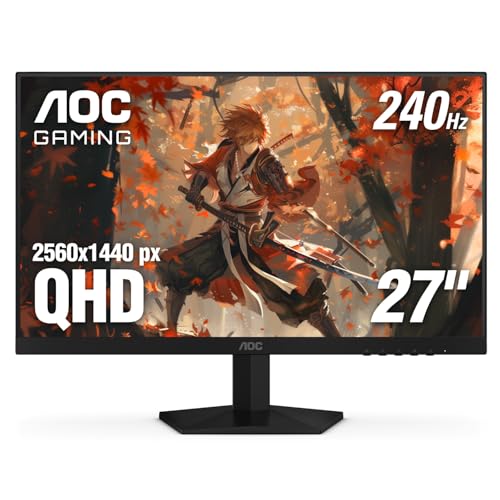
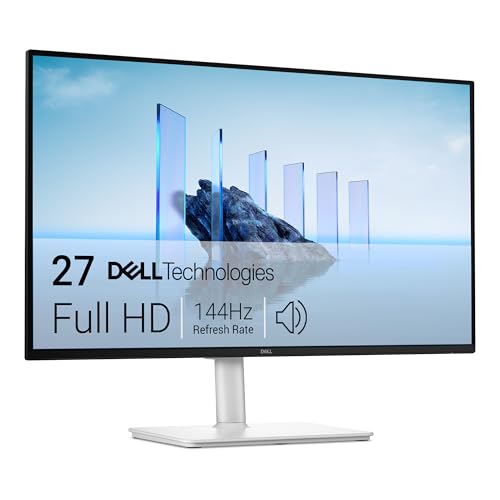
Best 165hz Monitors in 2026 Made Simple: A Clear Buying Guide
Disclosure: We may earn a commission when you buy through links on this page, at no extra cost to you. As an Amazon Associate I earn from qualifying purchases. Learn more

Best 165hz monitors explained: panel types, sizes, ports and setup tips to help you pick a smooth display for your desk and budget.
Your first high refresh monitor can feel confusing, because every box lists a wall of numbers. The best 165hz monitors share one core promise, a picture that updates 165 times each second, so motion looks smoother and aiming feels steadier than on a standard 60Hz screen. This guide starts with the basics in plain English, then walks through each spec in order. Use the product table to match those specs to your desk and budget.
You do not need to learn every term before you shop. You only need to know which specs change what you see. The sections below explain panel types, size, ports and setup, and they flag the errors that cost new buyers money.

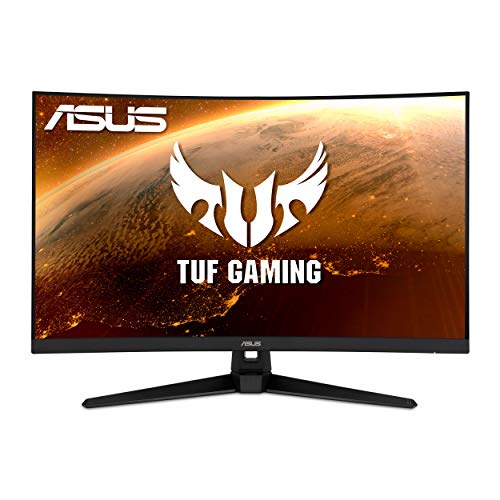


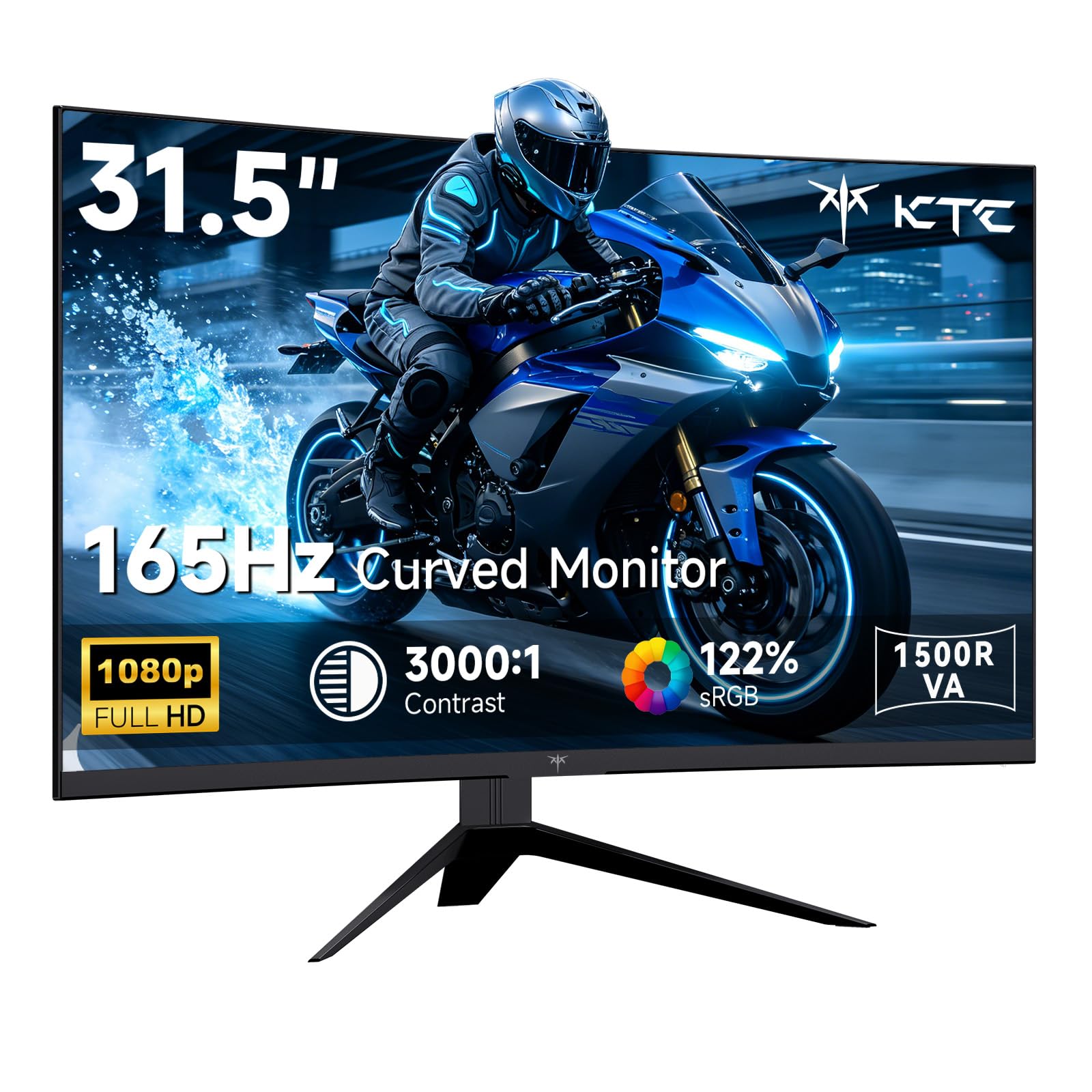


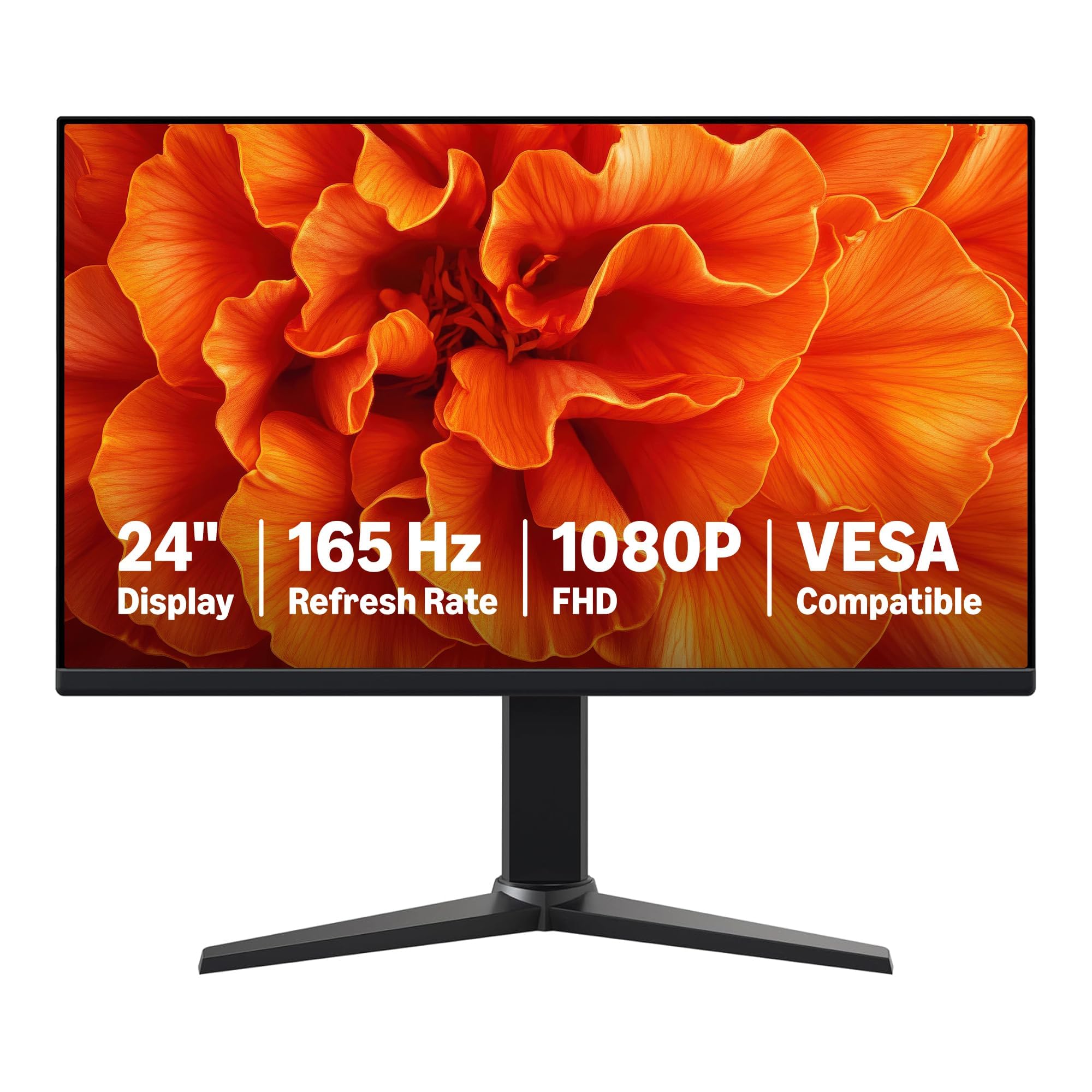
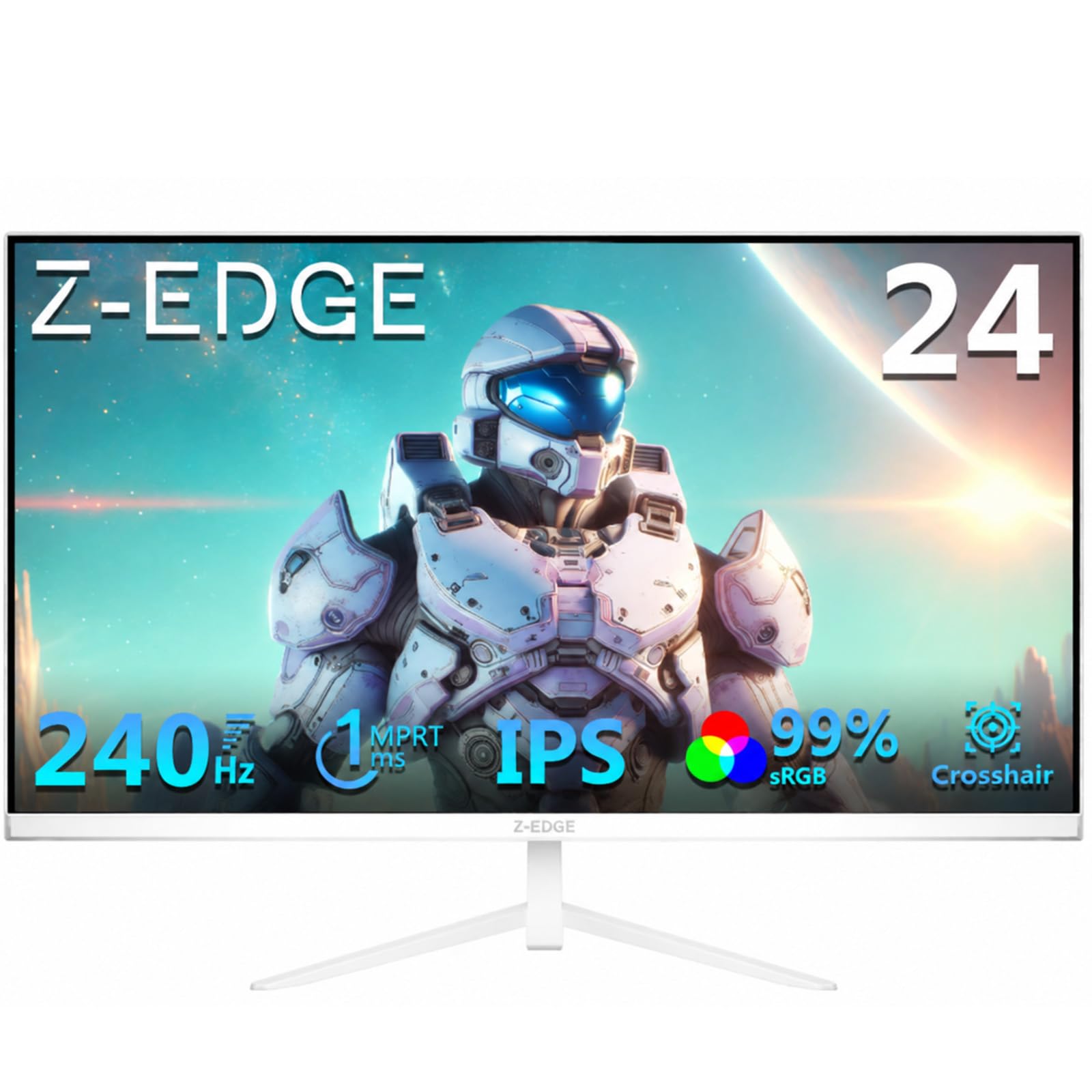
165Hz Monitors 101: The Basics
A refresh rate tells you how many times the screen draws a new image each second, and it is measured in hertz. A 60Hz screen draws 60 images each second, while a 165Hz screen draws 165, so moving objects cross the screen in smaller steps. Your eyes read those steps as smoother motion and clearer detail during fast turns. The monitor can only show frames your computer sends, so the two must work as a pair.
Most new buyers feel the jump from 60Hz to 165Hz most in games with quick camera movement. A higher rate does not fix a dim panel or a weak computer. Think of 165Hz as a ceiling, then judge the picture that fills it. Budget displays here often cost about $150 to $250.
Who Should Buy a 165Hz Monitor?
Your games, desk hours and other screens decide how much value 165Hz adds. Match yourself to one group below, then carry that priority into the spec sections.
Players Who Want Smoother Fast Games
You play shooters, racing games or sports titles with fast swinging views. A 165Hz screen with a quick panel and adaptive sync tops your list, because blurred frames hide detail you react to. For a wider view, see our guide to the best gaming monitors.
Desk Workers Who Also Play at Night
You write, browse and join calls all day, then play for an hour or two in the evening. Choose an IPS panel at 1440p for clear text, and treat 165Hz as a calm scrolling bonus. For more balance points, see our guide to the best computer monitors for gaming.
Console Players With a 120Hz Ceiling
You play on a current console that tops out at 120 frames per second. A 165Hz monitor still suits you, because the screen shows each frame the console sends and keeps headroom for a future computer. Prioritize an HDMI 2.1 port, since the console sets your limit.
165Hz Specs Translated Into What You Actually See
Specs look technical, but each one answers a simple question. When you compare the best 165hz monitors, read these six areas in order, because panel, size and ports decide your daily experience.
Panel Types Behind Smooth 165Hz Motion: IPS, VA, OLED and Mini LED
The panel sets color, contrast and viewing angle. IPS panels keep colors accurate when you sit off center. VA panels show deeper blacks for dark rooms but can smear dark motion. OLED panels light each pixel alone, so blacks look perfect and motion stays crisp, but static images held for hours raise burn in risk. Mini LED is a bright backlight that lifts HDR highlights.
Resolution and Screen Size
Resolution counts the pixels on the screen, and more pixels make text sharper when size stays matched. Pair 1080p with 24 to 25 inches, 1440p with 27 inches, and 4K with 32 inches, at a desk distance of about 24 to 30 inches. A 27 inch 1440p screen is the balanced choice for most desks, and if that pairing fits you, see our guide to the best 1440p 165hz monitors.
Refresh Rate and Pixel Response at 165Hz
Refresh rate and response time work together, because a fast refresh only helps if each pixel can change color quickly. Look for a native 165Hz rate rather than a lower rate with an overclock note, and treat 1 ms claims with care, since brands measure them in different ways. The result is motion with little blur and no dark trails. For screens built around this speed class, see our guide to the best gaming monitors 165hz.
Connectivity and Ports
Ports decide whether your computer can send 165 frames each second to the screen. DisplayPort 1.4 is the usual route to full 165Hz at 1440p, while older HDMI ports may cap the rate at some resolutions. HDMI 2.1 carries more bandwidth and suits consoles and 4K models. USB C with video input lets a laptop drive the screen over one cable. Use the cable packed with the monitor, because older spare cables often limit the rate.
Stand, Mounting and Ergonomics
A stand that adjusts keeps your neck and eyes comfortable through long desk sessions. Look for height and tilt adjustment, plus swivel or pivot if you share the screen. Check the VESA mount pattern, often 100 by 100 mm, if you plan to use a monitor arm, since an arm frees desk space below the screen. Set the top of the screen near eye level, because a low screen pulls your posture down within an hour.
Adaptive Sync, HDR and Color
Adaptive sync lets the screen change its rate to match the frames your graphics card sends, so motion stays smooth without tearing as rates rise and fall. FreeSync and G Sync do the same job for different hardware, so match yours to your card. HDR adds brighter highlights and deeper shadows, but only bright panels with local dimming show a real gain. If picture quality leads your list, see our guide to the best quality monitors.
Rookie Mistakes to Avoid
New buyers rarely pick the wrong panel first. They lose its benefit through small setup and pairing errors like these.
- Leaving the screen at its 60Hz default keeps motion slow and wastes the speed you paid for.
- Pairing a 4K 165Hz screen with an entry level graphics card leaves frame rates low and forces lower game settings.
- Placing a 32 inch screen on a shallow desk puts the picture too close and strains your eyes.
- Judging a monitor by its lowest response time claim alone can land you with dull color and weak contrast.
- Skipping the port check can leave a new screen capped below 165Hz by an older HDMI socket.
First Setup Steps to Unlock the Full 165Hz Rate
Start by attaching the stand on a soft, flat surface, then connect the DisplayPort cable to your graphics card, not the main board. Power the screen on and open your display settings, because most computers start a new monitor at 60Hz. Select 165Hz there, then confirm the rate inside your game menu as well.
Next, turn on adaptive sync in the monitor menu and in your graphics card panel so the two settings match. Leave the vivid mode behind, choose the standard or sRGB mode, and set brightness so white pages feel calm. On an OLED screen, run the pixel refresh cycle after long sessions and let it finish without cutting power.
Care and Maintenance for 165Hz Monitors
Clean the screen only when it is off and cool, using a dry microfiber cloth and light pressure in slow circles. If a mark stays, dampen the cloth with plain water, and never spray liquid straight onto the panel, because drips can reach the lower edge and damage the electronics.
Dust the vents and back panel each month so heat can leave the case, and check that cables hang with slack instead of pulling at their ports. Lower brightness during plain desk work to slow backlight wear. A screen that flickers or loses signal on two cables needs service rather than more settings changes.
FAQ
Is IPS or OLED better for a 165Hz gaming monitor?
For most first time buyers, IPS is safer, while OLED wins on contrast and motion clarity. OLED panels cost more at each size, and their automatic brightness limits can dim large white windows during desk work. Choose OLED for a dim room and mostly gaming use, and choose IPS if the screen doubles as your daily work display.
What size 165Hz monitor should you buy for a desk?
For most desks, a 27 inch 165Hz monitor is the right size. Measure desk depth before you order, and keep about 20 inches between your eyes and the screen. If your desk is shallow, a monitor arm pulls the screen back and reclaims the space the stand used. Among large screen options, 32 inch models suit desks about 30 inches deep.
Is 4K worth it on a 165Hz gaming monitor?
4K is worth it on a 165Hz monitor only if your graphics card can feed it and you sit at 32 inches or larger. At that size, system text scaling keeps apps readable while games gain fine detail in distant scenery. If your card targets 1440p frame rates, a 1440p screen gives you the full 165Hz experience at a lower total cost.
How long does a 165Hz monitor usually last?
A 165Hz monitor usually lasts about five to eight years of daily use. The panel rarely fails first; the backlight slowly dims, and ports wear sooner on screens that move between desks often. Keep the original box if you can, because safe transport during a move protects the panel, and check the warranty length before you buy.
Does a 165Hz refresh rate matter if you do not play games?
Yes, a 165Hz refresh rate still helps if you do not play games, but the gains are smaller and easier to miss. Text stays readable while you scroll long documents, the pointer glides with less stutter, and video timeline scrubbing feels more direct. It will not sharpen a still page or improve a film, so weigh the gain against price.
Final Thoughts
Start with the panel and the size pairing, because those two choices shape every hour you spend at the screen. Add the port your computer needs, and let extras wait until those three points are right.
Use the product table above to confirm size, ports and price against that short list. When you compare best 165hz monitors with those points fixed first, the right screen usually stands out, and your first setup starts smooth from day one.