Best 1440p Monitors Under 200: A Buying Guide for 2026
Disclosure: We may earn a commission when you buy through links on this page, at no extra cost to you. As an Amazon Associate I earn from qualifying purchases. Learn more

Compare the best 1440p monitors under 200 by panel type, screen size, refresh rate and ports, with a checklist for gaming, office work and home use.
A 1440p screen gives you sharper text and more room for windows than 1080p, yet this price band forces real trade offs in brightness, stands and ports. The best 1440p monitors under 200 balance panel quality and refresh rate against those cuts, and this guide shows you where each dollar matters before you study the product table.
Start with your main use, because the right budget display for fast games is rarely the right one for document work. The sections below sort buyers by use, then walk through panel type, size, sync and color.

Who Should Buy a 1440p Monitor Under $200?
Each group below should spend its limited budget on a different strength.
Home Office Workers Who Read Text All Day
You need crisp letters, stable colors from a slight angle and comfort through long sessions. Prioritize an IPS panel, a matte finish that cuts window reflections and flicker free backlighting. A tilt only stand is acceptable if your desk places the screen at eye level.
Budget Gamers Stepping Up From 1080p
You want motion clarity more than perfect color, so a panel rated at 144 Hz or higher with adaptive sync should top your list. Check that your graphics card can drive newer games near that rate at 1440p, because a fast panel shows little benefit when frames arrive slowly.
Students and Families Sharing One Screen
You switch between classes, streaming and light photo work, so viewing angles and simple setup matter most. A 27 inch IPS model suits shared viewing, since people off center still see even brightness. Look for two video inputs so a laptop and a console stay connected.
Key Features to Compare
Work through these factors in order. For other screen sizes in this budget, see our guide to the best monitors under 200.
What a Budget 1440p Panel Gives You in Speed and Brightness
At around $150 to $200 you can expect a solid IPS or VA panel, a refresh rate between 100 Hz and 180 Hz and brightness near 250 to 350 nits. What usually gets cut is the stand, which may tilt only, plus USB ports, speakers and HDR performance. Never accept a dim panel on a screen you use daily. That is why the best 1440p monitors under 200 reward careful spec reading more than brand loyalty.
Panel Technology: IPS, VA and TN
IPS panels hold color and brightness well when you lean or share the screen, which suits office work and photo tasks. VA panels give deeper blacks and stronger contrast for films and dark game scenes, but colors shift more off center and dark motion can smear. TN panels respond quickly yet look washed out at angles, and they are now rare here. OLED panels sit far above this budget.
Pixel Density and Viewing Distance at 1440p
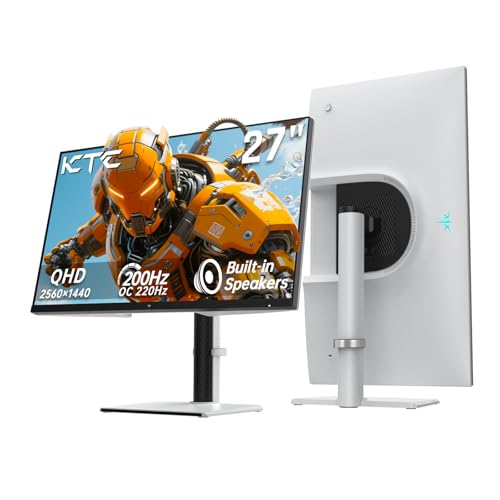
A 1440p panel packs 2560 by 1440 pixels, and at 27 inches that density keeps text sharp. A 24 inch model feels crisper and fits shallow desks, while a 32 inch screen spreads the same pixels thinner, so edges look softer up close. Sit about an arm length away. For general desk setups, see our guide to the best pc monitors under 200.
Adaptive Sync and Gaming Features
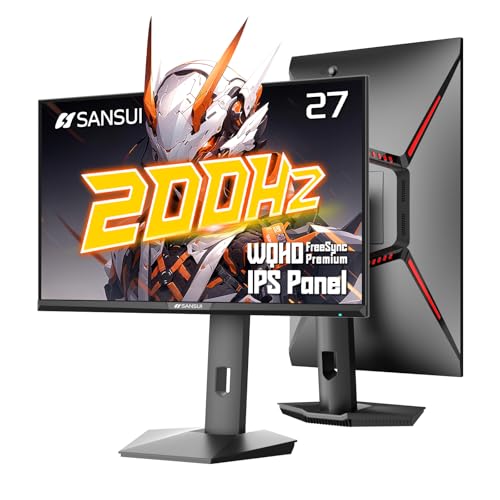
Adaptive sync lets the monitor match its refresh rate to the frames your card sends, which removes tearing and reduces stutter when rates dip. FreeSync works over HDMI and DisplayPort with most modern cards, and many models also carry G Sync Compatible status. Confirm the sync range, often about 48 Hz to 144 Hz. Gamers can also see our guide to the best gaming monitors under 200.
How Fast Pixels Need to Change for Smooth Motion
Refresh rate counts how often the image redraws each second, and moving from 60 Hz to 144 Hz makes pans and cursor motion look far smoother. Response time describes how fast pixels change color, with about 1 ms to 5 ms quoted under ideal settings. Value a well tuned overdrive setting more than the smallest figure, since aggressive overdrive can add pale trails.
Brightness, Color and HDR Claims
Look for at least 99 percent sRGB coverage for accurate everyday color, and wider DCI P3 coverage near 90 percent if you edit video for online platforms. Brightness near 300 nits handles a lit room well. HDR labels at this price mostly mean the screen accepts an HDR signal rather than showing true HDR contrast, because the backlight lacks local dimming zones.
Types of 1440p Monitors in This Price Band
Most models under $200 fall into one of three camps below.
Balanced Everyday Displays
These pair an IPS panel with a 100 Hz to 165 Hz refresh rate and a plain stand. They handle documents, browsing, video and casual games without a weak point. This is the safest camp for a first 1440p purchase.
Contrast Led VA Displays
VA models, often curved at this price, trade viewing angle for blacks that look truly dark in the evening. Films and atmospheric games gain depth, while shared viewing and color critical work suffer. Choose this camp if one viewer in a dim room uses the screen most.
Speed Led Gaming Displays
Gaming models push refresh rate to 180 Hz or beyond and add menu tools such as a black equalizer. Color accuracy and stand quality usually step down to pay for that speed. Choose this camp only when fast competitive games dominate your screen time, since slower games gain little from the last few hertz.
1440p Monitors for Specific Needs
One panel type earns a closer look on its own.
Best IPS 1440p Monitors Under 200
Shoppers looking for IPS models usually care about text clarity and color that stays true when they shift in their chair. Within IPS models, compare matte coating strength, sRGB coverage and the sync range for occasional games. A height adjustable stand, when one appears at this price, beats a small refresh rate gain.
Setting Up a 1440p Monitor Correctly
Good setup costs nothing and fixes problems buyers often blame on the panel. Place the top of the screen near eye level, then set your system output to 2560 by 1440 and the highest refresh rate the monitor supports, since many systems default to 60 Hz. Use the DisplayPort cable from the box for the full rate, because older HDMI cables can cap the signal.
Common Mistakes to Avoid
- Buying a 32 inch 1440p screen for close desk work leaves text visibly soft and forces constant head turning.
- Leaving the system set to 60 Hz wastes the refresh rate you paid for and makes motion look ordinary.
- Trusting an HDR badge at this price leads to washed out films because the backlight cannot dim in zones.
- Ignoring the VESA pattern, usually 100 by 100 mm, means your planned monitor arm may not fit at all.
- Paying extra for USB C on a rare budget model often means accepting a dimmer panel.
- Judging color in a vivid mode hides the muted tones you will see in normal use.
Care and Maintenance for a 1440p Monitor
Clean the screen only with a dry or slightly damp microfiber cloth, and never spray liquid directly onto the panel, since drips can reach the lower edge electronics. Keep brightness near the level your room needs rather than at maximum, which eases backlight wear. Leave ventilation slots uncovered and check cable connections if flicker appears, because a loose plug is the most common cause.
FAQ
Can you get a good 1440p monitor for under $200?
Yes, you can get a good 1440p monitor for under $200 if you accept a simple stand and modest speakers. One check many buyers skip is the dead pixel policy in the warranty, which states how many faulty pixels a maker allows before a replacement counts. Read that clause before ordering, since one bright pixel near the center can bother you for years.
What size 1440p monitor suits a small desk best?
A 24 inch or 27 inch 1440p monitor suits a small desk best, with 27 inches offering the calmer view. Measure desk depth rather than width, because a deep stand can push the screen too close even on a wide desk. If depth falls under about 24 inches, a VESA arm frees space for your keyboard.
Does refresh rate matter for 1440p monitor users who do not game?
Yes, refresh rate still matters for 1440p monitor users who do not game, though the gain is smaller. Scrolling through long documents looks steadier at 100 Hz or above, and window dragging feels smoother. Video gains little, since films are recorded at far lower frame rates, so office buyers can favor panel quality over top speed.
How long does a 1440p monitor usually last?
A 1440p monitor usually lasts about five to eight years of daily use before the backlight dims noticeably. LED backlights fade gradually rather than failing at once, so an aging screen looks dim at settings that once felt bright. Moderate brightness and letting the screen sleep when you step away stretch that span.
Is IPS or OLED better for a 1440p monitor under $200?
IPS is the realistic choice for a 1440p monitor under $200, because genuine OLED panels cost several times this budget. OLED also carries a burn in risk with static taskbars left on screen all day. Under $200, the honest contest is IPS against VA, and IPS wins for shared viewing while VA wins for dark room films.
Is 4K worth paying more for than 1440p at this budget?
No, 4K is rarely worth paying more for than 1440p at this budget, because the jump forces cuts in refresh rate and panel quality. System scaling also shrinks text on smaller 4K screens, which can strain your eyes during long reading. At 27 inches, 1440p already looks sharp at a normal desk distance.
Our Verdict
Panel type, screen size and refresh rate decide how a budget 1440p screen feels every day, so settle those three before extras. Office readers should favor a 27 inch IPS panel, gamers should favor sync and speed, and film fans can accept a VA panel for its contrast. Compare your shortlist against the product table, then choose the best 1440p monitors under 200 option that protects the strength your main use needs most.