Best 1 TB Hard Drives 2026: Storage Buying Guide
Disclosure: We may earn a commission when you buy through links on this page, at no extra cost to you. As an Amazon Associate I earn from qualifying purchases. Learn more
Best 1 TB hard drives for PC, laptop, or backup, with tips on speed, internal versus external, and reliability.
Best 1 TB hard drives remain a practical choice for everyday storage, backups, and media libraries, even as larger drives grow cheaper. One terabyte holds a large photo collection, many documents, and a solid game or video library, without the cost jump of much larger capacities. This guide explains drive types, speeds, form factors, and reliability so you can pick the right 1 TB drive for your machine.
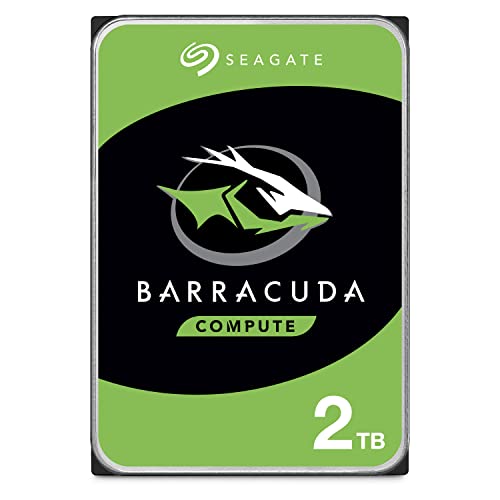
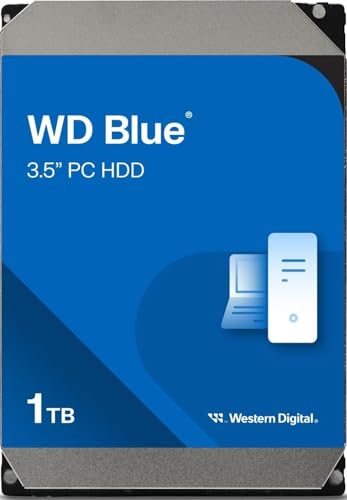
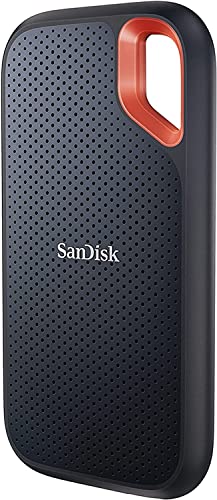
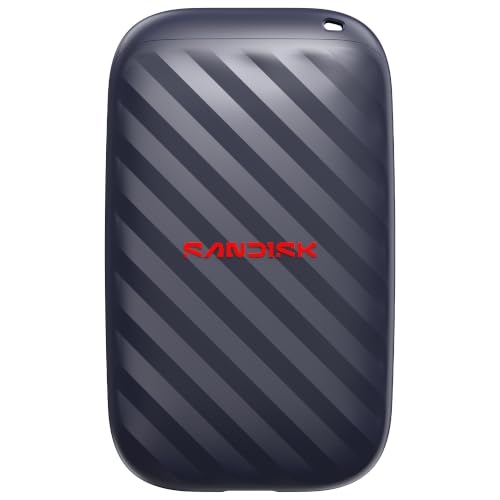
The product table gives an overview of the main options, and the sections that follow cover internal versus external drives, hard disk versus solid state choices, speed specs, and backup habits. A drive that fits your machine and your backup routine matters more than headline speed alone.


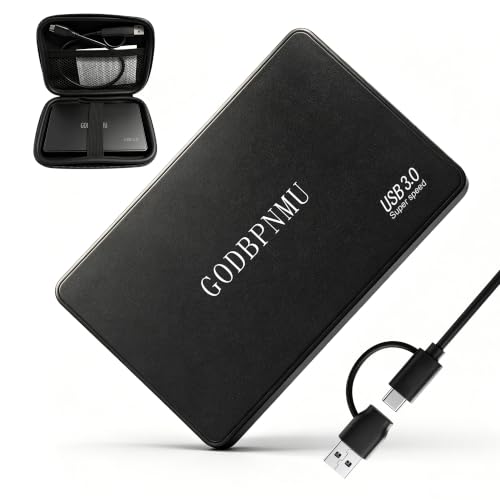
Internal Versus External Drives
Internal drives install inside a desktop or laptop and suit primary storage, system upgrades, or a second data drive. They need a free bay or slot and the right connection, usually SATA for hard disks or M.2 and SATA for solid state drives. External drives connect by USB and suit backups, media libraries, and moving files between machines without opening a case.
External drives add portability and simple setup, but they depend on USB speed and a cable that can wear over time. Internal drives run faster on a direct connection and stay tidier, yet they need installation care and compatibility checks. Choose internal for a permanent upgrade and external for backup and portability, and many households benefit from one of each. For more portable options, see best external storage hard drives.
Hard Disk Versus Solid State at 1 TB
Traditional hard disk drives offer 1 TB at low cost with spinning platters, which suits bulk media and backups where speed matters less. Solid state drives use flash memory with no moving parts, giving faster boot times, quicker file access, and better shock resistance. At 1 TB, solid state prices have fallen enough that many users now choose them for primary system drives.
Hard disks still win for cheap bulk storage and large media archives, especially in desktops with room to spare. Solid state drives win for laptops, frequent travelers, and anyone who values speed and silence. A common setup pairs a solid state system drive with a hard disk data drive, giving speed where it counts and capacity where it costs less.
Speed Specs That Matter
For hard disks, rotational speed and cache affect performance, with 7200 rpm drives generally faster than 5400 rpm drives for everyday tasks. For solid state drives, read and write speeds matter, but real world differences shrink once speeds pass everyday needs such as booting and opening apps. Interface matters too, since USB 3 or faster ports unlock external drive speed while older USB 2 ports bottleneck any modern drive.
Do not chase headline speeds alone, because sustained write speed and thermal behavior affect large file copies more than burst numbers. Check independent measurements when available, and favor drives with consistent performance over ones that peak briefly then slow. For backups, reliability and capacity matter more than shaving seconds off a transfer.
Form Factors and Compatibility
Desktop hard disks commonly use the 3.5 inch size, while laptop drives use 2.5 inch, and solid state drives use 2.5 inch SATA or M.2 formats. Check your machine manual for supported sizes and interfaces before ordering, since a drive that does not fit wastes time and return shipping. M.2 drives come in different lengths and key types, so confirm both before buying.
External drives need only a free USB port, yet cable type and power matter, since some larger desktop externals need mains power while portable models run from USB alone. If you move between machines, choose a portable external drive with a sturdy cable and a case that protects against drops. Compatibility with your operating system matters less now, though formatting choices affect use across different systems.
Reliability and Backup Habits
No single drive is a backup by itself, because any drive can fail, get lost, or suffer damage. Follow a simple backup habit, keeping important files in at least two places, such as an external drive plus cloud storage or a second local drive. Check backup drives now and then by restoring a sample file, since a backup you never check may fail when you need it most.
Drive health tools can report warnings for internal drives, and unusual noises, slow access, or frequent errors signal a drive to replace promptly. Keep drives cool and ventilated, avoid shocks for spinning disks, and store external backups away from the main machine when possible. Good habits protect data far better than any single drive brand claim.
Choosing the Best 1 TB Hard Drives by Use Case
For a laptop upgrade, a 1 TB solid state drive usually gives the biggest everyday improvement in speed and battery life. For a desktop media library, a 1 TB hard disk offers cheap capacity for photos, videos, and music. For console storage expansion, check console compatibility first, since some consoles need specific drive types or external formats.
For photography or video work, favor faster solid state storage for active projects and hard disk storage for finished archives. For office documents and general use, either type works, so let budget and machine fit decide. The product table can help you compare options once you know your machine and main use.
A Final Check Before You Order
Before ordering, confirm your machine's free slots and interfaces using the manual or maker support pages. Guessing risks ordering a drive that does not fit, while a five minute check prevents returns. Note whether your machine needs brackets, cables, or adapters, and order them together to avoid delays.
Plan your data migration in advance, backing up irreplaceable files before any drive swap or format. Cloning tools simplify system transfers, while fresh installs suit users who want a clean start. Either way, keep the old drive untouched until the new setup proves stable.
Label new drives clearly in your operating system, so backups and file locations stay obvious months later. Clear names such as Photos Archive or Work Backup prevent confusion when multiple drives connect. Good labeling saves time during stressful recovery moments.
Finally, set a calendar reminder to check drive health every few months, using built in tools or maker utilities. Early warnings give time to back up and replace drives before failure. Routine checks take minutes and protect years of files.
Related Guides to Compare
For a broader look at terabyte drives beyond 1 TB, see best tb hard drives for capacity comparisons.
If 1 TB feels tight for a growing library, best 2 tb hard drives covers double capacity options and prices.
For mirrored storage setups, best hard drives for raid 1 explains drives suited to RAID 1 use.
Portable backup users can compare best 2 tb external hard drives for larger external models.
For reliability focused buying, best quality hard drives covers build and warranty considerations.
Frequently Asked Questions
Is 1 TB enough storage today?
One terabyte suits many users, holding large photo libraries, documents, and a solid game or media collection without strain. Heavy video editors, large game libraries, and 4K footage archives may need more, so estimate your current use and growth over two years. If your current drive stays under 70 percent full, 1 TB likely serves you well for a good while.
Should I choose SSD or HDD at 1 TB?
Choose a solid state drive for speed, silence, and shock resistance, especially in laptops and primary system roles. Choose a hard disk for cheap bulk storage in desktops where speed matters less and capacity per cost matters more. Many users combine both, with a solid state system drive and a hard disk for media and backups.
Can I install a 1 TB drive myself?
Many users can install a drive themselves with basic tools and a guide for their specific machine, especially external drives that need only USB. Internal installs need care with static, cables, and screws, and laptops vary greatly in access. If you are unsure, ask a technician, and always back up important data before opening any machine.
How do I back up a 1 TB drive?
Back up important files to a second drive or cloud storage, keeping at least two copies of anything you cannot replace. Restore a sample file now and then, since an unchecked backup may fail when needed. Automate backups when possible, so protection continues without remembering each week.
How long do hard drives last?
Hard drives often last several years, though lifespan varies with use, heat, vibration, and luck. Solid state drives also wear with writes, but most users replace machines before reaching wear limits. Watch for slow access, errors, or unusual noises, and replace any drive showing warning signs before it fails completely.
Final Thoughts
Choose a 1 TB drive by machine fit, use case, and backup habits, favoring solid state for speed and hard disk for cheap bulk capacity. The product table summarizes the main choices, and a second copy of important files matters more than any single drive feature. Capacity, compatibility, and reliability together decide value.
With best 1 tb hard drives matched to your machine and routine, storage stops being a worry and becomes simple background capacity. Back up regularly, keep drives cool, and enjoy room to grow.