
Best 2TB Hard Drives 2026: Internal and External Buying Guide
Disclosure: We may earn a commission when you buy through links on this page, at no extra cost to you. As an Amazon Associate I earn from qualifying purchases. Learn more
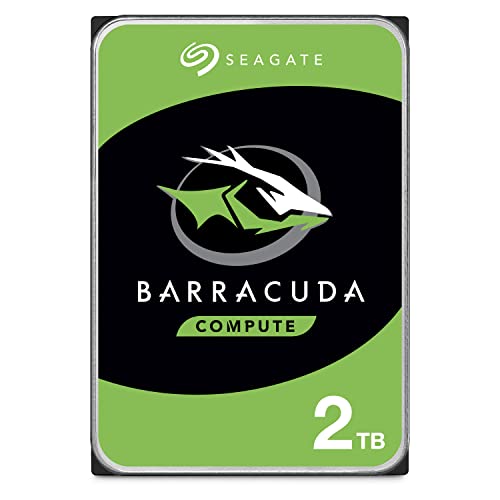
Learn how to choose 2TB hard drives for backups, photos, games and everyday storage, with clear advice on internal versus external models.
A 2TB drive is the sweet spot for many households: roomy enough for years of photos, a game library, or a full computer backup, yet still affordable. The best 2tb hard drives differ mainly in where they live (inside a desktop or in a portable case), how fast they spin, and how long the maker stands behind them. Use the product table below to compare drives, then read on to match the type to your routine.
This guide covers 2TB hard disk drives, both internal and external, and explains when a solid state drive is the better choice.
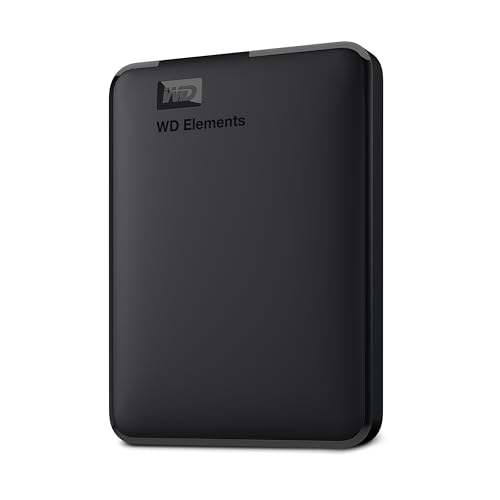
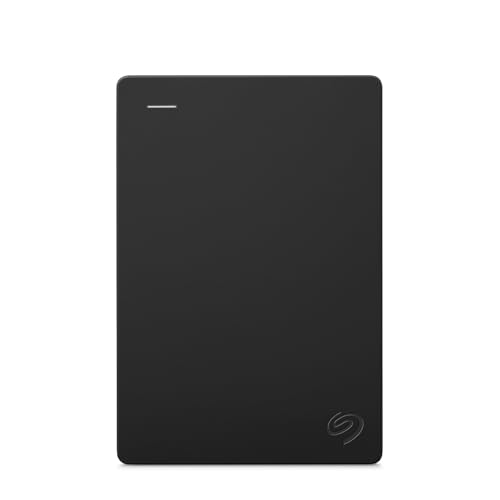


Internal or External: Which Do You Need?
Choose an internal drive if you have a desktop with a free bay and want cheap bulk storage next to your main drive. Internal 3.5 inch drives cost less per terabyte and run faster than most portable models. Choose an external drive if you want to back up several computers, carry files between locations, or add storage to a laptop or game console without opening anything.
If you only need a place for photos, documents, and a backup, an external model is the simpler path. If you are building or upgrading a PC, an internal drive saves money and keeps the desk tidy.
Key Features to Compare
Spin Speed and Cache
Most 2TB desktop drives spin at 5400 or 7200 rpm. A 7200 rpm drive with a larger cache loads big files faster, while a 5400 rpm drive runs cooler and quieter. For an archive or backup, 5400 rpm is plenty. For game libraries and media that you open often, 7200 rpm feels more responsive.
Recording Technology
Some drives use CMR recording and others use SMR. CMR handles long, steady writes better, which matters if you copy large folders or keep the drive in a NAS box. SMR can slow down during sustained writing but costs less. Check the listing for the recording type when it matters to you.
Connection and Compatibility
Internal drives use a SATA connection, and you need a free SATA data cable and power connector. External drives use USB, and the port on your computer sets the transfer speed. Check whether the drive is formatted for Windows or Mac, and whether a game console needs its own format. A quick reformat during setup usually solves it.
Build Quality and Warranty
Portable hard drives contain moving parts, so a rubber or armored shell helps them survive bumps. Internal drives sit safely inside a case but still dislike jolts while spinning. Warranty length is the clearest durability signal in a listing: look for at least two years, and three if you can get it.
Capacity Planning
Two terabytes stores hundreds of thousands of photos or a large library of games and video, but a growing archive can fill it over a few years. Add up your current files, estimate yearly growth, and keep about a fifth of the drive free so the file system stays healthy.
Choosing a Drive for Your Routine
Backups and Photo Libraries
A portable drive with backup software, or a simple external drive paired with the built-in backup tool on your computer, covers most households. Keep a second copy of irreplaceable photos in another place, because a single drive can fail.
Gaming and Large Files
Keep your most played games on a fast drive and move the rest to a 2TB hard drive. An internal 7200 rpm drive handles this well, while a portable drive suits console storage for older titles. Check your console rules, since some require a specific format or connection.
Home Office and Everyday Storage
Documents need little speed, so choose for reliability and price. A mainstream drive from a major maker with a solid warranty is enough. Add automatic backup so the drive protects your work without extra effort.
NAS and Camera Recording
NAS drives and surveillance drives are tuned for running all day. They add vibration tolerance and steady writing, so choose one of those classes if the drive will sit in a network storage box or a camera recorder. A desktop drive in these jobs can pause for error checks or wear out sooner.
Hard Drive or Solid State Drive?
Hard drives win on price per terabyte, so they are the right choice for archives, backups, and bulk media. A solid state drive costs more for the same 2TB, but it is much faster, silent, and better at surviving bumps. Many people use an SSD for the operating system and current projects, then add a 2TB hard drive for everything else.
What to Expect at Different Prices
Basic portable 2TB drives from major makers sit at the low end of the price range and suit backups and simple storage. Mid priced models add rugged shells, backup software, and password protection. Internal 3.5 inch drives often cost about the same as a basic portable drive but run faster and last longer in a desktop. NAS and surveillance classes cost more because of their always on tuning and longer warranties. Pay for the class you need, and skip extras you will not use.
Setting Up Your New Drive
For an external drive, connect the cable, confirm the format matches your devices, and run the first full backup while you do something else. For an internal drive, mount it in a free bay, connect the SATA and power cables, then initialise and format it in your system disk tool. Name the drive clearly, such as Archive or Backup, so you remember its job. Eject external drives properly every time, and update firmware and backup software when the maker offers it.
Common Mistakes to Avoid
- Buying on price alone without checking recording type, warranty, or class.
- Using the only copy of precious files on a single drive.
- Forgetting the SATA cable or the correct bay size for an internal drive.
- Skipping the format check before loading an external drive with files.
- Placing a drive on a hot or unstable surface, or moving the case while it spins.
Care Tips
Give the drive airflow, keep it on a stable surface, and always eject an external drive before unplugging it. Run the maker health tool a few times a year, and replace a drive that starts clicking or showing errors, after copying files off it. Store spare drives in a dry place inside an antistatic bag.
Frequently Asked Questions
Is a 2TB hard drive enough for a gaming library?
It holds many games, though very large modern titles can fill it faster than expected. Keep your most played games on your fastest drive and use the 2TB drive for the rest.
Can one drive serve both backup and daily storage?
It can, but backups on the same drive as your daily files defeat the purpose if the drive fails. Keep a second copy of important files elsewhere.
What makes a hard drive last longer?
Cool, steady operation, gentle handling, and safe ejection all help. Avoid drops and sudden power cuts, and replace a drive that makes new clicking sounds.
Do I need a fast drive for photos?
Photo browsing and editing run well on a standard modern drive. A faster connection helps when importing many files at once, but speed matters less than for video.
Final Thoughts
Decide between internal and external first, then match spin speed, recording type, and warranty to your routine. Keep a second copy of anything you cannot replace. With those points settled, the best 2tb hard drives in the product table above are easy to compare.
