Best Computer Monitors Under 200 at Every Price for 2026
Disclosure: We may earn a commission when you buy through links on this page, at no extra cost to you. As an Amazon Associate I earn from qualifying purchases. Learn more

Pick the best computer monitors under 200 by price tier: what each level buys and which upgrades are worth paying for.
Shopping for best computer monitors under 200 can feel confusing because prices in this range cover very different screens. Some models focus on a large sharp picture for office work, while others focus on fast motion for games, and a few try to do a little of both. This guide explains what changes as you spend more, so you can match your budget to the features you will actually notice every day.
The comparison table below gives a quick overview, and the sections that follow explain each choice in plain language. You will learn which panel types suit text work, which refresh rates matter for games, and which extras are safe to skip when money is tight. Prices and availability can change, so check the product page before ordering.

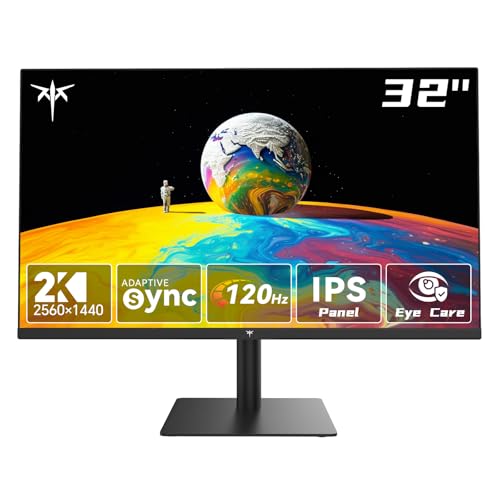
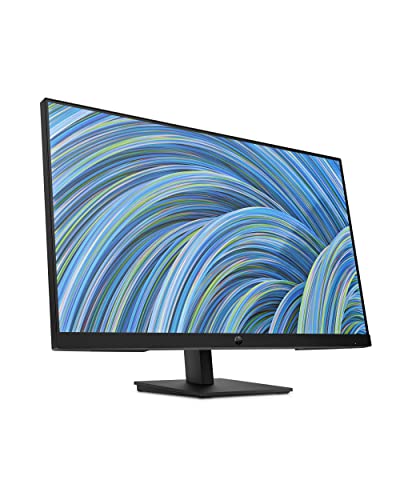
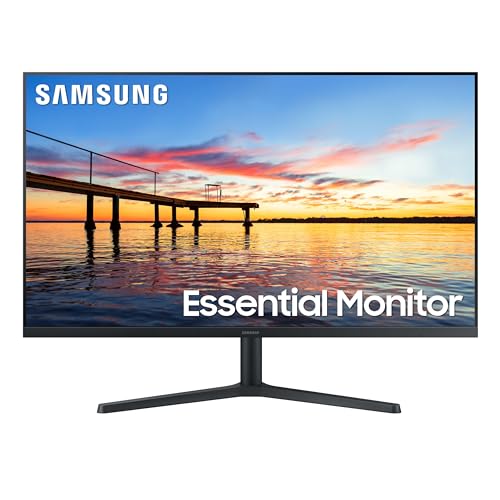

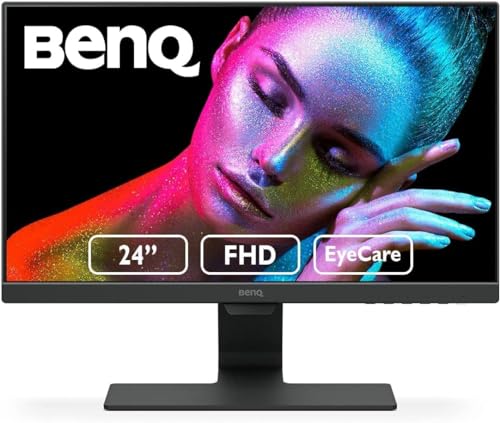

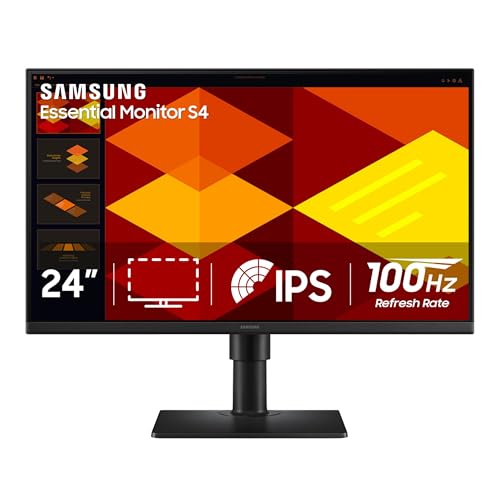
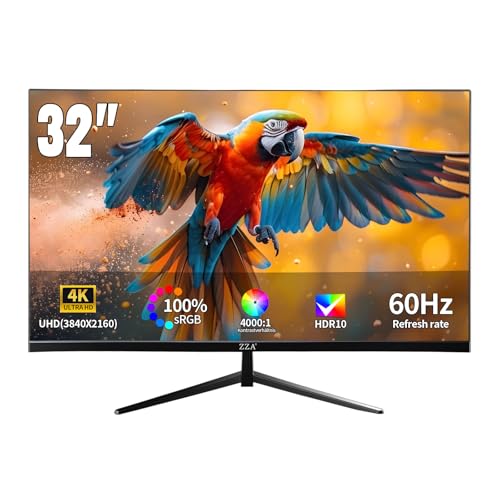
What Each Spending Level Buys
It helps to think in spending levels. Each level below describes a typical set of features you can expect, the trade offs that usually come with it, and the kind of buyer it suits best. Use these levels to set a realistic target before you compare specifications.
Lowest Spending Level: What You Give Up First
At the lowest spending level, usually around $80 to around $110, you can expect a full high definition picture, a basic stand with tilt only, and modest brightness that suits a room with controlled light. Color accuracy is often good enough for documents, web browsing, and video calls, but wide color coverage and strong high dynamic range performance are uncommon. Ports are usually limited, so check that the screen connects cleanly to your computer before you buy.
Middle Spending Level: Balanced Everyday Value
In the middle spending level, usually about $110 to about $160, screens often add a sharper picture option, a better stand with height adjustment, and smoother motion for casual games. You may also find wider viewing angles and an extra video input for a second device. If your main work is writing, spreadsheets, and video meetings, see our guide to best computer monitors for work under 200 for a closer look at work focused choices.
Highest Spending Level Under the Cap: Where Extra Money Helps
At the highest spending level under the cap, usually about $160 to under $200, you may find a larger screen, a higher resolution option, a faster refresh rate, or a wider color range. These extras matter most if you edit photos, play fast games, or keep many windows open at once. They matter less for reading documents and email, so compare specific features below rather than assuming the most expensive option wins.
What Your Money Gets You at Each Price Tier
Price tiers in this range are not fixed lines, but they give a useful way to judge value. Focus on the pattern: low tiers cover the basics, middle tiers add comfort and flexibility, and high tiers add speed, size, or color depth.
Under About $100: The Essentials Only
Under about $100, expect a compact to medium screen, full high definition resolution, and a simple stand. Brightness is usually enough for indoor use away from direct sunlight, and color is acceptable for general tasks. You will often give up height adjustment, wide color coverage, and fast refresh rates at this level. If your budget is very tight, see our guide to best computer monitors under 100 to compare what the lowest tier can still do well.
About $100 to About $160: The Everyday Balance
From about $100 to about $160, screens tend to feel more complete for daily use. Stands often adjust for height, text looks crisper, and viewing angles improve for shared desks. This tier suits students, home workers, and families who want one screen for many tasks without paying for specialist gaming or color work features.
About $160 to Under $200: Near Premium Features
From about $160 to under $200, you can look for a larger screen, a higher resolution, a faster refresh rate, or stronger color performance. These gains come with choices: a larger screen needs more desk depth, and a faster refresh rate helps only if your games and graphics hardware can use it. Check desk space, graphics capability, and cable support before paying for the top of this range.
Features Worth Paying For and Ones to Skip
Not every feature deserves the same share of your budget. The sections below explain what each major feature does in everyday use, when it is worth paying for, and when a simpler option will serve you just as well. If you want a broader starting point first, see our guide to best monitors under 200 and then return here to compare features.
What You Can Realistically Get Under $200
Under $200, you can realistically expect a clear full high definition or sharper picture, solid color for general work, and comfortable viewing in normal indoor light. You should not expect reference level color accuracy, true cinema style high dynamic range, or premium build materials throughout. Save money by skipping exotic extras you will never open, and spend instead on size, resolution, and a stand that fits your desk.
HDR and Brightness
High dynamic range, often shortened to HDR, aims to show brighter highlights and deeper shadows in supported video and games. In this price range, HDR support is often basic, so the visible gain can be modest unless the screen also offers strong brightness and good contrast control. Brightness, measured in nits, matters more for everyday comfort: a screen around 250 to 350 nits suits most indoor rooms, while a brighter screen helps near a window. Do not pay extra for an HDR label alone.
Panel Technology: IPS, VA, OLED, and Mini LED
Panel technology shapes color, contrast, and viewing angle. IPS panels usually offer wide viewing angles and steady colors, which suits shared desks and color sensitive work. VA panels often offer deeper blacks and stronger contrast, which can suit movies and darker games, but viewing angles can narrow.
OLED and Mini LED designs can offer striking contrast, yet true versions are rare or limited under this cap, so treat bold claims with care. For most buyers under $200, a good IPS or VA panel with honest brightness and contrast figures beats a stretched claim about a premium panel type.
Adaptive Sync and Gaming Features
Adaptive sync helps match the screen refresh rate to the graphics output, which can reduce tearing and stutter in games. Common systems include G Sync compatible designs and FreeSync designs, and support depends on both the screen and your graphics hardware. Newer HDMI versions, variable refresh rate, and auto low latency mode can help console and PC games. Pay for adaptive sync if you play games often; skip it if you mainly work with documents, because it adds little to text clarity.
Resolution and Screen Size
Resolution and screen size work together. A 24 inch screen at full high definition looks crisp at normal desk distance, while a 27 inch screen benefits from a sharper resolution to keep text smooth. A 32 inch screen under this cap can feel large, but it needs more desk depth and a higher resolution to avoid visibly large pixels. Measure viewing distance first, and choose a size that lets you read the full width without turning your head often.
Choosing Computer Monitors for Your Situation
Your main use should decide which features get priority. A screen that excels for fast games may not suit long writing sessions, and a screen built for color work may cost more than a general family screen needs.
Best Gaming Computer Monitors Under 200: Where Your Money Goes
For gaming, spend first on refresh rate, response behavior, and adaptive sync support, then on size and resolution. A faster refresh rate makes motion look smoother, but only if your computer can sustain high frame rates in the games you play. For a closer look at game focused options, see our guide to best computer monitors for gaming under 200. Avoid paying for extreme color coverage or HDR labels that add little to fast competitive play.
Best Small Computer Monitors Under 200
For small desks, dorm rooms, and tight corners, a compact screen saves space and keeps text within easy view. Look for a thin bezel design, a small footprint stand, and a mounting option for an arm if desk space is very limited. A smaller screen can still offer a sharp picture, so check the full footprint, including stand depth, rather than screen size alone.
Best LED Computer Monitors Under 200: Where Your Money Goes
For LED backlit screens, which cover almost all modern budget screens, the key differences are brightness control, color steadiness, and flicker free dimming at low brightness. A well tuned LED backlight gives even light across the screen and comfortable viewing during long sessions. Avoid judging by maximum brightness alone; even light and stable color matter more for daily use than a peak figure you rarely need.
Best Computer Monitors Under 200 144Hz: Where Your Money Goes
For a 144Hz screen, your money should go first to a panel that holds color and clarity at high refresh rates, plus a cable and graphics setup that can actually deliver that rate. A 144Hz label alone does not guarantee smooth motion if response behavior is slow or if your computer cannot sustain high frame rates. Check the cable in the box and your graphics settings before deciding that the higher rate was worth the extra cost.
Long Term Costs to Factor In
The purchase price is only part of ownership cost. You may need a longer cable, a mount or arm, or a calibration habit if color accuracy matters for your work. Power use is usually modest for a single screen, but a larger brighter screen can use more energy over long days.
Warranty length and return terms also matter: a longer warranty can be worth more than a small feature gain, especially if the screen will be used daily for years. Keep the box and receipt until you are sure the screen suits your desk, your eyes, and your computer.
Frequently Asked Questions
Can you get a good computer monitor under $200?
Yes, you can get a good screen under $200 for general work, study, video calls, and casual games. The key is to match size, resolution, and stand adjustment to your desk and your eyes, rather than chasing every feature label. A screen in this range will not match premium color or HDR performance, but a well chosen budget screen can look sharp, stay comfortable for long sessions, and last for years with normal care.
Is 4K worth it under $200?
4K can be worth it if you sit close to a larger screen, edit detailed images, or keep many small windows open, because extra pixels keep text and fine lines crisp. It is less useful on a small screen viewed from normal desk distance, where full high definition already looks smooth. Also check that your computer and cable can drive 4K at a comfortable refresh rate, because a sharp screen that stutters or needs heavy scaling can feel worse than a simpler option.
IPS vs OLED: which is better for budget buyers?
For budget buyers, IPS is usually the safer choice because it offers wide viewing angles, steady colors, and broad availability under $200. OLED can offer deeper blacks and striking contrast, but true OLED screens at this price are rare, and budget claims should be checked carefully. If you mainly work with documents and video calls, choose a good IPS screen with honest brightness figures over a stretched OLED claim that may hide limits in brightness or longevity.
What size should I get for my room or desk?
Choose size by desk depth and viewing distance, not by the largest screen your budget allows. A 24 inch screen suits shallow desks and close seating, a 27 inch screen suits standard desks with about an arm length of viewing distance, and a 32 inch screen needs deeper desk space to avoid eye strain from constant head turning. Measure your desk depth, note where your chair normally sits, and leave room for a keyboard and any papers you use daily.
How long do budget computer monitors last?
Budget screens often last many years with normal indoor use, provided the stand, ports, and backlight are treated gently. Backlight dimming over time is normal, and dust buildup in vents can raise heat, so keep vents clear and avoid blocking airflow behind the screen. If you notice flicker, color shift, or dead pixels early, use the warranty promptly rather than waiting, because early faults are easier to resolve than wear that develops after long use.
Does refresh rate matter for non gamers?
Refresh rate matters less for non gamers, but a modestly higher rate can still make scrolling and cursor movement feel smoother. For writing, spreadsheets, and video calls, a standard 60Hz to 75Hz screen is usually enough, and money is better spent on text sharpness, stand adjustment, and comfortable brightness. If you also play games occasionally, a faster rate can be a nice bonus, but do not sacrifice size or resolution for a high rate you will rarely use.
The Bottom Line
Start with desk space and main use, then choose size, resolution, and stand comfort before chasing specialist features. A middle tier screen often gives the best balance for everyday work, while a higher tier makes sense for larger screens, faster games, or color sensitive tasks. Use the product table above to compare the shortlisted options side by side, and pick the best computer monitors under 200 for your room, your computer, and your daily routine.