Best Computer Graphics Tablets Buying Guide 2026
Disclosure: We may earn a commission when you buy through links on this page, at no extra cost to you. As an Amazon Associate I earn from qualifying purchases. Learn more

Learn how to choose best computer graphics tablets with confidence. Compare key features, fit, running costs and care tips in this clear buying guide for.
A graphics tablet gives a computer a pen, and the right one can change how comfortably you draw, retouch photos, or mark up designs. The best computer graphics tablets depend less on a headline number than on how the tablet feels under your hand, whether you want to draw on a screen or beside it, and whether it works with your software. This guide walks through those choices so you can read the comparison table below with a clear plan.
The table lists screenless pen tablets and pen displays across a wide price range. Start by deciding which style suits you, then narrow by size and budget.


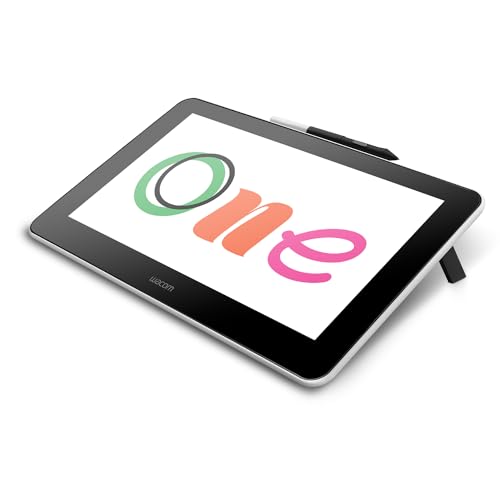

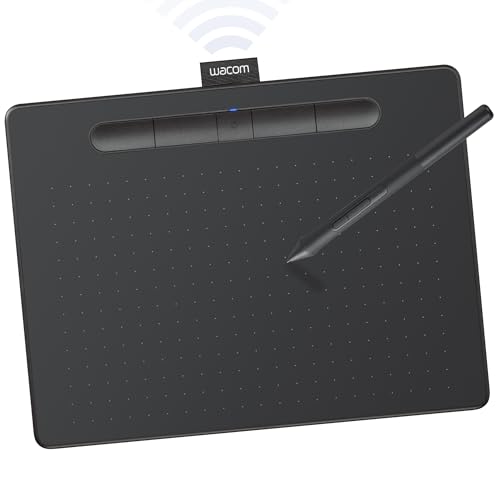

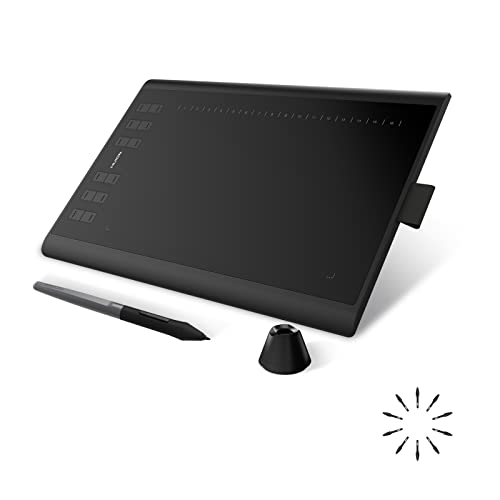
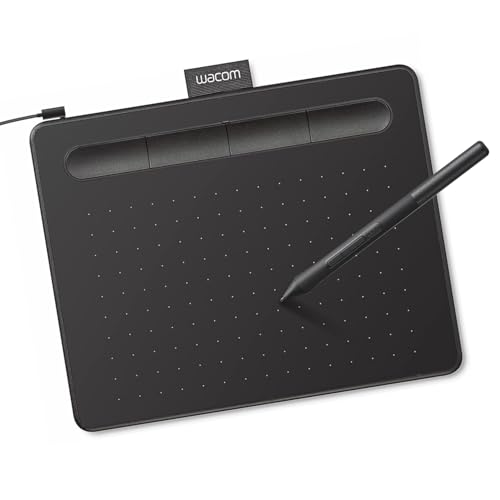
Pen Tablet or Pen Display
A screenless pen tablet is a flat pad you draw on while watching your computer monitor. It costs less, stays light, and is easy to carry, but it takes a little practice to connect hand movement with what appears on screen. A pen display has a built in screen, so you draw directly under the pen. It feels more natural, but it costs more, takes more desk space, and needs a computer with the right ports. Beginners often start with a small screenless tablet to learn the pen, then move to a display if drawing becomes a daily habit.
Best Computer Graphics Tablets: Features That Matter
Pen Pressure and Tilt
Pressure sensitivity lets the line get thicker or darker when you press harder, and tilt support changes the stroke when you lean the pen, which helps with shading. Higher pressure level numbers on the box matter less than how smoothly the response feels, so read what drawing artists say about a pen in real use.
Active Area and Size
The active area is the part of the tablet that senses the pen. A small area suits travel and tight desks, while a medium or large area gives broader arm movement and suits illustration and painting. Make sure the tablet fits beside your keyboard and mouse without crowding you.
Pen Feel and Nibs
A battery free pen is lighter and never needs charging. Look for a balanced weight, a comfortable grip, and replaceable nibs, since nibs wear with use. A pen stand or case that holds spare nibs is a useful extra.
Express Keys and Shortcuts
Programmable buttons on the tablet or pen let you set undo, brush size, and tool switches under your fingers, which saves time during long sessions. Check that the buttons are reachable with the hand you do not draw with.
Display Quality on Pen Displays
If you choose a pen display, look at size, resolution, color coverage, and whether the glass is laminated to reduce the gap between the pen tip and the image. An anti glare surface helps in bright rooms. Color accurate work calls for a display that matches your editing needs.
Software and System Compatibility
Check that the tablet has drivers for your operating system and works with your drawing, photo editing, or design software. Some tablets work with Android devices or Chromebooks too. Confirm the connection type: USB, USB C, or wireless, and whether you need an adapter.
Who Should Buy What
Beginners and students do well with a small or medium screenless tablet that is inexpensive and easy to learn on. Photo editors who mostly retouch benefit from a medium tablet with accurate pen response. Illustrators and animators who draw for hours often prefer a pen display with a laminated screen and a stand. Casual note takers and teachers can use a small tablet to annotate documents and sign forms.
Setup and Care
Install the driver first, then calibrate the pen and set pressure curves in your software. Test a short sketch before using the tablet for paid work. Keep the surface clean, replace worn nibs promptly, and store the pen flat or in a stand. Update drivers after major system updates, and use a cable that does not pull across your desk. Take breaks for your wrist, neck, and eyes.
For wider comparisons, see our guides to the best graphic tablets and the best pc tablets.
Using a Tablet Beyond Drawing
A graphics tablet is not only for artists. Photo editors use the pen to brush masks and retouch skin with more control than a mouse allows. Designers sketch layouts and mark up proofs, teachers write on shared screens, and many people use a small tablet to sign documents or take handwritten notes during calls. If your use leans toward editing and notes, a small or medium screenless tablet is usually enough, and it keeps the cost and desk footprint low.
Common Mistakes to Avoid
- Buying the largest tablet without checking desk space.
- Skipping the driver install and calibration steps.
- Choosing a pen display without checking your computer's ports.
- Judging pen quality by pressure level numbers instead of feel.
- Forgetting that nibs wear out and need replacing.
Frequently Asked Questions
Do I need a pen display or is a pen tablet enough?
A pen tablet is enough for most beginners and photo editors. A pen display suits people who draw for long hours and want to see the line under the pen.
Will a graphics tablet work with my software?
Most tablets work with popular drawing and photo editing programs on Windows and macOS. Check the listing for your operating system and software before buying.
How long does it take to get used to a screenless tablet?
Many people adjust in a few days to a couple of weeks. Short daily sessions help your hand and eyes learn to work together.
Does the pen need charging?
Many tablets use battery free pens that never need charging. Check the listing, since some pens do use batteries.
What size should I choose?
Match the active area to your desk and your drawing style. Small suits travel and tight spaces, medium suits most users, and large suits broad strokes and painting.
Final Thoughts
Decide between a pen tablet and a pen display, pick a size that fits your desk, and check software and port compatibility. Compare the options in the product table above, and the best computer graphics tablets for you will be the one that feels natural under the pen and still fits your budget.