Best Computer Docking Station for Dual Monitors: A Buying Guide for 2026
Disclosure: We may earn a commission when you buy through links on this page, at no extra cost to you. As an Amazon Associate I earn from qualifying purchases. Learn more

Video ports, 4K support, charging power, and laptop compatibility explained for the best computer docking station for dual monitors.
Working on one small laptop screen while two larger monitors sit underused is a common frustration, and a good dock fixes it with one cable. Choosing the best computer docking station for dual monitors comes down to your laptop port, your monitor resolution, and how much charging power your computer needs while you work. This guide explains each factor in plain language so you can match a dock to your desk with confidence.
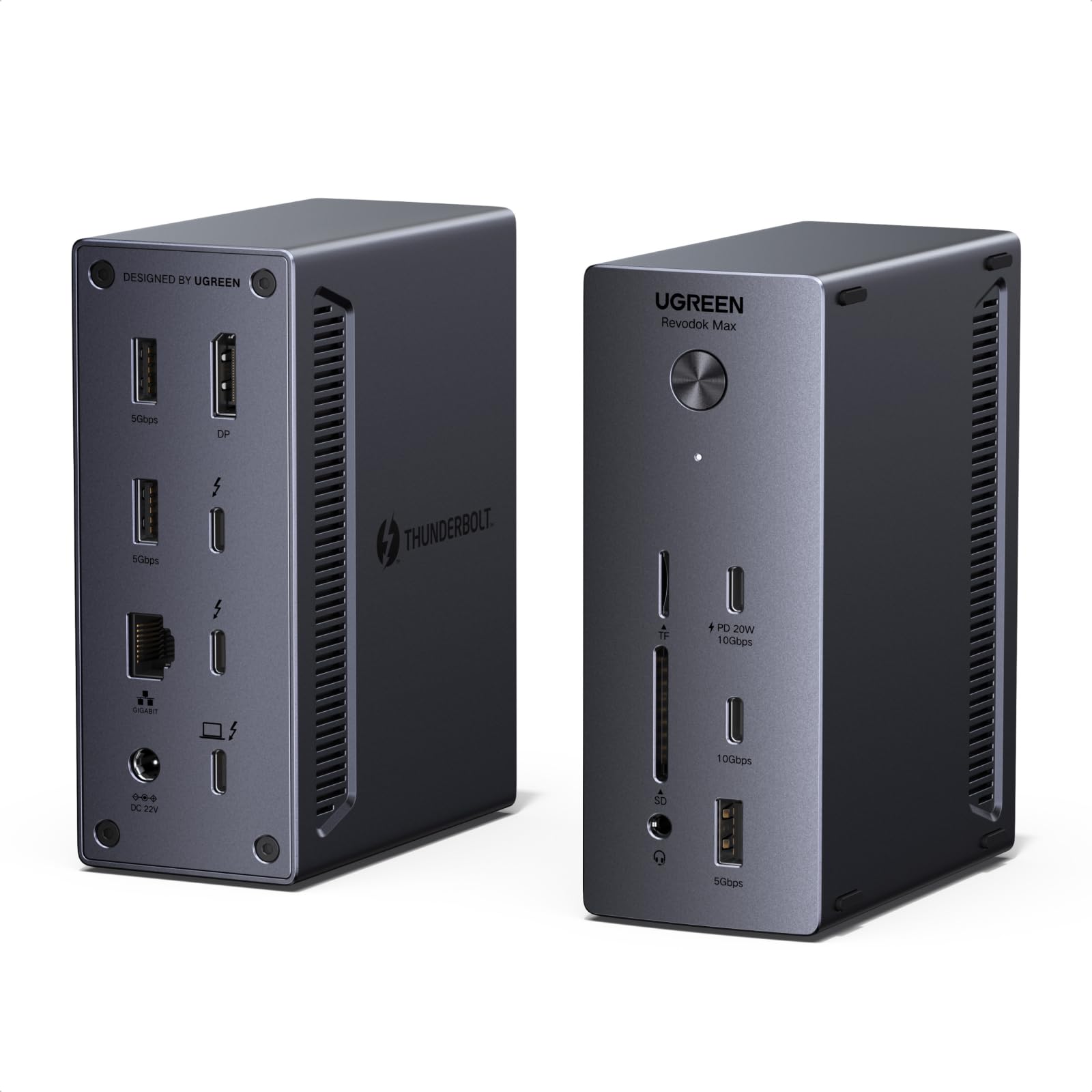
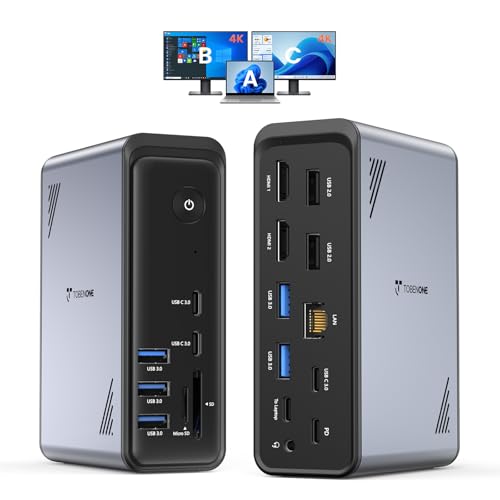
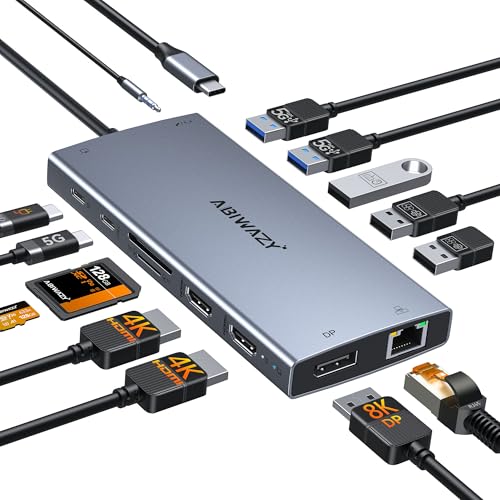
Start by checking the comparison table below for port counts, video outputs, and charging wattage, then read on for the details that decide whether both screens run at full quality.




Who Should Buy a Docking Station for Two Monitors?
A dock suits anyone who wants a tidy desk where keyboard, mouse, network, and two screens connect through the laptop with a single plug.
Home office workers with a fixed desk
If your laptop rarely leaves one desk, you can choose a larger dock with its own power supply and plenty of ports. You gain wired Ethernet for stable calls, extra USB ports for a printer or external drive, and two full size video outputs that stay plugged in all the time. Route the cables once, tuck them behind the monitors, and simply sit down and start work each morning.
Laptop users who move between rooms and meetings
If you carry your laptop around the house or into an office, a compact dock with a longer host cable is easier to live with. Look for strong charging power so the same cable that drives your screens also keeps the battery full during long calls. When you compare portable options, see our guide to the best laptop docking station for dual monitors.
Households and shared desks with more than one laptop brand
Shared desks often host a work laptop on weekdays and a personal laptop on weekends, and the two machines may come from different makers. A dock that follows open USB C and Thunderbolt standards usually serves both without extra adapters. For a desk that must welcome almost any computer, see our guide to the best universal docking station for dual monitors.
Key Features to Compare
Spec sheets look similar at a glance, yet small differences in video output, charging, and display support decide whether your two monitors show a sharp extended desktop or a blurry mirrored image. Work through the factors below in order, because the first one can rule out a dock early.
Host connection and data speed
Most modern docks connect through USB C or Thunderbolt, and your laptop must offer video output over that port for a native dual screen setup. Thunderbolt ports carry more bandwidth, so they handle two high resolution displays plus fast storage and networking at the same time. Plain USB C ports vary widely, and some charge only, so confirm that your port supports display output in your laptop manual. When readers ask what defines the best computer docking station for dual monitors, this host connection is the honest starting point, because no dock can add video ability that the laptop port itself lacks.
Video outputs, resolution, and refresh rate
Count the video outputs and note whether they are HDMI or DisplayPort, then match them to the inputs on your two monitors. For two 4K monitors, look for a dock rated for dual 4K output at 60 Hz, since a lower rating can drop one screen to 30 Hz and make mouse movement feel choppy. Higher refresh rate support matters if your monitors are gaming displays above 60 Hz, and HDR support matters if you edit photos on OLED displays. If dual 4K is your main goal, see our guide to the best docking station for dual 4k monitors for the bandwidth details behind those ratings.
Charging power for your laptop
Docks pass charging power from their own power supply to your laptop, and the wattage is printed as power delivery, often around 65 to 100 watts. Slim laptops run happily at the lower end, while larger workstations with dedicated graphics may draw more and slowly lose charge under heavy load on an undersized dock. Check the wattage your laptop charger provides and choose a dock that meets or exceeds it, with a small margin for the dock ports.
Everyday ports, networking, and audio
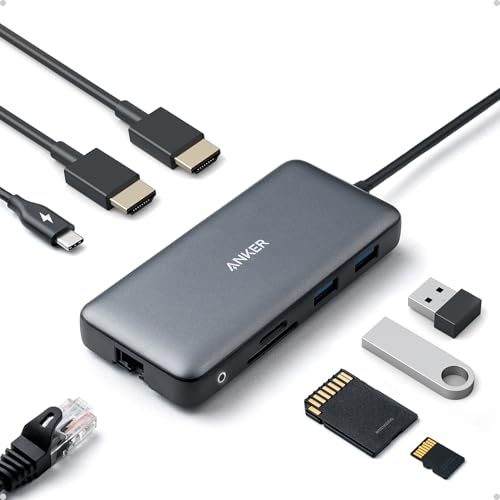
Beyond video, the ports you use daily decide how clean your desk feels. Front facing USB ports suit flash drives and charging a phone, while rear ports keep permanent gear like a keyboard receiver out of sight. A Gigabit Ethernet port gives steadier speed than WiFi during large uploads, and a combined audio jack covers a wired headset without extra adapters. Card readers help photographers, but skip paying extra for slots you will never use, and note USB port speed ratings if you move large files often.
Operating system and display limits
Windows laptops with Thunderbolt or a suitable USB C port generally run two external monitors as separate extended screens through one dock. Many Mac laptops with base Apple silicon chips limit native output to one external display, even when the dock offers two video ports, and both screens then show the same mirrored picture. Docks that use DisplayLink software work around that limit by sending the second screen through a driver, which handles documents and browsing well. Check the dock listing for your exact chip and operating system before ordering.
Types of Docking Stations Explained
Docks fall into three broad families, and the product table above groups many of them side by side. Knowing which family fits your laptop saves you from paying for bandwidth you cannot use.
Thunderbolt docks
Thunderbolt docks offer the most bandwidth through one cable and are the natural match for laptops with Thunderbolt 4 or Thunderbolt 5 ports. They drive two high resolution monitors, fast external storage, and wired networking together without slowdowns. They cost more than basic hubs, so confirm your port version first.
USB C docks
USB C docks cost less and work with a wider range of laptops, including many Chromebooks and older Windows machines. Their video ability depends on the laptop supporting display output over USB C, and some models run the second monitor at a lower resolution. For office work with two 1080p or 1440p screens, a well specified USB C dock is often all you need.
DisplayLink docks
DisplayLink docks use software to send video over a regular USB connection, which lets them add a second distinct screen on laptops whose hardware limits native output. They are a practical answer for many Mac owners and for older laptops without video ready USB C ports. The trade off is that fast motion content can behave differently, so read the driver notes for your operating system first.
Setup and Compatibility Checks Before You Order
A short round of checks at your desk prevents most setup problems, and each one maps to a line on the dock spec sheet.
- Find the exact port on your laptop in its manual and confirm it carries video, data, and charging, not charging alone.
- List the inputs on both monitors, including any free HDMI or DisplayPort sockets, and note their native resolution.
- Compare your laptop charger wattage with the dock power delivery rating and allow a small margin for dock ports.
- Measure the distance from dock to monitors if your screens sit on arms or a shelf, since short video cables limit placement.
- Confirm your operating system and chip against the dock display support chart, especially on Mac laptops.
Brand specific docks can add extras such as a power button that wakes the laptop or firmware tools written for one maker. If you run a Dell laptop at your desk, see our guide to the best dell docking station for dual monitors for how those extras compare. Everyone else can choose on ports, power, and display support alone.
Common Mistakes to Avoid
- Assuming every USB C port carries video, which leaves the second monitor black when the port is charge only.
- Ignoring the Mac single display limit, which leads to two screens showing the same mirrored image.
- Buying a dock with less charging power than the laptop charger, which lets the battery drain slowly during heavy work.
- Mixing cable ratings, which can cap a 4K monitor at 30 Hz even when the dock supports 60 Hz.
- Counting total ports instead of the ports you need, which means paying for card readers while missing Ethernet.
- Skipping the monitor input check, which forces extra adapters when the dock outputs do not match your screens.
Care and Maintenance for Your Docking Station
A dock has no moving parts, so care is mostly about heat, dust, and tidy cables. Keep the vents clear and avoid stacking papers or a warm laptop on top of the case, since steady heat shortens the life of any electronics. Dust the ports with a soft dry brush now and then, and unplug cables by gripping the plug rather than pulling the cord.
Update dock firmware only from the maker support page and only while the laptop sits on steady power, because an interrupted update can leave the dock unresponsive. If a screen flickers after months of good service, reseat both ends of the video cable and try a known good cable before assuming the dock has failed. Coil spare cables loosely rather than folding them sharply.
Frequently Asked Questions
Can a docking station run two monitors as separate screens?
Yes, a docking station can run two monitors as separate extended screens when your laptop port and operating system allow two displays. Windows laptops with Thunderbolt handle this natively, while some Mac laptops need DisplayLink software for the second distinct screen. As a quick test, drag a window halfway across the edge of your first monitor before ordering, since a laptop that already extends to one screen usually manages a second through a suitable dock.
Does a docking station support two 4K monitors at 60 Hz?
A docking station supports two 4K monitors at 60 Hz when it carries enough bandwidth, most often through Thunderbolt or a well rated DisplayLink design. Check the fine print for dual display ratings, because a dock may reach 4K on one output and only 1080p or 30 Hz on the other. Your video cables also need ratings that match, since an older HDMI cable can limit refresh rate.
How much charging power does a docking station for dual monitors need?
A docking station for dual monitors needs charging power that matches your laptop charger, which is around 65 watts for slim models and around 90 to 100 watts for larger workstations. Note the wattage printed on your current charger brick and treat that figure as your minimum. If you also run an external drive and charge a phone from the dock, extra headroom keeps charging steady.
Why does a docking station show the same image on both monitors?
A docking station shows the same image on both monitors when the laptop or the display settings limit output to mirroring. On many base chip Mac laptops this is a hardware display limit, and a DisplayLink dock with its driver installed is the usual fix. On Windows, open display settings and set each screen to extend rather than duplicate, then confirm each monitor appears as its own numbered box.
How long does a computer docking station for dual monitors last?
A computer docking station for dual monitors typically lasts through several years of daily use, often outliving the laptop it first served. Longevity improves when you choose a dock built on a current standard such as Thunderbolt 4, because the next laptop is more likely to use its full ability. Keep the original power supply with the dock, since a mismatched supply is the most common reason an older dock seems to fail.
Final Thoughts
The decision rests on three checks: a laptop port that truly carries video, video outputs rated for both monitors at the refresh rate you want, and charging power that matches your laptop charger. Use the product table above to compare those points, and revisit our guide to the best docking station for dual monitors if your desk plans grow. Choose carefully once, and the best computer docking station for dual monitors for your setup will turn sitting down at your desk into a one cable routine.