Best Color Monitors for 2026: A Complete Buying Guide
Disclosure: We may earn a commission when you buy through links on this page, at no extra cost to you. As an Amazon Associate I earn from qualifying purchases. Learn more

Compare the best color monitors by panel type, gamut coverage, and accuracy specs, with size, HDR, and calibration advice for photo and video work.
A photo that looks perfect on your screen but prints dull, or a video grade that shifts on every other display, usually traces back to the monitor rather than your skills. Screens vary widely in the colors they can show and how honestly they show them. The best color monitors publish their gamut coverage and accuracy figures, hold those colors steady at different brightness levels, and let you calibrate them as they age.
This guide explains the features that actually decide color quality, compares the main panel types, and helps you match a screen to photo editing, video work, design, or mixed everyday use. Start with the comparison table below for a quick overview, then read the buying guide sections for the detail behind each number.


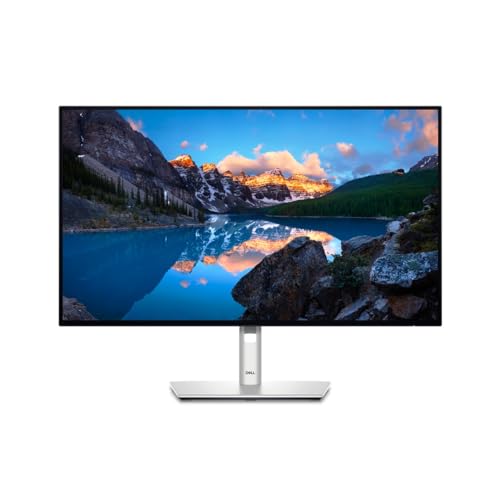


How to Choose a Color Accurate Monitor: Buying Guide
Most monitor listings lead with size and resolution, yet for color work the panel and its calibration matter far more. Work through the factors below in order and you will know exactly which listings deserve a closer look, including the best color monitors for your own desk and budget.
Panel Technology: IPS, VA, and OLED
IPS panels are the default choice for color work because their colors stay consistent when you lean, shift in your chair, or share the screen with someone beside you. VA panels offer deeper blacks and stronger contrast, which helps video editors judge shadow detail, though colors can shift slightly at wide angles. OLED panels give perfect blacks and very rich color, but static editing interfaces shown for hours raise the risk of image retention over time. For most photo and design work, a good IPS panel remains the safest all round pick.
Color Gamut and Coverage
Gamut describes which colors a panel can produce, quoted as a percentage of a standard space. Full sRGB coverage is the minimum for web and general work, since browsers and most apps assume sRGB. Photographers who print or edit in wider spaces should look for about 95 percent DCI P3 or strong Adobe RGB coverage, because those panels can display saturated greens and reds that sRGB screens clip. Treat claims above 100 percent sRGB with care: an oversaturated panel without a proper sRGB mode makes ordinary content look garish rather than accurate. Our guide to best true color monitors explains how makers measure and label that kind of honesty.
Accuracy, Delta E, and Calibration
Accuracy is measured as Delta E, the distance between the color requested and the color shown; values under 2 are hard for most eyes to fault. Look for a factory calibration report in the box, which shows the panel was measured before shipping. Over time every panel drifts, so a monitor that supports hardware calibration with a separate colorimeter keeps its accuracy for years instead of months. Uniformity matters too: some panels are brighter or warmer at the corners, and better models compensate for that across the screen. Our guide to best monitors for color accuracy goes deeper on reading factory reports, and models sold as best color calibrated monitors usually pair that support with stricter factory targets.
Resolution and Screen Size
Size and resolution decide how much of your image and interface you see at once. A 27 inch screen at 1440p or 4K suits most desks, giving sharp text and room for editing panels beside the image. At 32 inches, 4K keeps pixels fine enough for close photo work. Photographers who retouch at 100 percent zoom benefit from 4K because pixel level detail stays visible without constant zooming. Ultrawide screens help video timelines, though their curved shapes can bend straight lines near the edges, which some designers dislike.
Connectivity and Ergonomics
A USB C port with power delivery lets one cable carry the picture and charge a laptop, which keeps a color critical desk tidy and avoids loose adapters shifting the signal. Check for at least two HDMI or DisplayPort inputs if you switch between machines. The stand should adjust for height and tilt so the screen center sits slightly below eye level; if it does not, a VESA mount arm solves it. Built in USB ports also help because calibration tools and card readers stay plugged into the monitor rather than the computer.
HDR and Brightness
Brightness, measured in nits, decides how well a monitor works in a bright room and how HDR content looks. For editing in a normally lit office, about 300 to 400 nits is comfortable and keeps whites honest. HDR labels vary widely: a panel with local dimming and at least 600 nits shows HDR highlights with real depth, while basic HDR400 screens accept the signal without showing much difference. If you grade HDR video, budget for the dimming hardware; if you edit photos for print and web, steady SDR accuracy matters far more.
Color Monitors for Specific Needs
Best Professional Color Monitors
Professional models differ from ordinary creative monitors in three ways: hardware calibration that stores corrections inside the screen, uniformity compensation that evens out brightness and tint across the whole panel, and wider Adobe RGB coverage for print work. Studios also value hoods that block room light and support for 10 bit color all the way from the graphics card. These features raise prices well above consumer models, and they earn it only when clients, printers, or broadcast standards will judge the final color. Editors who grade moving footage rather than stills should also see our guide to best monitors for color grading, where timeline and HDR needs differ.
Types of Color Monitors
Most listings fall into four broad groups. Knowing the groups first makes the data sheets easier to read.
Standard IPS Creative Monitors
These are the workhorses: 27 or 32 inch IPS panels with full sRGB coverage, good factory calibration, and sensible prices. They suit photographers, designers, and office users who want honest color without studio level costs. Their limits are modest HDR performance and gamut that may stop short of full Adobe RGB.
OLED Displays
OLED screens produce the deepest blacks and the most vivid HDR of any type, and video editors who grade dark scenes love them. Colors are rich and response is instant. The cautions are price, smaller size choices, and the small risk of burn in from static toolbars left on screen all day. Many editors use OLED as a second reference screen rather than their only display.
Ultrawide Displays
Ultrawide monitors stretch a 34 or 38 inch panel into a wide curve that fits a video timeline, a preview window, and tool panels side by side. Color quality on good models matches standard IPS screens. Check that the curve does not distort your sense of straight lines, and remember that wide gamut coverage varies more between models in this group, so read the gamut figures rather than assuming them.
Budget Displays
Budget monitors can still serve color work if you choose carefully: insist on an IPS panel, full sRGB coverage, and a published Delta E figure. What you give up is usually brightness uniformity, stand adjustment, and wide gamut coverage. A budget screen plus an affordable colorimeter for calibration often produces more honest color than a pricier screen that is never calibrated at all.
Setup and Care Tips
- Turn off vivid or dynamic picture modes and start from the standard or sRGB preset, since those modes oversaturate color on purpose.
- Let the panel warm up for about 30 minutes before judging color or running a calibration, because brightness and tint settle as it warms.
- Keep room lighting steady while you edit; a lamp moved between sessions changes how the same screen looks to your eyes.
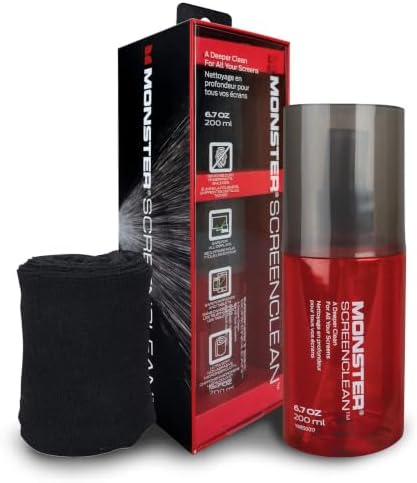
- Clean the screen with a dry or barely damp microfiber cloth only, and never spray cleaner directly onto the panel.
- Recalibrate every few months, because backlights drift slowly and small errors creep in unnoticed.
Comfort counts on long editing days. Match the screen brightness roughly to your room, sit about an arm length away, and rest your eyes on a distant point every so often. If you develop persistent eye pain, headaches that keep returning, or any change in vision, see an eye care professional rather than assuming a new monitor will fix it.
FAQs
What size monitor is best for photo editing on a desk?
For most desks, 27 inches is the practical sweet spot. It is large enough to hold an image and editing panels together, small enough to view whole without turning your head, and 1440p or 4K versions keep text and fine detail sharp at a normal sitting distance. Desks deeper than about 30 inches can support 32 inches comfortably. Smaller 24 inch screens work for laptop based setups, though you will zoom and scroll more often.
Does refresh rate matter for color work if I never play games?
Rarely, and it should not decide your purchase. A standard 60Hz panel refreshes fast enough for photo editing, design, and office work, and your money goes further spent on gamut and accuracy instead. Video editors working with high frame rate footage may prefer 120Hz or more so playback matches the footage cadence. One caution: some high refresh gaming screens trade color uniformity for speed, so check the accuracy figures rather than assuming a fast screen is also an honest one.
IPS or OLED: which panel shows color more accurately?
Both can be very accurate, and the calibration matters more than the panel type. A calibrated IPS monitor holds steady color across the whole screen and suits long static editing sessions, which is why most studios still rely on it. OLED matches it for saturation and beats it for black depth, but brightness limits on full white screens and the risk of image retention make it a better second screen for many editors. Choose by workflow first, panel second.
Is 4K resolution worth it for color editing?
Yes for most photographers and retouchers, because 4K shows pixel level detail at 100 percent zoom without the shimmer of a lower resolution screen, and interface text stays crisp during long sessions. It also future proofs the monitor for the 4K video that clients increasingly deliver. The costs are real though: 4K needs a reasonably capable graphics card, and on a 27 inch screen some older software shows small menus. If you mostly post to social media at modest sizes, 1440p remains a sensible saving.
How long does a color accurate monitor usually last?
Expect about five to eight years of dependable service from a quality panel. The screen rarely fails outright; instead the backlight slowly dims and color drifts further from its factory state, which regular calibration can correct for most of that life. Uniformity usually worsens near the end, showing as uneven tint in the corners. When calibration can no longer bring Delta E back to a good level, or brightness no longer reaches your working target, it is time to replace it.
The Bottom Line
Judge monitors by gamut coverage, published accuracy, and calibration support before size or speed, and the product table above will narrow quickly to a few honest options. Match the panel to your main work, photo, video, or print, and keep it calibrated. Chosen that way, the best color monitors stop being a guess and become a tool you can trust every day.