Best Color Calibrated Monitors: Everything to Know Before Your First Purchase for 2026
Disclosure: We may earn a commission when you buy through links on this page, at no extra cost to you. As an Amazon Associate I earn from qualifying purchases. Learn more

Shopping for the best color calibrated monitors for the first time? Learn the terms, compare options, and avoid rookie mistakes with this easy guide.
Buying your first monitor for photo editing, video work, or design can feel confusing, because every listing throws numbers at you before explaining what any of them mean. A shortlist of the best color calibrated monitors is a sensible place to start, since these screens are measured and adjusted at the factory so the colors you see match a known standard. That means the red in your photo looks like the red you intended, not a guess the panel happens to make.
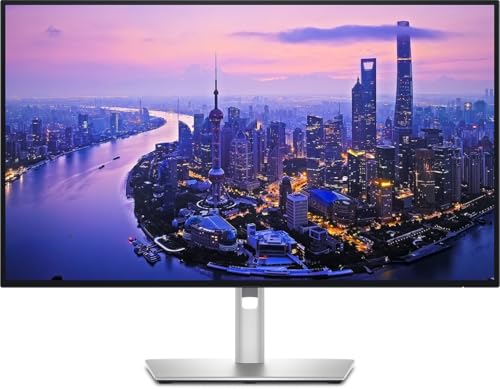
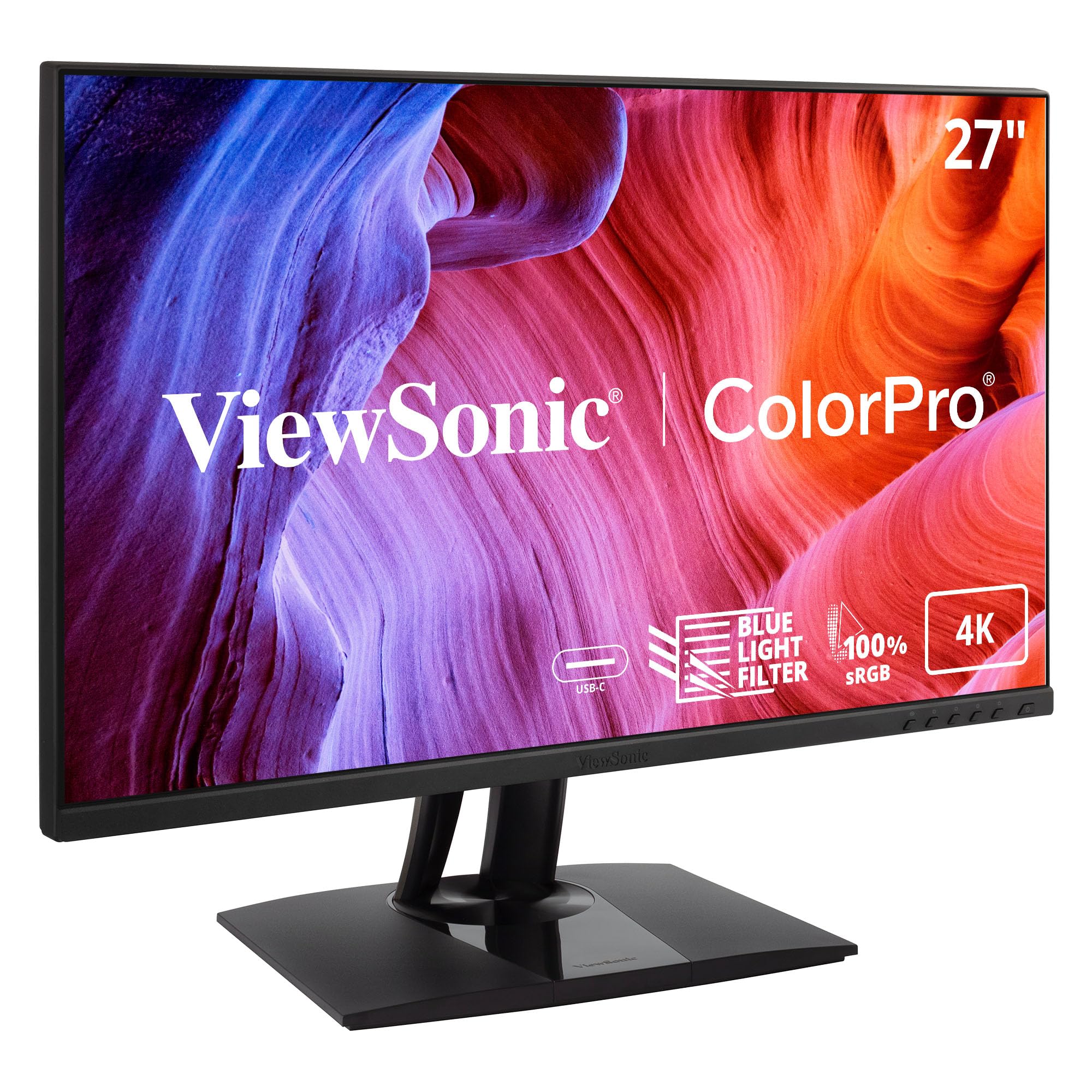
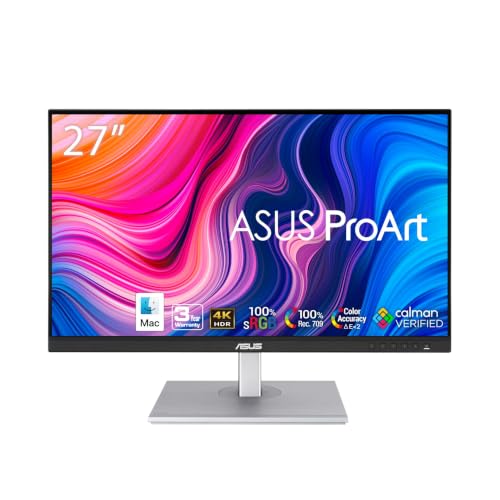
This guide walks you through the basics in plain English, then the specs that actually matter, the mistakes new buyers make most often, and the first steps to take after unboxing. Start with the comparison table below to see how models differ on size, panel type, and color coverage, then read on so you can judge those differences with confidence instead of buying on price alone.




Color Calibrated Monitors 101: The Basics for New Buyers
Calibration is the process of measuring a screen with a sensor and adjusting its output so colors, brightness, and white point follow a shared reference. A color calibrated monitor has already been through that process at the factory, and many models include a printed or digital report showing the results. One number on that report, Delta E, describes how far the measured colors sit from the target, and lower is better. A Delta E below 2 is generally close enough that most viewers cannot spot the error.
Calibration only makes sense against a defined color space, which is the range of colors a screen is asked to reproduce. sRGB is the standard space for web content and everyday apps, while Adobe RGB and DCI P3 describe wider ranges used in print photography and video. A monitor can be accurate inside sRGB yet still fall short for wider work, so coverage figures matter as much as the calibration claim itself. If your needs are broader and less specialized, see our guide to the best color monitors for the wider category view.
These monitors suit anyone whose work gets judged by color, including photographers, video editors, illustrators, and print designers. They also help online sellers who need product photos to match the real item. If pinpoint accuracy is your whole job rather than one part of it, see our guide to the best monitors for color accuracy for that narrower focus.
Key Specs Explained in Plain English
For that reason, the best color calibrated monitors are judged first by panel quality, gamut coverage, and the factory calibration report, and only then by gaming extras or styling. Use the product table above to line up those core figures side by side before you weigh the rest. If you want a view focused purely on the factory tuning itself, see our guide to the best calibrated monitors as a companion read.
Panel Technology: IPS, VA, OLED, and Mini LED
IPS panels are the safe default for color work because their colors stay consistent when you view the screen from an angle, and their accuracy is usually strong. VA panels deliver deeper blacks and higher contrast, but their colors can shift more at wide angles and fast motion can smear. OLED displays produce perfect blacks and very rich color, though a static image left on screen for many hours can cause burn in over time. Mini LED is a backlight system paired with an IPS or VA panel, and it improves contrast by dimming small zones of the screen independently.
Refresh Rate and Response Time
Refresh rate is how many times per second the screen draws a new image, measured in hertz, and higher numbers make motion look smoother. For photo and design work, 60 hertz is perfectly usable, while 120 hertz suits modern consoles and 144 or 240 hertz targets fast paced gaming displays. Response time, measured in milliseconds, describes how quickly a pixel changes color, and lower numbers reduce ghosting behind moving objects. If play matters as much as color work in your home, see our guide to the best gaming monitors for models built around speed first.
Resolution and Screen Size
Resolution is the pixel count, and more pixels pack more detail into the same space. A 1080p screen suits a 24 inch desk monitor, 1440p feels roomy at 27 inches, and 4K gives the sharpest text and finest photo detail at 27 to 32 inches. Bigger is not automatically better, because a large screen on a shallow desk forces you to turn your head and can make pixels look coarse at low resolution. Match the pairing to your sitting distance, which for most desks is roughly an arm length away.
HDR and Brightness
Brightness is measured in nits, and about 300 to 350 nits is comfortable for a typical indoor room, while HDR content needs much more to make highlights glow. HDR10 is the common baseline format, and Dolby Vision appears on fewer monitors but adjusts brightness scene by scene. VESA certifies some screens under its DisplayHDR tiers, which give you a quick way to check that an HDR claim meets a defined brightness and contrast floor.
Connectivity and Ports
DisplayPort is the most capable connection for a desktop PC, and HDMI 2.1 adds the bandwidth that consoles and newer graphics cards need for high resolution at high refresh rates. USB C can carry video, data, and power over one cable, which is ideal for a laptop desk, but check the wattage it delivers so your laptop actually charges while you work. Extra USB ports turn the monitor into a small hub for a mouse, keyboard, or card reader. Before ordering, count the ports on everything you own and confirm the monitor covers them without adapters.
Adaptive Sync and Gaming Features
Adaptive sync lets the screen match its refresh rate to the frame rate your computer or console is producing, which removes the tearing that appears when the two fall out of step. FreeSync works with a wide range of graphics cards, while G Sync is the Nvidia system and sometimes adds cost. HDMI 2.1 also brings variable refresh rate and auto low latency mode for consoles, so the screen switches into its fastest settings when a game starts.
Rookie Mistakes to Avoid
Most first time regrets come from chasing one headline spec while ignoring the basics above. Watch for these five errors before you order.
- Buying on resolution alone, because a sharp 4K screen with weak gamut coverage still shows the wrong colors for editing work.
- Leaving the monitor in its vivid or game picture preset, because those modes push saturation past the calibrated result you paid for.
- Skipping the USB C wattage check, because a port that delivers too little power leaves your laptop battery draining while it is plugged in.
- Judging colors in a bright sunlit room, because glare and shifting daylight change what you see and make good calibration look wrong.
- Assuming factory calibration lasts forever, because panels drift slowly with age and a screen that is never rechecked can wander off target.
Getting Started: Setup and First Use
Start with the physical setup. Attach the stand on a soft surface so the panel never rests face down on anything hard, or fit a VESA mount arm if you want the screen to float and free up desk space. Use the cable that matches your best port, which usually means the DisplayPort or USB C cable included in the box. Power on, then check the whole screen against plain white, black, and gray images so any dead pixel or backlight flaw shows up during your return window.
Next, fix the picture settings. Turn off the vivid mode that many screens ship with, and choose the sRGB preset for web and office work or the native preset your calibration report describes for editing. Set brightness so white on screen roughly matches a sheet of paper under your room light, since an overly bright screen makes you edit photos too dark. Let the monitor warm up for about 30 minutes before you judge color, because panels shift slightly as they reach working temperature.
Finish with the software side. Set the refresh rate you paid for inside your operating system display settings, because many computers default to 60 hertz even on a faster screen. Install the color profile supplied by the maker if one is offered, and run any firmware update listed on the support page. Owners of OLED models should also run the pixel refresh cycle the menu offers after long sessions. When you move into video projects later, see our guide to the best monitors for color grading for the next level of workflow detail.
Color Calibrated Monitors: Your Questions Answered
New buyers tend to ask the same handful of questions, so here are direct answers with a few extra points the sections above did not cover.
How long do color calibrated monitors last?
Most color calibrated monitors last about 5 to 10 years of regular use before brightness loss becomes hard to ignore. The panel usually keeps working after that, but the backlight dims gradually and peak brightness falls, which matters for HDR more than for office work. One point buyers miss is the warranty, since some models cover the panel for three years while cheaper ones stop at one. Longer coverage is worth weighing if the screen is your main work tool.
Is a 4K color calibrated monitor worth it for a first time buyer?
Yes, a 4K color calibrated monitor is worth it if you edit photos or video and sit at a normal desk distance. Beyond the sharpness covered earlier, the extra pixels let you judge focus at the pixel level without zooming in and out all day, which speeds up culling large photo sets. The tradeoff is cost and the stronger graphics hardware needed for smooth 4K gaming. For documents and web work alone, 1440p at 27 inches remains the calmer budget choice.
Does refresh rate on a color calibrated monitor matter for people who do not play games?
Refresh rate on a color calibrated monitor matters less for non gamers, but it is not wasted. A 120 hertz screen makes scrolling text smoother and easier to read, and the mouse pointer tracks with less blur during long editing sessions. It also plays back 24 and 30 frame video more evenly, since those rates divide cleanly into 120. Still, if a faster panel forces you to give up gamut coverage or a better calibration report, take the color quality first every time.
Should a first time buyer choose an IPS or an OLED color calibrated monitor?
An IPS color calibrated monitor is the safer first purchase for most people, while OLED suits viewers who prize deep blacks for film and video. One factor rarely mentioned is text clarity, because the pixel layout on many OLED displays can leave slight fringes on small text during long document sessions. IPS also tolerates static toolbars and menus all day without worry. Choose OLED when your work centers on moving images and you vary what is on screen.
What size color calibrated monitor should a first time buyer choose for a desk?
A 27 inch color calibrated monitor fits most desks well and pairs naturally with 1440p or 4K resolution. Before ordering, measure your desk depth and the footprint of the stand, because some wide stands eat the space you need for a keyboard and notebook. Leave room for speakers or a laptop beside the screen too. If your desk is under about 24 inches deep, a 24 inch model will feel more comfortable than a 32 inch screen you sit too close to.
The Bottom Line
For a first purchase, keep your focus on three things: a panel type that holds color at an angle, gamut coverage that matches your work, and a factory calibration report with a low Delta E. Size, resolution, and ports then narrow the field to the screens that fit your desk and your computer. Compare your finalists in the product table above, and choose the best color calibrated monitors option that serves the work you actually do each week, not the longest spec list.