
Best Cisco Wireless Routers: Types Compared and How to Choose for 2026
Disclosure: We may earn a commission when you buy through links on this page, at no extra cost to you. As an Amazon Associate I earn from qualifying purchases. Learn more

Cisco left the consumer WiFi market, so the best cisco wireless routers come in a few distinct types. Compare them, with prices and limits, and pick the right fit.
Wireless router listings blur together fast. One box promises whole home coverage, the next shouts about gaming speed, and a third costs a third of the price with no clear reason why. The best cisco wireless routers are not one model but a few distinct types, and picking the right type matters more than picking the fastest box.
This guide compares those types plainly, with typical prices, honest limits and the homes each type suits. It also explains what Cisco actually sells today, since the brand left the consumer router market years ago. Start with the comparison table below, read the type sections, then use the buying checklist to match a type to your rooms and devices.


Types of Cisco Wireless Routers Compared
Cisco does not sell a mainstream consumer WiFi router today, so "Cisco wireless router" covers three quite different kinds of hardware, plus the Linksys line that Cisco once owned. Typical prices run about $20 to $80 for legacy Cisco-Linksys models still sold new, $130 to $350 for a Meraki Go or RV series router that you pair with an access point, and $200 to $700 for a Meraki security appliance with built in WiFi before any license. The sections below explain how each type works and where it disappoints.
Legacy Cisco-Linksys Wireless Routers
From the late 2000s until the brands split, Linksys home routers carried the Cisco name, and models such as the E series and the Valet line still appear as new stock in some listings. They are true all in one wireless routers with a built in switch and simple browser setup, and they cost very little.
The catch is age. These units use Wireless-N or older standards, 100 megabit wired ports and security options that predate WPA3, and they no longer receive firmware updates. Choose one only as a spare, a guest network box, or a cheap router for a workshop or shed, never as the main router for a home that streams and works online every day.
Cisco Business Routers Paired with Access Points
Cisco's current small business routers, the Meraki Go GX models and the RV series, are wired. To get WiFi you add one or more Cisco Business wireless access points, which can run as a mesh with one primary unit, or you place an existing WiFi router behind the Cisco router in access point mode. This split design is how most Cisco home offices and small shops are built.
The reward is business grade control: VLANs that separate work and family devices, VPN access for remote work, and firewall rules a consumer app never exposes. The cost is complexity and money, since you buy and power two or more boxes and spend an evening on setup. Choose this route when you manage Cisco gear at work or need those features at home.
Meraki Wireless Security Appliances
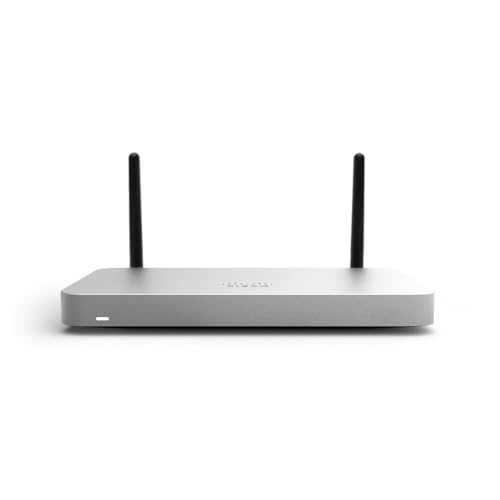
Meraki MX models with a W suffix combine a firewall, a router and WiFi radios in one cloud managed unit. Everything is configured through the Meraki dashboard, which makes remote management and multi site setups simple for a technician.
Be clear about the requirement that trips up buyers: a Meraki MX appliance needs an active Meraki license to pass traffic at all, and the license is a recurring cost that can exceed the hardware price over a few years. Choose this type only if you or your employer already run a Meraki dashboard, or if a managed service provider will handle the licensing for you.
Modern Linksys and Other Consumer Routers
If what you really want is the easy, fast home WiFi that the Cisco-Linksys boxes once delivered, the modern Linksys brand and its competitors are the direct successors. They offer WiFi 6 and WiFi 7, app setup, mesh options and parental controls at consumer prices. Many readers who search for a Cisco wireless router end up here once they see what the current Cisco lineup is designed for. If your interest is mainly the wired and business side of the brand, our guide to the best cisco routers gives that broader view, and our guide to the best wireless mesh routers covers whole home coverage across brands.
Access Points with a Cisco Router vs a Single Wireless Router: Which Should You Choose?
On coverage, a Cisco router feeding two or three access points wins in any home where one central spot cannot see every room, especially across floors, because each access point is a full radio placed where you need it. On cost and simplicity, a single all in one wireless router wins, since one box handles routing and WiFi, needs one power outlet and one update routine. On control, the Cisco setup wins again with separate networks, VPN and firewall rules. On wired ports, the RV series offers many in one place, while access points add a port or two in each room they serve. Our wider guide to the best wireless routers shows how the single box type compares across brands.
Decide with a quick check. Place your current router in the middle of the home and look at the signal in the farthest bedroom, the bathroom and any garage or garden office. If those spots hold a usable signal and you have no need for business features, a single wireless router is the better value. If whole rooms drop out, or you want work devices walled off from family devices, the router plus access point design is the correct tool.
How to Choose the Right Cisco Wireless Router
Security and Parental Controls
Choose a router that supports WPA3, the current WiFi security standard, or a mixed mode that lets older devices connect safely. Guest network access keeps visitors and smart gadgets away from your main computers and storage. Automatic firmware updates matter because they close security holes without relying on your memory.
Parental controls vary from simple device pause buttons and bedtime schedules to paid subscriptions with detailed filtering. Decide before you buy whether the free tier covers your needs, so a subscription does not surprise you later. Whatever model you pick, change the default admin password during setup and use a long, unique WiFi password you do not reuse elsewhere. Background on how wireless routers reach the internet in general sits in our guide to the best wireless internet routers.
WiFi Standard (WiFi 6, 6E, 7)
WiFi 6 is the sensible default, fast and efficient with many devices. WiFi 6E adds the 6 GHz band, which is wide and uncrowded and helps in apartment blocks and busy streets, provided your main devices support it. WiFi 7 is the newest standard with lower delay and wider channels, worthwhile if you keep routers for many years and already own WiFi 7 phones or laptops.
Standards work backwards, so older devices connect fine to newer routers at their own slower standard. That means a WiFi 7 router in a home full of WiFi 5 devices buys little today. Match the standard to the devices you use most, and spend any leftover budget on coverage, which every device feels regardless of its age.
Number of Devices and MU MIMO/OFDMA
Count everything that stays connected, including bulbs, plugs, cameras, speakers and TVs, not just phones and laptops. MU MIMO lets the router serve several devices at once, and OFDMA packs data for several devices into single transmissions, so together they stop a busy home network from feeling sluggish at peak hours.
As a guide, under 20 devices is light work for any current router. Between 30 and 60 devices, favor models that highlight strong MU MIMO and OFDMA support and a capable processor. For very device heavy homes, several access points share the load, which helps as much as any single specification. If gaming devices are part of that count, our guide to the best wireless routers gaming households choose covers device heavy gaming homes in more detail.
Wired Ports (Multi Gig, WAN/LAN)
Wireless in the name does not make wires unimportant. Your WAN port connects to the modem and must be at least as fast as your internet plan, or it caps every device in the home. If your plan runs above 1 Gbps, you need a multi gig WAN port at 2.5 Gbps to use the speed you pay for. LAN ports serve the devices that benefit most from a cable, such as desktops, consoles and storage drives.
Count the ports where the router will actually sit. A single router near the TV and desk can wire the whole entertainment and work setup at once. With a router plus access points, check the ports on each access point, since a unit behind the TV with a spare port can wire a console or a streaming box without extra hardware. A small switch adds ports cheaply later if you run short.
Gaming Features (QoS, Low Latency)
QoS lets you tell the router which traffic comes first. Set games and work calls at the top and a large download in another room stops causing stutter and lag spikes. Device level priority is the most useful form, because you can favor one console or work laptop without learning traffic rules.
Keep expectations grounded. Gaming features manage congestion inside your home, and they work well for that job. They cannot fix a slow plan, a faulty line or a weak signal from a badly placed router. Solve placement and wiring first, then let QoS polish the result, and check your ping at your normal gaming time to confirm the change helped.
Best Cisco Wireless Routers for Specific Needs
Best Home Cisco Wireless Routers
For most homes, the best home cisco wireless routers are the ones that balance coverage, simple controls and a fair price rather than chasing top speed. A Meraki Go router with one Cisco Business access point suits apartments and small houses, while two or three access points suit family homes with dead spots. Prioritize WPA3, automatic updates and an app your household finds clear, because a home router that nobody understands gets left on default settings, and defaults are where security and performance go to waste.
Setup and Care Tips
Place the router centrally and elevated, on open furniture rather than inside a closed cabinet, and keep it away from large metal objects and thick masonry where possible. Update firmware regularly, or switch on automatic updates during setup, and change default admin passwords before you connect anything important. For access points, run a cable to each one where you can, or place wireless mesh units where they still receive a strong signal from the primary unit, usually about halfway toward the area that needs coverage, not at the very edge of the dead zone.
Reboot the router every month or two, check the connected device list now and then for anything unfamiliar, and keep a note of your network name, password and admin details in a safe place at home. If speeds drop suddenly, check with a cable at the router before changing settings, because that single check separates line problems from WiFi problems in under a minute.
Frequently Asked Questions
Mesh or a single router: which is better?
A router with several access points is better when your home has dead spots a single well placed router cannot fix, such as across several floors or through thick walls. A single router is better value in compact homes, with faster speeds per dollar and more ports in one place. The deciding factor is signal in your farthest regular room. If it is weak with the router placed centrally, coverage, not speed, is your problem.
Will a new router speed up my internet?
A new router cannot exceed the speed of your internet plan. It can remove bottlenecks an old, weak or badly placed router created, such as slow speeds in far rooms or stalling when many devices connect at once. Check a wired connection at the modem or router first. If that wired result already matches your plan, your line is fine and better WiFi placement or hardware is the fix.
How often should I replace my router?
Every four to six years is a sensible rhythm for home routers. Replace sooner if security updates have ended, because an unsupported router is a genuine risk on a home network. A growing pile of smart devices, a much faster new internet plan, or a new WiFi standard across your main phone and laptop are also good reasons to upgrade earlier.
Do I need WiFi 7 yet?
Probably not yet. WiFi 7 helps homes whose key devices support it and who keep hardware for a long time, and it pairs well with very fast internet plans. Most households get the same daily experience from WiFi 6 or 6E at a lower price today. One useful sign is timing. If you are replacing a failing router anyway and your newest phone and laptop both support WiFi 7, choosing it now avoids another upgrade soon.
Wrapping Up
Pick the type before the model. A Cisco router with access points solves coverage and control, a legacy Cisco-Linksys box is a cheap spare at best, a Meraki wireless appliance only makes sense with a license plan, and modern consumer routers give the best value in compact homes. Then confirm WPA3 security, a WAN port that matches your plan, and enough capacity for your device count. With those points settled, compare the best cisco wireless routers in the product table above and choose the type that fits your home as it is, not as the box art imagines it.


