Best Chromebook Keyboards 2026: A Practical Buying Guide
Disclosure: We may earn a commission when you buy through links on this page, at no extra cost to you. As an Amazon Associate I earn from qualifying purchases. Learn more

The best chromebook keyboards connect in seconds, feel comfortable for long typing and travel well. Compare layout, key feel and battery life.
A Chromebook keyboard is fine for a quick email, but typing an essay, a report, or a long day of work on a cramped laptop deck gets tiring. An external keyboard fixes that, and it also lets you raise the screen, travel light, or share one keyboard between a Chromebook and a phone. The best chromebook keyboards connect in seconds, feel comfortable for long typing, and work with the ChromeOS shortcut keys. The comparison table below lines up the main options, and this guide explains how to choose between them.
Most buyers choose a wireless keyboard for their Chromebook, and prices run from about $15 for a basic model to $120 for a premium low-profile one. A replacement keyboard for a specific laptop is a different product, so match the model number if that is what you need.

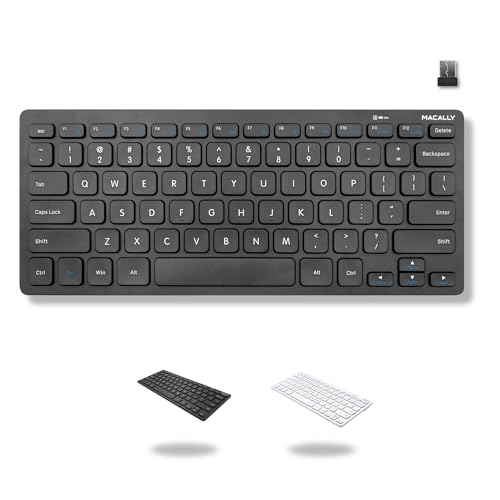

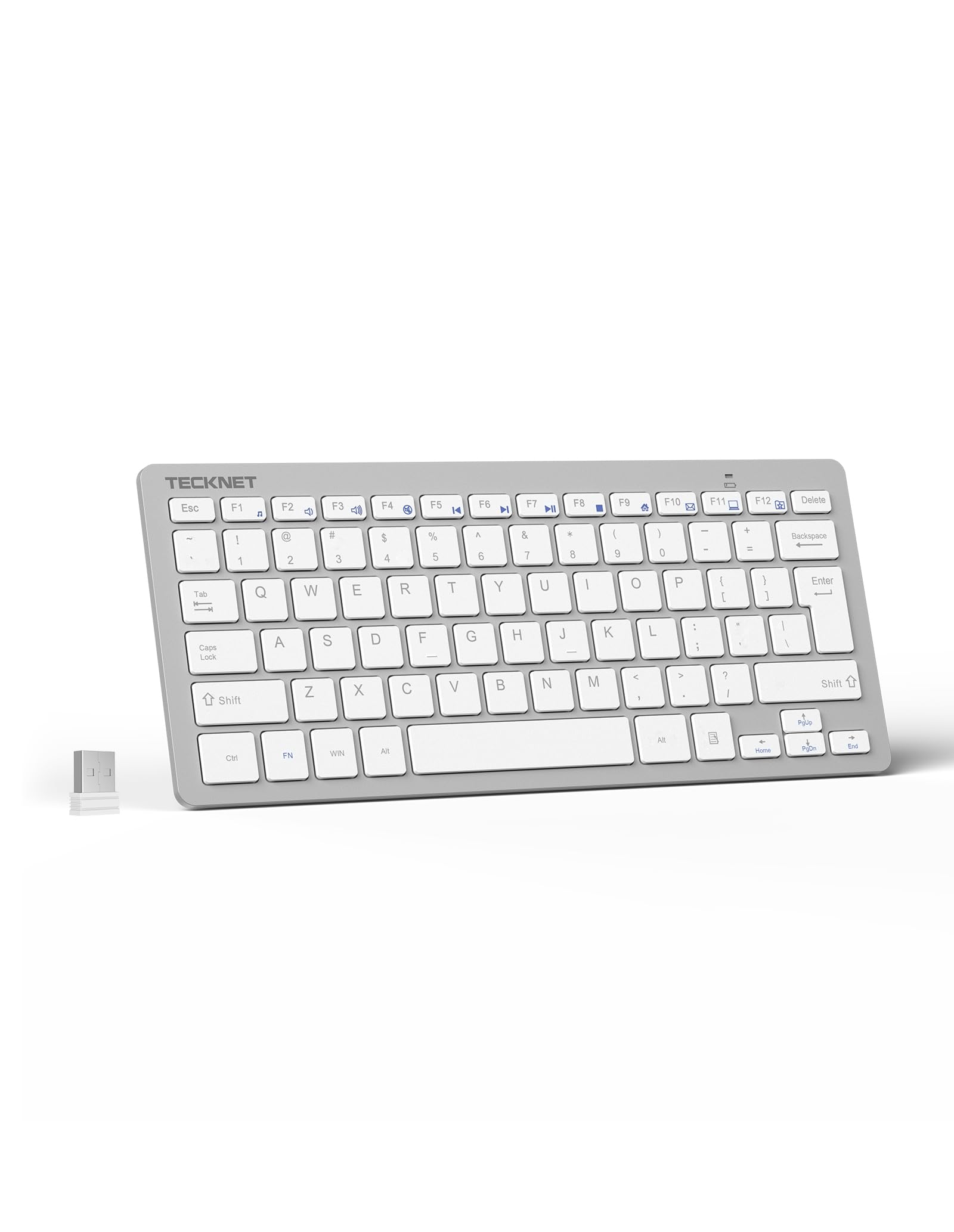
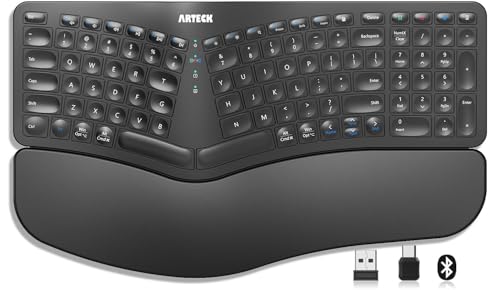

Bluetooth or USB Receiver
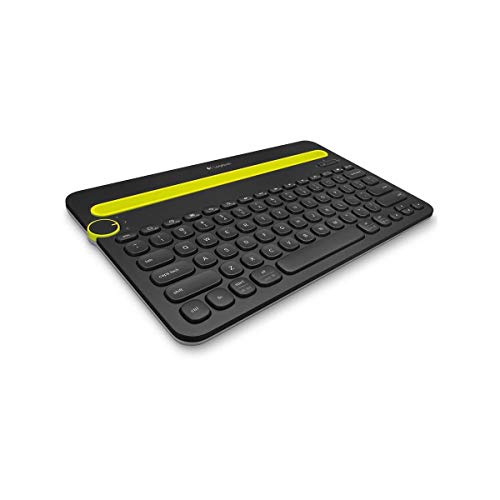
Bluetooth is the usual choice for a Chromebook. ChromeOS pairs with Bluetooth keyboards from the settings menu in under a minute, you keep every USB port free, and the connection also works with phones and tablets. The downside is that a few cheap Bluetooth keyboards disconnect after sleeping.
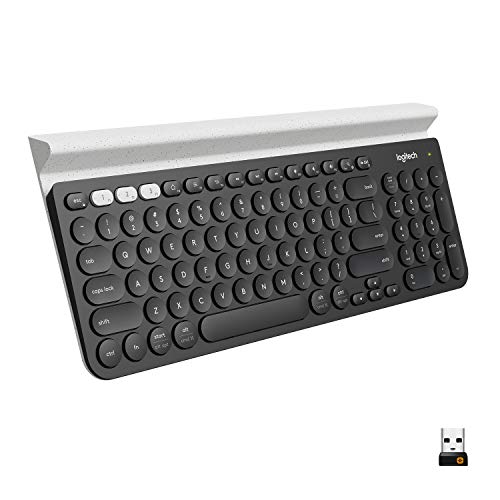
A keyboard that comes with a small USB receiver is easy to set up and rarely drops, but it uses a port, and many thin Chromebooks have only one or two USB-C ports. If your Chromebook has only USB-C, check that you have a small adapter or that the receiver is USB-C, or choose a Bluetooth model.
Multi-Device Switching
Many people use a Chromebook for school or work and a phone or tablet at home. A multi-device keyboard stores two or three connections and lets you switch with a key press, so one keyboard serves all. This is one of the most useful features if you move between devices through the day. The Logitech K780 and K480 families are popular examples with a built-in cradle for a phone or tablet.
Chromebook Shortcut Keys and Layout
ChromeOS has its own top row with keys such as back, refresh, full screen, and brightness, and a Launcher key in place of Caps Lock. Most Windows and Mac keyboards work, but the top row may not match, and shortcuts such as Search plus a letter need the key in the right place. Some keyboards offer a ChromeOS layout or a mode switch, which is handy. If the legends matter to you, look at the listing photos.
Size matters too. A full-size keyboard has a number pad, which helps with spreadsheets, but pushes the mouse far to the side. A compact or tenkeyless layout saves desk space and travels better. Ultra-small boards save the most room, but lack arrow keys or a number row, so check before you buy.
Key Feel and Comfort
Look for keys with clear spacing and a firm, even press. Low-profile keys feel similar to a laptop and suit people who switch between both. Deeper keys feel more like a desktop keyboard and tire the hands less in long sessions. A slight tilt and a wrist rest help with posture, and an ergonomic or split layout is worth considering for heavy typists. If you type for hours, comfort should beat any feature on the box.
Battery, Charging, and Weight
Rechargeable keyboards charge over USB-C and can last weeks per charge with lighting off. Models with replaceable batteries can run for a year or more on a pair of cells. Backlit keyboards use more power, so look for an auto-sleep mode. For travel, weight and thickness count: a compact slim board slips into a bag beside the Chromebook.
Who Should Buy Which Type
- Students: a compact Bluetooth keyboard that fits a backpack and costs little.
- Remote workers: a full-size multi-device keyboard with a firm feel and a long battery life.
- Heavy typists: an ergonomic or split layout with a wrist rest.
- Tablet users: a keyboard with a built-in cradle for a phone or tablet.
If you also need a keyboard for a desktop, our guide to the best pc keyboards covers a wider range of layouts.
Common Mistakes
- Buying a keyboard that works only with Windows or only with one mobile system, so the shortcuts do not match.
- Choosing a USB receiver model for a Chromebook that has no spare USB-A port.
- Picking an ultra-compact layout without checking for arrow keys.
- Ignoring the battery type until the keyboard dies in the middle of a class.
- Skipping the return window when the key feel is hard to judge from photos.
Care and Setup
Pair the keyboard in the ChromeOS Bluetooth settings, and rename it if you own more than one. Keep it clean with a soft brush or a can of compressed air, wipe the keys with a barely damp cloth, and avoid spills. Store it flat in a bag sleeve, and charge it or replace the batteries before a long trip. If you also use a mouse, our guide to the best wireless keyboards includes combos for desks that need both.
Frequently Asked Questions
Will any keyboard work with a Chromebook?
Most USB and Bluetooth keyboards work for typing. Some shortcut keys and the Launcher key may differ, so choose one that lists ChromeOS support if you rely on them.
Is Bluetooth or a USB receiver better?
Bluetooth saves a port and works across devices. A USB receiver can feel more stable but uses a port. Pick Bluetooth for a thin Chromebook with few ports.
Can one keyboard work with my phone and my Chromebook?
Yes, with a multi-device keyboard that remembers two or three connections and switches with a key.
Do I need a backlit keyboard?
Backlighting helps in dim rooms but drains the battery faster. If you type at a desk in good light, you can save money without it.
How long does a wireless keyboard battery last?
It varies by model and use. Rechargeable models usually last weeks between charges, and replaceable batteries can last a year or more.
Final Thoughts
Choose the connection and layout that suit your Chromebook and your routine, then pick the key feel you can type on all day. Compare the product table above with your ports and your budget, and one of the best chromebook keyboards will make long sessions much more comfortable.