Best Chromebook Compatible Printers: Every Type Explained Side by Side for 2026
Disclosure: We may earn a commission when you buy through links on this page, at no extra cost to you. As an Amazon Associate I earn from qualifying purchases. Learn more
Compare the best chromebook compatible printers by inkjet, laser and ink tank type, setup, running costs and paper handling for home and school use.
Printing from a Chromebook is easy when the printer speaks the right language, and frustrating when it does not. ChromeOS has no room for the old driver discs and downloads that Windows users rely on, so compatibility depends on the printer supporting network printing standards that ChromeOS understands. The best chromebook compatible printers set up in minutes over WiFi and stay connected without fuss.
This guide compares each printer type side by side, with honest pros, cons, and typical prices. Check the comparison table below for the short version, then read on to match a type to your home, school, or small office needs.




How the Best Chromebook Compatible Printers Compare to Other Options
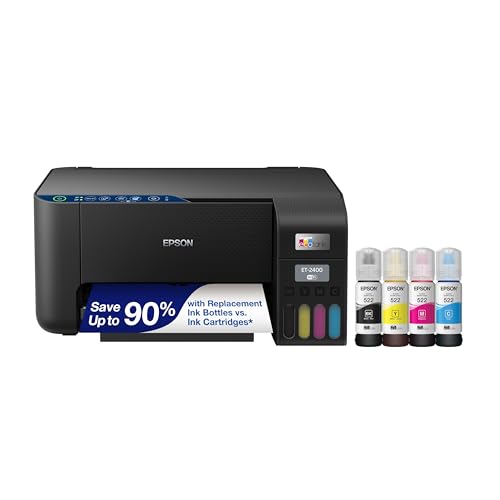
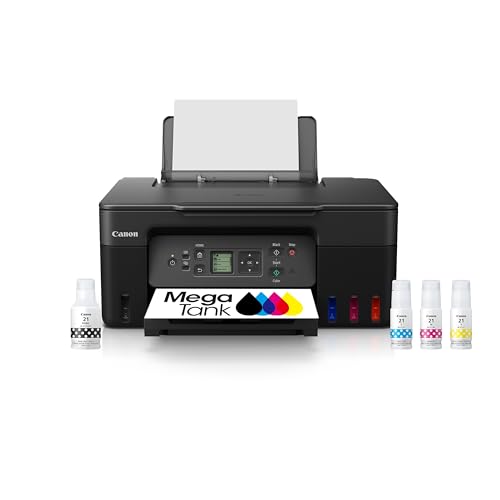
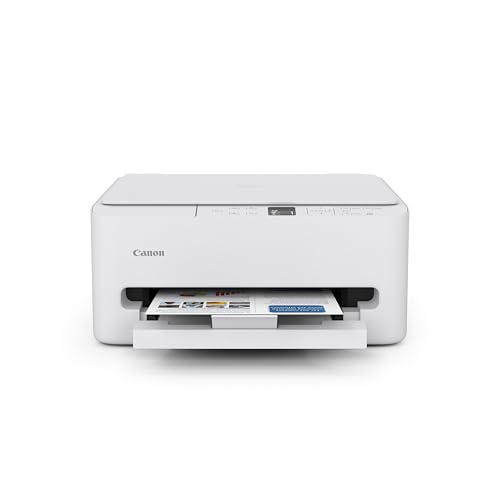
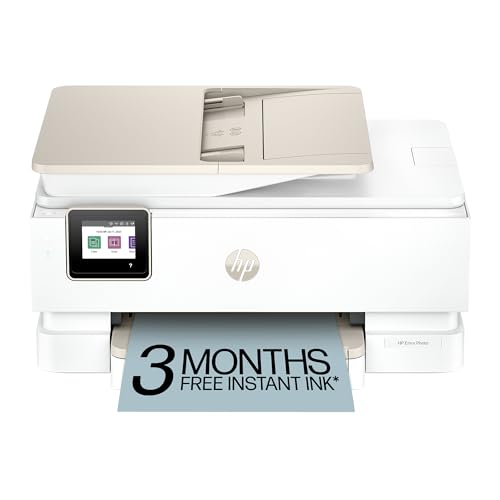
Four types cover nearly every home. Inkjet all in one models print color, scan, and copy for around $80 to $200. Ink tank models cost more upfront, around $200 to $350, but refill with cheap bottled ink. Monochrome laser printers, around $120 to $250, print crisp text fast and sip toner. Portable and photo models, around $100 to $250, trade speed and paper size for small footprints and glossy prints.
Chromebook Compatible Printers vs Driver Dependent Printers
Older and bargain printers often depend on Windows or Mac drivers, and on a Chromebook they may print nothing at all, however new they look. A compatible model advertises ChromeOS support and connects through your network or USB with built in system support. The difference shows up on day one, since one prints within minutes and the other becomes a research project. If a hand me down printer lacks network features, replacing it with a compatible model around $100 usually beats hours of workarounds. Always confirm ChromeOS on the box or spec sheet, not just WiFi, because WiFi alone does not guarantee support.
Chromebook Compatible Printers vs Office Laser Printers
Large office laser printers offer huge paper trays, fast engines, and low cost per page, but they assume a Windows network and a systems administrator. Home laser models with ChromeOS support keep the crisp text and cheap toner while shrinking the footprint and the setup. Choose the office class only if you print hundreds of pages weekly and can confirm compatibility in writing. For school essays and home paperwork, a compact laser or ink tank model covers the job at half the size and noise.
Chromebook Compatible Printers vs Tablets and Print Services
Some households skip owning a printer and send jobs to a library, school, or local print shop from a tablet or phone. That works for a few pages a month, yet it fails on the night before a project is due, and per page fees add up fast. Owning a compatible printer puts printing on your schedule for a few cents per page. Readers comparing related setups can also see our guide to the best printers for a chromebook. If your household prints weekly, ownership wins on cost and calm.
Who Should Choose a Chromebook Compatible Printer?
Students, remote workers, and families built around Chromebooks are the natural fit, since one shared printer can serve every laptop in the house over WiFi. Homes with mixed devices also do well, because most compatible models also work with Windows, Mac, and phones. If your printing is mostly shipping labels and black text, a laser type keeps costs lowest. If photos and color school projects fill your fridge door, choose inkjet or ink tank. Households that print a handful of pages a year are the one group better served by a print shop. For a focused look at cable free models, see our guide to the best wireless printers for chromebook.
How to Choose the Right Chromebook Compatible Printer
Print Technology and Running Costs
Inkjet suits color, photos, and mixed home use, while laser wins for sharp text, speed, and low cost per black page. Ink tank inkjets split the difference, with bottled ink that can print thousands of pages before a refill around $15 to $30 per color set. Estimate your monthly pages honestly, then compare cost per page rather than sticker price alone. A cheap inkjet with small cartridges can cost more within a year than a laser that cost twice as much upfront. Technology choice is the decision every later cost follows from.
Connectivity and ChromeOS Setup
WiFi is the connection that matters most, because it lets every Chromebook in the home print without cables or a host computer left on. Setup usually means joining the printer to your network from its screen or app, then adding it in the ChromeOS printing settings, a process that takes five to ten minutes on a supported model. USB printing works on many models as a backup, handy when the router acts up. Dual band WiFi support helps in crowded apartment networks. A model with a small display screen makes network setup far easier than button only designs.
Ink and Toner System
Cartridge inkjets are cheap to buy and costly to feed, with standard cartridges often lasting only a few hundred pages. High yield cartridges improve the math, so check their price and page ratings before buying the printer, not after. Ink tank models carry more ink upfront and refill cleanly with keyed bottles that prevent spills. Laser toner cartridges commonly print 1,000 to 3,000 pages, which suits text heavy homes. Whichever system you choose, note the exact cartridge family and keep a spare on hand during school project season.
Paper Handling, Duplex, and Build
A paper tray holding 100 to 250 sheets saves constant refilling, and an automatic document feeder turns scanning multi page homework into a one step job. Automatic two sided printing, called duplex, halves paper use on long documents and feels essential for students. Check the maximum paper size and whether the tray handles card stock, envelopes, and labels without jams. Solid build quality shows in a tray that slides smoothly and a scanner lid that sits flat. Families who also print from a Mac can cross check our guide to the best mac compatible printers for shared household models.
Tips to Get the Most From Your Chromebook Compatible Printer
- Keep the printer firmware updated through its app or screen, since updates often fix ChromeOS connection drops.
- Print a color page every week or two on inkjet models so nozzles do not dry out and clog.
- Store paper flat in its wrapper away from damp, because curled or humid sheets cause most home jams.
- Set black and white as the default for everyday printing to save color ink for work that needs it.
- Give the printer a fixed spot on your network with a strong WiFi signal, ideally in the same room as the router.
- Run the built in cleaning cycle only when prints show gaps, since each cycle uses ink.
FAQs
Does any printer work with a Chromebook?
No, and this is the mistake behind most returns. A printer must support ChromeOS printing, which most modern network models from major makers do, but older USB only and Windows only models often do not. Check a spec sheet for ChromeOS by name before buying. A close variant worth comparing is covered in our guide to the best printers for google chromebook. When a listing is vague, the makers support site settles it.
Do I need WiFi to print from a Chromebook?
WiFi is not strictly required, because many supported models also print over a USB cable. WiFi is still the better setup for most homes, since several Chromebooks can share one printer and nobody has to carry a laptop to the printer. Ethernet ports on some models give the most stable connection of all. If your router sits far away, a USB cable is a fine and dependable plan B.
Is an inkjet or a laser printer better for school work?
Laser is better when school work means essays, worksheets, and reading packets in black and white, thanks to sharp text and cheap toner. Inkjet wins when projects need color charts, photos, and art. Many families choose an ink tank inkjet as the compromise, keeping color while cutting ink costs. Count how many color pages a month your household truly prints before deciding.
How much will ink or toner cost each year?
A light home printing 30 pages a month might spend around $40 to $80 a year on inkjet cartridges, while an ink tank model could cut that to around $15 to $30. Laser homes often buy one toner cartridge a year for around $50 to $90. Heavy printing raises every figure, so track your first two cartridge changes to learn your real rate. Cost per page, not cartridge price, is the honest comparison.
How long should a Chromebook compatible printer last?
A home printer typically lasts four to six years with light care, and laser models often run longer. Keep vents dust free, avoid yanking jammed paper backward, and update firmware so it keeps speaking to newer ChromeOS versions. Print heads on inkjets are the usual failure point, which regular light use helps prevent. When repair estimates pass half the price of a new compatible model, replacement is usually the smarter spend.
The Bottom Line
Confirm ChromeOS support first, pick inkjet, ink tank, or laser by what you print most, and let cost per page guide the final call. A WiFi model with duplex printing and a decent tray will serve a Chromebook household for years. Check the product table above for your shortlist, and the best chromebook compatible printers for your home will be the ones still printing calmly next school year.