
Best Cable Routers 2026: A Practical Buying Guide
Disclosure: We may earn a commission when you buy through links on this page, at no extra cost to you. As an Amazon Associate I earn from qualifying purchases. Learn more

Learn how to choose a cable router by modem compatibility, wifi coverage, speed, ports, and setup so your home internet stays fast and stable.
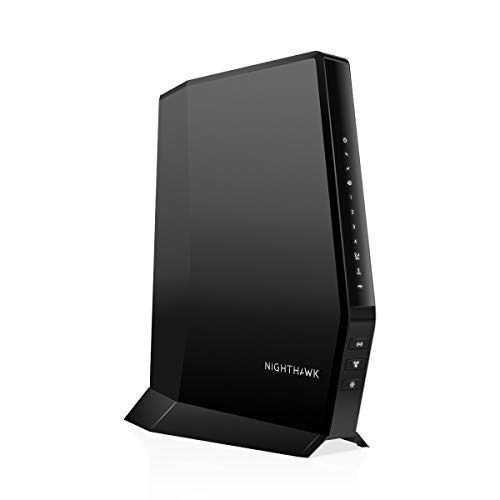
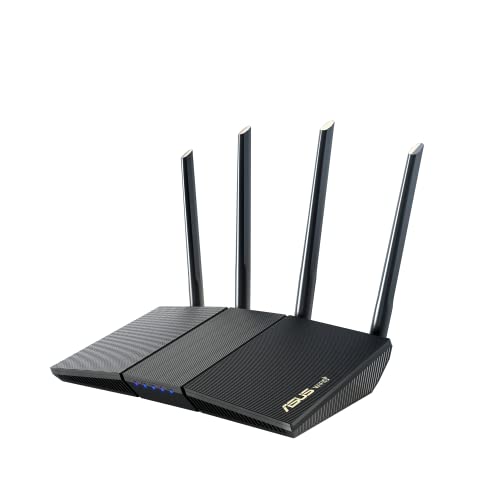
Choosing among best cable routers starts with your internet plan and your home layout, because a router that suits a small flat will struggle in a large house with thick walls. The comparison table below helps you compare modem compatibility, wifi standards, and coverage, so you buy capacity you will actually use.
Note the difference between a modem, a router, and a combined unit, since cable internet needs a modem that talks to your provider, while the router shares that connection around your home. Some households do best with a combined unit, while others prefer a separate modem and router for flexibility.






Modem Compatibility and Provider Approval
Cable routers that include a modem must match your provider technology and speed tier, so check the approved modem list for your provider before buying. An unapproved modem may connect but fail to reach full speed, or may lose support when the provider updates its network. Separate routers avoid this issue entirely, since they connect to any approved modem via ethernet, which gives you more freedom to upgrade either part later.
Also confirm the modem standard and channel bonding your plan needs, because older modems cap speeds on faster plans even when the router itself is modern. If you rent a modem from your provider, a standalone router is usually simpler and cheaper over time. Keep provider documentation handy during setup, since activation sometimes requires a call or an online registration step.
Wifi Coverage for Your Home Size
Coverage depends on house size, wall materials, and router placement, not only on advertised range, so a single router suits small flats while larger homes often need mesh units or access points. Place the router centrally, elevated, and away from thick metal objects and aquariums, because placement changes real coverage more than a small specification difference. Test signal in far rooms with your actual devices before assuming coverage is adequate.
Mesh systems suit multi storey homes and long layouts, since extra nodes fill dead zones without long cables, but they cost more and need thoughtful placement too. A single powerful router suits open plan homes with fewer walls, while a wired access point suits a home office that needs rock solid speed. Match the system to the floor plan, not to marketing range claims.
Speed, Standards, and Device Counts
Wifi standards affect top speed and handling of many devices, with newer standards managing crowded networks better than older ones. If your household streams video on several screens while gaming and working from home, prioritise a router that handles many simultaneous connections without slowing. Your internet plan caps real world speed, so a very fast router cannot exceed the plan, but it can stop local wifi from becoming the bottleneck.
Device counts matter because phones, tablets, TVs, speakers, and smart home gear all compete for airtime, even when idle. Look for features that manage traffic fairly, such as quality of service settings and separate bands for busy and light devices. Count your connected devices honestly, including smart home gear, before deciding how much router you need.
Ports, Features, and Security
Ethernet ports matter for TVs, consoles, and work computers that benefit from wired stability, so check port count and speed before buying. USB ports can share a drive or printer, but they are a bonus rather than a core reason to choose a router. Parental controls, guest networks, and automatic updates also matter, since a guest network keeps visitors off your main devices and updates patch security flaws.
Security settings deserve a few minutes during setup, including a strong admin password, a strong wifi password, and firmware updates enabled. Disable remote management unless you truly need it, and review connected devices occasionally to spot unknown gear. A secure router protects every device behind it, so treat setup as part of the purchase, not an afterthought.
Setup, Placement, and Troubleshooting
Setup is usually guided by an app or a web page, but keep your provider details, modem status lights, and a wired device nearby for the first connection. Connect the modem first, wait for its lights to settle, then connect the router and test with a wired device before testing wifi. This order isolates problems quickly, since a fault at the modem stage looks identical to a router fault if you test wifi alone.
Troubleshooting starts with placement, channel congestion, and firmware, before blaming the provider, so try moving the router, changing wifi channels, and updating firmware when speeds dip. Restarting modem and router in order often clears temporary faults, and a wired speed test shows whether the problem is internet supply or local wifi. Keep a note of settings you change, so you can reverse a change that makes things worse.
Avoiding Common Router Mistakes
A common mistake is buying the fastest router for a modest internet plan, which wastes money without improving real speeds, since the plan remains the limit. Another mistake is hiding the router in a cupboard or behind a TV, which cuts coverage and invites overheating, so placement deserves as much thought as model choice. Finally, do not ignore firmware updates, because outdated routers are a security risk for the whole household.
Also avoid assuming one router fixes thick walls or very large homes, since mesh or wired access points solve those layouts better. Test coverage room by room after setup, and add a node or access point where signal stays weak rather than living with dead zones. A measured approach beats repeated guesswork and returns.
Related Guides for Your Shortlist
For cable specific models, the guide to best routers for cable internet covers provider compatibility in more detail.
If you want modem and router together, the guide to best cable modems and routers compares combined units.
For wireless focused cable setups, the guide to best wireless cable routers covers coverage and band management.
For that provider network, the guide to best routers for time warner cable lists compatible options.
For Spectrum cable service, the guide to best routers for spectrum cable covers approved modem pairings.
A Final Check Before You Order
Before you judge a new router, test speeds with a wired device, then with wifi in each room, at different times of day, and note where performance dips. This room by room record separates internet supply problems from local wifi problems and guides placement or mesh decisions with evidence rather than guesswork. Share results with your provider if wired speeds fall short, since that evidence speeds support conversations considerably.
Also document your settings after setup, including wifi names, passwords, admin credentials stored safely, and any custom rules for guests or children. Documentation saves hours when a router resets or a new household member needs access, and it prevents repeated troubleshooting of problems already solved once. Keep the note offline in a safe place rather than on the router itself.
Finally, revisit placement seasonally, since furniture moves, new devices arrive, and neighbouring wifi networks change, all of which affect coverage. A quick signal check every few months catches dead zones early, before they become accepted frustrations. Small, regular attention keeps a home network feeling fast long after installation day.
Frequently Asked Questions
Do I need a modem router combo or a separate router?
Choose a combo when you want one box, simple setup, and a provider approved modem in a single purchase. Choose a separate router when you already have an approved modem, want upgrade flexibility, or rent a modem from your provider. Separate units cost more upfront but let you replace router or modem independently later.
How do I know if a cable modem is approved?
Check your provider approved modem list and match model, standard, and speed tier before buying, because approval affects full speed and support. An unapproved modem may connect yet fail to reach plan speeds or lose support after network updates. When in doubt, ask your provider or choose a standalone router with your existing approved modem.
Will a faster router make my internet faster?
A faster router cannot exceed your internet plan, but it can stop local wifi from bottlenecking speeds you already pay for. If wired speeds are good but wifi lags, a better router or better placement usually helps. If wired speeds are also low, the limit is likely the plan or the modem, not the router alone.
How can I improve wifi coverage in a large home?
Start with central, elevated placement away from metal and thick walls, then test signal room by room with real devices. For persistent dead zones, add a mesh node or a wired access point rather than buying a marginally stronger single router. Mesh suits multi storey homes, while a wired access point suits a distant office that needs stable speed.
What security settings should I change first?
Change the admin password, set a strong wifi password, enable automatic firmware updates, and set up a guest network for visitors. Disable remote management unless you need it, and review connected devices occasionally. These few steps protect every device behind the router and take only minutes during initial setup. Review these settings again after any firmware update, since updates can reset preferences and leave a guest network open unintentionally.
Final Thoughts
With provider compatibility, coverage, speed needs, and security weighed together, best cable routers become a straightforward choice, and the product table above gives you a clear comparison point. Choose the setup that fits your plan, your floor plan, and your device count.
Place the router well, update its firmware, and test speeds room by room in the first week. A little setup care now prevents months of slow video, dropped calls, and dead zones later.


