Best Cable for Monitors: Budget, Midrange, and Premium in 2026
Disclosure: We may earn a commission when you buy through links on this page, at no extra cost to you. As an Amazon Associate I earn from qualifying purchases. Learn more
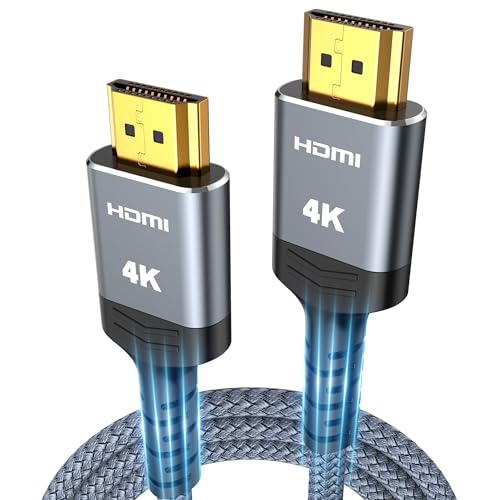
Compare the best cable for monitors across budget, midrange, and premium bands, with plain guidance on versions, length, bandwidth, and gaming setups.
Monitor cables sell for anything from a few dollars to the price of a decent keyboard, and the price tells you almost nothing by itself. Start with the class, not the cost. A cable is an accessory: it can only carry what the ports at both ends already support, so the best cable for monitors for your desk is the one whose connector and version class match your monitor and your computer. No cable can add a resolution or a refresh rate that the display itself lacks.
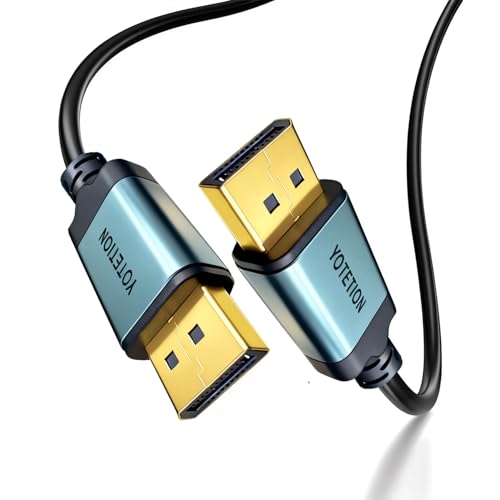
This guide is organized by price band so you can see where extra money buys real headroom and where it buys nothing at all. The comparison table below summarises the main cable classes, and the sections after it explain the few features that are genuinely worth paying for.




What Your Money Gets You at Each Price Tier
Budget Tier: What to Expect
Budget cables at about $5 to $12 cover the standard desk job well: a 1080p monitor at 60 Hz over a short run. Expect a basic jacket, molded plugs and vague version wording on the packaging, so check the stated bandwidth class rather than trusting the label art. Lengths are usually short, which suits a laptop on the same desk. For an older office monitor, this tier is honestly all you need, and the product table above shows how little separates it from costlier classes at this level.
Midrange Tier: The Sweet Spot for Most Buyers
At about $12 to $25 you get certified bandwidth classes, firmer strain relief and lengths up to about three meters. This tier comfortably carries 1440p at high refresh rates and 4K at 60 Hz, which covers most home and office upgrades. Plugs seat more positively and survive being moved between desks. If you are buying one cable to pair with a new monitor and want it to outlast the next upgrade as well, this is the band to shop in.
Premium Tier: When Spending More Pays Off
At about $25 to $60 and beyond, the money buys length, construction and extra functions rather than a better picture. Long runs, active and optical classes, and USB C cables that also carry power and data for a docking setup live in this tier. A premium cable earns its price when a passive one physically cannot do the job, or when a single cable must replace three. For a short run between a computer and a monitor on the same desk, it adds nothing you can see.
Features Worth Paying For (and Ones to Skip)
Four things decide whether a cable works at your desk: the connector and version class, the length, the bandwidth your settings demand, and the build. Everything else is decoration.
Connector and Version Classes
HDMI, DisplayPort and USB C each come in version classes, and the cable, the computer port and the monitor port must all reach the class your settings need. The weakest link sets the ceiling, so a top class cable cannot lift an older port. USB C needs a port that supports display output in the first place, which not every USB C socket does. Spend on the correct class, and skip gold plated plugs and luxury jackets, which change nothing electrical.
Length Is a Signal Decision
Treat length as a signal decision, not a storage problem to coil away. Passive copper cables lose signal as they get longer, and the loss arrives sooner at high bandwidth settings: a run that works at 1080p may flicker at 4K. Beyond about three to five meters at demanding settings, active cables with a small signal booster, or optical classes for the longest runs, keep what passive ones drop. Buy the shortest length that reaches with a little slack for moving the monitor.
Bandwidth for Resolution and Refresh Rate
Match the cable class to the hardest mode your monitor offers, not the mode you use today. A 1080p screen at 60 Hz asks very little, while 1440p at 144 Hz and 4K at 60 Hz need high bandwidth classes, and 4K at high refresh rates needs the top class of all. Buyers pairing a cable with best computer monitors for gaming should check the fastest mode listed for the panel and buy the cable class that carries it, so the cable never becomes the bottleneck.
One naming trap is worth a line. In audio, the word monitor means a speaker, so best cables for studio monitors is an audio shopping topic whose cables carry sound rather than a picture signal. For the same reason, guides to the best xlr cable for monitors belong to recording desks and stage setups, not to a computer display.
Best Cables for Specific Needs
Best Cables for Monitors for Gaming
Gaming asks more of a cable than office work does, because high refresh rates at 1440p or 4K push bandwidth hard. Choose the connector class your graphics card and panel share at their fastest mode, and confirm the cable supports the adaptive sync class your setup uses, since not every cable passes it cleanly. Length matters doubly here, because a long passive run is the usual cause of flicker at high settings. The cable only matters once the panel can use it, so readers still choosing a panel should start with best gaming monitors and then match the cable class to its fastest mode.
One Cable Desk Setups
A USB C cable that carries picture, data and charging power can clear a desk of two extra leads. This only works when the laptop port, the cable and the monitor or dock all support the same classes, so check all three before paying premium prices. Power delivery figures vary widely between cables that look identical. Where any link in the chain falls short, the setup drops to picture only or fails without explanation.
Long Term Costs to Factor In
The cable itself is cheap, but a failed cable costs an afternoon of fault finding, because a bad one imitates a dying monitor or graphics card. Keeping one known good spare in a drawer is the cheapest insurance in this whole category. Active and optical classes cost more to replace and cannot be repaired, while adapters added to fix a wrong connector become extra failure points that loosen over time. A longer warranty class costs little at these prices and is worth having on premium runs.
Frequently Asked Questions
What features matter most in a cable for monitors?
The version class and the length matter most, because together they decide whether your picture arrives at full settings. Check the port class at both ends before ordering, since the cable must match the weaker of the two. Certification wording from the relevant standards body is more trustworthy than marketing terms on the box. Jacket style, plug color and plating make no difference to the signal at all.
Does a more expensive monitor cable improve picture quality?
No, because a display signal is digital: it either arrives complete or it fails in visible ways such as flicker, sparkles or a blank screen. There is no gradual sharpening as you spend more, unlike the old analog days. Extra money is well spent on the correct length, a certified class and sturdier plugs. If a costly cable appears to improve a picture, the old one was faulty or below the class your settings needed.
How long can a monitor cable be before the signal suffers?
It depends on the bandwidth you ask it to carry, because higher settings fail at shorter distances. A passive cable often manages about five meters at modest settings, but high refresh 4K runs can struggle beyond two or three meters. Test the cable at your full resolution and refresh rate before routing it through walls or furniture. For longer runs, choose an active or optical class rather than a thicker passive one.
Does refresh rate matter for non gamers when choosing a cable?
Only a little, because standard office work at 60 Hz sits comfortably within the classes even budget cables carry. If your monitor offers a higher rate, though, you need the cable class that carries it before you can use the setting at all. Many people find scrolling text and window movement feel smoother at higher rates during long reading sessions. Buying one class above your current need is cheap future proofing.
Is a premium cable worth it for a 4K monitor?
For a short desk run, usually not, because a certified midrange cable carries the same 4K signal without dropouts. Premium money pays off when the run is long, when the cable must also charge a laptop, or when the desk setup needs one lead instead of three. Spend the difference on a spare cable instead, so a failure never leaves you without a screen. Judge by your run length and functions, not by the resolution alone.
The Bottom Line
Match the version class to your ports, buy the length honestly, and let the price band follow from those two decisions. Most desks are best served by the midrange tier, with premium money reserved for long runs and one cable docking setups. The classes in the product table above lay the options side by side, and the best cable for monitors for your setup is the one whose class and length fit it exactly.