
Best Build Laptops Made Simple: A Clear Buying Guide for 2026
Disclosure: We may earn a commission when you buy through links on this page, at no extra cost to you. As an Amazon Associate I earn from qualifying purchases. Learn more

Shopping for the best build laptops for the first time? Learn the key terms, compare specs and options, and avoid rookie mistakes with this easy guide.
A laptop with strong build quality is the one that still feels tight, types well, and opens smoothly three years after you buy it. Shiny spec sheets rarely tell you that story, which is why first time buyers often end up with a fast machine wrapped in a flimsy shell. This guide explains the best build laptops in plain terms, so you can judge both the parts inside and the construction outside.
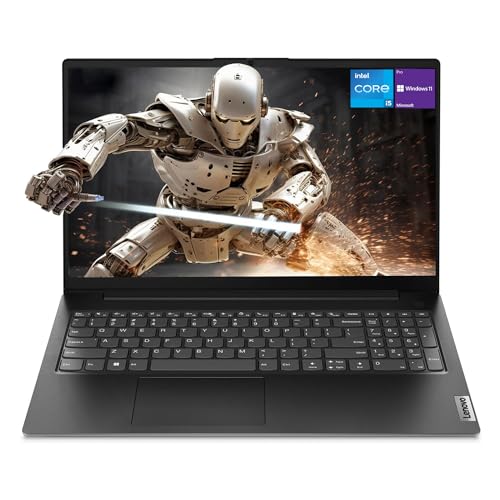
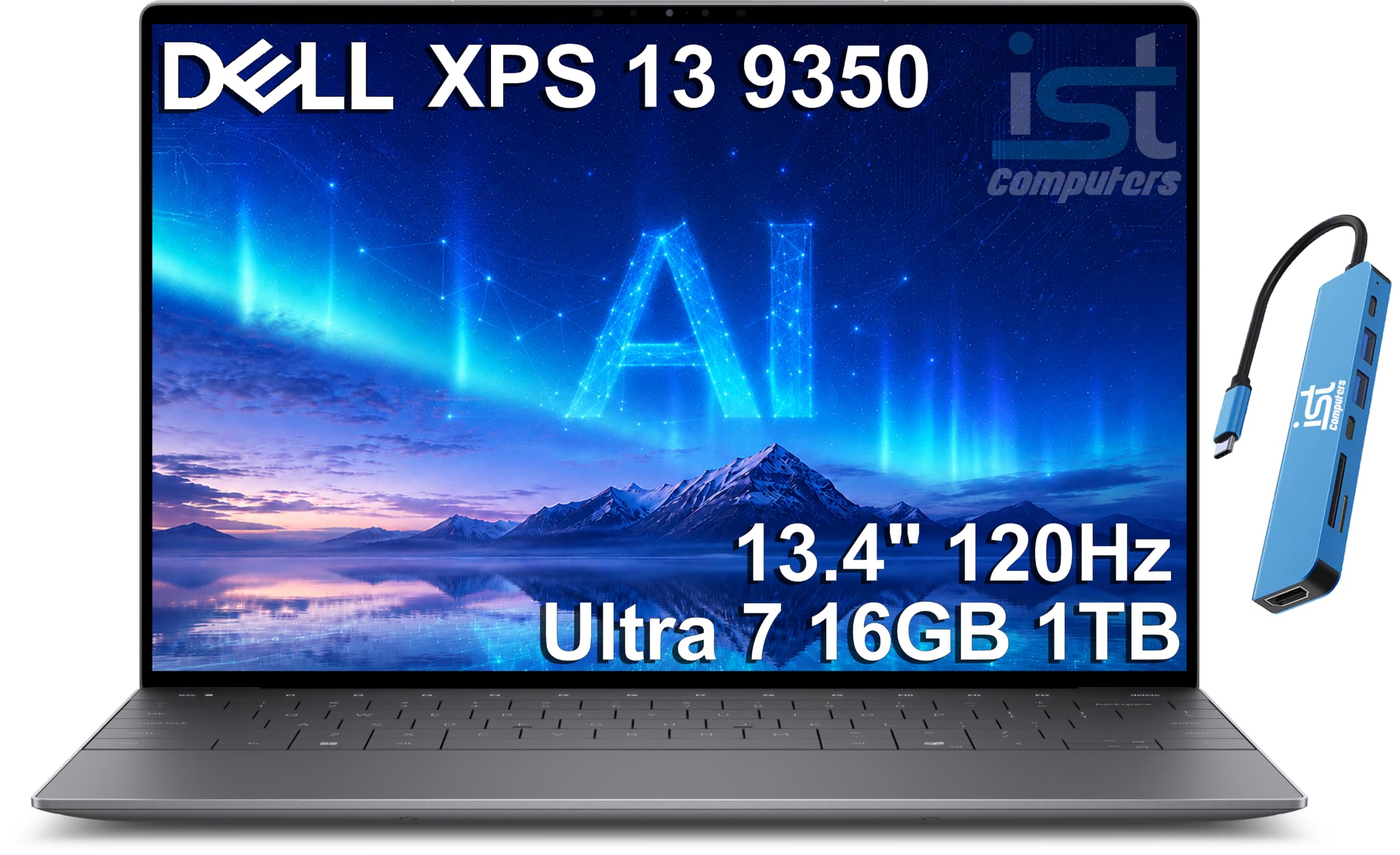
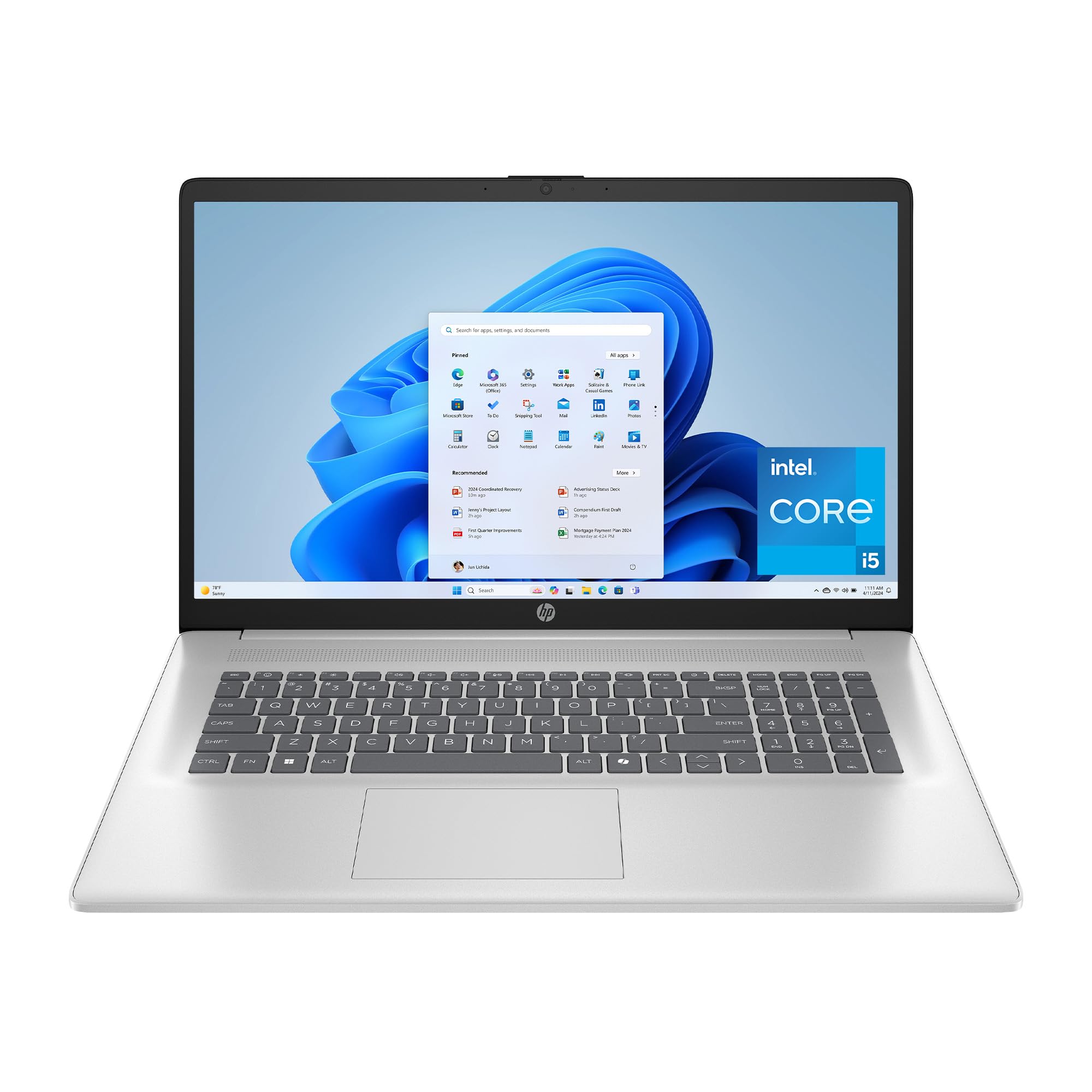
We will go step by step: what build quality actually means, how each major spec affects daily use, and which shortcuts to refuse. The comparison table below shows the field at a glance, and the sections after it teach you how to read any listing with confidence.




Build Laptops 101: The Basics
Build quality describes how well a laptop is put together and how long it will stay that way. It shows up in the chassis material, the stiffness of the lid and keyboard deck, the hinge design, and the fit between panels. A well built machine flexes very little when you pick it up by one corner, its screen does not wobble after you open it, and its keys and ports still feel precise after years of daily use.
Materials set the baseline. Aluminum and magnesium alloy bodies resist dents and feel rigid at low weight, while good polycarbonate plastic can be nearly as tough and often survives drops better because it gives slightly on impact. Cheap glossy plastic is the warning sign: it creaks, cracks around screw points, and wears shiny where your palms rest. Hinges matter just as much, since the hinge is the part most likely to fail first. A wide hinge anchored into metal, or two hinges mounted into a reinforced frame, will outlast a single narrow hinge set in thin plastic. Once you can spot these basics, spec terms like RAM and refresh rate slot into place, and our guide to the best notebook laptops shows how the same construction ideas appear in slimmer everyday machines.
Key Specs Explained in Plain English
Processor and Performance Tier
The processor is the engine that runs everything, and current Intel Core Ultra, AMD Ryzen, and Apple M series chips all deliver far more speed than office work and study require. For general use, a mid tier chip from the last two generations is the sweet spot, with enough cores to keep many browser tabs, documents, and a video call running smoothly at once. Pay for a higher tier only if you edit video, compile code, or play games. One beginner friendly rule is to favor a newer generation over a higher number from an old generation, because newer chips also sip less power and extend battery life.
Keyboard, Trackpad, and Build
You touch the keyboard and trackpad thousands of times a day, so judge them like tools, not decoration. Key travel of about 1.3 to 1.5 mm with a firm, quiet landing feels best for long typing sessions, and a deck that does not flex under your fingers signals solid construction underneath. The trackpad should be glass or a smooth matte surface, track without skipping, and click evenly across its whole area, not just at the bottom edge. Backlighting helps in dim rooms. If you can, rest your palms on the deck in a store and press the center of the keyboard: a quality build barely moves.
RAM and Storage
RAM is the short term memory your laptop uses for open apps, and 16GB is the amount to choose for a machine you plan to keep, with 8GB acceptable only for light web and document work on a tight budget. Storage should always be an SSD, which makes boot times and file loading dramatically faster than an old spinning drive. A 512GB SSD suits most people, while 256GB fills quickly once photos, games, and offline video pile up. Ask whether either part can be upgraded later, because a standard memory slot or a second drive bay can add years of useful life for a small cost.
Battery Life in Real World Use
Advertised battery figures come from gentle tests, so expect real world use to land at roughly 60 to 75 percent of the claim once you raise brightness and keep WiFi busy. For a full day away from outlets, look for claims of 12 hours or more and a battery of about 55 watt hours or larger in a standard size laptop. Fast charging over USB C is a practical blessing, often restoring about half the battery in 30 to 45 minutes. Battery health also depends on you: leaving a laptop plugged in at full charge for months ages the cells faster than regular partial cycles.
Ports and Connectivity
Ports decide whether you live with a tangle of adapters or simply plug in and work. A sensible minimum is two USB C ports, at least one full size USB port for older gear, HDMI for an external screen, and a headphone jack. Thunderbolt support on a USB C port adds fast external drives and single cable docking at a desk. For wireless, WiFi 6E or WiFi 7 keeps speeds high on modern routers, and Bluetooth 5.3 or newer pairs more reliably with mice and earbuds. If you present often, check that the laptop can charge through one port while another drives your display, a detail our readers often raise alongside the timing advice in our guide to the best time to purchase laptops.
Operating System (Windows, macOS, ChromeOS, Android, iPadOS)
Your operating system should follow the software and phone you already use. Windows offers the widest program and game support and the most hardware choices at every price. macOS pairs smoothly with an iPhone and is known for long software support, but it only comes on Apple hardware at Apple prices. ChromeOS is simple, secure, and cheap, and it handles web based school and office work well, yet it cannot run most full desktop programs. Android and iPadOS belong to tablets rather than true laptops. Pick the system your school, employer, or main apps expect, and the hardware decision gets much easier.
Rookie Mistakes to Avoid
First time buyers tend to trip over the same handful of errors. Read this list before you fall for a headline discount.
- Judging build quality by weight alone, when a heavy laptop can still be poorly assembled and a light one can be superbly engineered.
- Paying for a top tier processor while accepting 8GB of RAM and a small drive, an unbalanced mix that feels slow within two years.
- Ignoring the screen, even though brightness under 250 nits and a low resolution panel will annoy you every single day.
- Skipping the keyboard check, despite typing being the main way most people actually use a laptop.
- Buying the extended warranty before checking what the standard warranty and your payment card already cover for free.
Getting Started: Setup and First Use
Your first hour with a new laptop sets it up for years of trouble free work. Begin by running every system update, including firmware and BIOS updates from the maker utility, before you install your own programs, because early updates often fix fan noise, sleep bugs, and battery reporting. Create a recovery method and turn on device encryption and automatic backups while the machine is still nearly empty, since habits formed now are painless and habits postponed rarely happen.
Then tune two settings. Set the battery charge limit to about 80 percent if you mostly work plugged in, because avoiding a constant full charge slows battery aging. Adjust the screen timeout and sleep settings to match your routine so the machine is not waking and draining in your bag. Students setting up for a term will also find the campus focused advice in our guide to the best laptops for college helpful for accounts, printing, and software access.
Frequently Asked Questions
How much RAM do I need?
Most people need 16GB, which covers heavy browsing, office suites, photo edits, and light gaming without slowdowns. One detail beyond the headline number is speed and layout: two matched sticks in dual channel mode can lift graphics performance noticeably on chips with integrated graphics. If you run virtual machines or edit large video projects, step up to 32GB at purchase, because many slim laptops now solder memory in place and cannot be upgraded later.
How long should a build laptop last?
A well built laptop should last five to seven years for everyday work, and the chassis and hinge are rarely what give out first. Expect the battery to need attention around year three or four, and plan on storage filling before the processor feels slow. Software support windows matter too: check how long the maker promises security updates, because a healthy machine that no longer receives patches should be retired from sensitive tasks like banking.
Should I buy a laptop or a tablet?
Buy a laptop if you type long documents, use full desktop programs, or manage lots of files, because a real keyboard, trackpad, and file system still win for sustained work. A tablet is the better travel companion for reading and media, and it can serve as a second screen beside a laptop you already own. The honest deciding question is your longest regular task: if it takes over an hour and involves a keyboard, choose the laptop.
Is a dedicated GPU worth it?
A dedicated GPU is worth it for gaming, 3D work, and video editing with heavy effects, and it is wasted money for writing, browsing, and spreadsheets. It also adds weight, heat, fan noise, and cost, and it shortens unplugged battery life. A middle path exists in current integrated graphics, which handle older games and light creative work well. Shoppers weighing slimmer value options can compare the trade offs in our guide to the best reasonable laptops before deciding how much graphics power their budget really needs.
Is a Chromebook enough for school?
For web based classes, documents, and research, yes, a Chromebook is enough for many students, and its simplicity means fewer things break during the term. The limits appear with specialized software for engineering, statistics, or design courses, and with offline work in places with weak internet. Check your course list for required programs first, and confirm the school accepts ChromeOS for exam software, because that single check prevents the most common and most frustrating school purchase mistake.
Final Thoughts
Judge build first, balance second, and brand last. A rigid chassis, a hinge that feels planted, 16GB of RAM, a roomy SSD, and a screen you enjoy looking at will serve you longer than any single headline spec. Compare the options in the product table above against those five points, and you will quickly see which machines earn their price. The best build laptops are not always the fastest on paper, but they are the ones still feeling solid, quiet, and dependable long after the unboxing excitement fades.


